
 PartitionAssistant Recovery


8 Ways to Fix Windows Stop Code Thread Stuck in Device Driver
Running into the Windows stop code “Thread Stuck in Device Driver” again and again can be frustrating and disruptive. Below are proven solutions designed to eliminate the issue, stabilize your system, and prevent sudden crashes from interrupting your work.

By Hedy / Updated on January 26, 2026


The Blue Screen of Death is one of the most alarming problems a Windows user can face. When it appears, it signals a serious system malfunction that demands immediate attention to prevent further damage or data loss.
This crash screen is often paired with a specific stop code, and “Thread Stuck in Device Driver” is a common example. The issue frequently shows up after installing new hardware, though it isn’t limited to that scenario. Like most BSOD errors, it can be triggered by a range of underlying causes, from driver conflicts to system instability.
In this guide, you’ll find 8practical and effective solutions designed to help identify the root of the problem, resolve the error, and eliminate recurring BSOD crashes for good.
How to fix the stop code thread stuck in device driver error
The “THREAD_STUCK_IN_DEVICE_DRIVER” stop code usually points to a faulty or incompatible graphics driver, but other drivers or hardware issues can also trigger it. Follow these fixes step by step.
Fix 1: Check your hardware
Faulty or improperly installed hardware is a common trigger behind the thread stuck in device driver error. When components such as a hard drive, RAM module, or graphics card are upgraded or replaced, loose or incomplete connections are often overlooked, leading to system instability.
If new hardware was recently added, inspect every connection carefully. Ensure cables and components are seated securely. For example, after replacing a hard drive, double-check the SATA and power cables to confirm they are firmly attached.
When all connections appear secure, swap the new component with the previous one. This simple test can quickly reveal whether the newly installed hardware is defective or incompatible, helping determine if a replacement is necessary.
Fix 2: Reset Hardware Acceleration
For many users, disabling the graphics card’s hardware acceleration has proven effective in resolving the Windows stop code thread stuck in device driver error. That said, this adjustment can reduce GPU performance and may limit certain visual or graphical features.
Follow the steps below to apply this workaround:
Step 1: Right-click on an empty area of the desktop and select NVIDIA Control Panel.
Step 2: From the left-side navigation panel, choose Set PhysX configuration.
Step 3: Locate the Select PhysX processor option. Open the drop-down menu and switch the selection to CPU.
Step 4: This action disables NVIDIA GPU acceleration. Restart the computer and check whether the error has been resolved.
While this method may sacrifice some graphical power, it can restore system stability and prevent repeated BSOD crashes.
Fix 3: Install the latest Windows updates
Running an outdated version of Windows is a frequent cause behind various Blue Screen errors. When system updates are ignored for too long, unresolved bugs and compatibility issues can quickly lead to instability. Keeping Windows up to date is essential for smooth and secure performance.
Use the steps below to install the latest updates:
Step 1: Open Windows Settings and select Update & Security.
Step 2: Click Check for updates to scan for available downloads.
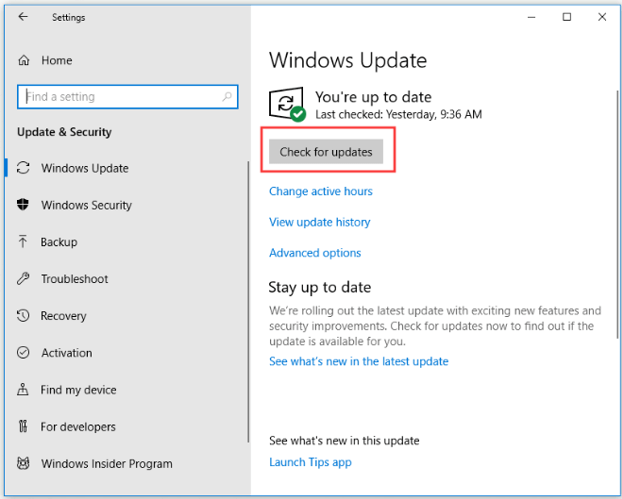
Step 3: Install any pending updates and restart the system to apply the changes.
Once the update process is complete, monitor your PC to see if the BSOD issue has been resolved.
Fix 4: Update your drivers
Outdated graphics drivers are one of the leading causes of the stop code thread stuck in device driver error. When the video card driver is incompatible or no longer supported, system crashes are almost inevitable. Updating the driver is often the quickest and most reliable solution.
Follow these steps to update your video card driver:
Step 1: Press Windows + X and select Device Manager from the menu.
Step 2: Expand the Display adapters section. Right-click the graphics card currently in use and choose Update driver.
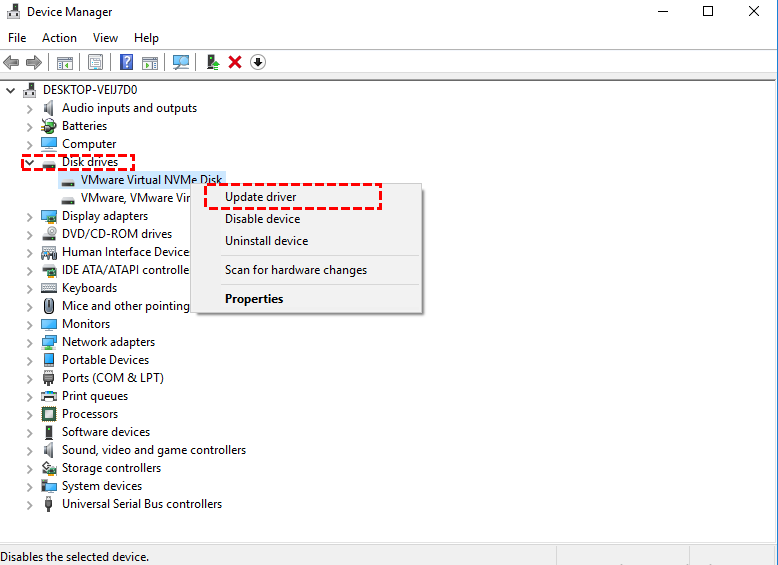
Step 3: Select Search automatically for updated driver software and allow Windows to find and install the most appropriate driver.
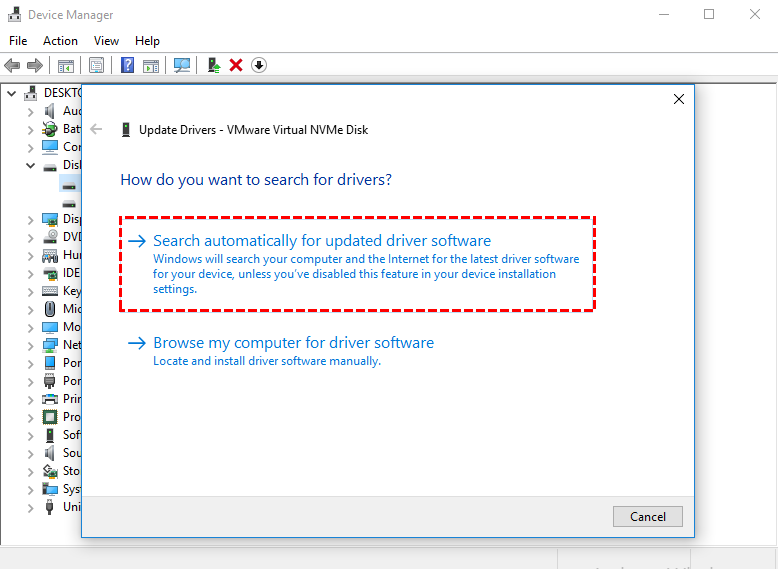
After the update completes, restart the computer and check if the BSOD error has been eliminated.
Fix 5: Run the BSOD Troubleshooter
The Blue Screen Troubleshooter is a built-in Windows 10 utility designed to diagnose and resolve a wide range of BSOD issues, including the stop code thread stuck in device driver error. When manual fixes fail to deliver results, this automated tool can often identify the underlying problem and apply the necessary corrections.
Use the following steps to run the troubleshooter:
Step 1: Open Windows Settings and navigate to Update & Security.
Step 2: Select the Troubleshoot option from the left panel.
Step 3: Locate Blue Screen and click Run the troubleshooter.
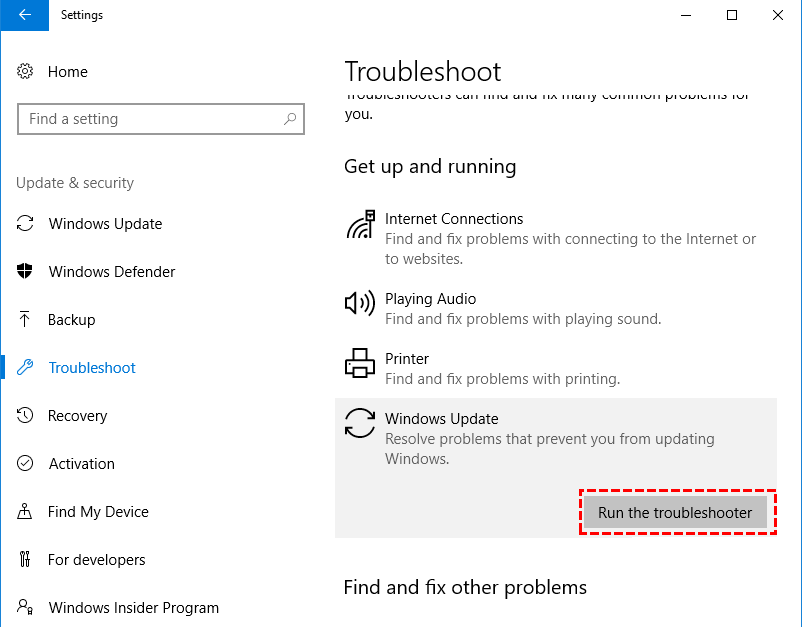
Step 4: Follow the on-screen prompts to begin the scan and allow Windows to fix the issue automatically.
Once the process completes, restart the system and check whether the blue screen error no longer appears.
Fix 6: Run the SFC scan
The System File Checker (SFC) is a powerful Windows utility that can resolve many Blue Screen errors with minimal effort. When the stop code thread_stuck_in_device_driver issue is linked to corrupted system files, an SFC scan can often correct the problem right away.
In simple terms, this tool scans the operating system for damaged or missing files and repairs them automatically using cached recovery copies. If a broken system file is behind the crash, SFC is designed to fix it without manual intervention.
Follow these steps to run an SFC scan:
Step 1: Open Command Prompt with administrator privileges.
Step 2: Type the command below and press Enter:
sfc /scannow
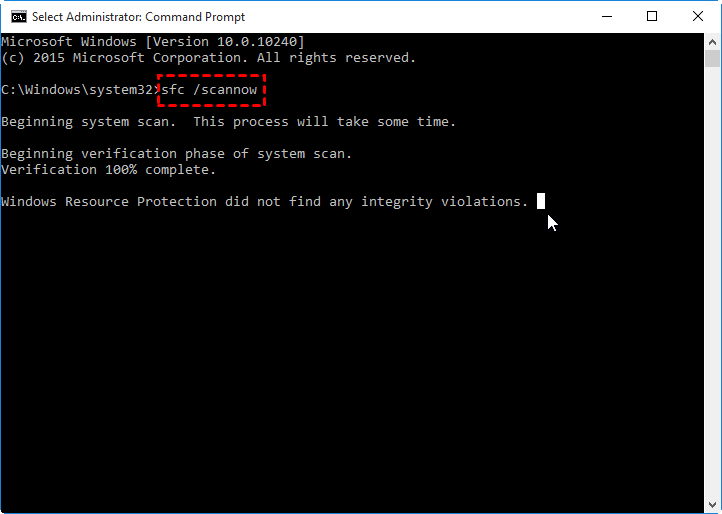
Step 3: The scan will begin checking for corrupted files and replacing them with healthy versions stored on the system. This process may take several minutes, so allow it to finish without interruption.
Once completed, restart the computer and check if the BSOD error has been resolved.
Fix 7: Run DISM
Deployment Image Servicing and Management (DISM) is another built-in Windows tool designed to repair system images, including the recovery files relied upon by SFC to fix corrupted system components.
DISM becomes especially useful when an SFC scan is unable to repair damaged files. In such cases, it retrieves clean recovery images directly from Windows Update and uses them to restore system integrity.
Follow the steps below to run DISM:
Step 1: Open Command Prompt with administrator rights.
Step 2: Enter the command below and press Enter:
DISM /Online /Cleanup-Image /RestoreHealth
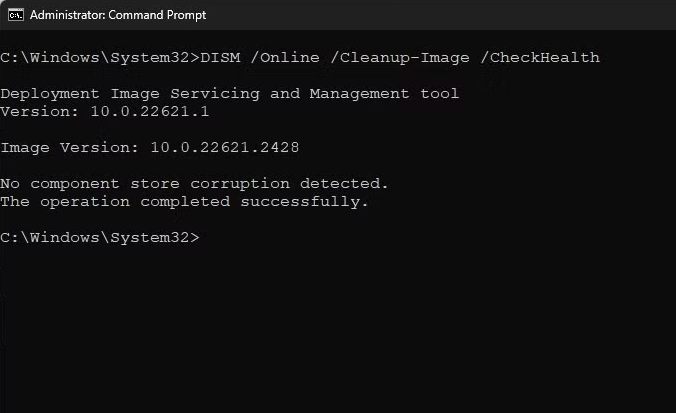
Step 3: Allow the scan to complete. This process may take several minutes, depending on system condition and internet speed. Once finished, restart the computer and check whether the BSOD issue persists.
Running DISM after SFC often resolves stubborn system errors that trigger recurring blue screen crashes.
Fix 8: Remove your antivirus and problematic applications
Although antivirus software plays a critical role in protecting a system from malware, it can sometimes interfere with normal Windows operations. Numerous users have found that removing third-party antivirus programs helped resolve the stop code thread stuck in device driver error. In some cases, other recently installed applications can also be responsible for triggering the crash.
If a third-party antivirus or new program was installed shortly before the issue appeared, uninstalling it can help determine whether it is causing the conflict.
Follow these steps to remove a third-party application:
Step 1: Open Windows Settings and select System.
Step 2: Click Apps & features from the left-hand menu.
Step 3: Locate the antivirus software or the suspected application, select it, and click Uninstall.
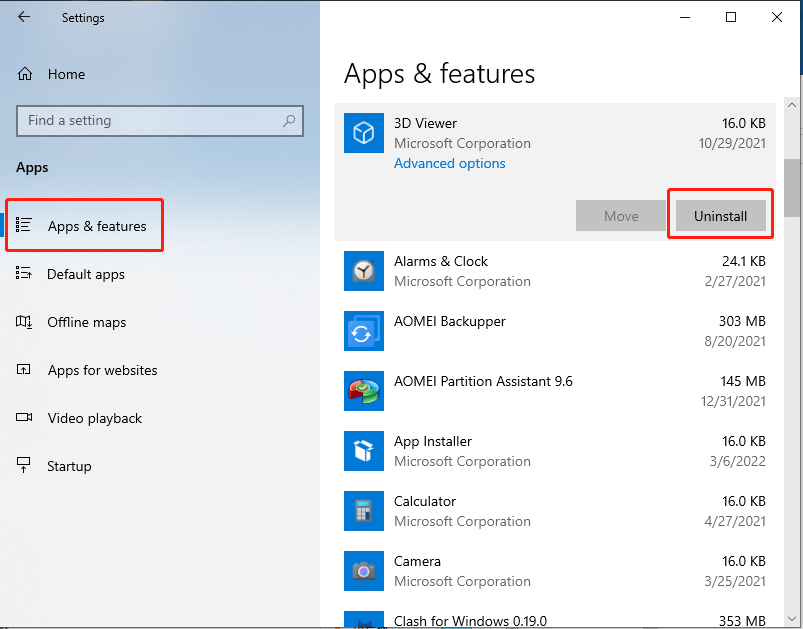
After the removal process is complete, restart the computer and check whether the blue screen error has been resolved.
How to recover data from Windows stop code thread stuck in device driver
When a Windows PC crashes with the THREAD_STUCK_IN_DEVICE_DRIVER stop code, system stability isn’t the only concern—data loss can quickly become a serious risk. Repeated blue screens, forced restarts, or failed boot attempts may make important files inaccessible. This is where PartitionAssistant Recovery becomes especially valuable.
Partition Assistant Recovery is designed to help you retrieve lost, deleted, or inaccessible data after critical system errors like driver-related BSODs. Even if Windows fails to boot normally, the tool can work from a bootable environment, allowing you to scan affected partitions safely without stressing the system further.
With advanced scanning algorithms, Partition Assistant Recovery can locate files lost due to system crashes, corrupted partitions, or accidental formatting caused by troubleshooting attempts. It supports common file types such as documents, photos, videos, and system-related data, while offering preview and selective recovery to avoid overwriting existing files.
Step 1: Download and open PartitionAssistant Recovery, then select the disk or partition where the missing files were originally stored.

Step 2: Start the scan to locate lost data. Choose between Quick Scan for faster results or Deep Scan for a more comprehensive search.

Step 3: After scanning, all recoverable files will appear. Browse the results, select the files you need, and click Recover.

Step 4: Specify a safe destination to store the restored files and allow the recovery process to complete.

Conclusion
In conclusion, the "Thread Stuck in Device Driver" error is a common Blue Screen of Death issue triggered by hardware or driver conflicts. By following the step-by-step fixes, including hardware checks, driver updates, and system scans, users can resolve the error and restore stability. For data recovery, tools like Partition Assistant Recovery can help recover lost files, ensuring both system and data integrity are preserved after the crash.
