
 AOMEI Partition Assistant
How to Fix Stop Code Driver Power State Failure Error
This article outlines proven methods for resolving the Stop Code Driver Power State Failure error. Follow each step carefully to identify the cause, apply the correct fix, and restore your system to normal operation.

By Hedy / Updated on January 8, 2026


Causes of stop code driver_power_state_failure error
The DRIVER_POWER_STATE_FAILURE stop code usually appears when Windows has trouble managing power transitions. Common causes include:
★ Outdated or incompatible drivers, especially graphics, network, or chipset drivers
★ Faulty device drivers that fail to respond during sleep, hibernation, or shutdown
★ Incorrect power settings or corrupted power plans
★ Conflicts with external hardware, such as USB devices or docking stations
★ BIOS or firmware issues that don’t fully support the current Windows power management
★ System file corruption is affecting driver communication
★ Identifying the problematic driver is key to resolving this error
How to fix stop code driver_power_state_failure error
Resolving the Driver Power State Failure error is often straightforward. The key lies in applying the right fix at the right time. Below are five proven solutions designed to address the root causes and restore system stability efficiently.
Solution 1. Remove recently installed drivers in Safe Mode
The issue is often triggered by newly installed drivers, particularly those that are incompatible with your version of Windows. Starting the system in Safe Mode prevents third-party software and drivers from loading, allowing for clean troubleshooting.
Step 1. Restart the computer and repeatedly press the F8 key during startup.
Step 2. From the available options, select Safe Mode.
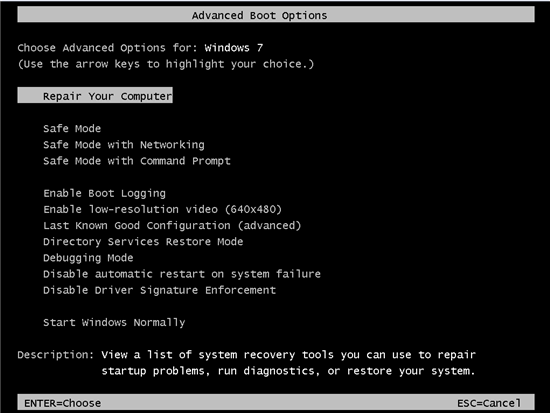
Step 3. Once Safe Mode loads, open Device Manager.
Step 4. Locate recently installed drivers, right-click each one, and choose Uninstall device.
Step 5. Repeat the process for all suspicious or newly added drivers.
After removing them, restart the system normally and check whether the error is resolved.
Solution 2. Update device drivers
Outdated or faulty drivers can easily trigger this error, making driver updates an essential step.
Step 1. Press Windows + R to open the Run dialog box, then type devmgmt.msc and press Enter.
Step 2. In Device Manager, locate the driver that requires an update. Right-click it and select Update Driver.
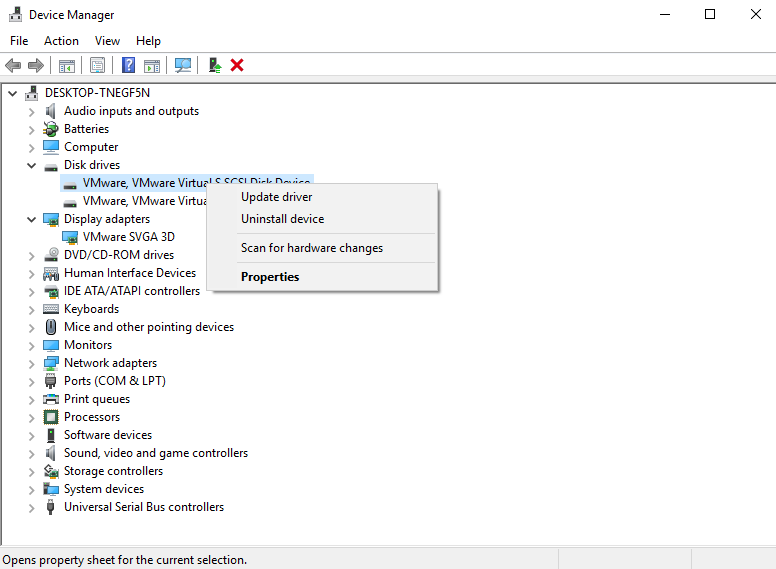
Step 3. Choose the option to search automatically for updated driver software. Windows will scan and install the most suitable version available.
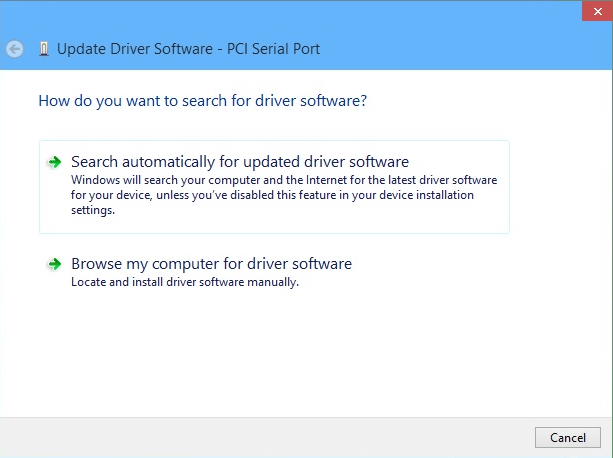
Step 4. If no update is found, select the manual option and browse online for the correct driver.
Once the updates are complete, restart the computer to apply the changes and eliminate the error.
Solution 3. Perform an SFC scan
Running a System File Checker (SFC) scan helps detect and repair corrupted or missing system files that may be causing the issue.
Step 1. Open the Windows search bar, type Command Prompt, then right-click it and choose Run as administrator.
Step 2. In the Command Prompt window, type sfc /scannow and press Enter.

Step 3. Allow the scan to run uninterrupted while Windows checks and repairs system files.
Step 4. Once the process finishes, type exit, press Enter, and close the window.
Solution 4. Turn off power saving
Since this issue is closely tied to how Windows manages power, adjusting the power settings can significantly reduce conflicts.
Step 1. If the system cannot start normally, boot into Safe Mode first. Press Windows + R, type Control Panel, and click OK.
Step 2. Switch the view to Small icons, then open Power Options. Select Balanced (recommended) and click Change plan settings next to it.
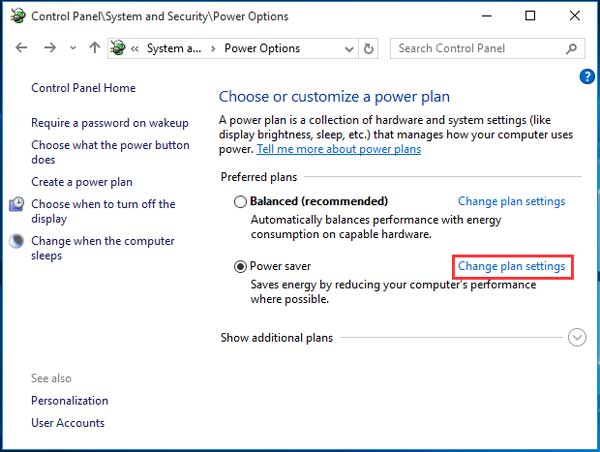
Step 3. Choose Change advanced power settings. Expand Wireless Adapter Settings, then Power Saving Mode, and set it to Maximum Performance.
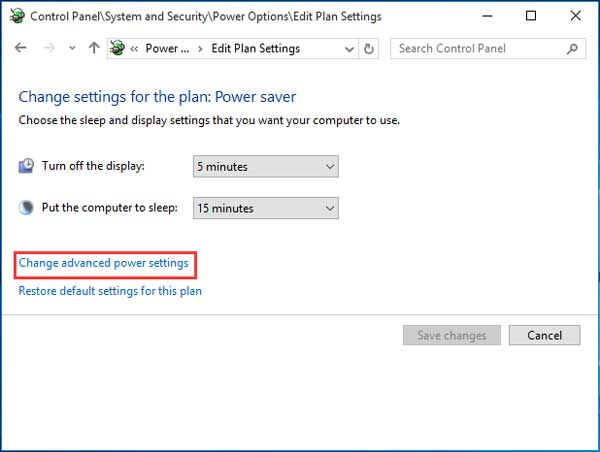
Step 4. Next, expand PCI Express, open Link State Power Management, and change the setting to Maximum power savings.
Step 6. Click Apply, select OK, and restart the computer to confirm the error has been resolved.
Solution 5. Run boot repair
AOMEI Partition Assistant is a reliable Windows disk management tool that can help address Stop Code: DRIVER_POWER_STATE_FAILURE by fixing disk-related and boot issues that may trigger driver conflicts.
It offers features like disk surface testing, file system checking, MBR rebuilding, and boot repair, which help detect bad sectors, repair logical errors, and restore corrupted boot components. By stabilizing the system disk and startup environment, AOMEI Partition Assistant reduces the risk of power-state driver errors and improves overall Windows stability.
Step 1. Install and launch AOMEI Partition Assistant on a working PC, click "Recover"-"Boot Repair" and then click the "create a bootable disk" option to create a WinPE "Boot Repair" disk.

Step 2. Plug the bootable disk you created into the target computer you wish to repair the boot issue.
Step 3. Enter BIOS in your computer, choose the bootable disk as the boot drive to access AOMEI Partition Assistant.
Step 4. The PC will automatically load the Boot Repair tool and start the boot entries scan process. All boot entries will be displayed. It will display the scan result: system paths, system versions, and boot status. And, all repairable boot entries will be available to select.
Advanced Settings: Select a location to store the repaired boot entry.
Repair to the current disk: The system will boot from the current disk and ensure the boot files are complete and functioning properly. (By default)
Repair to another disk: This operation will repair the boot entry or create a new system boot entry to ensure the system can boot from the disk you select.
Step 6. Select one/multiple repairable boot entries you want to repair and click the "Repair" button to start the boot repair.
Wait for the repair process to finish. Once it is finished, you can check the repair result. If it succeeds, you will get a "Repair Successfully" result.
Conclusion
In summary, the DRIVER_POWER_STATE_FAILURE error is mainly caused by problematic drivers, power misconfigurations, or system corruption. By removing faulty drivers, keeping them updated, repairing system files, adjusting power settings, and fixing boot issues with tools like AOMEI Partition Assistant, you can effectively restore stability and prevent future power-state related blue screen errors.
