
How to delete large files to optimize disk space?
Overview
In some cases, you might find some files that are too large and take up too much drive space. Deleting large files is definitely an essential task when you're trying to free up space on your hard drive. However, it might be hard to locate large files manually. Fortunately, the "Delete Large Files" tool in PartitionAssistant Cleanup is here to help you quickly find and delete large files to control your drive space.
How to delete large files in PartitionAssistant Cleanup
Before you do
- Install PartitionAssistant Cleanup on a Windows PC.
- Make a backup of important data in advance.
- Connect the drive on which you want to find and delete large files.
Step 1: Initiate Delete Large Files
Install and launch PartitionAssistant Cleanup. Click the "Delete Large Files" tab.
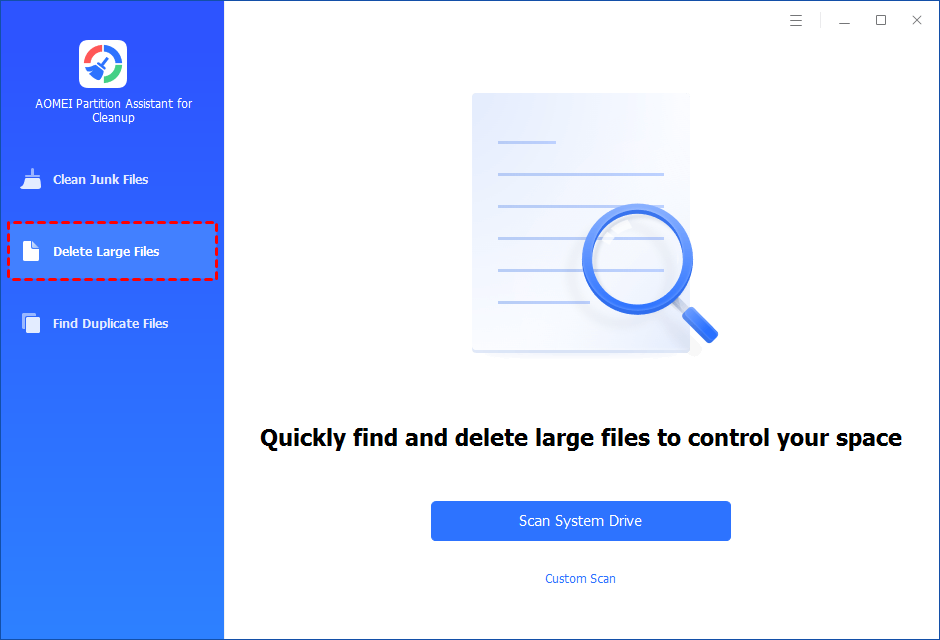
Step 2: Select a path to scan large files
1. You can either click "Scan System Drive" to start the scan of your system C: drive. Or, click "Custom Scan" to manually select paths to be scanned. (Here, we take the "Custom Scan" as an example.)
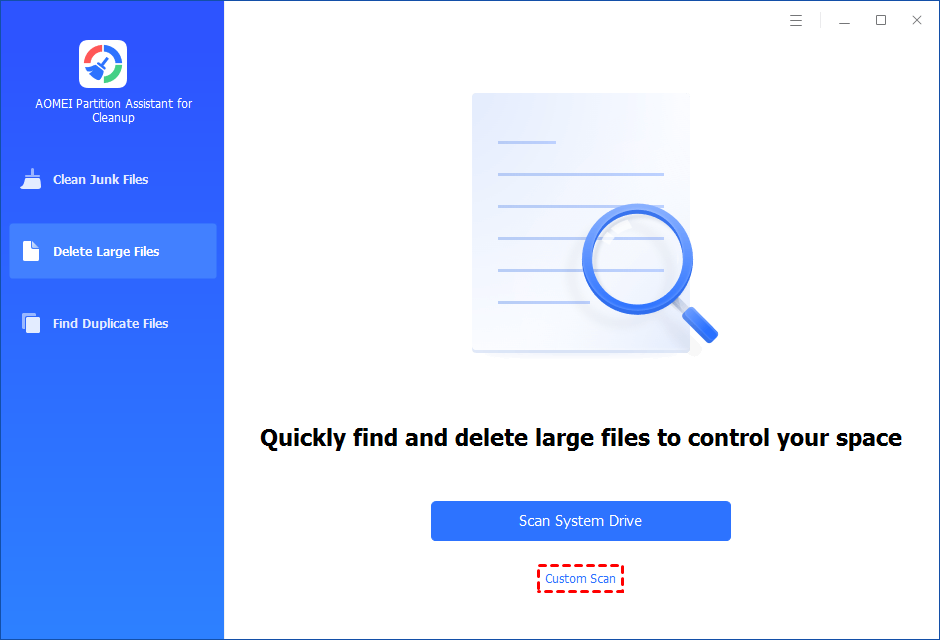
2. After clicking "Custom Scan", all local and external drives on your PC and the common Desktop, Documents, and Downloads paths will be displayed. You can manually select paths to be scanned. Once necessary paths are added, you can click the "Scan Now" button to start the scan process.

3. The scan process might take time. After the scan is complete, all large files found will be listed.
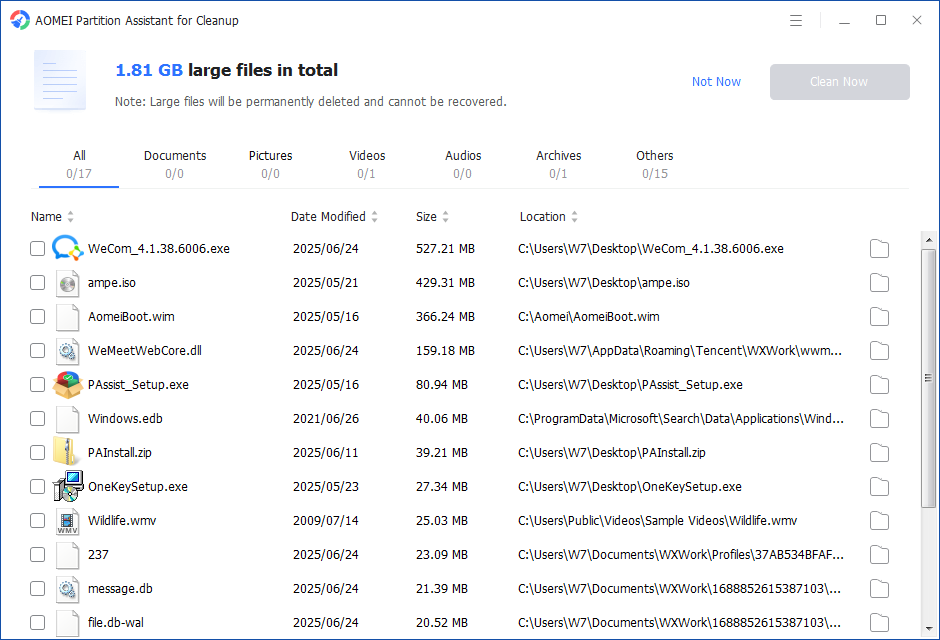
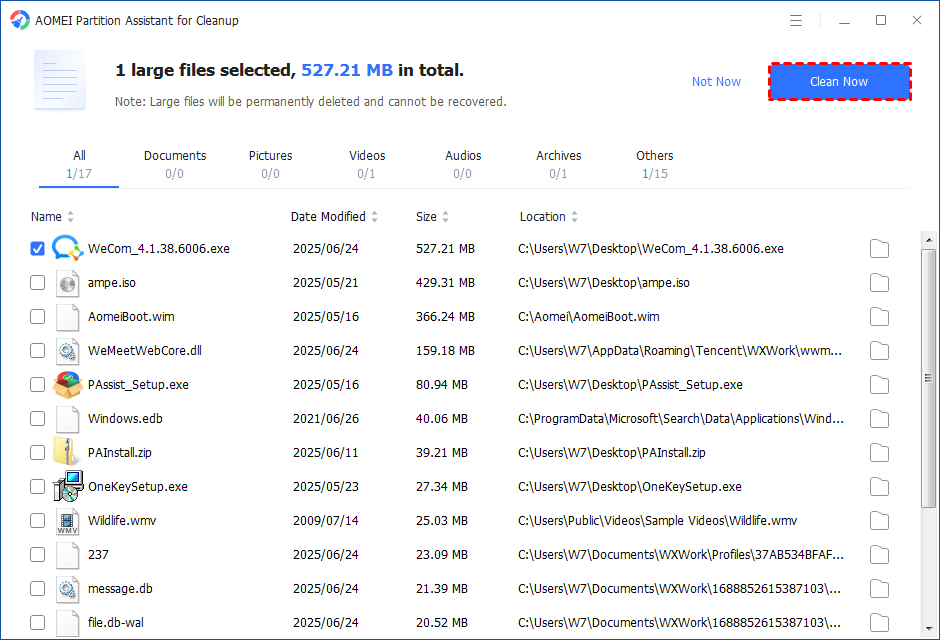
4. You can also check the large files and click the button behind to locate them.
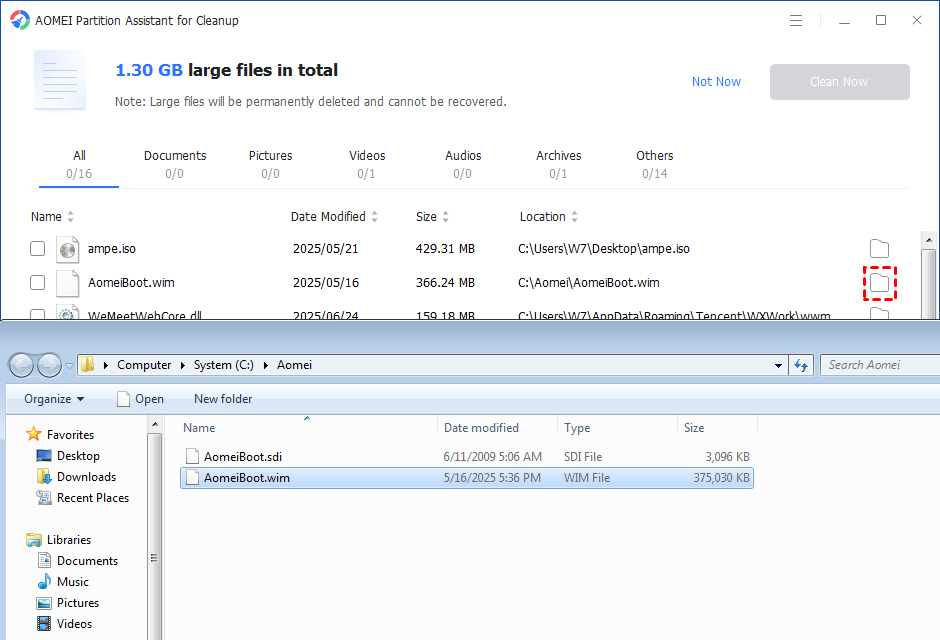
Step 3: Select large files to start deletion
Tick the files you want to delete, and then click the "Clean Now" button to start the deletion.
Step 4: Delete successfully
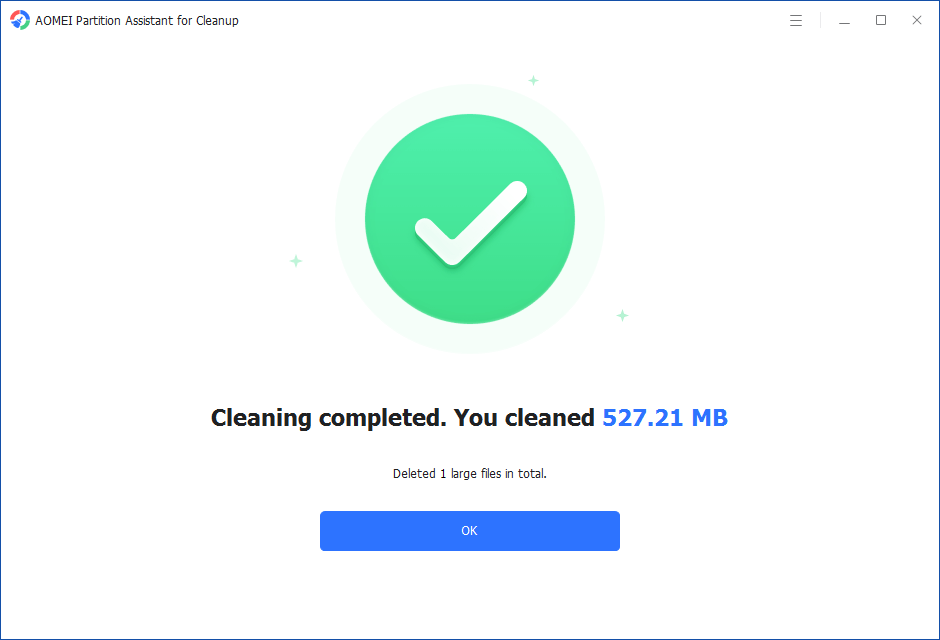
The deletion might take time. After the process is finished, the selected files will be deleted, and you will get a cleaning completed window displaying how much data you deleted in total.
Conclusion
Following the above steps, you can easily find large files and delete unnecessary large files on your PC. With the useful tool, you can control and free up your drive space.