


Best PC File Cleaner on Windows 11&10 [2022]
When there’s insufficient space on your PC, you may urgently need the best PC file cleaner to clean up junk files to prevent the computer from running slowly. In this article, we will show you how to free up space with a powerful cleaner.

By AOMEI / Updated on July 9, 2025


How can I free up my PC space?
"My hard drive contains 27.8 GB. However, less than 3 GB of space is free. I have a few programs installed on this PC, like MS Office and C Cleaner, but my PC keeps bugging me that it "cannot install updates" because there isn’t enough space. What’s taking up all my PC space? If it's not a program, what is it? If it’s some hidden files in my machine, how can I find them? Can I use a PC file cleaner software for free? I really appreciate your help."
- Question from BleepingComputer.com
Why should we clean up the PC?
In the process of using the computer, some junk files are inevitably generated. When they accumulate to a certain extent, it will cause the computer to run slowly, or computer freezes. Therefore, in order to keep the computer healthy, we need to clean up these "germs" frequently.
There're many PC cleaning tools in the computer-related software market, but which one is the best PC junk file cleaner? In the following content, we will focus on introducing an excellent and free junk files cleaner for PC.
Cleaning up a PC with the best PC file cleaner
Generally speaking, cleaning up junk files manually on the PC requires you to search for them one by one. But there are many junk files deeply hidden in the disk, which are difficult to search for. In order to deal with all junk files on your computer more safely and conveniently, we recommend you the PartitionAssistant Cleanup, which is the best PC file cleaner.
It meets your expectations in the following points:
✦ The interface is bright and user-friendly.
✦ For Windows 11/10/8.1/8/7, and Windows Servers.
✦ Refuse to bind with any malware.
✦ Each function is accompanied by a detailed and varied tutorial.
Its "PC Cleaner" function can help you capture all the junk files on your computer, and automatically select some files that you may need to clean up after completing the scan. Of course, you have the right to increase or decrease the files according to your own needs. After selecting the target files, you just need to click "Clean All" to delete them completely.
When you want to throw away your computer, it's not enough to just clean the computer, because anyone can easily recover the cleaned data with data recovery software, so you can wipe all data from PC to ensure the absolute security of your personal data.
Let's comprehend how to free up PC space with this best junk file cleaner for PC.
 PartitionAssistant Cleanup
The Best Windows Disk Partition Manager and PC Optimizer
Step 1. Install and launch PartitionAssistant Cleanup. Click the "Clean Junk Files" tab.

Step 2. Click the "Scan Now" button to start the process of scanning junk files.

Step 3. After the scan process is finished. All system junk files (including recycle bin files, temporary files, log files, invalid shortcuts, and so on) and registry junk files (including DLL registry, system registry, and program registry) will be displayed.

Step 4. You can also click the button behind to view the junk files details.

Step 5. And, you can click the button behind to locate the file.

Step 6. By default, the program will select some junk files to clean up, for example, temporary files, log files, and so on. You can also manually check to select more or uncheck to deselect fewer listed junk files. Or, click "Select All" to select all junk files to clean up if you need to clean up all.
After selecting junk files that are not needed anymore, you can click the "Clean Now"button to start the cleanup.

Step 7. The process of the cleanup might take time, and the selected files will be cleaned up. After the process is finished, you will get a cleanup completed window displaying how many files you have cleaned and not yet cleaned.

Free up space by deleting large files
If you want to free up space by deleting large files, you can turn to use the "Delete Large Files" function, which can scan out all large files in your computer, including junk files with very hidden storage paths. After picking, you can completely delete all unwanted large files.
PartitionAssistant CleanupThe Best Windows Disk Partition Manager and PC Optimizer
Step 1. Install and launch PartitionAssistant Cleanup. Click the "Delete Large Files" tab.
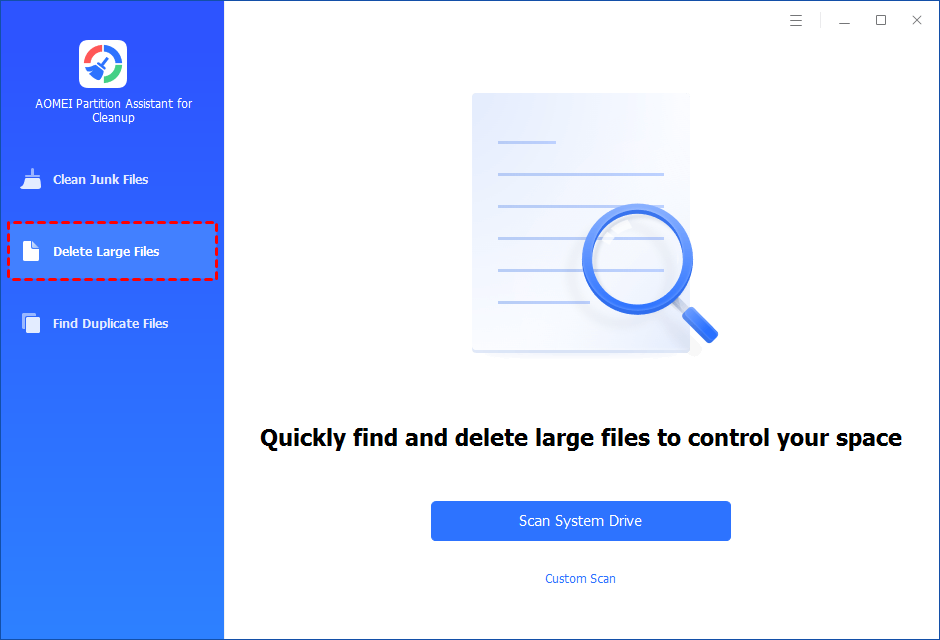
Step 2. You can either click "Scan System Drive" to start the scan of your system C: drive. Or, click "Custom Scan" to manually select paths to be scanned. (Here, we take the "Custom Scan" as an example.)
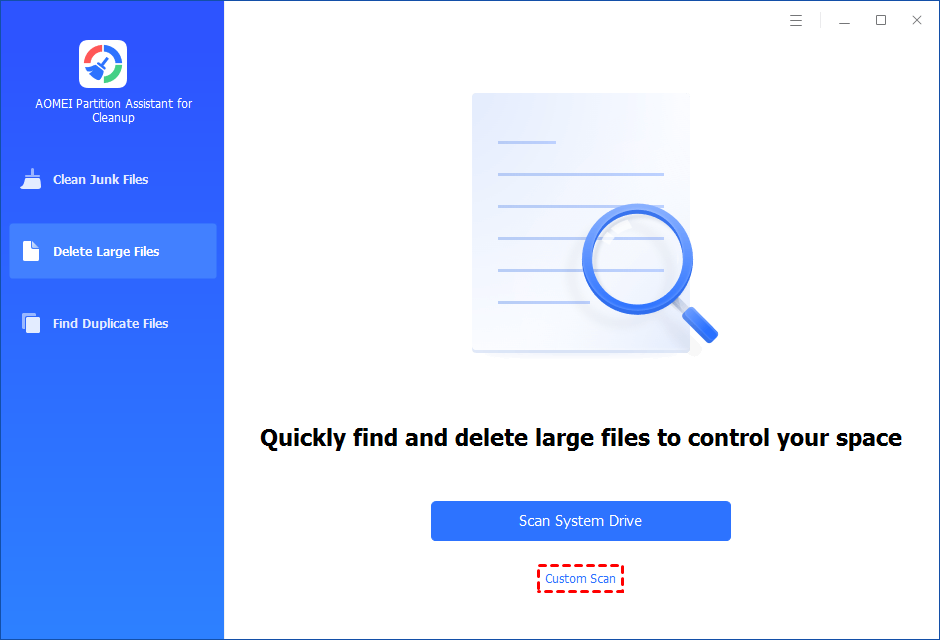
Step 3. After clicking "Custom Scan", all local and external drives on your PC and the common Desktop, Documents, and Downloads paths will be displayed. You can manually select paths to be scanned. Once necessary paths are added, you can click the "Scan Now" button to start the scan process.

Step 4. The scan process might take time. After the scan is complete, all large files found will be listed.
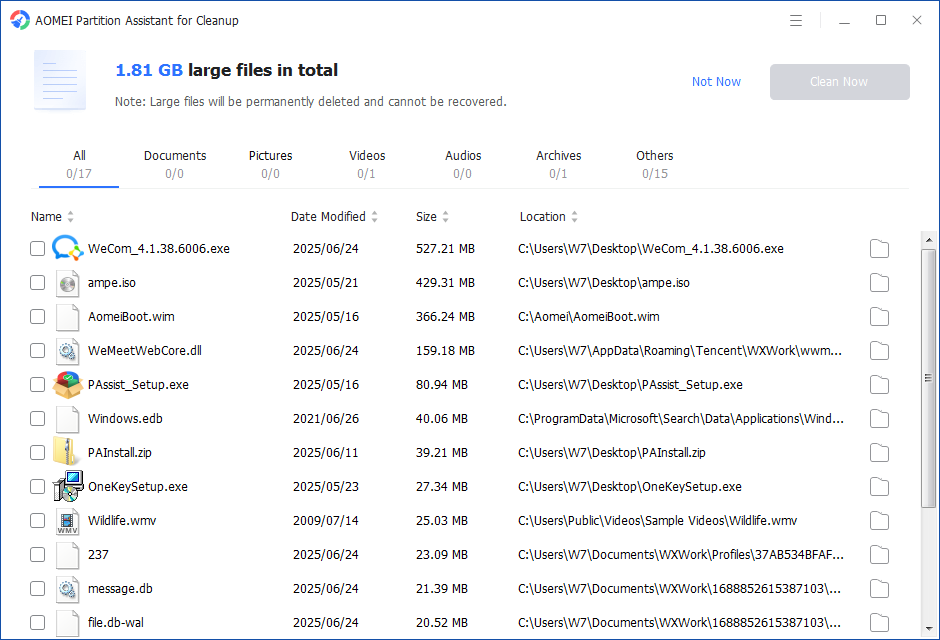
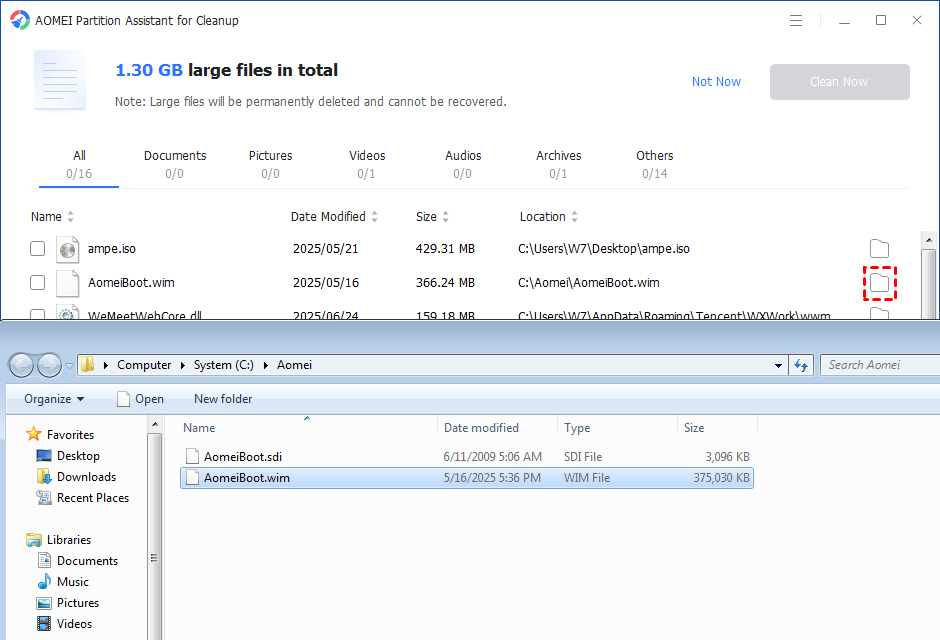
Step 5. You can also check the large files and click the button behind to locate them.
Step 6. Tick the files you want to delete, and then click the "Clean Now" button to start the deletion.
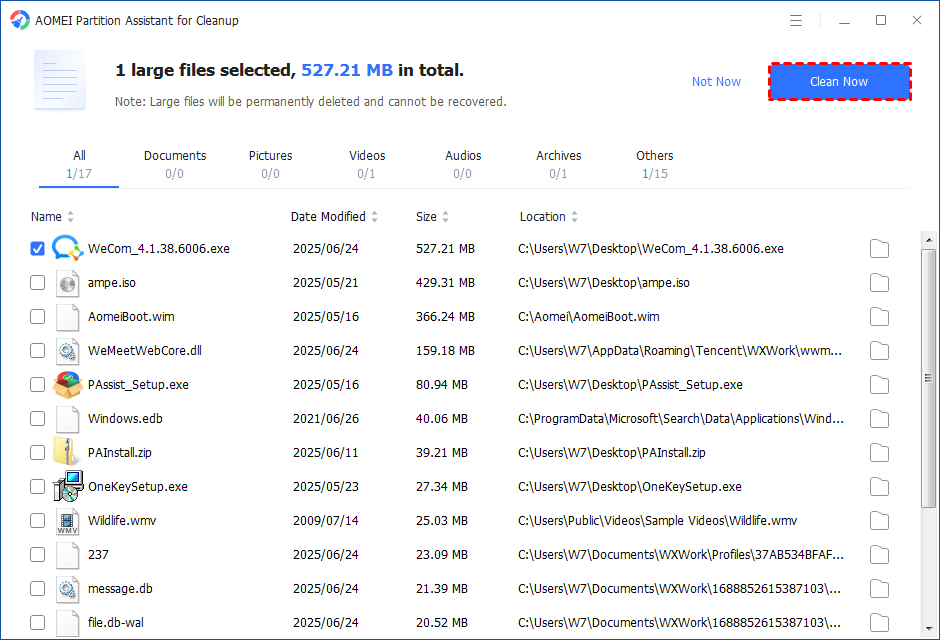
Step 7. The deletion might take time. After the process is finished, the selected files will be deleted, and you will get a cleaning completed window displaying how much data you deleted in total.
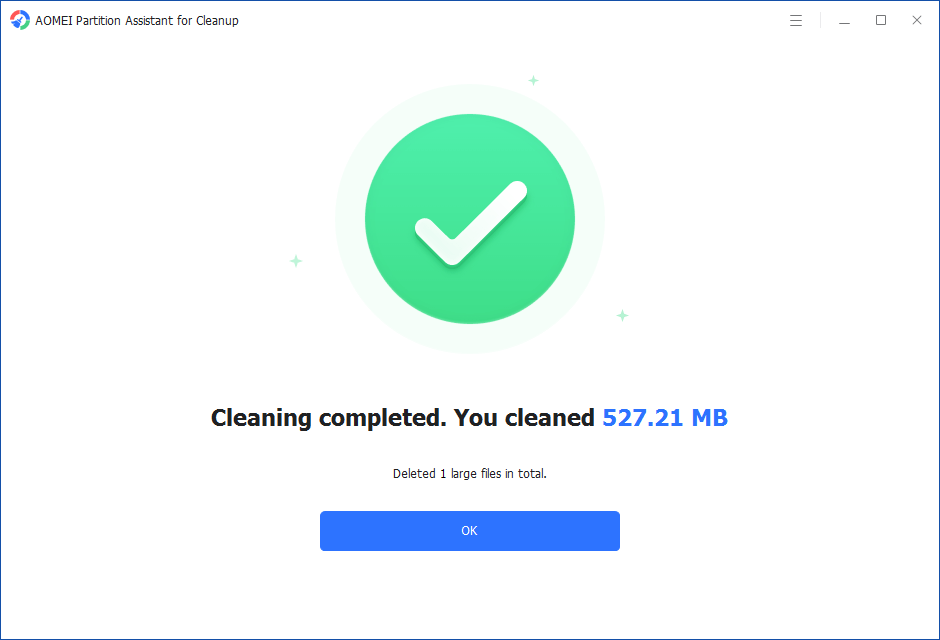
Step 5. Just for a while, the large files will be deleted successfully, and then you will see a warm notification suggesting you clean up your PC regularly.
Final Words
In this article, we share the best PC file cleaner on Windows 11&10-PartitionAssistant Cleanup, which can help us free up space with different functions.
If you want to know more hidden features, you must not miss the professional Version. In addition, we have specially designed Server Version for Windows Server users.
