


[5 Ways] How to Make Computer Clean Up Files Windows 11
It is necessary to clean up computer files regularly on Windows 11. In this post, you will learn five easy and effective methods for computer clean up files Windows 11.

By Hedy / Updated on July 23, 2025


Why cleaning up files matters in Windows 11?
Cleaning up files in Windows 11 is essential for maintaining your system’s performance, security, and overall health. Here's why it matters:
🔔 Frees up storage space: Over time, your system accumulates unnecessary files such as temporary files, cache, system logs, and leftover installation files. Cleaning these up helps free valuable disk space, especially on SSDs with limited capacity.
🔔 Improves system performance: Too many cluttered files can slow down your computer. By regularly cleaning up files, you reduce disk load, which leads to faster boot times, quicker app launches, and smoother system operations.
🔔 Prevents system errors and crashes: Outdated and corrupted files can lead to system instability, application crashes, and error messages. Cleaning up helps remove such problematic files, promoting system stability.
🔔 Enhances security and privacy: Old logs, temporary internet files, and system caches can store sensitive data. Removing them helps protect your privacy and reduces the risk of data leaks or unauthorized access.
🔔 Optimizes updates and upgrades: Windows updates and upgrades require sufficient free space and a clean environment to install correctly. File cleanup ensures your system is ready for the latest features and security patches without installation failures.
In short, cleaning up files in Windows 11 isn’t just about space—it’s about keeping your system fast, safe, and reliable.
5 methods for computer clean up files Windows 11
Cleaning up unnecessary files is essential for keeping your Windows 11 PC fast, efficient, and clutter-free. Here are 5 practical methods to help you clean up your computer effectively:
Method 1. Run Windows Disk Cleanup utility
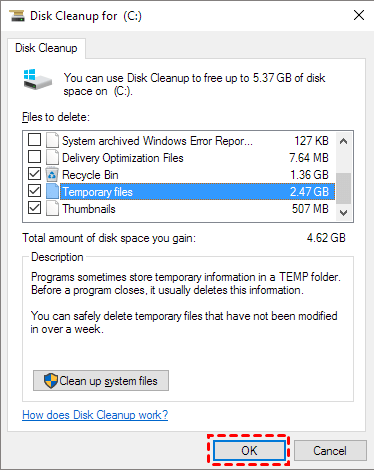
To begin with, you can use the built-in Disk Cleanup utility in Windows 11. This tool scans your system for temporary files, system cache, and other unneeded data that you can safely remove.
Step 1. Click on the "Windows" icon and type "disk cleanup" then open the result.
Step 2. When the small window appears, select the C drive and click "OK."
Step 3. Choose the desired files and click "OK."
Method 2. Open Storage Sense to clean Windows 11
Next, consider enabling Storage Sense, a feature that automatically frees up space by deleting temporary files, items in the Recycle Bin, and downloads you haven't used in a while.
Step 1. Enter the "Windows Settings" interface and click on "System”.
.png)
Step 2. Navigate to "Storage" and enable "Storage Sense." Then, click on "Configure Storage Sense or run it now" to continue.
.png)
Step 3. Customize the time for cleaning up temporary files according to your preference.
.png)
Method 3. Use File Explorer for cleaning the computer
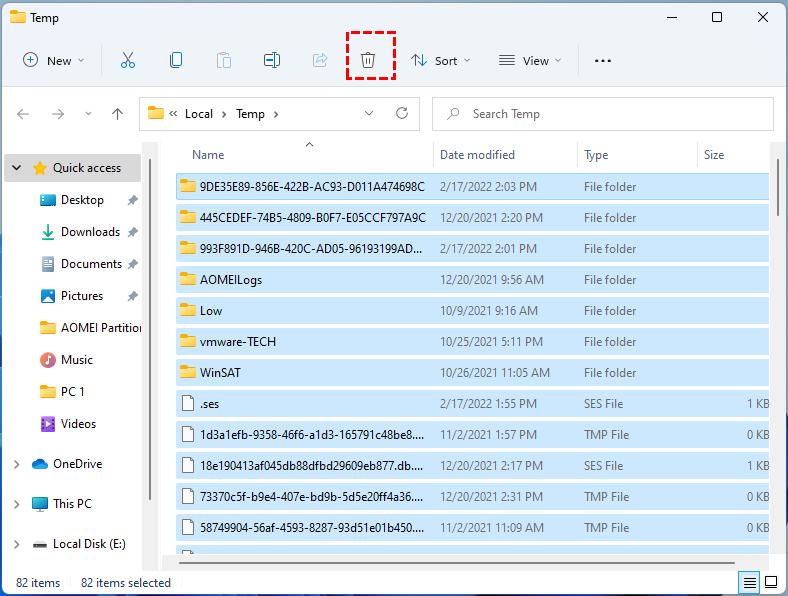
In addition, you can manually clean up files using File Explorer. It offers a straightforward way to browse through your system’s files and folders, making it easy to find and remove items that are no longer needed and consuming storage space.
Step 1. Simultaneously press "Windows + R" to open the Run program.
Step 2. Enter "%temp%" in the Run program and click "OK" to open the Temp folder.
Step 3. In the folder, delete files based on your requirements.
Method 4. Empty the Recycle Bin for file cleaning
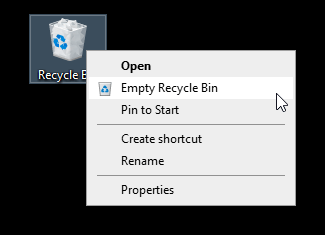
Another easy yet often overlooked step is to empty the Recycle Bin. When you delete files, they are moved to the Recycle Bin and continue to consume storage space until they are permanently removed.
Simply right-click on the Recycle Bin icon and choose "Empty Recycle Bin" to quickly remove all unwanted files.
Method 5. Try PC Cleaner for deep computer clean up files
If you're looking for a powerful and reliable tool to clean up files on your Windows 11 PC, PartitionAssistant Cleanup stands out as a professional-grade solution. It includes advanced cleanup utilities that help free up valuable disk space and improve overall system performance.
With features like Clean Junk Files, PartitionAssistant Cleanup thoroughly scans your system for junk files, temporary files, system caches, and other unnecessary clutter that can accumulate over time. Its intuitive interface makes it easy for users of all levels to perform deep cleanups without risking important system data.
Whether you're facing low disk space, sluggish performance, or just want a tidier system, PartitionAssistant Cleanup provides a comprehensive and efficient cleanup experience, tailored for Windows 11 users.
 PartitionAssistant Cleanup
Free Up Disk Space To Keep Your PC Running Smoothly and Efficiently
Step 1. Install and launch PartitionAssistant Cleanup. Click the "Clean Junk Files" tab.

Step 2. Click the "Scan Now" button to start the process of scanning junk files.

Step 3. After the scan process is finished. All system junk files (including recycle bin files, temporary files, log files, invalid shortcuts, and so on) and registry junk files (including DLL registry, system registry, and program registry) will be displayed.

You can also click the button behind to view the junk files details.

Step 4. And, you can click the button behind to locate the file.

By default, the program will select some junk files to clean up, for example, temporary files, log files, and so on. You can also manually check to select more or uncheck to deselect fewer listed junk files. Or, click "Select All" to select all junk files to clean up if you need to clean up all.
Step 5. After selecting junk files that are not needed anymore, you can click the "Clean Now"button to start the cleanup.

The process of the cleanup might take time, and the selected files will be cleaned up. After the process is finished, you will get a cleanup completed window displaying how many files you have cleaned and not yet cleaned.

Conclusion
Cleaning up files in Windows 11 is crucial for keeping your PC fast, stable, and secure. By removing junk, temporary, and unnecessary files, you free up space, boost performance, and reduce errors or crashes. Using built-in tools or advanced solutions like PartitionAssistant Cleanup ensures your system stays optimized and ready for updates. It can also help you delete large files or remove duplicate files.
