


Download the Best Disk Space Cleanup Manager for Windows
A disk space cleanup manager for Windows is a tool designed to help you reclaim disk space by removing unnecessary files from your system. In this article, you can get both built-in and third-party Windows disk cleaners.

By Hedy / Updated on July 17, 2025


What is the disk space cleanup manager for Windows?
Disk space cleanup manager for Windows is a built-in utility designed to help users free up space on their hard drives by deleting unnecessary files. This tool, often referred to simply as Disk Cleanup, scans your system for files that can be safely removed, helping to improve system performance and free up valuable storage.
✍ Key functions of disk space cleanup manager:
✪ Remove temporary files: Deletes files created by Windows and apps that are no longer needed.
✪ Clear Recycle Bin: Empties the Recycle Bin to permanently remove deleted files.
✪ Delete system files: Removes old Windows updates, system error memory dump files, and log files.
✪ Compress old files: Reduces the size of files that haven’t been accessed in a long time.
✪ Remove thumbnails: Deletes cached thumbnail images used for faster folder previews.
How to use built-in disk space cleanup manager for Windows
The built-in disk space cleanup manager in Windows is a helpful tool designed to free up space on your computer by removing unnecessary files. It's a simple yet effective way to clean your system and improve performance without needing any third-party software.
Step 1. Press Windows + S and type Disk Cleanup.
Step 2. Select the drive you want to clean (usually C:).
Step 3. Click OK and wait for the scan to complete.
Step 4. Check the file categories you wish to delete.
Step 5. Click OK and then Delete Files to confirm.
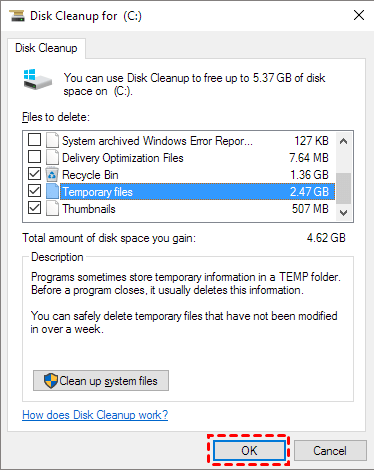
Step 6. For deeper cleaning, you can choose Clean up system files within the tool, which allows access to more advanced cleanup options, including deleting old Windows installation files after an upgrade.
Try the best disk space cleanup manager for Windows 10/11
When your Windows 10 or 11 PC starts running low on storage, managing and cleaning up disk space becomes essential. PartitionAssistant Cleanup stands out as one of the best disk space cleanup managers for several reasons, making it an excellent choice for users looking to optimize their system's storage. Here are the key advantages that make it the top contender:
★ Comprehensive cleanup features: It includes powerful disk cleanup features that help you efficiently remove unnecessary files, free up space, and enhance your system's performance. It supports deleting temporary files, system junk, and other redundant files that may clog up your storage.
★ User-friendly interface: The interface is clean and intuitive, allowing you to navigate through the cleanup process with minimal effort. There’s no need for technical knowledge to perform a cleanup—everything is simple and straightforward.
★ Safe and reliable: Unlike some third-party cleanup tools that may delete files without warning or create system instability, PartitionAssistant Cleanup ensures that all cleaning operations are safe. It provides an option to preview what will be removed, giving you complete control over the process.
★ Compatibility: AOMEI Partition Assistant supports both Windows 11/10/8/7and Servers, making it versatile for a wide range of users. It's also compatible with both MBR (Master Boot Record) and GPT (GUID Partition Table) disks, ensuring it works on modern and legacy systems alike.
 PartitionAssistant Cleanup
Free Up Disk Space To Keep Your PC Running Smoothly and Efficiently
Step 1. Install and launch PartitionAssistant Cleanup. Click the "Clean Junk Files" tab.

Step 2. Click the "Scan Now" button to start the process of scanning junk files.

Step 3. After the scan process is finished. All system junk files (including recycle bin files, temporary files, log files, invalid shortcuts, and so on) and registry junk files (including DLL registry, system registry, and program registry) will be displayed.

Step 4. You can also click the button behind to view the junk files details.

Step 5. And, you can click the button behind to locate the file.

Step 6. By default, the program will select some junk files to clean up, for example, temporary files, log files, and so on. You can also manually check to select more or uncheck to deselect fewer listed junk files. Or, click "Select All" to select all junk files to clean up if you need to clean up all.
After selecting junk files that are not needed anymore, you can click the "Clean Now"button to start the cleanup.

Step 7. The process of the cleanup might take time, and the selected files will be cleaned up. After the process is finished, you will get a cleanup completed window displaying how many files you have cleaned and not yet cleaned.

Conclusion
The built-in disk space cleanup manager in Windows helps free up valuable storage by removing unnecessary files such as temporary data, system files, and cached thumbnails. For a more comprehensive cleanup, PartitionAssistant Cleanup offers an intuitive, user-friendly solution, ensuring safe, reliable, and thorough disk space management.
