


How to Fix “Failed to Initialize Steam” Error
What if failed to initialize Steam? Don’t worry, learn the most possible reasons here and try several practical methods to resolve this issue.

By Hedy / Updated on January 14, 2026


Why failed to initialize Steam?
Steam can fail to initialize for several common reasons, usually related to system conflicts, corrupted files, or permission issues. Here are the main causes explained clearly:
🔹 Corrupted Steam files: If Steam’s core files are damaged or incomplete, the client may fail during startup. This often happens after improper shutdowns, disk errors, or interrupted updates.
🔹 Insufficient administrator permissions: Steam needs proper system permissions to access folders, services, and network settings. Running it without admin rights can prevent successful initialization.
🔹 Outdated or missing system components: Steam depends on Windows components such as Visual C++ Redistributables, .NET Framework, and updated Windows services. Missing or outdated components can trigger startup errors.
🔹 Disk or file system errors: Bad sectors, file system corruption, or insufficient disk space on the drive where Steam is installed can block startup.
🔹 Conflicts with background programs: Overlay tools, screen recorders, or other gaming-related utilities can conflict with Steam during launch.
🔹 Outdated graphics drivers: Old or incompatible GPU drivers may cause Steam to crash or fail while loading its interface.
How to fix failed to initialize Steam
This error usually appears when Steam lacks proper permissions, has driver issues, or runs into corrupted cache or compatibility conflicts. Try the solutions below in order.
Method 1. Run Steam as administrator
You may encounter the “Failed to initialize Steam” message when Steam lacks the required system permissions. Granting administrative access often resolves the issue quickly.
Step 1. Press Win + E to open File Explorer, then navigate to the directory where Steam is installed.
Step 2. Locate Steam or Steam.exe, right-click it, and select Run this program as an administrator.
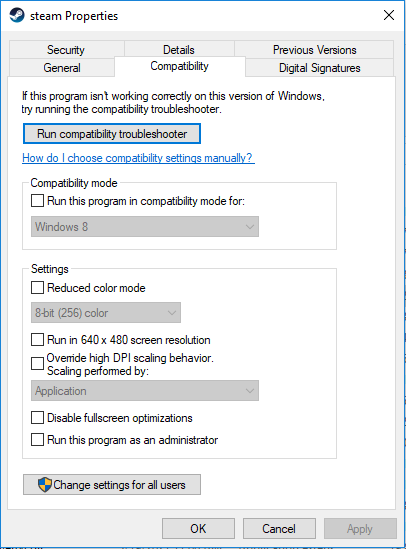
Step 3. Open PUBG and verify whether the error has been eliminated.
Method 2. Update your driver
An outdated graphics driver can also trigger the “PUBG Failed to initialize STEAM” error. Keeping your GPU driver up to date ensures proper compatibility and stable performance.
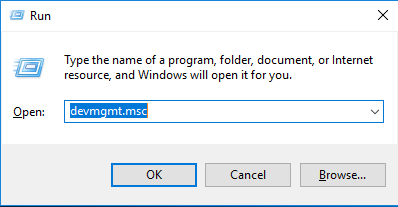
Step 1. Press Win + R to open the Run dialog, type devmgmt.msc, and click OK to launch Device Manager.
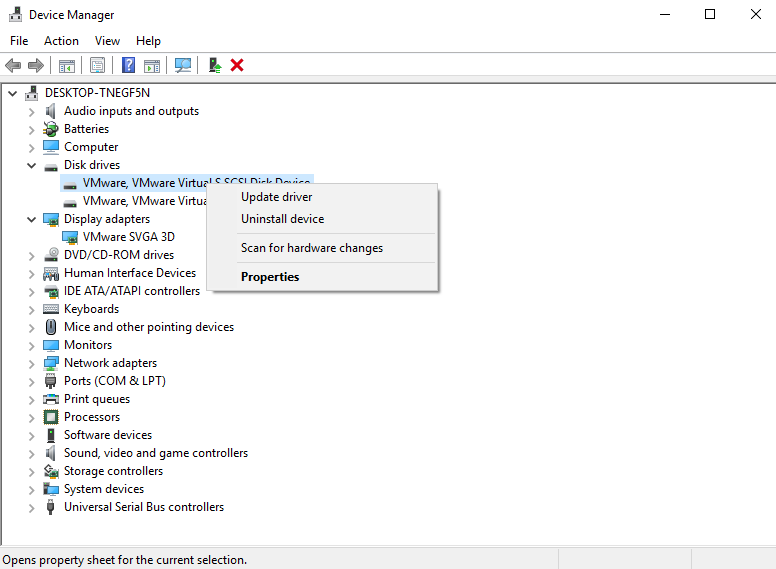
Step 2. Expand Display adapters to view your installed graphics hardware.
Step 3. Right-click your graphics card (AMD or NVIDIA) and choose Update driver.
Step 4. Select Search automatically for updated driver software. Windows will locate, download, and install the latest available driver. Wait for the process to complete.
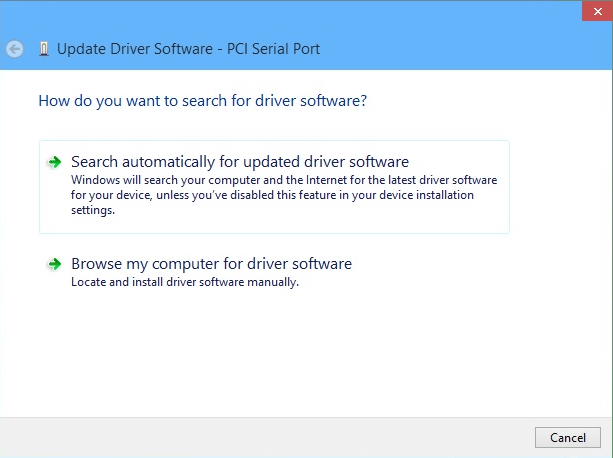
If no updates are found, visit the graphics card manufacturer’s official website to manually download and install the most recent driver version.
Method 3. Disable fullscreen optimizations for the game
Fullscreen optimizations are designed to enhance gaming performance, yet they can sometimes cause unexpected stability problems. If the “Failed to initialize STEAM” error persists after trying other fixes, disabling this feature may help.
Step 1. Open File Explorer and navigate to your Steam installation directory, using the same path referenced earlier.
Step 2. Locate TslGame or TslGame.exe, right-click it, and choose Properties.
Step 3. Open the Compatibility tab, enable Disable fullscreen optimizations, then click OK.
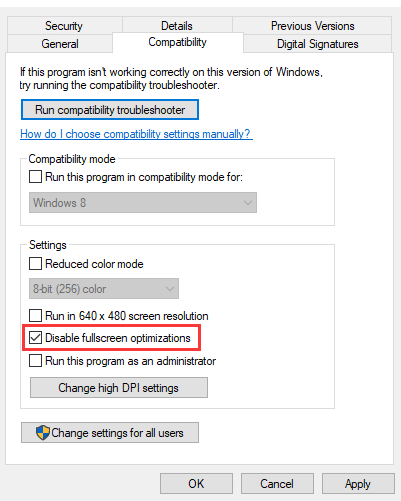
Launch PUBG again and check whether the error message is resolved.
Method 4. Clear Steam download cache
It stores temporary files for downloads and updates. Over time, it can become corrupted.
Step 1. Open Steam.
Step 2. Click Steam (top-left corner) → Settings.
Step 3. Go to Downloads.
Step 4. Click Clear Download Cache.
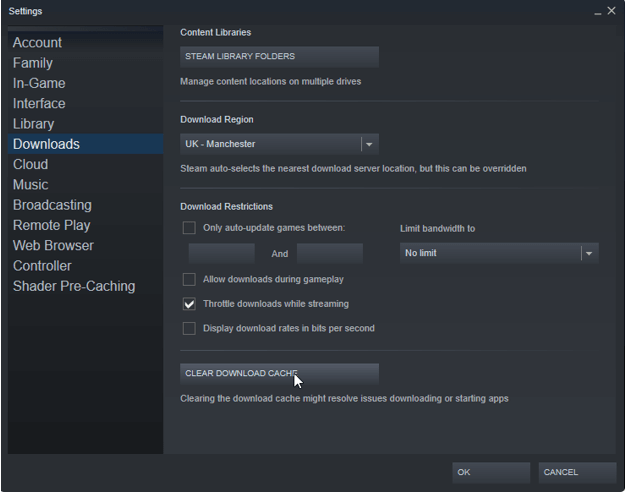
Step 5. Confirm and log back into Steam.
PartitionAssistant Cleanup is a practical and reliable Windows disk cleaningtoolused to clean up leftover files and cached data, including Steam download cache, to help resolve issues like failed updates, slow downloads, or Steam initialization errors.
Over time, Steam stores temporary installation files, incomplete downloads, and cache data. When these files become corrupted or outdated, Steam may fail to update or launch properly. AOMEI Partition Assistant helps by:
✔️ Removing temporary files and application caches
✔️ Cleaning residual files left by software like Steam
✔️ Freeing up disk space for smoother game downloads
✔️ Reducing system conflicts caused by corrupted cache files
 PartitionAssistant Cleanup
Free Up Disk Space To Keep Your PC Running Smoothly and Efficiently
Step 1. Install and launch PartitionAssistant Cleanup. Click the "Clean Junk Files" tab.

Step 2. Click the "Scan Now" button to start the process of scanning junk files.

Step 3. All system junk files (including recycle bin files, temporary files, log files, invalid shortcuts, and so on) and registry junk files (including DLL registry, system registry, and program registry) will be displayed.

Step 4. You can also click the button behind to view the junk files details.

Step 5. And, you can click the button behind to locate the file.

Step 6. By default, the program will select some junk files to clean up, for example, temporary files, log files, and so on. You can also manually check to select more or uncheck to deselect fewer listed junk files. Or, click "Select All" to select all junk files to clean up if you need to clean up all.
After selecting junk files that are not needed anymore, you can click the "Clean Now"button to start the cleanup.

Step 7. The process of the cleanup might take time, and the selected files will be cleaned up. After the process is finished, you will get a cleanup completed window displaying how many files you have cleaned and not yet cleaned.

FAQs
Q1. Does failed to initialize Steam mean my account is banned?
No. This error is usually related to software, permission, or configuration issues. A banned account shows a clear Steam notification, not an initialization failure.
Q2. Will reinstalling Steam delete my games?
Not necessarily. If you keep the SteamApps folder, your installed games remain intact and can be rediscovered after reinstalling the Steam client.
Q3. Can antivirus software cause this error?
Yes. Some antivirus programs may block Steam files or processes. Temporarily disabling protection or adding Steam to the whitelist often resolves the issue.
Q4. Does this error affect only one game?
It depends. Sometimes it impacts a single game due to corrupted files, but system-level issues can cause the error across multiple Steam games.
Conclusion
In summary, the “Failed to initialize Steam” error often stems from corrupted files, permission issues, outdated drivers, or conflicting software. Fixes include running Steam as administrator, updating drivers, disabling fullscreen optimizations, clearing download cache, and using tools like AOMEI Partition Assistantfor Cleanupto clean residual files for smoother performance. Following these steps can restore Steam functionality and prevent future startup problems efficiently.
