


How Do I Delete Windows Update Files Safely?
How do I delete Windows update files when the C drive almost full? You are going to learn a reliable PC Cleaner to free up space in Windows 11, 10, 8, and 7.

By AOMEI / Updated on July 11, 2025


What you should know about deleting Windows update files?
When the C drive full after Windows 10 update, your eyes may focus on Windows update files. Because they are stored on the C drive usually and take up too much space. How do I delete Windows update files to free up space? You will find the answer in the next paragraph. But before deleting it, you need to figure out what Windows update files are and whether it is safe to delete them.
▶ What are Windows update files?
As the name suggests, Windows update files are files used to handle the download and installation of operating system updates. Through it, we can upgrade to a more advanced system or download patches for the current system. In this way, the system can support more software and hardware, solve various compatibility problems, and make the system safer and more stable. Windows update files are usually stored in the C:\Windows folder.
▶ Is it safe to delete Windows update files?
Yes, it is. Deleting Windows update files will not cause damage to your computer's software or hardware, and personal files will not be lost. This is a safe process. But you need to be aware that after deleting Windows update files, you can not able to restore or downgrade to the previous version of Windows.
How to delete Windows update files manually
Disk Cleanup is a Windows built-in tool that supports cleaning Windows update cleanup, temporary files, thumbnails, setup log files, etc. Please refer to the following steps to learn how to delete windows update files:
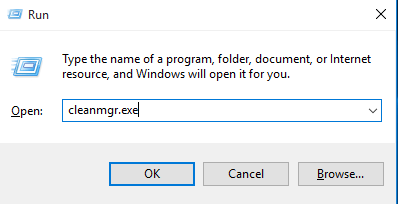
Step 1. Press “Windows + R” at the same time, type in “cleanmgr.exe” and click “OK” to open Disk Cleanup.
Step 2. Check "Windows Upgrade Cleanup" in the small window, and then click "OK".
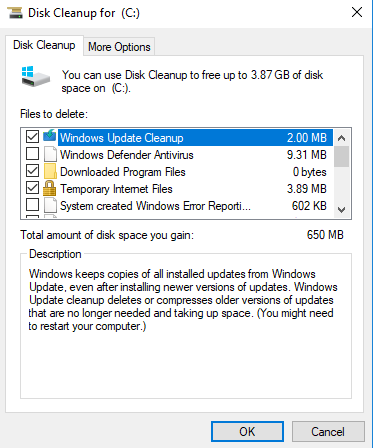
Step 3. Wait for a while and Disk Cleanup will clean up all selected Windows Update files.
Follow up: Delete stubborn junk files with free PC Cleaner
How do I delete Windows update files? You've got the answer. However, simply removing Windows update files is not enough. That's not enough to free up enough space for you, because you still have a lot of junk files on your disk that haven't been cleaned out. They are entrenched deep in the disk and are difficult to discover by users.
To delete it permanently, I highly recommend you try PartitionAssistant Cleanup. This is a free and powerful junk cleaner compatible with Windows 11, 10, 8, and 7. It can fully scan junk files, including system junk files and registry junk files. After scanning is over, you just need to click “Clean All” to remove all junk files.
 PartitionAssistant Cleanup
Free Up Disk Space To Keep Your PC Running Smoothly and Efficiently
Step 1. Install and launch PartitionAssistant Cleanup. Click the "Clean Junk Files" tab.

Step 2. Click the "Scan Now" button to start the process of scanning junk files.

Step 3. After the scan process is finished. All system junk files (including recycle bin files, temporary files, log files, invalid shortcuts, and so on) and registry junk files (including DLL registry, system registry, and program registry) will be displayed.

You can also click the button behind to view the junk files details.

Step 4. And, you can click the button behind to locate the file.

By default, the program will select some junk files to clean up, for example, temporary files, log files, and so on. You can also manually check to select more or uncheck to deselect fewer listed junk files. Or, click "Select All" to select all junk files to clean up if you need to clean up all.
Step 5. After selecting junk files that are not needed anymore, you can click the "Clean Now"button to start the cleanup.

The process of the cleanup might take time, and the selected files will be cleaned up. After the process is finished, you will get a cleanup completed window displaying how many files you have cleaned and not yet cleaned.

Conclusion
How do I delete Windows update files? In this tutorial, we shared how to delete Windows update files using Disk Cleanup. In addition, another powerful PC Cleaner is also mentioned, which can help you fully remove junk files from the disk. What’s more important, it also has other functions, such as merge partitions, resize partitions, wipe hard drive, clone a smaller hard drive to a bigger hard drive, and so on.
