
 AOMEI Partition Assistant
How to Free Up Disk Space on C Drive in Windows 11/10
How to free up disk space on C drive? This article presents eight practical solutions for it. It provides clear, step-by-step instructions and highlights a professional disk management tool that can expand the C drive to increase available storage.

By Hedy / Updated on August 1, 2025


Why does C drive get full so quickly?
The C drive serves as the main partition of your computer, housing the operating system along with essential system files. Over time, C drive often becomes full as it accumulates various types of data. Typically, it stores:
◆ Windows OS, system files, and configuration settings
◆ Installed programs, built-in applications, and downloaded software
◆ Personal files like documents, images, and items saved on the desktop
Because the operating system resides on the C drive, it continually expands in size with regular updates designed to enhance stability and performance.
Additionally, users often save large project files, download games, or store media directly on the C drive. As these heavy or scattered files pile up, the system can slow down significantly, leading to noticeable drops in overall performance.
How to free up disk space on C drive in Windows
There are two primary approaches to reclaim space on the C drive: either expand the partition or clear unnecessary data from it. In the following section, you’ll find seven effective methods to help free up valuable space on your C drive.
Method 1. Extend C drive to get more space
Expanding the C drive is one of the most efficient ways to gain additional storage. A reliable solution for this task is AOMEI Partition Assistant, a dedicated Windows disk management tool.
This software removes the usual Windows limitations, allowing users to resize or move partitions with far greater flexibility. Most importantly, it streamlines the process of merging both adjacent and non-adjacent unallocated space into the C drive—without risking data loss.
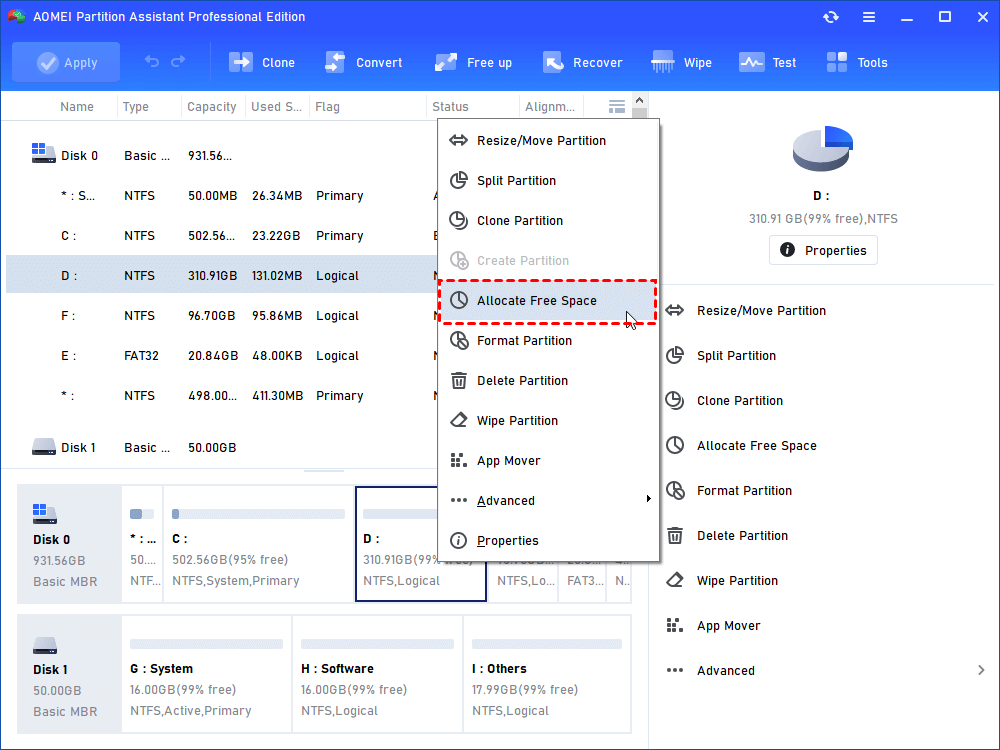
Step 1. Install and open AOMEI Partition Assistant. Right-click the D drive or other drive with extra space and choose "Allocate Free Space".
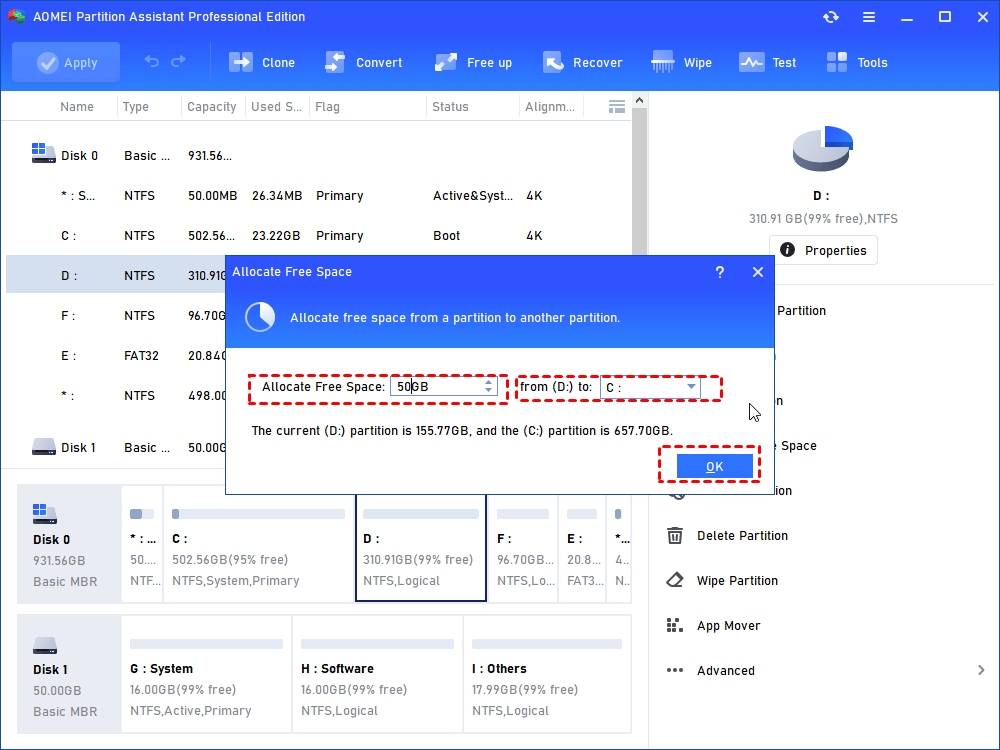
Step 2. In the new window, you can specify the space size and target partition. If it’s C drive, you need to select C drive from the given list, and click “OK”.
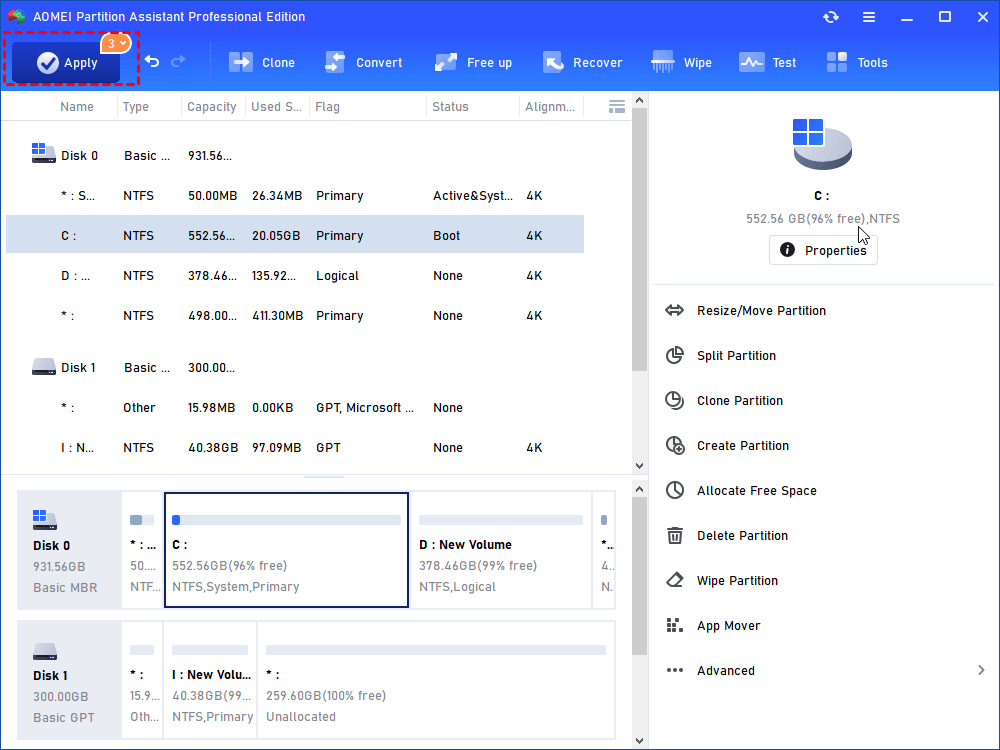
Step 3. Now, you can preview that the C drive has been extended. Then, click Apply to save the changes.
Method 2. Move larger files to another drive
Another effective way to free up C drive space is by moving large files to a different drive. A practical tool for this task is AOMEI Partition Assistant, a professional file transfer software. It efficiently relocates bulky files and even entire programs to another drive, helping you reclaim valuable storage on your system. Here’s how it works.
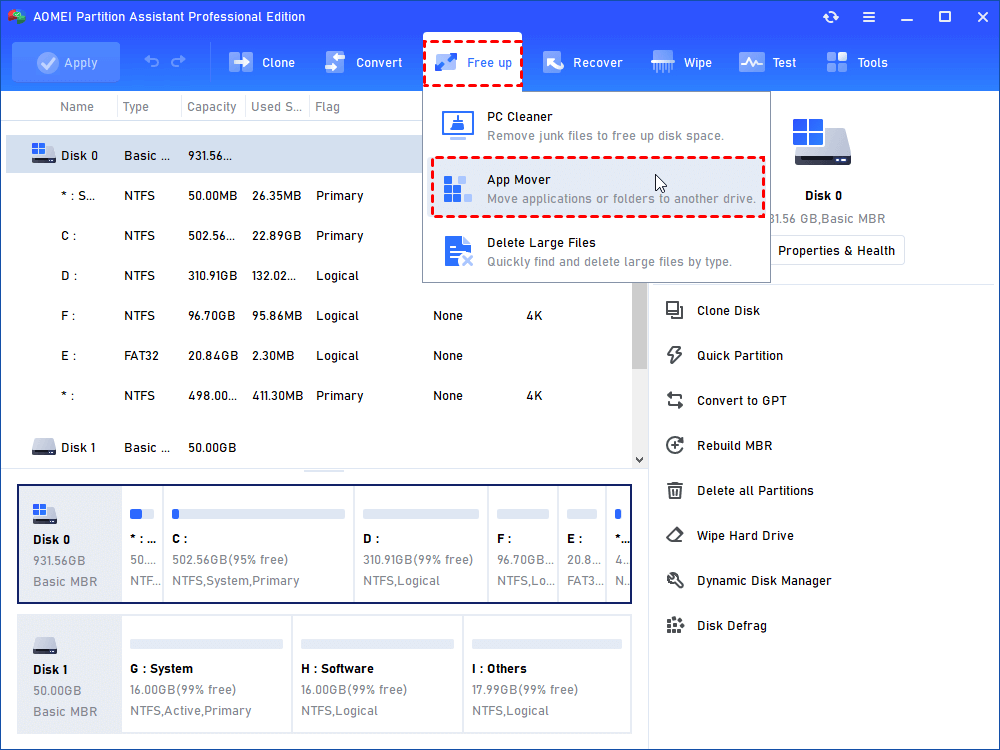
Step 1. Install and run AOMEI Partition Assistant, click "Free up" on the top interface and then choose "App Mover".
Step 2. In the new window, click "Move Folders".
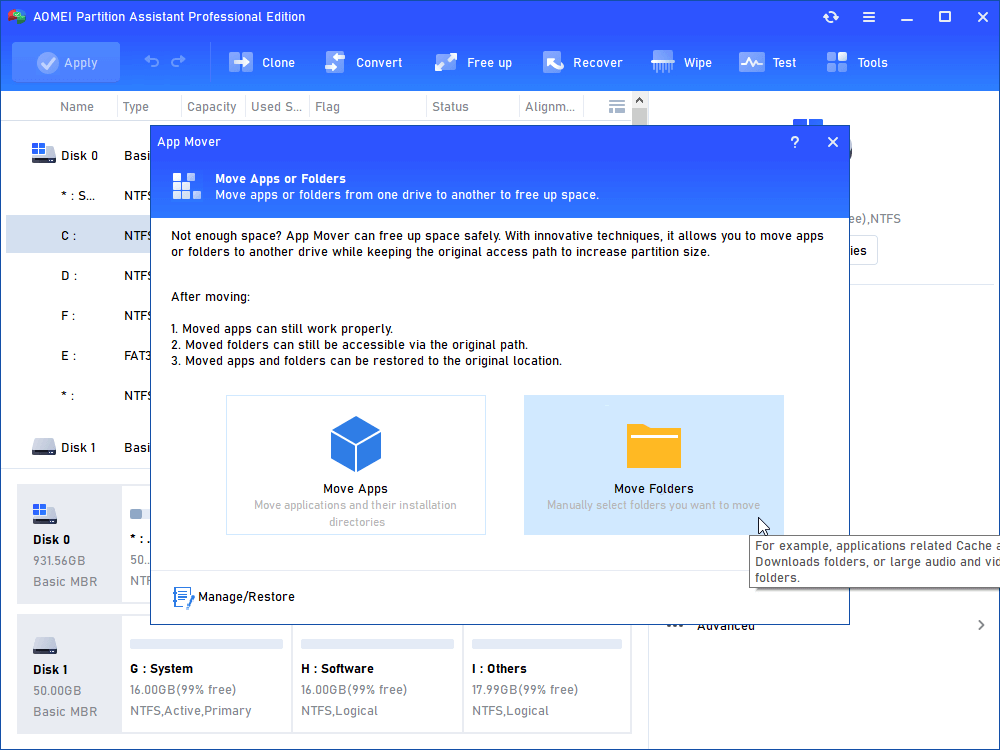
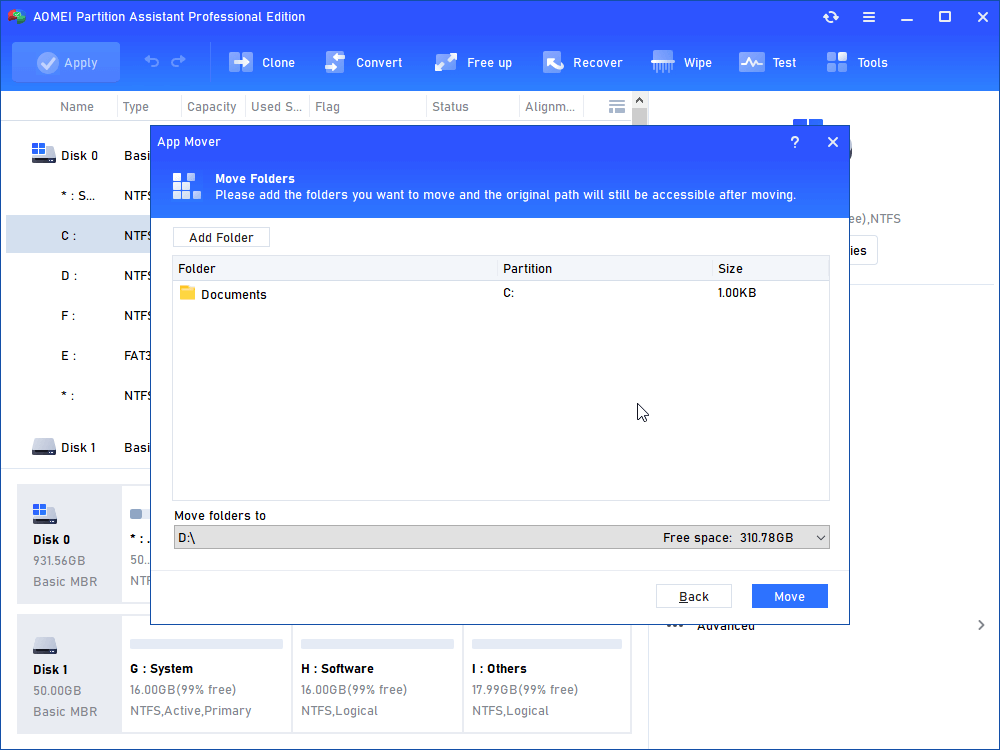
Step 3. Select the Documents folder. Choose a new location for the folder like D drive or F drive, and click "Move". Please make sure the target drive has sufficient free space to store your Documents, if not, extend the partition can help a lot.
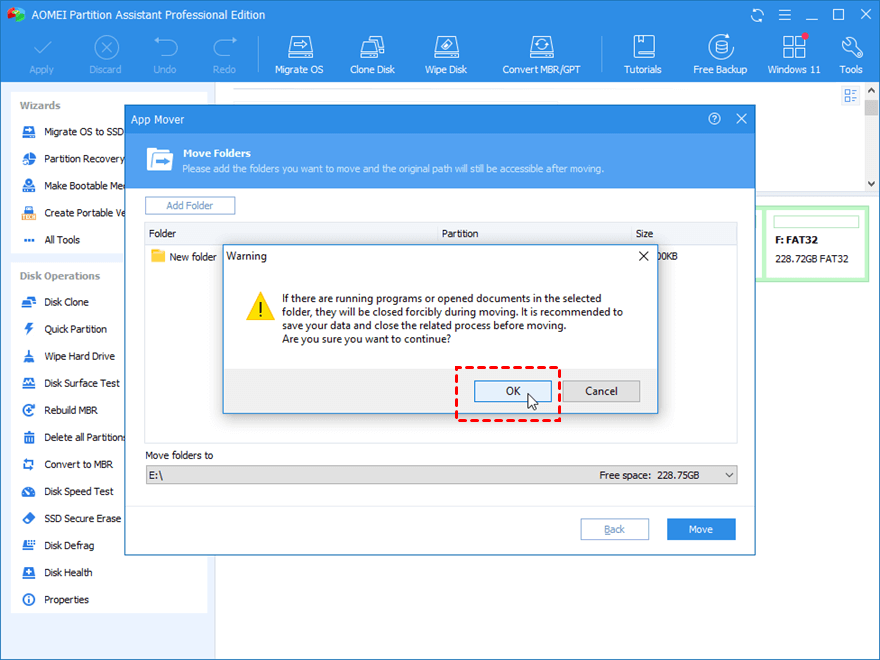
Step 4. You will see a pop-up message to confirm forcibly closing running applications when moving starts. Click "OK" to begin the process.
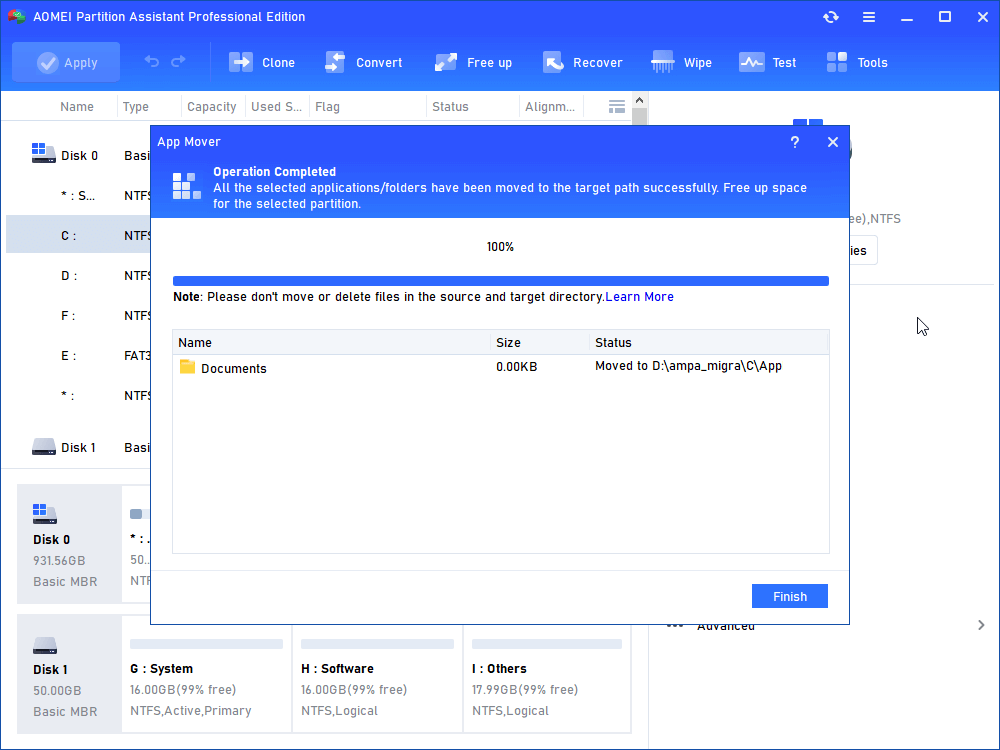
Step 5. Wait for a while, and click "Finish" to complement the movement.
Method 3. Run Disk Cleanup
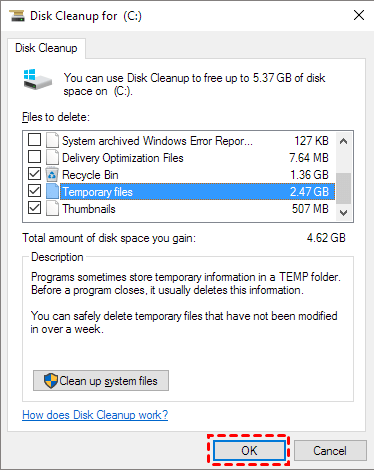
Windows includes built-in utilities designed to keep your storage organized, and Disk Cleanup is one of the most useful. This tool removes unnecessary data, such as temporary files, which can accumulate over time and take up several gigabytes of space. Follow the steps below to give it a try.
Step 1. Click on the "Windows" icon and type "disk cleanup" then open the result.
Step 2. When the small window appears, select the C drive and click "OK."
Step 3. Choose the desired files and click "OK."
Method 4. Delete temporary files
Temporary files can quickly consume space on the C drive if left unchecked, so regular deletion is essential. Here’s how to remove them and reclaim storage efficiently.
Step 1. Press the Windows + I to open Windows settings.
Step 2. Navigate to System > Storage, then click on Temporary files under the C drive.

Step 3. Select the file types you want to delete.
Step 4. Click Remove files > Continue to clear unnecessary files.
Method 5. Empty Recycle Bin
When you delete files in Windows, they are not immediately removed from the drive. Instead, they are sent to the Recycle Bin and simply marked as deleted. Over time, the Recycle Bin can grow significantly, consuming valuable C drive space. Emptying it is a quick way to reclaim storage.
Step 1. Locate the Recycle Bin icon on your desktop.
Step 2. Right-click the icon and select the Empty Recycle Bin option.
Step 3. Click Yes to continue the process when prompted with "Are you sure you want to permanently delete all of these items?" This will permanently erase all files stored in the Recycle Bin.
Method 6. Uninstall unnecessary apps
If your C drive is crowded with programs you no longer use—especially those installed temporarily to fix certain issues—uninstalling them is an easy way to reclaim space and improve system performance.
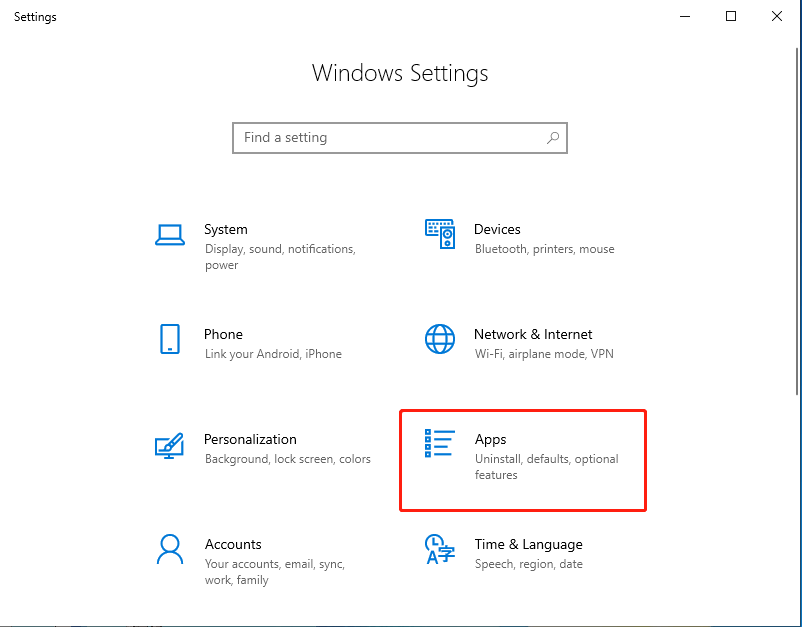
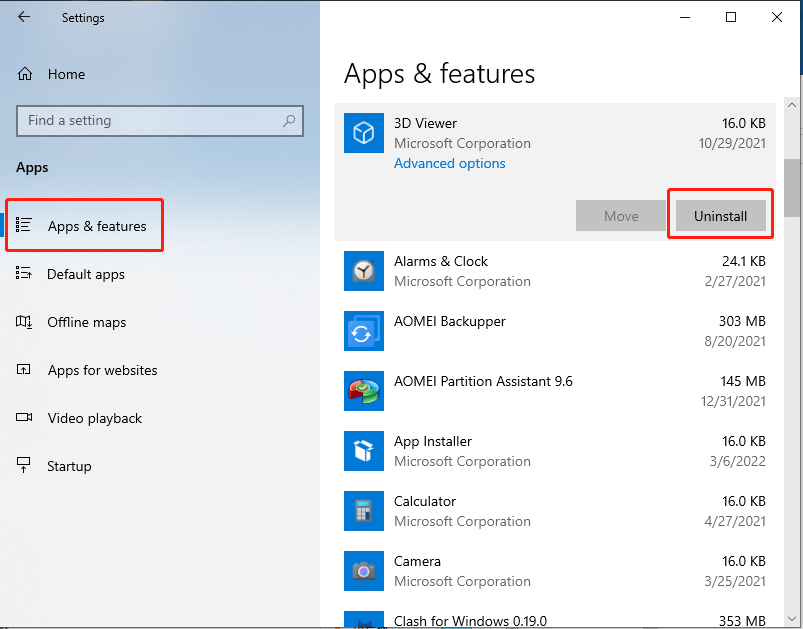
Step 1. Open the Start menu from the desktop and go to "Settings > Apps > Apps & features".
Step 2. Select the software you want to uninstall and hit the "Uninstall" button.
Method 7. Disable hibernation mode
Hibernation allows Windows to save the current system state to the hard drive before powering off, so you can resume work where you left off. However, this feature can consume several gigabytes of space on the C drive. Disabling it is an easy way to free up storage.
To turn off hibernation, open Command Prompt and enter the following command:
powercfg.exe /hibernate off
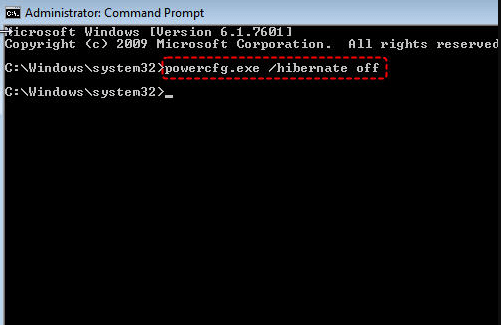
Once executed, hibernation mode will be disabled, and the space it occupied will be released.
Conclusion
So, are you ready to free up space on your C drive? This is a frequent concern for many Windows users. Here, we offer seven effective methods to help you reclaim storage, allowing you to pick the one that best suits your needs. As you can see, AOMEI Partition Assistant is a powerful disk manager that can also help solve other C drive issues such as C drive is missing, all the files in my C drive disappeared, C drive access is denied, etc.
