


Is Microsoft Total PC Cleaner Safe?
Is Microsoft Total PC Cleaner safe? In fact, it is safe. In this tutorial, we’ll demonstrate how to use it to clean up your computer and recommend a more convenient alternative.

By AOMEI / Updated on March 5, 2026


Can I clean up my PC with Microsoft Total PC Cleaner?
"My HP PC is too slow, I want to clean the computer to speed up computer, I heard that Microsoft Total PC Cleaner can help me. Is Microsoft Total PC Cleaner safe? Has anyone used this tool? Thanks for your help."
Sometimes our computer runs slowly or performs poorly due to too many junk files, so cleaning up the computer is the first choice to make it run faster. Here, we will introduce Microsoft Total PC Cleaner and a perfect alternative to it.
Is Microsoft Total PC Cleaner safe?
Total PC Cleaner is a computer cleaning tool made by Microsoft, it can delete some unnecessary junk files on the computer such as system cache, browser cache and downloaded files to improve your computer performance.
Is Microsoft Total PC Cleaner safe? The answer is of course "Yes". Microsoft Total PC Cleaner will not generate any virus and suspicious files or even download malicious websites privately. But in order to use the safe Total PC Cleaner, the tool must be obtained from the official website, Microsoft Store.
How to clean up PC with Microsoft Total PC Cleaner
After having a preliminary understanding of Microsoft Total PC Cleaner on Windows 10, next we need to master the specific steps to clean up the computer with this practical software.
Step 1. Run Microsoft Total PC Cleaner after downloading it, you can see the tip "confirm your system disk", please read the instructions carefully and click "Continue".
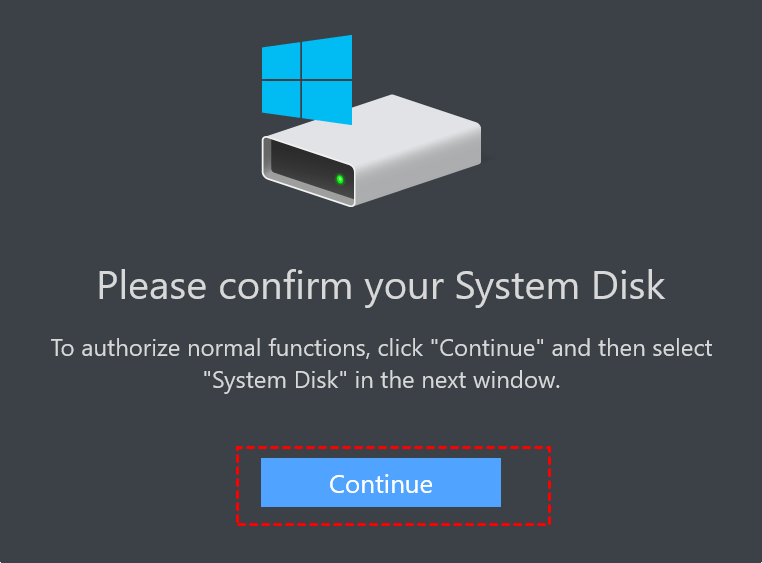
Step 2. Select the C drive then click "Select Folder".

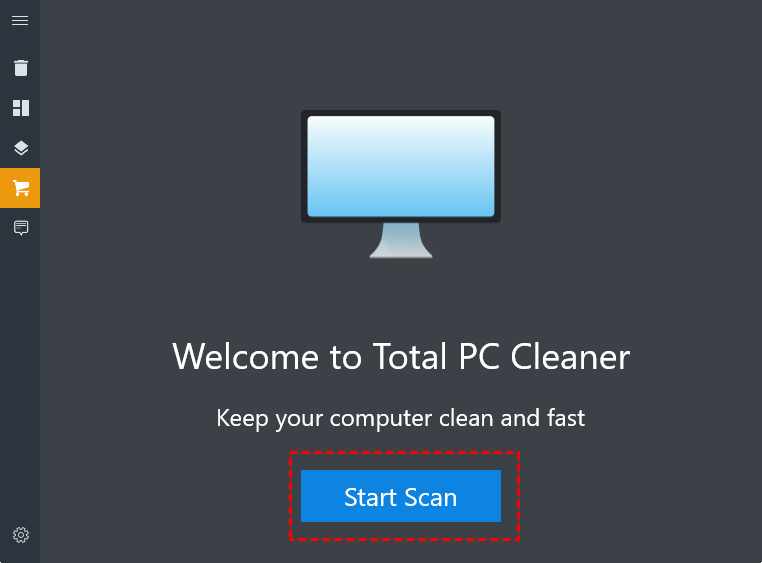
Step 3. Click "Start Scan" to search for all junk files from the PC.
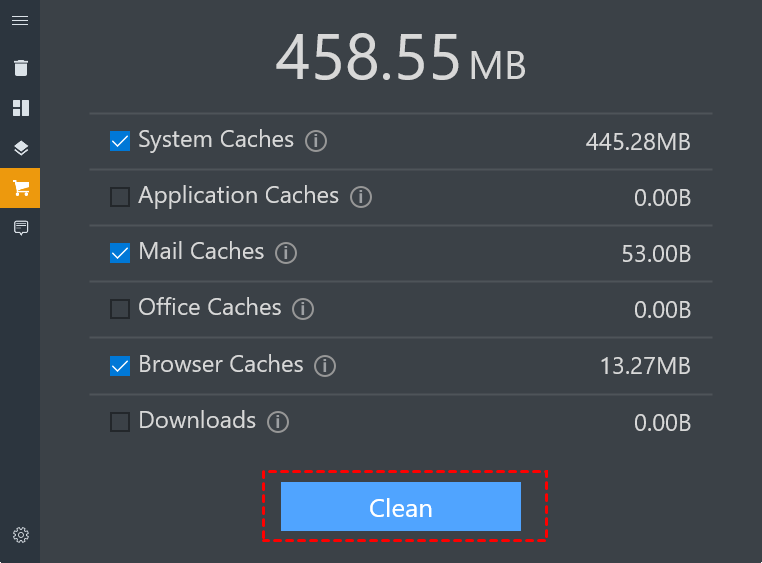
Step 4. All junk files will be displayed and you can see the size of space you can release after deleting these files, click "Clean".
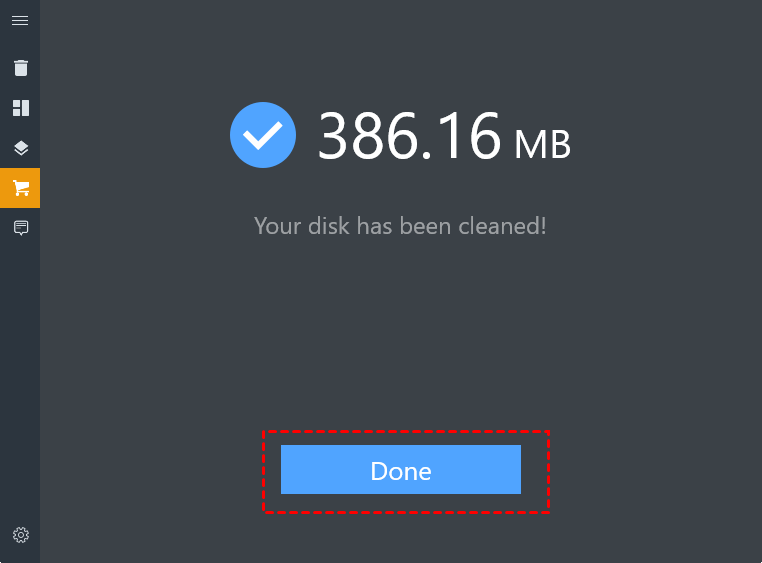
Step 5. You will see the sentence "Your disk has been cleaned!" once this operation is finished, click "Done".
A reliable alternative to Microsoft Total PC Cleaner
It is not difficult to see that although the answer to "Is Total PC Cleaner safe”"is yes, it cannot completely clean up the computer, because it is unable to search out all junk files in your computer.
To completely free up space, we have to switch to PartitionAssistant Cleanup-a more comprehensive PC cleaning software. This is a very safe third-party software that does not carry any bundled software, it can work with Windows 11, 10, 8, and 7.
Unlike Microsoft Total PC Cleaner, this powerful tool can thoroughly dig out all junk files that are hidden in your computer. After the scan is completed, it will also autonomously select some unnecessary files you may need to delete, and you can add or subtract target files based on that. Then, selected junk files will be removed from your computer permanently once you click "Clean All".
PS.: When the C drive is full, apart from cleaning computer memory, you can also use it to extend C drive.
 PartitionAssistant Cleanup
The Best Windows Disk Partition Manager and PC Optimizer
Step 1. Install and launch PartitionAssistant Cleanup. Click the "Clean Junk Files" tab.

Step 2. Click the "Scan Now" button to start the process of scanning junk files.

Step 3. After the scan process is finished. All system junk files (including recycle bin files, temporary files, log files, invalid shortcuts, and so on) and registry junk files (including DLL registry, system registry, and program registry) will be displayed.

Step 4. You can also click the button behind to view the junk files details.

Step 5. And, you can click the button behind to locate the file.

Step 6. By default, the program will select some junk files to clean up, for example, temporary files, log files, and so on. You can also manually check to select more or uncheck to deselect fewer listed junk files. Or, click "Select All" to select all junk files to clean up if you need to clean up all.
After selecting junk files that are not needed anymore, you can click the "Clean Now"button to start the cleanup.

Step 7. The process of the cleanup might take time, and the selected files will be cleaned up. After the process is finished, you will get a cleanup completed window displaying how many files you have cleaned and not yet cleaned.

★ You can try the "Delete Large Files" function to dig out all of the large files on PC and delete them according to your needs.
★ You can unlock "App Mover" to move installed programs to another drive.
★ You can also allocate free space from one drive to another to extend it.
To conclude
Is Microsoft Total PC Cleaner safe? In this article, we answered this question and explained in detail how to use it to clean up your computer. When this tool can't meet your requirements, we also provide you with a perfect alternative PartitionAssistant Cleanup to thoroughly find and delete all junk files in your computer.
