


What Is the Best Duplicate File Finder for Windows 10?
This page will show you what is the best duplicate finder for Windows 10 and provide a step-by-step guide to help you reclaim disk space and optimize your system.

By AOMEI / Updated on July 11, 2025


Why do you need a Duplicate File Finder?
Before delving into the best options, let's understand why you need a duplicate file finder in the first place. Duplicate files can accumulate from various sources - redundant backups, multiple downloads, and file transfers. These duplicates not only take up disk space but also make it harder to locate and manage essential files. However, a duplicate file finder can give you these benefits:
Frees up disk space: Removing duplicates reclaims valuable storage space.
Enhances system performance: A cleaner file system leads to faster performance.
Saves time: Locating files becomes quicker and more efficient.
Reduces clutter: A cleaner file structure improves organization.
What is the best duplicate file finder for Windows 10?
There are numerous Duplicate File Finder on the market, which one is the best? When choosing the best duplicate file finder for Windows 10, we can't avoid some points that must be taken into consideration, including:
✦ Compatibility: An excellent Duplicate File Finder should not be limited to finding duplicates in internal hard drives, but should also be compatible with other external devices.
✦ Comprehensive: It should be able to scan a wide range of file types, including images, videos, audios, documents, etc., ensuring that all duplicate items are covered.
✦ Accuracy: The tool should accurately identify duplicates, avoiding false positives.
✦ Preview: A preview option helps ensure you don't accidentally delete important files.
✦ Flexibility: The ability to choose which duplicates to remove is vital for customization.
✦ Scan Customization: Look for options to scan specific folders or file types.
Based on these features, I recommend PartitionAssistant Cleanup. It is a full-feature disk partitioning management software, its “Duplicate Files Finder” is designed to quickly find and delete duplicate files on multiple different storage devices. It will be very helpful for you to optimize storage and improve system efficiency.
 PartitionAssistant Cleanup
Free Up Disk Space To Keep Your PC Running Smoothly and Efficiently
- ★Tip:
- Besides cleaning duplicate files, there are more features waiting for you to unlock here, such as deleting large files, removing junk files.
How to find and remove duplicates files with AOMEI Partition Assistant Professional
Now that you know what is the best duplicate file finder for Windows 10, please download it to see how it works.
Step 1. Install and launch PartitionAssistant Cleanup. Click the "Find Duplicate Files" tab.
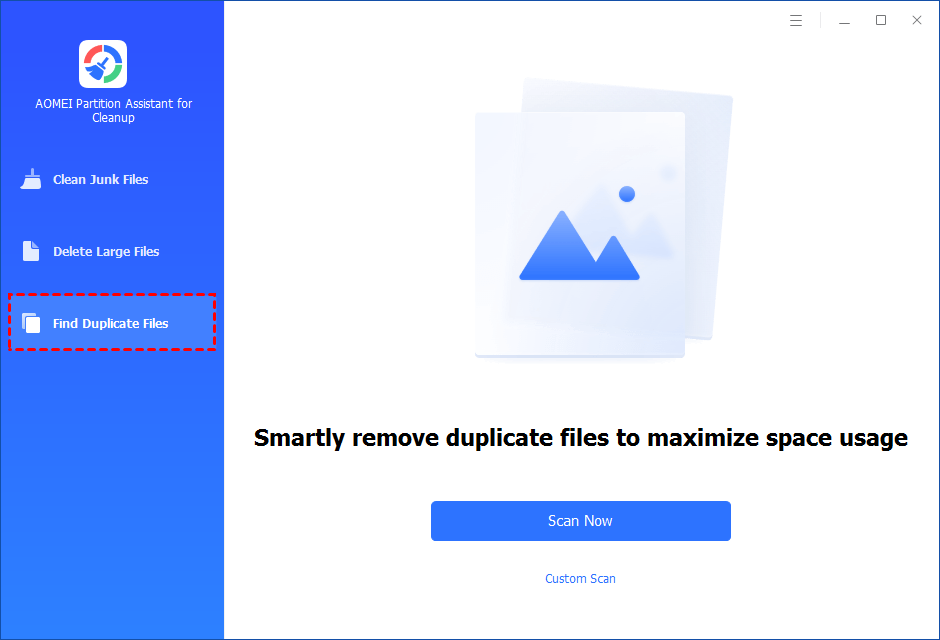
Step 2. You can either click "Scan Now" to start the scan of your system C: drive. Or, click "Custom Scan" to manually select paths to be scanned. (Here, we take the "Custom Scan" as an example.)
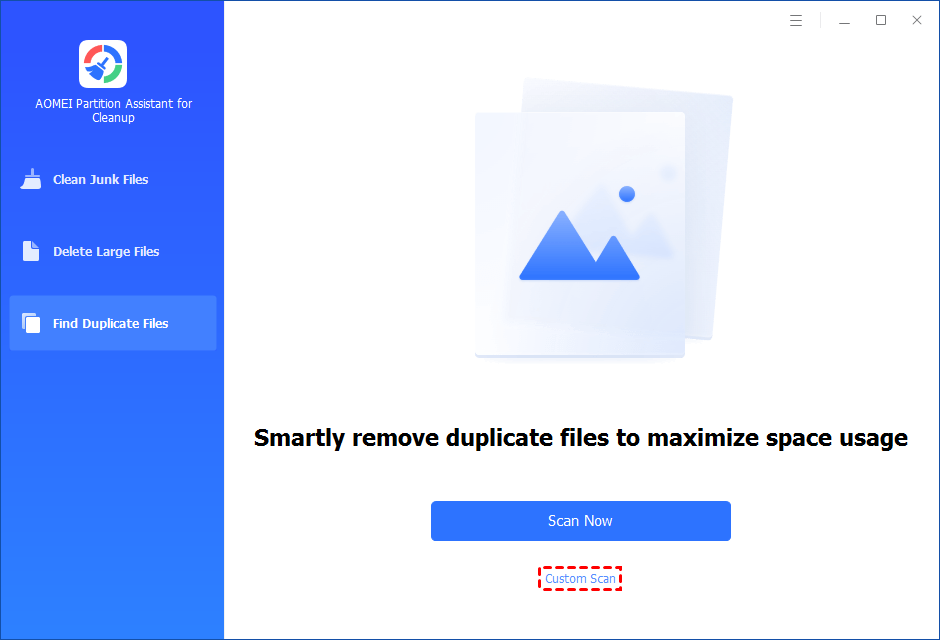
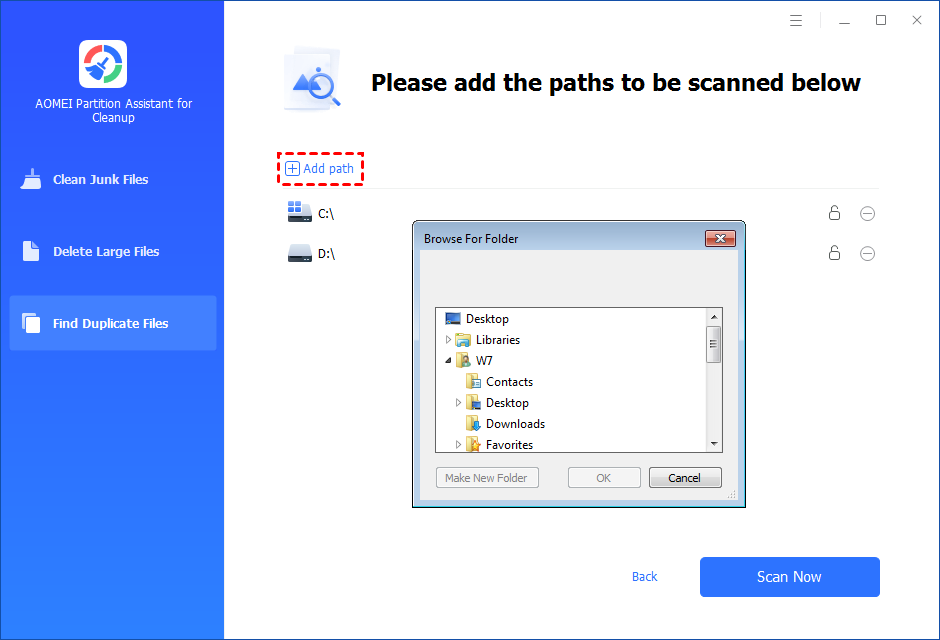
Step 3. After clicking "Custom Scan", all local and external drives on your PC will be displayed. You can also click the "Add Path" button, and then a browse folder window will pop up. So you can add more paths on this PC, like Desktop, Downloads, and other folder paths.
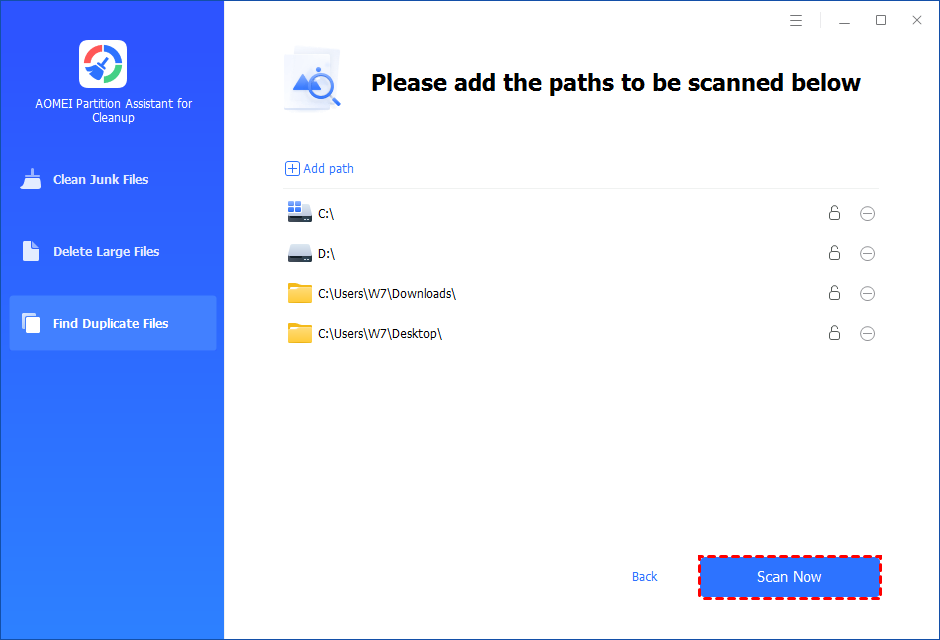
Step 4. Once necessary paths are added, you can click the "Scan Now" button to start the scan process.
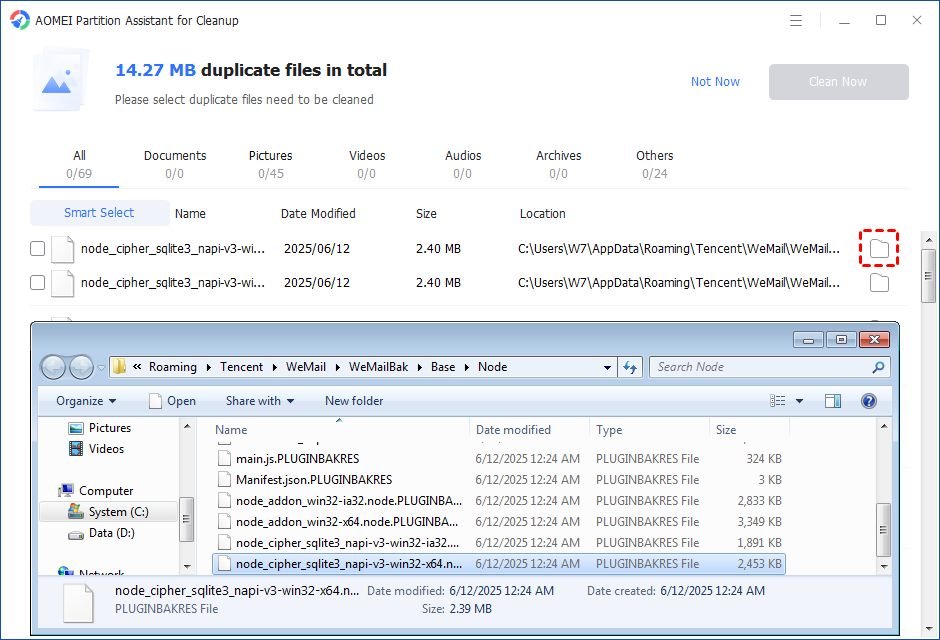
The scan process might take time. After the scan is complete, all duplicate files will be listed. You can click the button behind to locate them.
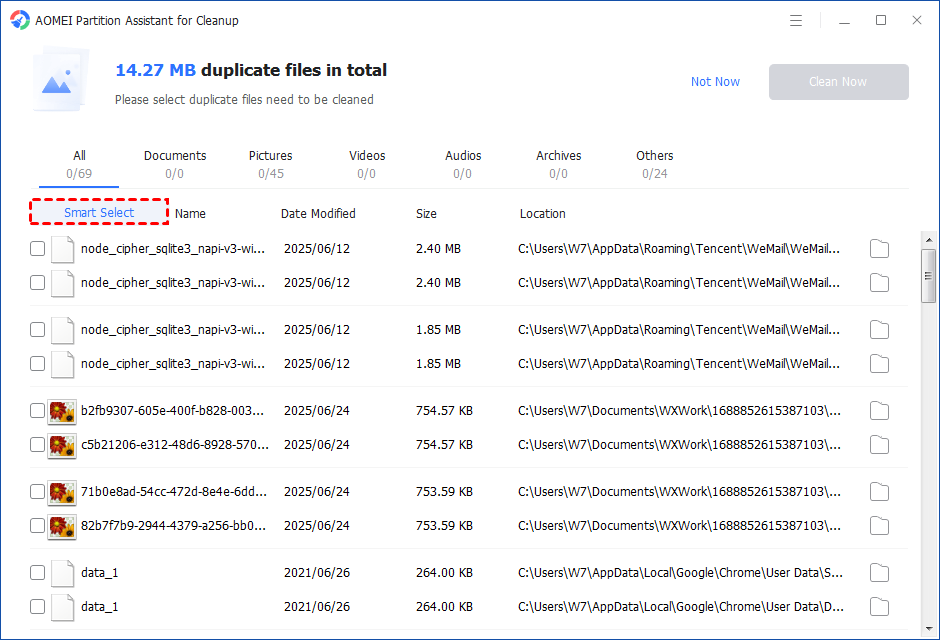
You can either manually select duplicate files, or click the "Smart Select" button to automatically select unnecessary duplicate files to delete.
Tips: If the "Smart Select" is ticked, only the oldest duplicate file will be unticked. It means that all duplicate files except the oldest one will be ticked to delete. (The oldest file means the file that was created first. This file will not be deleted. All other duplicate files are considered copies of the oldest file. )
If you manually select all copies of duplicate files, you will get a pop-up warning window to keep at least one copy of the duplicate files. If you indeed want to delete all copies of duplicate files, you can click "OK" so all copies of duplicate files will be selected to delete.

After unnecessary duplicate files are selected, please click the "Clean Now" button to start the deletion.

Step 5. The deletion might take time. After the process is finished, the selected files will be deleted, and you will get a cleaning completed window displaying how much data you deleted in total.

Conclusion
In the realm of digital organization, a reliable duplicate file finder is a powerful tool. It not only helps free up valuable disk space but also contributes to a more efficient and organized system. In this page, you have learned what is the best duplicate file finder for Windows 10. If you are looking for such a program, try it as described in the article.
FAQs about best duplicate file finder program for Windows 10
There are some frequently asked questions about the duplicate file finder that you can refer to:
Is it safe to use a duplicate file finder?
Yes, using a reputable duplicate file finder like AOMEI PA is completely safe. It is designed to identify and remove duplicate files without causing any harm to your files or your system.
Can I recover files after they've been deleted by a duplicate file finder?
Yes, you can. "Recover Data" feature of AOMEI Partition Assistant can quickly recover any lost, deleted, formatted data from HDD, SSD, USB drive, SD card, and more devices. When you have accidentally deleted a file, try it immediately!
How often should I use a duplicate file finder?
The frequency of using a duplicate file finder largely depends on your digital habits. If you regularly download or create a large volume of files, it's a good practice to run a scan periodically. Additionally, performing a scan after significant file transfers or system updates can help keep your storage space optimized.
