
 PartitionAssistant NTFS for Mac
Solved: Can Not Delete File In A Flash Drive On Macbook Pro
This article addresses common reasons users cannot delete files from flash drives on a MacBook Pro. It provides clear, effective steps to regain control over your external storage and manage your data.

By Irene / Updated on March 2, 2026


Apple Community: Can not delete file in flash drive on MacBook Pro
Unable to manage files on USB
There is no delete option when I open the USB folder, if I drag a file and drop it in the trash, it simply says this file cannot be deleted. I can't move files either, as if there is some sort of lock on the USB. When I connect through a PC, I have no issues with this...any suggestions?
- Question from discussions.apple.com
Many users may find that they cannot delete files from a flash drive on a MacBook Pro, even though the drive is detected and files can be opened. This situation is quite common and usually happens because of compatibility or access limits rather than a system error. In most cases, the flash drive is set to read only on macOS, or the file is restricted in some way. Before trying advanced methods, it helps to understand the main reasons behind this issue and how they affect file deletion on a Mac.
Below is a simple overview of the common causes and what they mean.
| Reason | What it means on a Mac |
|---|---|
| NTFS file system | The flash drive is formatted for Windows, so macOS can read files but cannot delete or edit them |
| Permission or locked file | Your user account does not have full access, or the file is marked as locked |
| File in use | The file is currently being used by an app or a system process |
| Write protection | The flash drive has a physical lock switch that blocks deleting or changing files |
Once the exact cause is clear, it becomes much easier to choose the right solution and restore normal delete access on your MacBook Pro.
How to delete files from USB drive on a Mac?
Fix 1. Use an NTFS tool on MacBook Pro
If you cannot delete files from a USB drive on your MacBook Pro, the most likely reason is that the drive is formatted as NTFS, a file system created for Windows. macOS can read NTFS drives, but it does not allow file changes by default. As a result, the USB drive may look normal in Finder, but deleting or editing files is blocked.
In this case, using a dedicated NTFS tool on macOS is a practical solution. Tools like PartitionAssistant NTFS for Mac enable full read and write access to NTFS USB drives. Once the tool is installed and activated, your Mac can delete, rename, move, and copy files on the USB drive just like it does on a Mac formatted disk.
This method does not require using Terminal commands, which can be tricky. It works with USB drives, external hard drives, and SSDs, and supports NTFS, FAT32, and exFAT. It is compatible with modern macOS on both Intel and Apple Silicon Macs, making it an easy and reliable way to manage files on Windows-formatted drives.
Before we start, you need to configure Security Policy in iOS Recovery Mode.
Step 1. Run PartitionAssistant NTFS for Mac and connect your USB flash drive.
Step 2. The connected USB drives, whether removable or external will appear and be listed.

Step 3. Select the drive you want to operate and click "Open".
Step 4. You can now copy files on your Mac and use "Paste Item" to transfer them to the USB drive.
Step 5. You can also copy, delete, and rename files on the USB drive.
Step 6. Once you have finished all tasks, click "Eject" to safely remove the USB drive from your Mac.
Fix 2. Enable Full Disk Access on MacBook Pro
To enable Full Disk Access on your Mac, follow these steps. This permission allows trusted tools to work with protected system areas so they can manage your files properly.
Step 1. Open the Apple menu and choose System Settings
Step 2. Select Privacy and Security. Scroll down and click Full Disk Access.
Step 3. Find the tool you want to allow and turn on the switch.
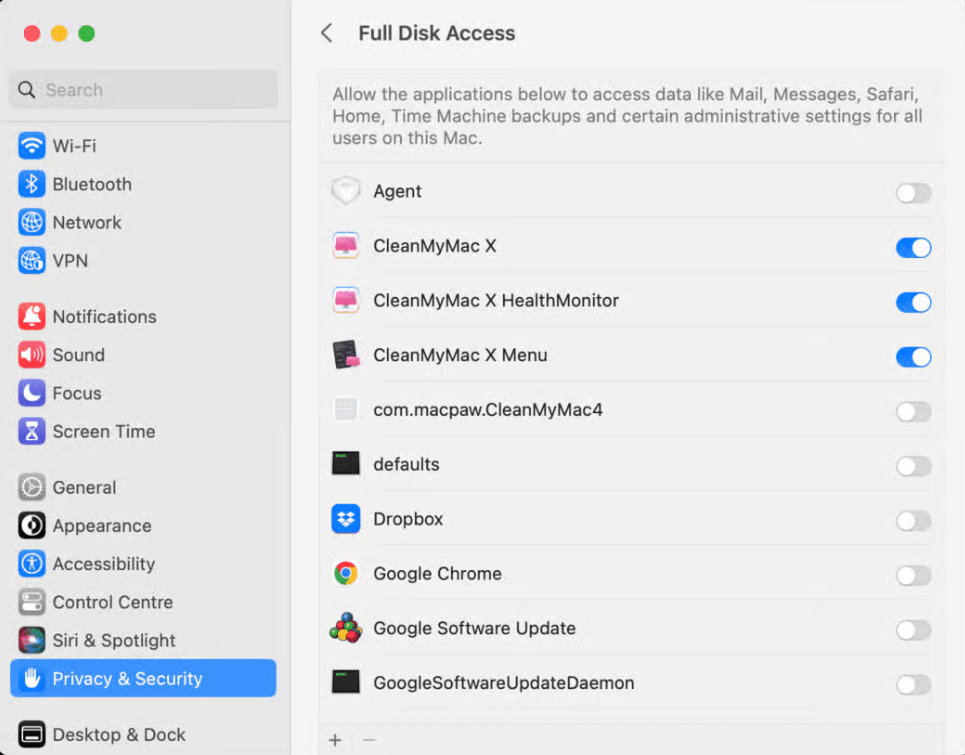
Step 4. Enter your administrator password if asked. Restart the tool to apply the changes
Fix 3. Fix Files in Use on a flash drive on MacBook Pro
When you cannot delete a file from a flash drive on a MacBook Pro because it is “in use,” it usually means an app or a background process is still accessing that file. macOS blocks deletion to avoid data loss. This issue is common and often easy to fix by stopping the process that is using the file.
Step 1. The fastest solution is restarting your MacBook Pro. This clears temporary system processes that may still hold the file. If you prefer not to restart, logging out and back in can also release the file in many cases.
Step 2. Make sure the file is not open in any app such as Preview, Word, or Finder. Also check cloud sync tools like iCloud, Dropbox, or OneDrive, as they may still be syncing the file. Quit these apps fully, then try deleting the file again.
Step 3. If the file is still locked, you can identify what is using it.
Open Activity Monitor from Applications > Utilities, look for related processes such as Finder or Spotlight, and force quit them if needed.
For advanced users, Terminal tools can show which process is using the file and allow you to stop it. If stopping the active process does not work, the file may be stuck in the Trash or blocked by system-level services. In that case, using options like Delete Immediately or starting your MacBook Pro in Safe Mode can help remove the file successfully.
Conclusion
In conclusion, when you can not delete file in a flash drive on MacBook Pro, the issue is usually caused by file system compatibility, permission limits, or files being actively used. Once the exact reason is identified, the problem can be resolved with the appropriate solution, such as enabling proper access, stopping background processes, or using an NTFS tool like PartitionAssistant NTFS for Mac to restore full control. With these fixes in place, managing, deleting, and moving files on a USB drive becomes smooth and reliable on macOS.
FAQs
🗨️ Why can’t I delete files from USB on Mac?
This usually happens because the USB drive is formatted as NTFS, which macOS can only read by default. Other common reasons include limited file permissions, the file being locked or in use, or the USB drive having write protection enabled.
🗨️ Why is my Mac not allowing me to delete files?
Your Mac may block deletion if you do not have full permission to the file, if the file is currently being used by an app or background process, or if the storage device is set to read only. External drives formatted for Windows often cause this issue.
🗨️ How to force delete a file that won’t delete?
You can restart your Mac to release files that are in use, close all related apps, or use Terminal commands to force remove the file. For files on NTFS USB drives, using an NTFS tool is a safer option than force deleting.
🗨️ How to delete files on USB flash drive that cannot be deleted?
First, check whether the USB drive is write protected or formatted as NTFS. If it is NTFS, enable write access using an NTFS tool for Mac. You should also make sure the file is not locked or being used by another program.
🗨️ How do I delete files from a flash drive on my Mac?
Connect the flash drive and try deleting files in Finder. If deletion is blocked, check file permissions, close any apps using the file, and confirm the drive format. Once the USB drive has full write access on macOS, you can delete files normally.
