
 PartitionAssistant NTFS for Mac
How to Fix Mac Won’t Grant NTFS Full Disk Access?
A simple guide to troubleshoot and fix the common problem of your Mac not granting Full Disk Access to your NTFS for Mac software, ensuring full read-write capability.

By Irene / Updated on December 24, 2025


User case: Mac won't grant NTFS files full disk access
I wanted to transfer some files to my external hard drive. Previously I have not had any issues with this. I think since updating my computer in the last few months there is a bug that stops full disk access from working. The appropriate software is ticked to have access, but nothing happens. It keeps prompting me to go to settings and allow access. I just updated again to Sonoma 14.1.2 hoping that they would have fixed the bug. They have not. Does anyone know a workaround for this? Thanks so much in advance!
- Question from www.reddit.com
Full Disk Access is a security function in macOS that decides which programs can access certain protected areas of your computer system.
When you use a tool designed to handle NTFS drives—specifically, to read or change files or files on them—it must have this permission to operate correctly. If the tool is denied access, it cannot load the necessary parts of the system to allow file writing to the NTFS drive. As a result, you might not be able to open, change, or save files or files on that disk.
Granting this access is safe; it does not give the NTFS tool access to your private, personal files or files. Instead, it only allows the tool to carry out necessary actions that macOS normally prevents. This is why your Mac requests the Full Disk Access permission when NTFS for Mac software attempts to manage or write files or files to an external NTFS drive.
By default, macOS can only read NTFS but cannot write to NTFS drives. This is because the NTFS format belongs to Microsoft and involves specific licensing and technical needs. Simply reading files or files from an NTFS drive is easy, but writing to it is much more complex. This complexity is due to features like journaling, which NTFS uses to protect data integrity.
While Apple includes an experimental function to write to NTFS, it is kept disabled because using it could potentially damage your files or files. To ensure your data remains secure, macOS permits only read access to NTFS drives. Full access, including the ability to perform all file operations, is only possible when you install reliable, third-party NTFS software and provide it with the necessary Full Disk Access.
How to enable Full Disk Access on Mac?
To enable Full Disk Access on your Mac, follow these steps. This permission allows trusted tools to work with protected system areas so they can manage your files properly.
Step 1. Open the Apple menu and choose System Settings
Step 2. Select Privacy and Security. Scroll down and click Full Disk Access.

Step 3. Find the tool you want to allow and turn on the switch.
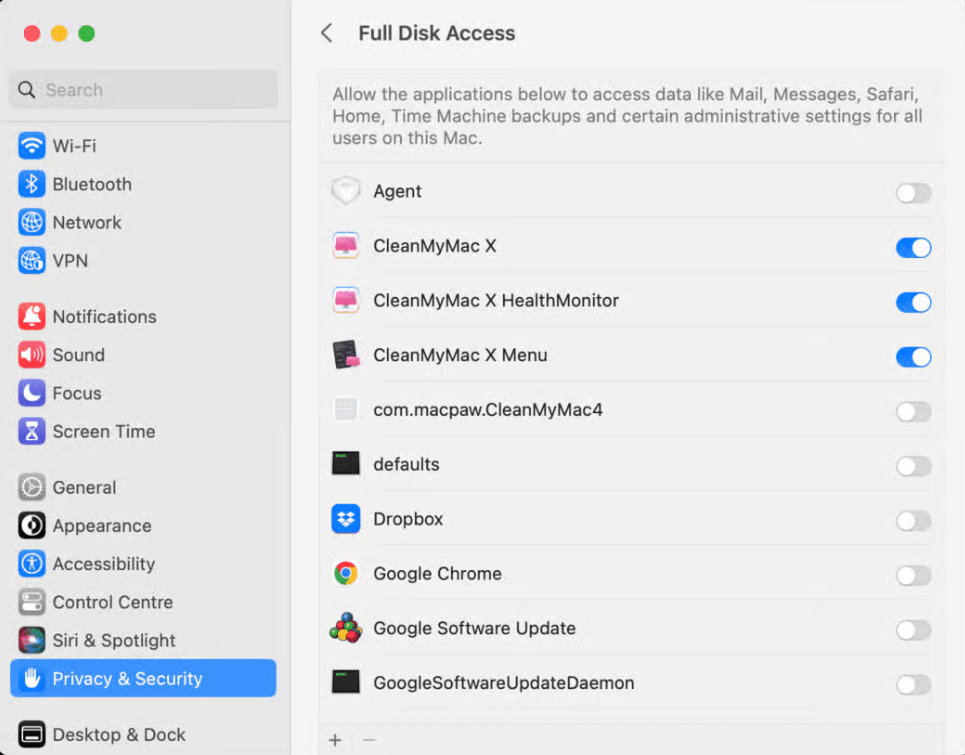
Step 4. Enter your administrator password if asked. Restart the tool to apply the changes
How to fix Mac won't grant NTFS Full Disk Access?
If your Mac will not grant NTFS Full Disk Access, the issue often comes from macOS security limits or an outdated NTFS tool. macOS can only read NTFS drives by default, so third party software is needed to write, edit, or delete files. These tools install a driver that requires Full Disk Access to work. When permission is blocked, the NTFS drive stays read only.
Compatibility is also important. Older tools may not work on the newest macOS versions or Apple Silicon Macs. Checking compatibility before installing an NTFS tool can help avoid this issue. You can update the software to solve this problem.
PartitionAssistant NTFS for Mac is a free and reliable choice. It supports macOS 12 or later and provides full read and write access to NTFS drives on macOS 12 and later on both Intel and Apple Silicon (M1/M2) Macs. To fix the issue, update your NTFS tool and enable Full Disk Access in System Settings under Privacy and Security. After approval, the NTFS tool loads correctly and restores full file access.
Note: Don't forget to configure the Security Policy in iOS Recovery Mode. macOS can only read NTFS partitions by default, not write directly to them. To write data to an NTFS partition on macOS, you need to use a third-party NTFS driver. These drivers are kernel extensions (Kexts), so macOS needs to reduce its system security policies to allow loading kernel extensions from identified developers.
Step 1. Download the installer and follow the on-screen instructions to install it on your Mac. Open PartitionAssistant NTFS for Mac.
Step 2. Insert your NTFS-formatted drive into the Mac. The software will automatically detect the device.
Step 3. The software will display your connected drives.
Step 4. Select the drive you want to operate and click "Open".
Now you can copy files on your Mac and click "Paste Item" to copy the files to your drive.
You can also copy, delete and rename files on the NTFS disk.
Step 5. After all operations are complete, please click "Eject" to disconnect the external hard drive from your Mac.
Conclusion
If your Mac will not grant NTFS Full Disk Access, the issue usually comes from strict macOS security settings or an outdated NTFS driver. By using reliable NTFS software like PartitionAssistant NTFS for Mac, enabling the correct permissions, and making sure your tool is fully compatible with your macOS version, you can restore normal read and write functions. With the right setup, your Mac can manage NTFS drives smoothly and let you transfer files without interruptions.
