
 PartitionAssistant NTFS for Mac
Does exFAT Work on Mac? Get Full Explanation Here!
Does exFAT work on Mac? The answer is definitely yes. In this post, you can also learn how to format to exFAT on Mac step by step as well as get a professional tool for cross-platform compatibility.

By Hedy / Updated on March 13, 2026


Does exFAT work on Mac?
If you've ever moved files between a Mac and a Windows PC, you've probably encountered the puzzle of file system compatibility. Plug an external drive into your Mac and everything works perfectly—until you try to move the same drive to a Windows computer. Suddenly, files can't be edited, copied, or even recognized. That’s where exFAT enters the picture.
So, does exFAT work on Mac? The short answer is yes—but there are more details to know.
Modern versions of macOS include native support for exFAT, meaning your Mac can both read and write files on exFAT drives without installing extra software. This compatibility makes exFAT one of the most practical file systems for people who frequently transfer files between different operating systems.
But while exFAT is widely used, it isn’t always the best option for every situation. It’s often compared with other file systems such as APFS, NTFS, and FAT32, each offering different strengths depending on how you plan to use your storage device.
Think of file systems as languages your devices speak. A Mac speaks APFS fluently, understands exFAT perfectly, and only partially understands NTFS. Windows, on the other hand, speaks NTFS natively but struggles with Mac-specific formats. exFAT acts like a universal translator between the two worlds.
This guide explores how exFAT works on Mac, why it’s so widely used, how to format drives correctly, and when you might want to choose a different file system instead.
When should you use exFAT on a Mac?
You should use exFAT on a Mac when you need a modern, flexible file system that works seamlessly across different operating systems, especially between macOS and Windows. exFAT is designed for external storage devices and large files, making it ideal for many everyday workflows. Here are the most common situations where using exFAT on a Mac makes sense.
1. When you need compatibility between Mac and Windows: The most common reason to use exFAT is cross-platform compatibility. Both macOS and Microsoft Windows can read and write exFAT drives natively.
2. When you work with large files: exFAT supports very large files (over 4GB), which makes it ideal for media professionals and anyone dealing with big datasets. Use exFAT if you often handle4K or 8K video files, high-resolution photo libraries, and large software packages. This solves the major limitation of FAT32, which cannot store files larger than 4GB.
3. When using external drives or USB flash drives: exFAT works best with portable storage devices such as USB flash drives, SD cards, external SSDs, and external hard drives. These drives are commonly formatted with exFAT because it balances speed, compatibility, and capacity across multiple systems.
4. When transferring files between multiple devices: Many devices besides computers support exFAT, including cameras, gaming consoles, smart TVs, and media players. Because exFAT is lightweight and widely supported, it is a good choice when your storage device needs to connect to several different devices.
5. When you don’t need advanced file system features: While exFAT is flexible, it does not include advanced features found in Apple’s modern file system Apple File System (APFS). For simple storage and file transfers, exFAT is often the easiest option.
6. When formatting a drive for universal use: If you're preparing a new drive and want it to work everywhere, exFAT is often the safest choice. Typical examples include portable drives for collaboration, backup drives shared across systems, and USB drives used in schools or offices.
How to format a drive to exFAT on Mac
Formatting a drive to exFAT on a Mac is simple and only takes a few minutes using the built-in Disk Utility tool in macOS. Below is a step-by-step guide to format a drive to exFAT on Mac.
Step 1. Go to Applications > Utilities > Disk Utility. Locate your external hard drive in the sidebar. If it is greyed out, it is detected but not mounted.
Step 2. Click the "First Aid" button and select "Run". This will attempt to repair the exFAT directory structure.
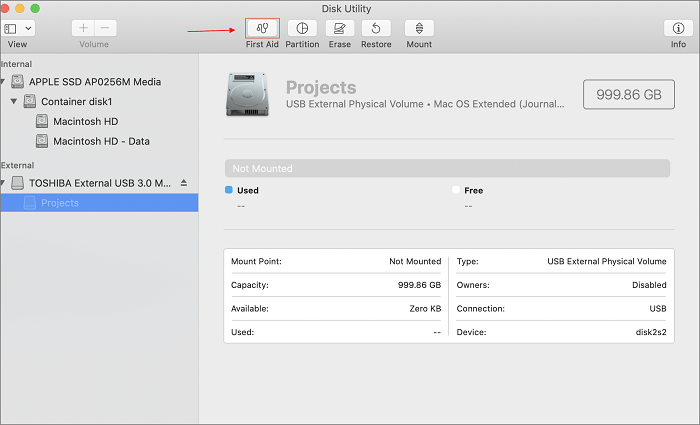
Step 3. If the drive is unreadable, click "Erase", choose ExFAT as the format, and click Erase.
Get a cross-platform compatible tool for non-exFAT file system
PartitionAssistant NTFS for Mac is a reliable tool designed to enable full read and write access to NTFS drives on macOS. While Mac natively supports formats like APFS, HFS+, and exFAT, it cannot write to NTFS drives by default. This limitation becomes a hurdle when you need to work with drives formatted for Windows. PartitionAssistant bridges this gap, allowing Macs to handle NTFS drives effortlessly.
💡 Key benefits:
◾ Full read and write access to NTFS drives on Mac.
◾ Seamless cross-platform file sharing between Windows and macOS.
◾ No need to reformat drives, preserving existing data.
◾ Simple, user-friendly interface for fast file operations.
Step 1. You can install and launch PartitionAssistant NTFS for Mac, then connect your NTFS drive, and the software will automatically mount and display all connected removable and external drives.

Step 2. Select the NTFS drive you want to make it read and write, and click "Open".
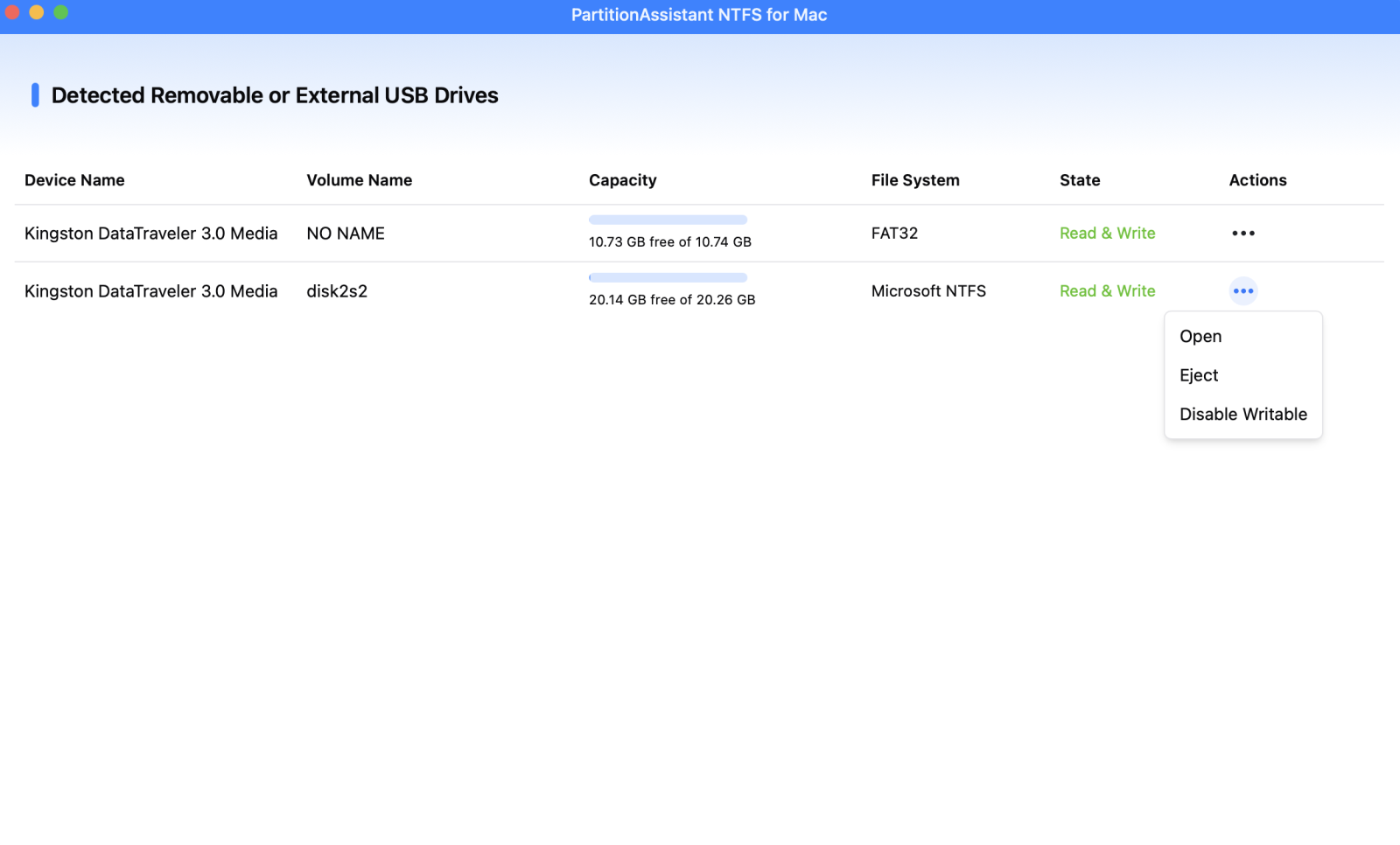
Step 3. You can use this drive for both Mac and Windows to copy, move, edit, or delete files that won't delete.

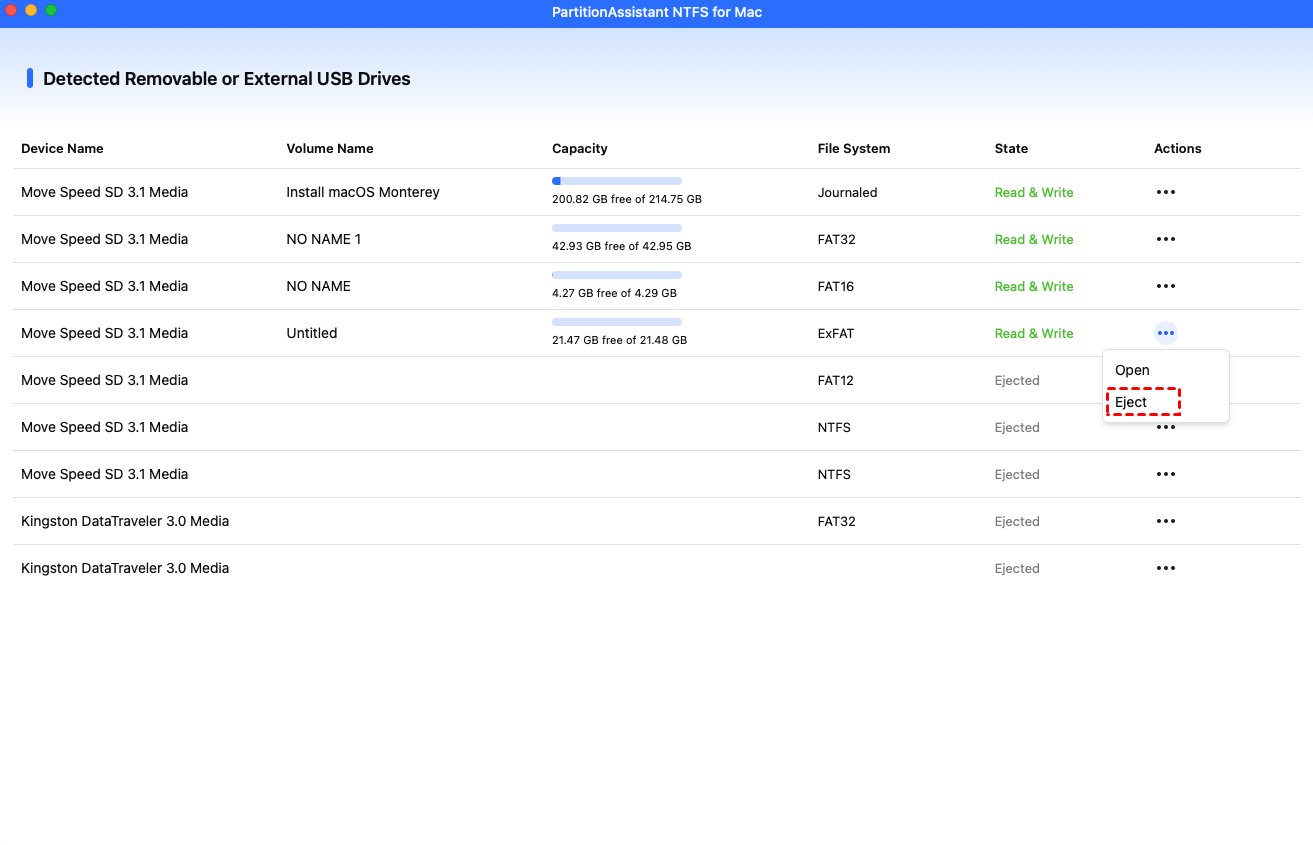
After all operations are complete, please click "Eject" to disconnect the external hard drive from your Mac.
FAQs
✍ Can Mac read and write exFAT drives?
Yes, macOS can both read and write to exFAT drives natively, making it ideal for sharing files with Windows systems without additional software.
✍ Is exFAT better than FAT32 for Mac?
Yes, exFAT supports larger files and drives than FAT32, which is limited to 4 GB files, making exFAT a better choice for modern Mac storage needs.
✍ Does exFAT work on both Mac and Windows?
Yes, exFAT is fully compatible with both macOS and Windows, enabling seamless file transfer across platforms without formatting or third-party drivers.
✍ Is exFAT safe for external hard drives?
ExFAT is generally safe, but like any file system, it’s vulnerable to corruption from sudden disconnection or power loss. Regular backups are recommended for important data.
✍ Should I use exFAT or APFS on Mac?
Use APFS for internal Mac drives for speed, security, and snapshots. Use exFAT for external drives needing cross-platform compatibility with Windows or other devices.
Conclusion
In short, exFAT offers a versatile, cross-platform solution for Mac users needing seamless file transfers with Windows, large-file support, and external drive compatibility. While it lacks advanced features like APFS, its simplicity and broad device support make it ideal for everyday storage, backups, and multi-device workflows, ensuring your files remain accessible and editable across different systems without extra software.
