
 PartitionAssistant NTFS for Mac
[4 Ways] Fix MacBook Won’t Format External Hard Drive
Learn what to do if MacBook won’t format external hard drive. The 4 fixes here also help to fix formatted external hard drive not recognized Windows on Mac.

By Irene / Updated on January 12, 2026


Reddit: Disk won't format on Mac
My MacBook won't format the external hard drive, any workaround?
Hey, I am very new to MacOS and I wanted to transfer my data back & forth from my external hdd to Mac but I can't seem to transfer anything from my Mac to Ext HDD. So I tried formatting but it shows some kind of error. What should I do?
- Question from www.reddit.com
A Reddit user shared that their MacBook could open files on an external hard drive but could not copy new data to it. Many Mac users can run into this problem. When they tried to format the drive in Disk Utility, the process failed with an error or encounter the Erase button greyed out. This situation is more common than it seems and is usually related to the file system, not a hardware fault.
In this type of case, the external hard drive is often formatted as NTFS, which is mainly used by Windows. macOS can read NTFS drives but does not allow full write or format access by default. Because of this, the drive appears locked on a Mac, and formatting may fail even though the storage itself is healthy. External HDD, SSD, and USB drives that were previously used on Windows computers are the most likely to use NTFS. The table below helps identify which external drives are commonly formatted as NTFS and how they behave on macOS.
| External Drive Source | Common File System | Behavior on Mac |
|---|---|---|
| Used on Windows PC | NTFS | Read-only file system, formatting may fail |
| New drive (unformatted) | No file system | Requires manual formatting |
| Mac-only usage | APFS or HFS+ | Full read and write support |
| Shared between Mac and Windows | ExFAT | Full access on both systems |
The real user case makes it clear that the issue is usually about compatibility rather than damage. Once you know the reason, the next step is choosing the right solution, such as reformatting the drive or enabling NTFS write access on macOS, which will be explained in the following sections.
How to fix MacBook won't format external hard drive?
Fix 1. Enable write access to NTFS external hard drive
When a MacBook cannot format an external hard drive, it is often because the drive is formatted as NTFS, which is designed for Windows. By default, macOS can read NTFS drives but cannot write to them. This means you can open or copy files from the drive, but deleting, editing, or formatting it may fail.
A practical solution is PartitionAssistant NTFS for Mac, a tool that adds full NTFS write access to macOS. Once installed, the Mac can safely write to NTFS drives, modify files, and manage the disk without reformatting. The software works with HDDs, SSDs, USB drives, and even supports formatting SD cards, and is compatible with both Intel and Apple Silicon Macs.
Using this method is especially useful if you want to keep the NTFS format for Windows compatibility or avoid losing existing data. After enabling NTFS write access, the drive can be fully used on Mac, often resolving formatting issues naturally.
🌟 Note: Please follow the guide to configure Security Policy in iOS Recovery Mode before the steps.
Step 1. Open the installed PartitionAssistant NTFS for Mac, then connect your NTFS drive, and the software will automatically mount and display all connected external hard drives on your Mac.

Step 2. Find the NTFS drive you want to write data, and click "Enable Writable".
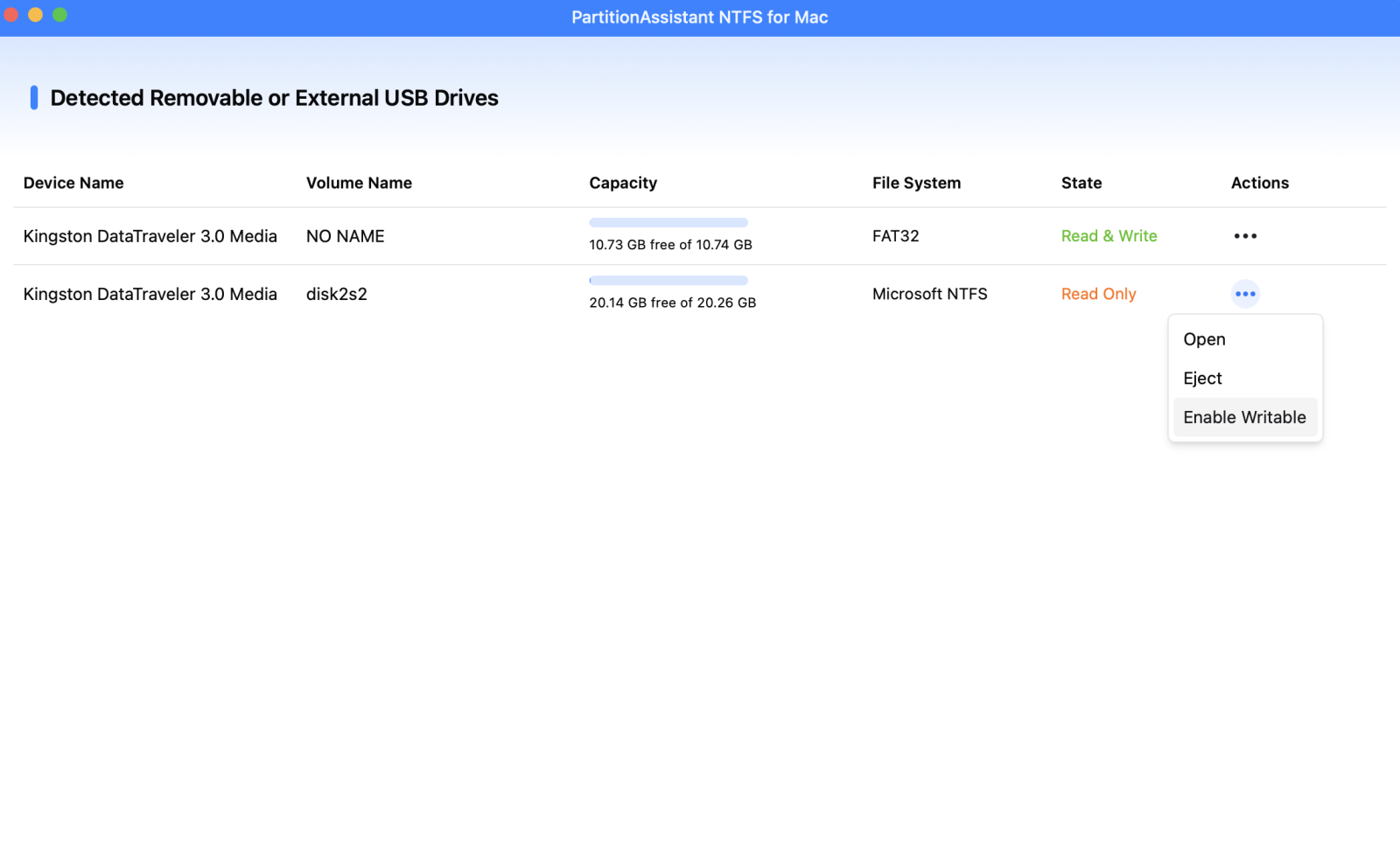
If the status is already Read & Write, simply click “Open” to start using the NTFS external hard drive on your MacBook.
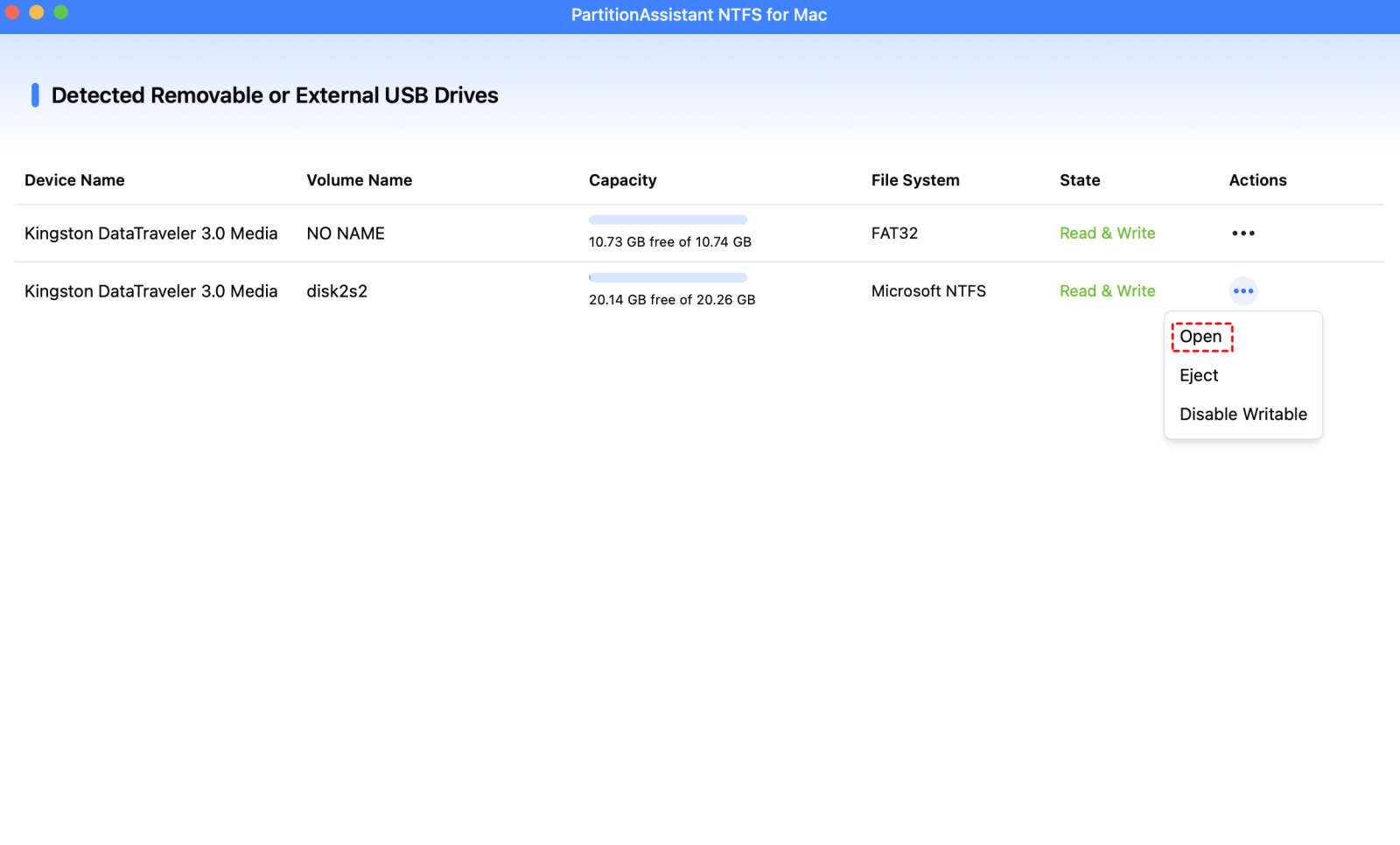
Step 3. You can now copy, move, delete files without formatting the NTFS drive.

Step 4. After all operations are complete, please click "Eject" to disconnect the external hard drive from your Mac.
Fix 2. Show all devices
Sometimes Disk Utility only shows volumes, not the full physical disks. Showing all devices ensures every disk is recognized and ready for formatting.
Step 1. Open Disk Utility on your Mac. In the Disk Utility window, click the "View" button and choose "Show All Devices."

Step 2. The view will refresh, showing all connected disks, including hidden ones.
Step 3. Locate the disk you want to format and select the top-level physical drive.
Step 4. Proceed with formatting using Disk Utility or another preferred method.
This simple step ensures your Mac recognizes the entire disk, which often resolves formatting errors. Once the disk is visible, you can continue with other fixes or choose a compatible file system for the drive.
Fix 3. Run First Aid for your MacBook
In Disk Utility, select the drive and look at the “Format” field. This shows whether the drive uses NTFS, APFS, ExFAT, or another format. If it is not NTFS but the external hard drive still won't format on Mac, you may need to run First Aid to fix disk errors that may stop a drive from formatting.
Step 1. Open Disk Utility on your Mac. In the Disk Utility window, locate the disk you want to repair and select it from the sidebar.
Step 2. Click the First Aid button in the Disk Utility window. Disk Utility will scan the disk and attempt to repair any errors or corruption it finds.
Step 3. Once the process is complete, review the results to see if any issues were fixed.
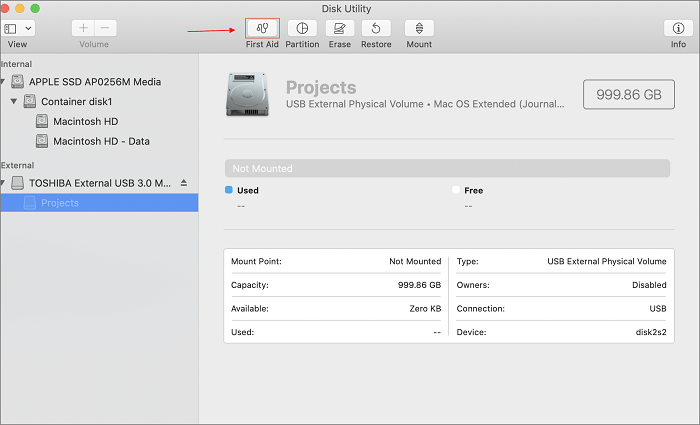
Step 4. If the disk was repaired and the file system is compatible, you can proceed with formatting or using the drive as needed.
Fix 4. Force format Disk with Terminal
When Disk Utility cannot format an external hard drive, Terminal can be used to apply formatting commands directly. This method offers more control and can work when standard tools fail.
Step 1. Open Terminal on your Mac. Type diskutil list in the Terminal window. Then press Enter to display all disks connected to your Mac.
Step 2. Find and note the identifier of the disk you want to format.
Step 3. Type diskutil eraseDisk [file system] [new name] [disk identifier], replacing the file system with your preferred format, the new name with your chosen disk name, and the disk identifier with the correct value.
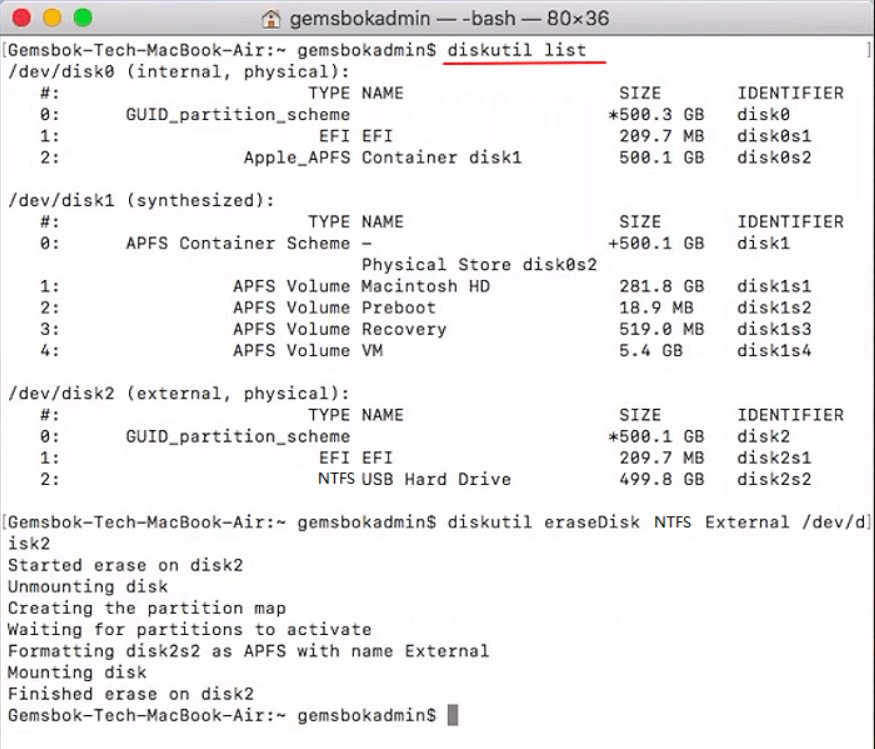
Step 4. Press Enter to run the command and start the formatting process.
After the process is complete, the disk will be reformatted and ready for use. This method is useful when other formatting options do not work and helps prepare the drive for normal access on macOS.
Conclusion
When a MacBook will not format an external hard drive, the problem is usually caused by file system compatibility rather than a faulty disk. Drives formatted for Windows, especially NTFS, often appear read only on macOS and may trigger errors in Disk Utility. By checking how the drive is formatted and using the right method, such as enabling NTFS write access with PartitionAssistant NTFS for Mac for free, showing all devices in Disk Utility, running First Aid, or using Terminal, most users can fix the issue without replacing the drive. Once the external hard drive is properly recognized and supported by macOS, it can be formatted or used normally for storing and transferring data between devices.
FAQs
🧐 Why won't my Mac let me erase an external hard drive?
This usually happens because of file system compatibility or permission limits. Many external drives are formatted as NTFS, which macOS can read but cannot fully write to or erase by default. The Erase button may also be greyed out if the drive is mounted incorrectly, has disk errors, or Disk Utility is only showing volumes instead of the full device.
🧐 Why is my external hard drive not formatting?
An external hard drive may fail to format due to disk errors, an unsupported file system, insufficient permissions, or the drive being in use. In some cases, the drive was previously used on Windows and is locked in NTFS mode, which can cause formatting to fail on a Mac.
🧐 How do I force my Mac to erase a hard drive?
You can force erase a drive by using Terminal. Open Terminal, list all disks with diskutil list, then use the erase command with the correct disk identifier. This method bypasses some Disk Utility limits and often works when normal formatting fails.
🧐 How to wipe an external hard drive?
To wipe an external hard drive, open Disk Utility, choose Show All Devices, select the physical drive, and click Erase. Pick a compatible format like APFS or ExFAT depending on how you plan to use the drive. This removes all data and resets the file system.
🧐 How to completely hard reset a Mac?
To completely reset a Mac, first back up your data. Then restart the Mac into macOS Recovery, erase the internal disk using Disk Utility, and reinstall macOS. This process removes all personal data and restores the system to a clean state.
