
 PartitionAssistant NTFS for Mac
How to Enable Full Disk Read and Write NTFS on Mac?
You can learn how to read and write NTFS hard drive on Mac by using the best program to on Mac with free. It allows NTFS hard drives have full disk access on Mac smoothly and safely.

By Irene / Updated on January 9, 2026


Can you fully read and write NTFS on Mac?
Some user share a common problem on forums, when switching between Windows and Mac. After connecting an NTFS-formatted drive to a Mac, they could open and copy files, but could not edit, delete, or add new data. This happens because macOS only supports NTFS in read-only mode by default. While this allows you to view files, it makes daily file transfers between Windows and Mac very inconvenient.
Experienced users may want to format their drive to get the right file system. However, the good news is that you do not need to reformat the drive and lose data. macOS has been able to read NTFS drives for many years, including the latest versions like macOS Sonoma. However, it does not offer built-in write support. That is why NTFS drives appear as read-only on a Mac.
To get full read and write access, extra solutions are required. Many users turn to third-party NTFS tools, which can unlock editing and file management features. Some of these tools are paid, but there are also free methods and workarounds available. With the right approach, you can safely use an NTFS drive on Mac with full read and write access and move files between systems without trouble.
The best program to read and write NTFS on Mac
PartitionAssistant NTFS for Mac is widely seen as a strong solution because it offers more than basic NTFS write support. Instead of working only as a simple driver, it combines full read and write access with practical features for free. For users who want both ease of use and more control, this makes it stand out from many similar tools.
One key reason users choose it is its simple workflow. After installation, NTFS drives are detected and mounted automatically with write access enabled. You can copy, rename, edit, or delete files just like you would on a Mac-formatted drive, without extra manual steps.
You don't have to erase your drive or change its format to exFAT/FAT32 to make it work. The process is straightforward:
-
Install: the software and connect your drive.
-
Enable System Extensions (via Privacy & Security settings).
-
Mount and Open: Select the drive in the app and click "Open" to begin managing files immediately.
Compared with macOS’s default NTFS support, which only allows reading files, PartitionAssistant offers more powerful feature and free to use.
| Feature | macOS Default | PartitionAssistant NTFS for Mac |
| Read Files | ✔️ Yes | ✔️ Yes (Full Access) |
| Write/Edit Files | ❌ No | ✔️ Yes |
| Delete/Rename | ❌ No | ✔️ Yes |
| Speed | N/A | Fast (Native-like) |
| Cost | Built-in | Freeware |
It is the "best" because it offers a professional-grade, high-speed, and secure driver for free, while maintaining compatibility with the newest Apple hardware and operating systems. Here are the specific steps you can follow to enable full disk access to read and right on NTFS on Mac.
🌟 Tip: You can follow to configure the Security Policy in iOS Recovery Mode and mount NTFS on Mac before the steps begin.
Step 1. Download and install the software on your Mac, open PartitionAssistant NTFS for Mac, then connect your NTFS drive and the program will automatically detect and display it.

Step 2. Select the drive you want to enable full read and write access for NTFS drive and click "Open".
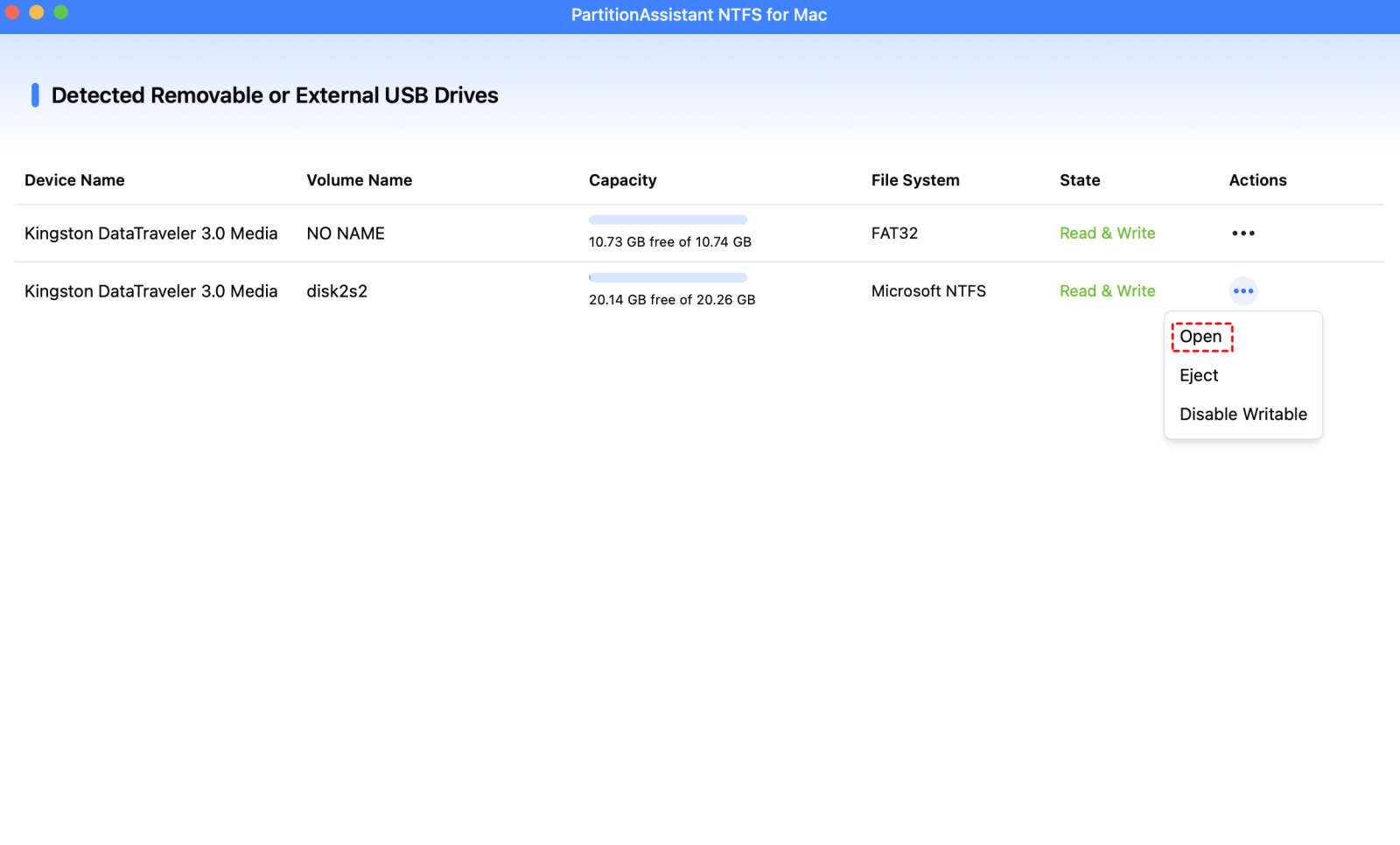
Now you can write data to the NTFS drive on Mac like copy, delete and rename files on the NTFS disk.

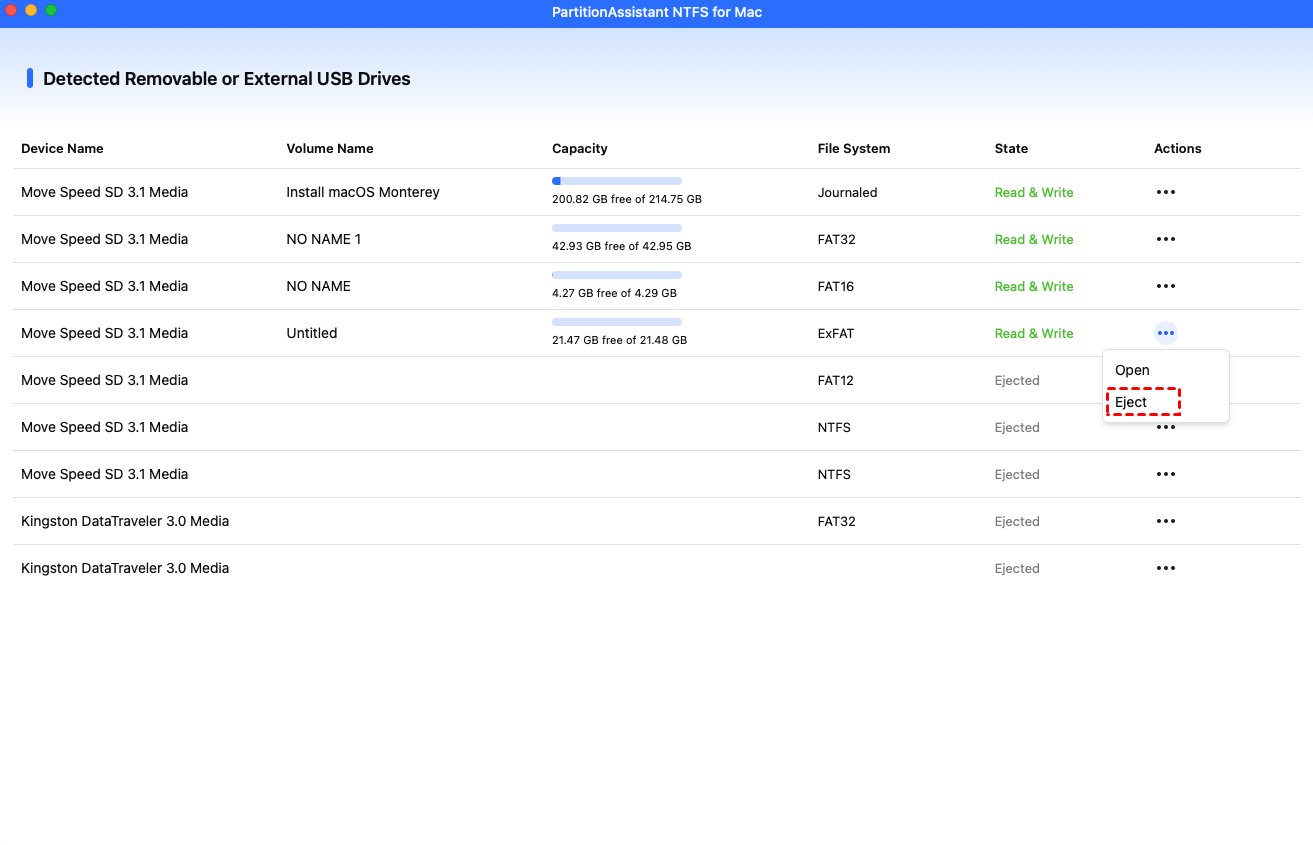
Step 3. After all operations are complete, please click "Eject" to disconnect the external hard drive from your Mac.
Conclusion
Can can read and write NTFS? macOS can read NTFS drives by default, but it cannot write to them, which often causes problems when moving files between Windows and Mac. The good news is that you do not need to reformat your drive or risk data loss to fix this limitation. With the right NTFS solution, you can unlock full read and write access safely and easily. PartitionAssistant NTFS for Mac stands out because it is free, simple to use, and works well with modern macOS versions and Apple Silicon Macs. Once set up, it lets you manage NTFS drives just like native Mac disks, making cross platform file transfer smooth and stress free.
FAQs
🔶 Does macOS Sequoia (or newer) finally support NTFS writing?
No. macOS Sequoia (15.x) and the upcoming Tahoe still only provide read-only access for NTFS drives. Apple has not licensed NTFS write support, and since macOS Ventura, even the hidden experimental write method via Terminal is harder to use. To write to NTFS, you still need third-party drivers.
🔶 Is it safe to use free NTFS drivers like NTFS-3G?
Free NTFS tools NTFS-3G for Mac are generally safe for basic use, but they can be slower or less stable in some situations, especially on Apple Silicon Macs. PartitionAssistant NTFS for Mac is a better choice because it offers faster performance, full read and write access, and more reliable operation without compromising system security.
🔶 Which NTFS for Mac software works best with Apple Silicon (M1–M4)?
Paragon NTFS for Mac and Tuxera NTFS are the top choices. They are optimized for Apple Silicon, offering speeds close to native APFS or HFS+ drives, and they handle System Integrity Protection better than free or older drivers.
🔶 Why can’t I see my NTFS drive on my Mac at all?
There are usually two main reasons. One, the drive may have a “dirty bit” if it was unplugged unsafely from Windows. macOS prevents mounting to protect data. Two, if the drive is BitLocker-encrypted, macOS cannot read it without software like Hasleo NTFS or iBoysoft.
🔶 Should I use exFAT instead of NTFS for Mac/Windows sharing?
exFAT works on both Mac and Windows without extra software, but it lacks journaling and is more prone to data loss if unplugged during writing. NTFS is safer and more reliable for file transfers.
