
 PartitionAssistant NTFS for Mac
How to Fix Delete Files from Seagate External Hard Drive Error on Mac?
If your Mac prevents you from writing files on a Seagate drive, this article provides clear solutions. It covers how to fix delete files from Seagate external hard drive error on Mac for seamless macOS use.

By Irene / Updated on January 12, 2026


What are the common errors on Seagate drives for Mac when deleting files?
When files cannot be deleted from a Seagate external drive on macOS, the issue is usually related to software or file system limits rather than physical drive failure. Many Seagate drives are designed for Windows systems, so macOS may only have partial control over them. In these cases, files can appear normal but deletion options may fail or not appear at all.
The table below summarizes the most common error messages and situations that you may encounter when trying to delete files from a Seagate drive on a Mac.
| Error message or case | What it usually means | Common cause |
|---|---|---|
| Error Code -50 / -1309 | The file system is not fully compatible with macOS | The drive uses FAT32 or NTFS, and macOS cannot correctly process certain file metadata |
| Error Code -61 | Access is denied by the drive | The drive is mounted as read-only, which often happens with NTFS formats |
| Error Code -1407 | The file is locked or currently in use | A background app or system process is still accessing the file |
| “The operation can’t be completed because the item is in use” | macOS detects an active connection to the file | Media apps, backup tools, or indexing services are still running |
| “You don’t have the necessary permissions” | macOS cannot modify or remove the file | NTFS format or ownership restrictions block write access |
| No Delete or Move to Trash option | Finder does not offer any delete-related actions | The drive is mounted as read-only or file permissions prevent any modification |
Most of these issues come from a small set of underlying reasons. NTFS formatting is the most common, since macOS can read but not write to it by default. It is easy to be fixed in such situation. All you need is just a handy NTFS driver like PartitionAssistant NTFS for Mac. In other cases, hidden Trash folders on the external drive may be damaged or full, or ownership information from another computer may limit access. By recognizing these error patterns, it becomes easier to understand why deletion fails and what type of solution may be needed next.
How to fix can't delete files on external hard drive on Mac?
Fix 1. Use a free NTFS for Mac tool
In many cases, not being able to delete files from an external hard drive on a Mac is caused by file system incompatibility. Just as we mentioned earlier, many Seagate drives are formatted as NTFS for Windows, especially for large file storage. While macOS can read NTFS drives, it does not allow deleting or editing files on them by default. If a drive opens normally but shows no delete option, the NTFS format is usually the reason. The drive format can be checked in Finder through the drive’s information panel.
To solve this issue, a free NTFS for Mac tool can be used. PartitionAssistant NTFS for Mac enables full read and write access to NTFS drives on macOS. After it is enabled, files can be deleted, copied, and managed normally, just like on a Mac-compatible drive. It also offers simple mount and unmount controls from the menu bar for daily use.
For security reasons, macOS may ask for system permission before third-party NTFS tools can work. This is a common step and helps the software run safely and correctly.
Step 1. Please first configure Security Policy in iOS Recovery Mode. Then install and launch PartitionAssistant NTFS for Mac, then connect your NTFS drive, and the software will automatically mount and display all connected removable and external drives.
Step 2. Select the Seagate NTFS drive you want to make it read and write, and click "Enable Writable".
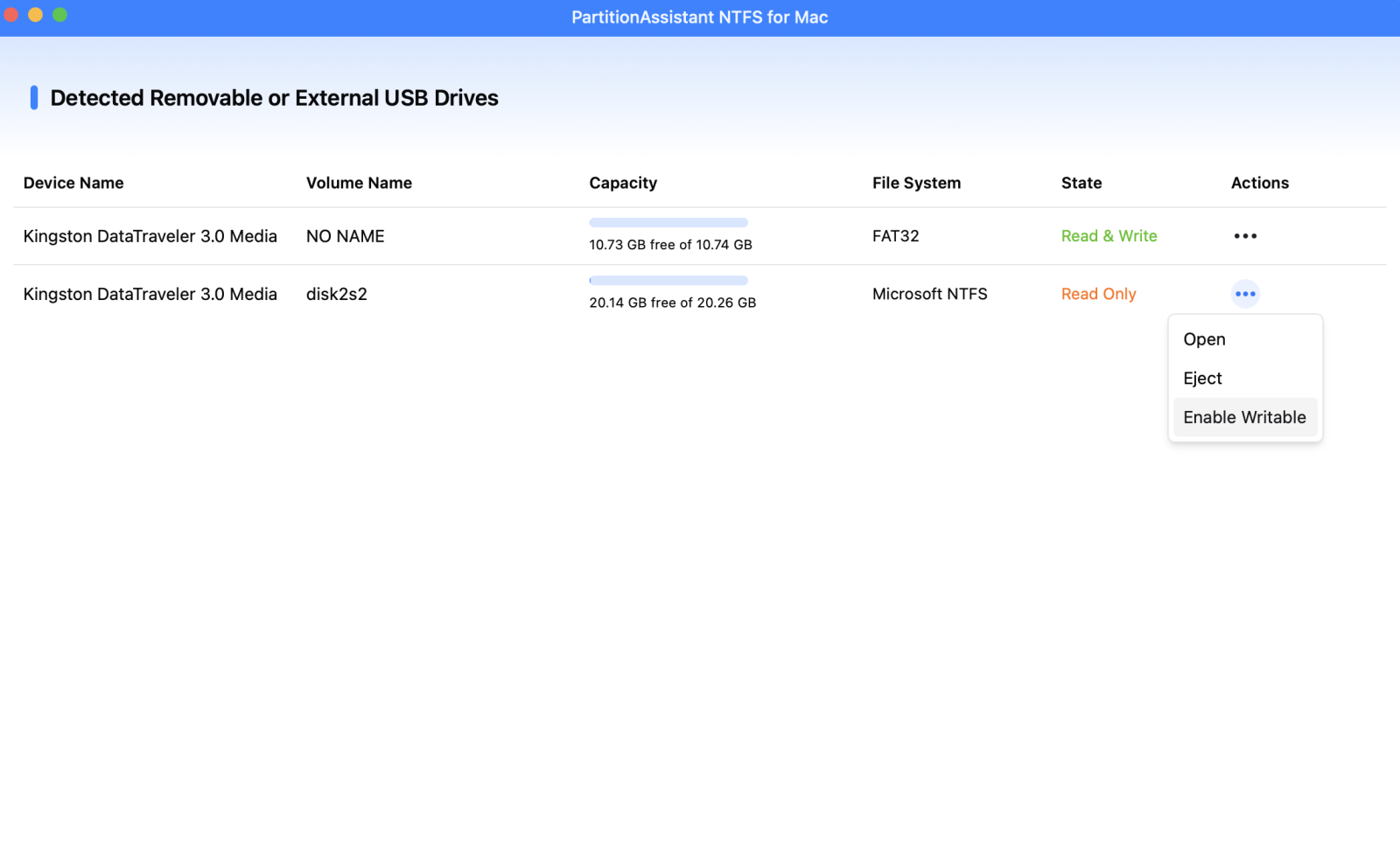
If the status is already correct, simply click “Open” to start using the Seagate external hard drive.
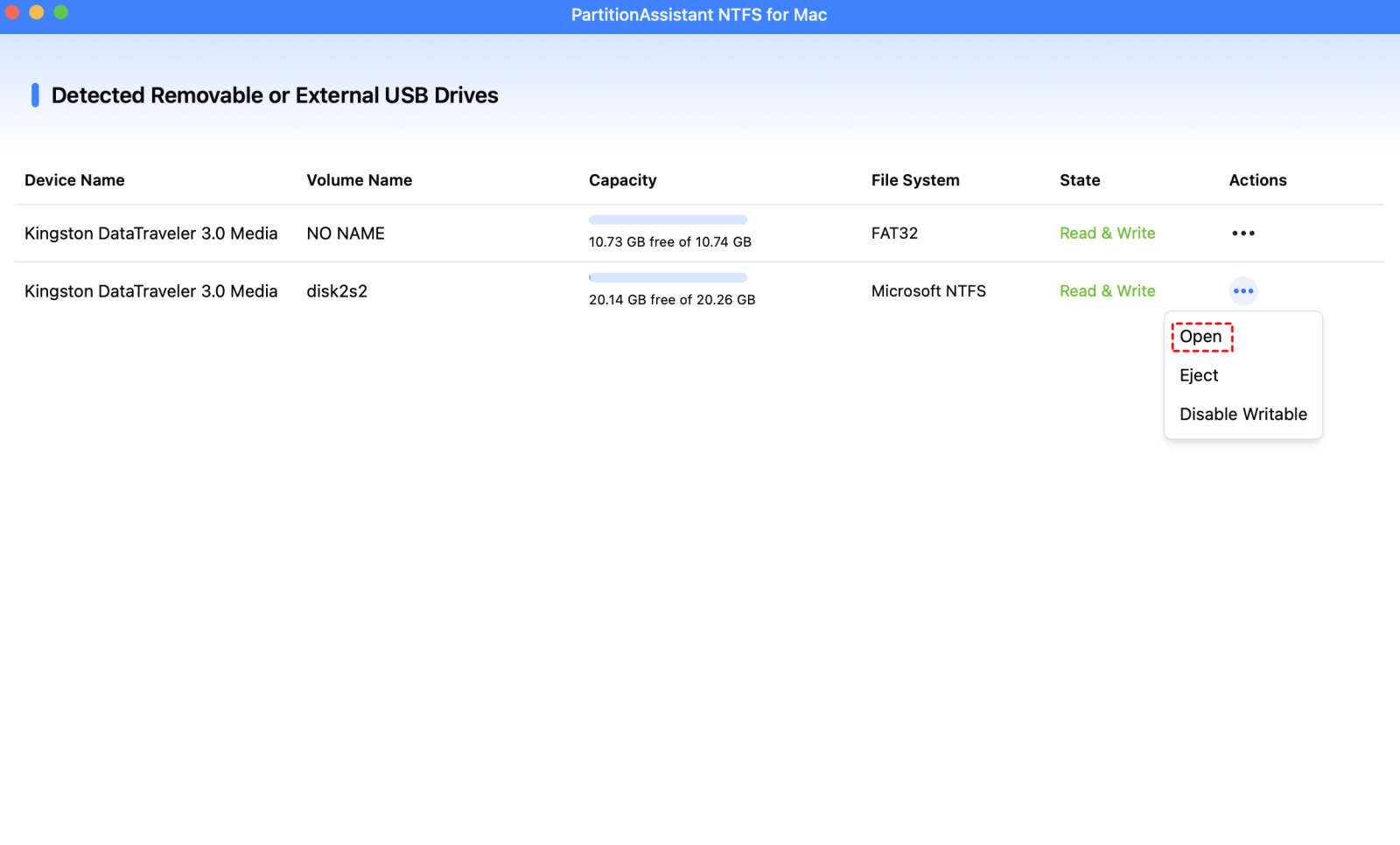
Step 3. You can now use this NTFS for Mac tool to copy, delete, and move files.

Step 4. If you want to unmount Seagate external hard drive, you can choose "Disable Writable"
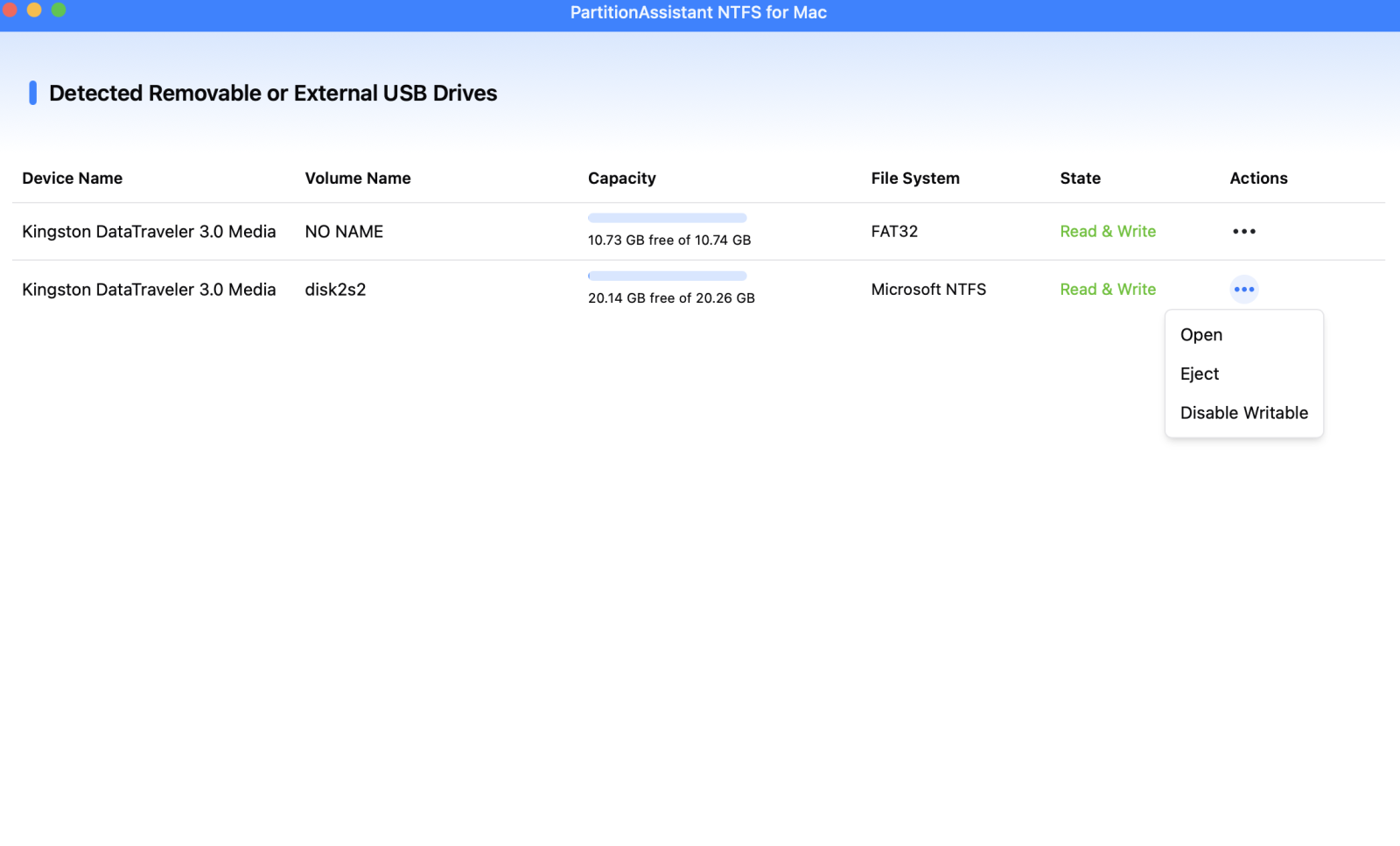
Step 5. After all operations are complete, please click "Eject" to disconnect the Seagate external hard drive from your Mac.

This method allow you to easily write files to Seagate external hard drive on Mac without formatting the disk and losing data.
Fix 2. Force delete files from Seagate external hard drive on Mac
If your Seagate external hard drive is not using the NTFS file system and you still cannot delete files, you can try force deleting them. This method often works when files cannot be removed due to permission issues or because they are in use. Files deleted through Terminal are removed permanently and do not go to the Trash.
Step 1. Open Terminal from the Utilities folder inside Applications. Then type sudo rm -rf and leave a space at the end. Next, drag the file you want to delete into the Terminal window so its path is added automatically, and press Enter.
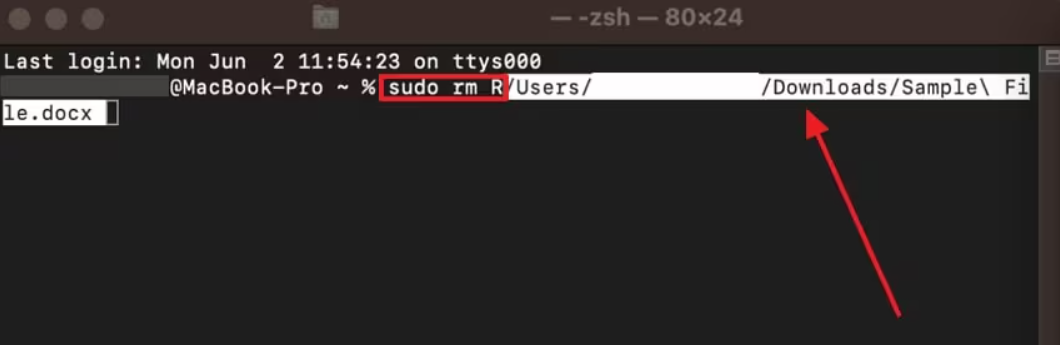
Step 2. The Seagate drive is opened in Finder, and the file or folder to be deleted is dragged into the Terminal window so the full file path appears automatically.
Step 3. The Return key is pressed to run the command.
Step 4. The Mac administrator password is entered when prompted, then Return is pressed again. The password does not appear on screen while typing.
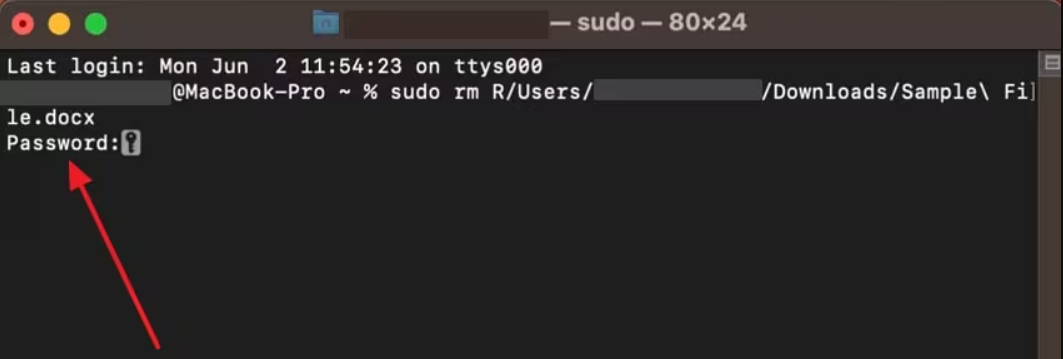
You can also use change read-write permissions with Terminal. If Terminal returns a message saying the file system is read-only, the issue is usually related to the NTFS format rather than file permissions.
Conclusion
This guide comprehensively introduces how to fix delete files from Seagate external hard drive error on Mac. Seagate external hard drives may fail to delete files on Mac mainly because of file system incompatibility or permission limits, not because of hardware problems. NTFS formatting is the most common reason, since macOS can only read these drives by default. With the right NTFS for Mac tool, full read and write access can be restored without formatting or data loss. When the drive is not NTFS, force deletion through Terminal can also help remove stubborn files. By understanding the error messages and choosing the correct solution, deleting files from a Seagate drive on macOS becomes much easier and more reliable.
FAQs
🗨️ How do I fix my Seagate external hard drive not responding on a Mac?
This issue is often caused by connection problems or file system errors. The drive may respond again after reconnecting it, trying another USB port or cable, or restarting the Mac. If it still does not respond, Disk Utility can be used to check and repair the drive. In some cases, file system incompatibility such as NTFS may also limit how the drive behaves on macOS.
🗨️ Why can't I delete files from Seagate?
The most common reason is that the Seagate drive is formatted as NTFS for Windows. macOS can read NTFS drives but cannot delete or edit files on them by default. Other causes include permission restrictions, files being in use, or system errors on the drive. To fix it, you can use PartitionAssistant NTFS for Mac.
🗨️ How do I force delete a file that won't delete?
When a file cannot be deleted normally, Terminal can be used to remove it directly. This method bypasses some permission and system restrictions. Files deleted this way are removed permanently and do not go to the Trash.
🗨️ How do I forcefully delete a corrupted file?
Corrupted files are often locked or marked as in use. Running Disk Utility to repair the drive may help. If the file remains, using Terminal to remove it directly is usually effective, as it does not rely on Finder to manage the file.
🗨️ Why do files keep appearing after I delete them?
This can happen when the drive is mounted as read-only, such as with NTFS on macOS, or when the file is being restored by a background process like syncing or backup software. In some cases, the file was never fully deleted because macOS could not write changes to the external drive.
