
 PartitionAssistant NTFS for Mac
How To Format USB To FAT32 On Mac: A Simple Guide
This article explains how to format a flash drive to FAT32 on Mac. It details the process using built-in tools so your USB drive becomes compatible with Windows and other devices, even with NTFS.

By Irene / Updated on December 30, 2025


User case: Want to format USB to FAT32
Formatting USB to FAT32
Hi I have a SanDisk Extreme Pro USB 128GB and I would like to format it from exFat to FAT32 however the only option I get in disk utility is MS-DOS (FAT). Any help appreciated.
- Question from www.reddit.com
If you need to move files between a Mac and a Windows PC, or if you are preparing a drive for a game console or car stereo, you likely need to know can macOS read FAT32 and how to format a USB to FAT32 on Mac. While macOS uses its own file system (APFS or HFS+), FAT32 remains the universal standard for cross-platform compatibility. It works natively with:
-
macOS (Read/Write)
-
Windows (Read/Write)
-
Linux (Read/Write)
-
Game Consoles (PS4, PS5, Xbox)
-
Smart TVs and Car Audio Systems
However, this file system has a limitation: it cannot store individual files larger than 4 GB. If you need to store massive video files, you might consider exFAT, but for general compatibility, FAT32 is the most common one.
How to format USB to FAT32 on Mac?
Method 1. How to Format USB to FAT32 on Mac using Disk Utility
On a Mac, the term "FAT" generally refers to "FAT32" or at least indicates FAT32 compatibility. The simplest way to format a USB to FAT32 on Mac is by using the pre-installed Disk Utility app, which provides an easy-to-use graphical interface.
Step 1. Connect your USB drive to your Mac. Open Finder, go to Applications > Utilities, and launch Disk Utility. (Or press Cmd + Space and type "Disk Utility").
Step 2. In the left sidebar, select your USB drive. Note: Make sure you select the physical drive (usually at the top of the hierarchy), not just the volume under it.
Step 3. Click the Erase button in the top toolbar. Name your drive (e.g., "MYUSB").
Step 4. For Format, select MS-DOS (FAT). This is how macOS labels FAT32.
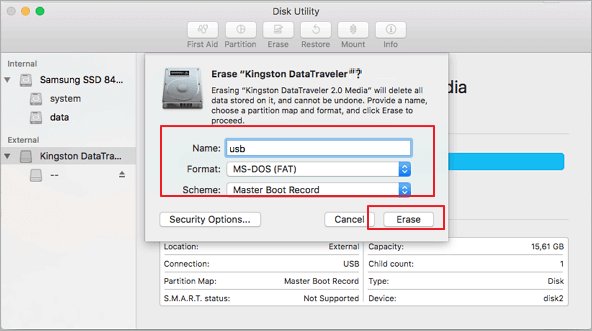
Step 5. For Scheme, choose Master Boot Record (MBR). This ensures maximum compatibility with Windows PCs and other devices.
Step 6. Click Erase and wait for the process to complete. Once finished, your drive is ready to use on almost any device.
Method 2. How to Format USB to FAT32 Mac via Terminal
For advanced users who prefer command-line tools or if Disk Utility fails, you can use Terminal to format USB to FAT32 on Mac.
Step 1. Open Terminal (Cmd + Space, type "Terminal"). Type diskutil list and press Enter.
Step 2. Identify your USB drive in the list (look for the size, e.g., 32GB). Note the identifier (e.g., /dev/disk2).
Step 3. Run the following command (replacing /dev/disk2 with your actual identifier): sudo diskutil eraseDisk FAT32 USB_NAME MBRFormat /dev/disk2

Step 4. Type your administrator password if prompted and press Enter.
What is the difference of common file systems on Mac?
FAT32 (File Allocation Table) is one of the oldest and most widely supported file systems, working natively across macOS, Windows, Linux, game consoles like PS4, PS5, and Xbox, as well as smart TVs, car stereos, and other devices, making it ideal for universal compatibility, though it cannot store individual files larger than 4GB, so in that case alternatives such as exFAT, which supports larger files on both Mac and Windows, or NTFS, which handles very large files but requires special software on macOS, can be used.
The following table explains these options and helps you select the best format for your needs.
| File System | Max File Size | Compatibility | Best Use Case |
|---|---|---|---|
| FAT32 | 4GB | Mac, Windows, Linux, game consoles, embedded devices | Small files, universal compatibility |
| exFAT | 16EB | Mac, Windows | Large files, flash drives, external HDD |
| NTFS | 16TB | Windows native (Mac read-only without software) | Windows internal drives, large files |
Tip: FAT32 is ideal for cross-platform use, exFAT is best for large files, and NTFS is suited for Windows-heavy environments. If you want to use NTFS on Mac, you will need a professional tool to do so.
The best tool for cross-platform compatibility
While FAT32 is widely used for compatibility, it lacks advanced features such as better file security and stability, which leads many users to choose NTFS, the standard file system for Windows. However, when an NTFS drive is connected to a Mac, macOS only provides read access, meaning you cannot edit, move, or delete files without additional support.
This can be very frustrating. Imagine trying to finish a school project, share work files, or organize family photos on a USB drive, only to find that your Mac won't let you make any changes.
PartitionAssistant NTFS for Mac is the perfect solution to bridge this gap. This tool gives you full "read and write" access, meaning you can manage your files on an NTFS drive just as easily as you do on your Mac’s own hard drive.
-
Full Control: You can finally write, rename, move, or delete files on NTFS drives without any restrictions.
-
Works with Everything: It supports all types of storage, including external hard drives (HDD), fast SSDs, USB sticks, and SD cards.
-
Universal Support: It handles various versions of Windows NTFS, as well as FAT32 and exFAT systems.
-
Modern Compatibility: It is built to work perfectly on macOS 12 and newer, supporting both older Intel Macs and the latest Apple Silicon (M1/M2/M3) models.
By using this software, you get high performance and the freedom to move large files between Mac and Windows without any technical headaches.
✔️Tip: Please configure the Security Policy in iOS Recovery Mode before proceeding with the process.
Step 1. Download the installer and complete the setup by following the on-screen steps. Once installed, launch PartitionAssistant NTFS for Mac and connect your USB drive to the Mac. The software will automatically detect the device and display it in the interface.
Step 3. Select the USB you want to operate. If the state is "Read Only", please click "Enable Writable".
When the state change to "Read & Write", you can click "Open" then copy, delete, and rename files on your Mac.
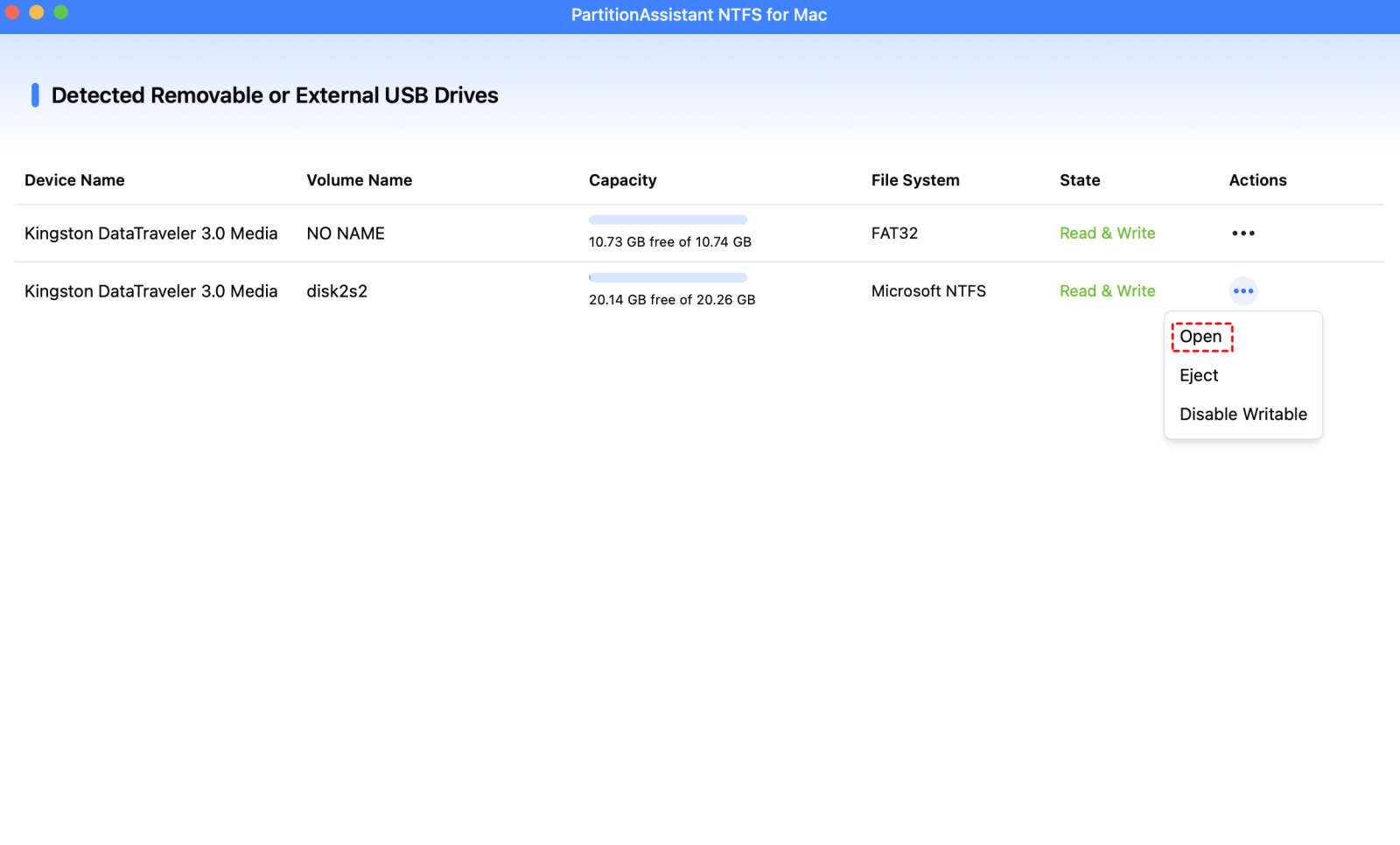
Step 4. After all operations are complete, please click "Eject" to disconnect the USB from your Mac.
Conclusion
Formatting a USB to FAT32 on a Mac is easy once you know the correct settings and tools to use. Disk Utility is the best option for basic needs and wide compatibility across different devices, while Terminal provides a reliable alternative for advanced users. Although FAT32 works well for everyday file sharing, some users may need NTFS for better performance or larger files. In that case, PartitionAssistant NTFS for Mac offers a practical solution by allowing full read and write access to NTFS drives on macOS, making it easier to move and manage files between Mac and Windows systems.
FAQs
🧐 Does FAT32 format work on Mac?
Yes, FAT32 works on Mac without any issues. macOS can both read and write to FAT32 drives, which makes it a good choice for sharing files between Mac, Windows, and other devices such as game consoles and TVs.
🧐 Why is there no FAT32 option when formatting a USB?
On macOS, FAT32 is labeled as MS-DOS (FAT) instead of FAT32. Apple uses this name to represent FAT32 or FAT32 compatible formats. If you do not see this option, make sure you have selected the physical USB drive and enabled View > Show All Devices in Disk Utility.
🧐 How do I change the format of the USB on my MacBook?
You can change the USB format using Disk Utility. Connect the USB to your Mac, open Disk Utility, select the USB drive, click Erase, choose the desired format such as MS-DOS (FAT), exFAT, or APFS, and then click Erase to apply the changes.
🧐 Is exFAT or FAT32 better for USB drives?
It depends on your needs. FAT32 is better for maximum compatibility with older devices and systems, but it has a 4GB file size limit. exFAT is better for modern devices and large files, as it supports much larger file sizes and works well on both Mac and Windows.
🧐 How to format a USB drive to NTFS?
You can format a USB drive to NTFS using a Windows computer, as Windows supports NTFS natively. On a Mac, you will need third-party software to format and manage NTFS drives since macOS does not support NTFS writing by default.
