
 PartitionAssistant NTFS for Mac
Does Mac Support NTFS? A Guide to Mac Compatibility and Tools
This post explains how Mac OS supports NTFS drives. It details why Macs only read data by default and how NTFS for Mac solutions allow users to write files seamlessly.

By Irene / Updated on March 2, 2026


Does Mac support NTFS?
Some students need to use NTFS drives on a Mac to handle large files and projects for activities like video editing, graphic design, programming, or storing research data, especially when they need to share work with Windows computers. NTFS drives provide a reliable way to store and transfer files across different systems. But when they connect an external hard drive to a Mac and are surprised to find that they can see the files but cannot change anything on the drive. This often happens when the drive is formatted as NTFS. NTFS is a file system created by Microsoft and is mainly designed for Windows computers. Because of this, macOS treats NTFS drives differently from formats like APFS, HFS+, or exFAT.
By default, a Mac can read NTFS drives without any problem. This means you can open files, copy them to your Mac, and view all the data stored on the drive. However, macOS does not allow full control over NTFS drives. You cannot create new files, edit existing ones, rename folders, or delete data on the NTFS drive. In other words, the drive works in read-only mode on a Mac.
To get full read and write access, users usually need extra software. They are designed to remove these limits and allow normal use of the drive on macOS. There are also free tools like Mounty, which rely on macOS’s built-in NTFS support, but this method is more limited and may not be as stable for long-term use.
Another option is to reformat the drive to exFAT. exFAT is supported by both macOS and Windows and allows full reading and writing without additional software. However, formatting will erase all existing data, so it should only be done after backing up important files.
What file systems does macOS support?
When users move between macOS and other operating systems, especially Windows, file system compatibility becomes an important topic. Many people want to know which file systems macOS can handle by default and which ones need extra support. Understanding this helps avoid issues such as read-only drives or problems when sharing files across different devices.
macOS is designed around Apple’s own file systems, but it also supports several common formats used on external storage devices. Some file systems work fully out of the box, while others have certain limits. For example, macOS can open and copy files from some formats but may not allow users to edit or delete data unless additional software is installed. This is especially common when dealing with Windows-formatted drives. Below is a simple overview of the file systems that macOS supports and how they work.
| File System | macOS Support | Typical Use |
|---|---|---|
| APFS | Full read and write | Default system for modern Macs, mainly for SSDs |
| HFS+ (Mac OS Extended) | Full read and write | Older Macs and legacy storage |
| exFAT | Full read and write | Best choice for sharing files between Mac and Windows |
| FAT32 | Full read and write | Widely compatible, but has file size limits |
| NTFS | Read-only by default | Common Windows file system |
As shown above, NTFS is the main exception. macOS can read NTFS drives, meaning users can open and copy files from them, but writing is not supported by default. To gain full read and write access to NTFS drives, third-party NTFS drivers are required. These tools allow macOS to work more smoothly with Windows-formatted storage, making file sharing between systems much easier.
How to read and write on NTFS drives for Mac?
Some users often ask, does Mac support NTFS when they connect a Windows-formatted drive and find it cannot be edited. The answer is yes, but only in a limited way. macOS can read NTFS drives by default, which means users can open and copy files. However, macOS does not support writing to NTFS drives without extra tools, so adding, deleting, or changing files is not allowed.
To get full NTFS support on a Mac, third-party software is required. Using a dedicated NTFS tool is much safer and easier than relying on Terminal commands, which can be complex and risky if the wrong disk is selected. PartitionAssistant NTFS for Mac extends macOS’s NTFS support by enabling both read and write access through a simple interface.
With this tool, users can mount and manage NTFS drives in just a few clicks, even when Disk Utility cannot handle the drive properly. It works on both Intel and Apple Silicon Macs and supports modern macOS versions. In short, while macOS does support NTFS in read-only mode, tools like PartitionAssistant NTFS for Mac are needed for full NTFS read and write support.
Step 1. You can install and launch PartitionAssistant NTFS for Mac, then connect your NTFS drive, and the software will automatically mount and display all connected removable and external drives.

Step 2. Select the NTFS drive you want to make it read and write, and click "Open".
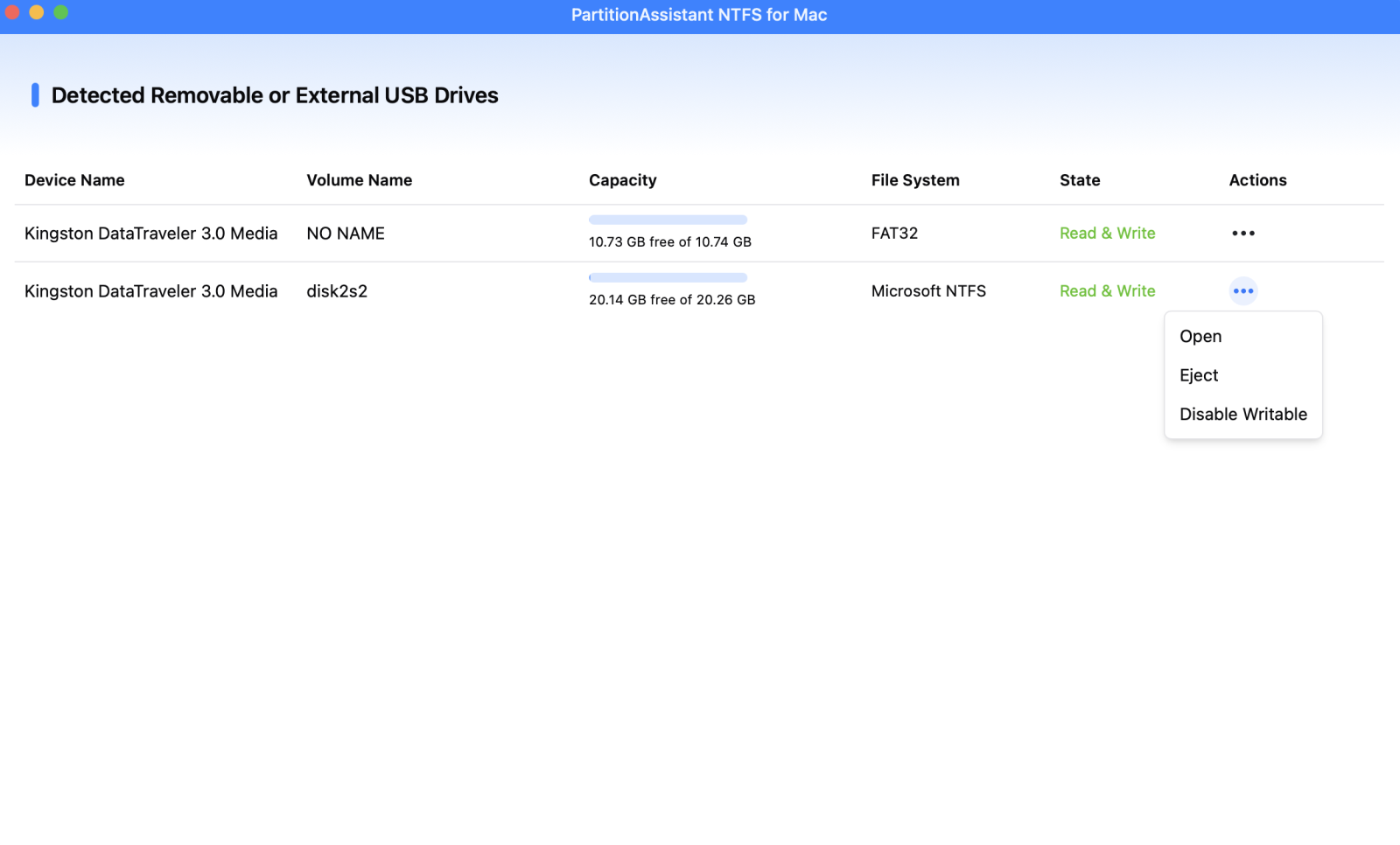
After all operations are complete, please click "Eject" to disconnect the external hard drive from your Mac.
Conclusion
Does Mac support NTFS? Yes, while macOS can read NTFS drives by default, it does not allow writing without additional software. To fully use NTFS drives on a Mac, third-party tools like PartitionAssistant NTFS for Mac provide a safe, simple, and efficient solution. They enable full read and write access, allow easy management of external drives, and ensure smooth compatibility with both Intel and Apple Silicon Macs. Configuring the Security Policy in Recovery Mode ensures the driver works correctly, making file sharing between Mac and Windows seamless and reliable.
FAQs
🔷 Can a Mac read and write to NTFS?
By default, a Mac can only read NTFS drives. This means you can open and copy files from the drive, but you cannot create, edit, or delete files without third-party software. To write to NTFS, you need a dedicated NTFS driver like PartitionAssistant NTFS for Mac, Paragon NTFS, or Tuxera NTFS.
🔷 Why can't Mac write to NTFS?
NTFS is a proprietary file system created by Microsoft for Windows. macOS supports reading NTFS drives natively, but Apple does not provide built-in write support. This is a security and compatibility measure to prevent accidental data corruption on Windows-formatted drives.
🔷 How to enable read and write on an external hard drive Mac?
To enable full read and write access, you can either install third-party NTFS software or reformat the drive to a macOS-compatible format like exFAT. Third-party NTFS tools allow your Mac to safely read and write on NTFS drives without erasing existing data.
🔷 Why can't I read NTFS on my Mac?
If you cannot read an NTFS drive, it may be corrupted, improperly ejected, or physically damaged. Another reason could be macOS not recognizing the drive due to a hardware or connection issue. Third-party NTFS tools can help mount the drive properly.
🔷 Is exFAT or NTFS better for Mac?
For Mac users who need to share files with Windows computers, exFAT is generally better because macOS and Windows both support full read and write access natively. NTFS is suitable if the drive is mainly used on Windows and you plan to use third-party software to write on a Mac.
