
 PartitionAssistant NTFS for Mac
Paragon NTFS for Mac Not Working! What is the Best Alternative?
This post discusses solutions for Paragon NTFS for Mac not working, mounting, or staying read-only. It covers issues on Ventura and Sonoma and suggests reliable software alternatives for better compatibility.

By Irene / Updated on December 26, 2025


User case: Paragon NTFS for Mac not working! Need an alternative
Paragon NTFS for Mac Not Working, What is the Best Alternative?
I have a portable SSD formatted by NTFS so I can put large movies and ISO files into it. Now, I am looking for a way to copy files to this NTFS drive on my Mac M1 running Ventura 13.4. When I searched the topic in Google, Paragon NTFS for Mac is on the top list. Unfortunately, this app seems does not mount NTFS drive on my Mac. Tried a few guidelines online but none of them worked.
I hope someone could suggest some good alternatives to replace Paragon NTFS for Mac?
Thanks in advance
- Question from discussions.apple.com
Many users find that Paragon NTFS for Mac stops working after a macOS update or other system changes. This usually happens because the update affects how the NTFS driver interacts with macOS. As a result, NTFS drives may fail to mount or only open in read only mode. In some cases, the software stops working because the trial has expired, the driver is not enabled, or required permissions such as Full Disk Access are not granted. Issues may also occur if the NTFS drive was last used on a Windows system in hibernation mode.
Fixing these problems often takes time and can be frustrating. Users may need to completely uninstall the software, restart the Mac, install the latest version, and restart again. Even after that, it is sometimes necessary to adjust settings to prevent the same issues from returning. For some users, additional steps such as checking the disk or using command line tools are still required, which makes the process more complex.
Since these issues can return after future macOS updates, many users prefer to avoid repeated troubleshooting or find the built in design of Paragon NTFS uncomfortable to use. In this situation, choosing a simpler and more stable solution becomes more attractive. PartitionAssistant NTFS for Mac is often seen as a practical alternative because it offers reliable NTFS read and write support on macOS and allows users to access their NTFS drives more easily and with less effort.
The best alternative to Paragon NTFS for Mac
PartitionAssistant NTFS for Mac is often seen as a reliable alternative to Paragon NTFS for Mac because it offers stable and simple NTFS access on macOS. Many users face issues with Paragon NTFS after macOS updates, such as drives not mounting or the need for repeated reinstalls and permission changes.
PartitionAssistant NTFS for Mac provides full read and write access to NTFS drives, which macOS does not support by default. After installation, users can copy, move, rename, and delete files directly in Finder without using Terminal or adjusting complex system settings.
It also supports a wide range of storage devices, including external hard drives, SSDs, USB flash drives, and memory cards, and works with file systems such as NTFS, FAT32, and exFAT. With compatibility for modern macOS versions and both Intel and Apple Silicon Macs, PartitionAssistant NTFS for Mac offers a reliable and user friendly alternative to Paragon NTFS for Mac.
Step 1. Download the installer and follow the on-screen instructions to install it on your Mac. Open PartitionAssistant NTFS for Mac.
Step 2. Insert your drive into the Mac. The software will automatically detect the device.
Step 3. The software will display your connected drives.

Step 4. Select the drive you want to operate. If the state is "Read Only", please click "Enable Writable".
When the state change to "Read & Write", you can click "Open" then copy files on your Mac and click "Paste Item" to copy the files to your drive.
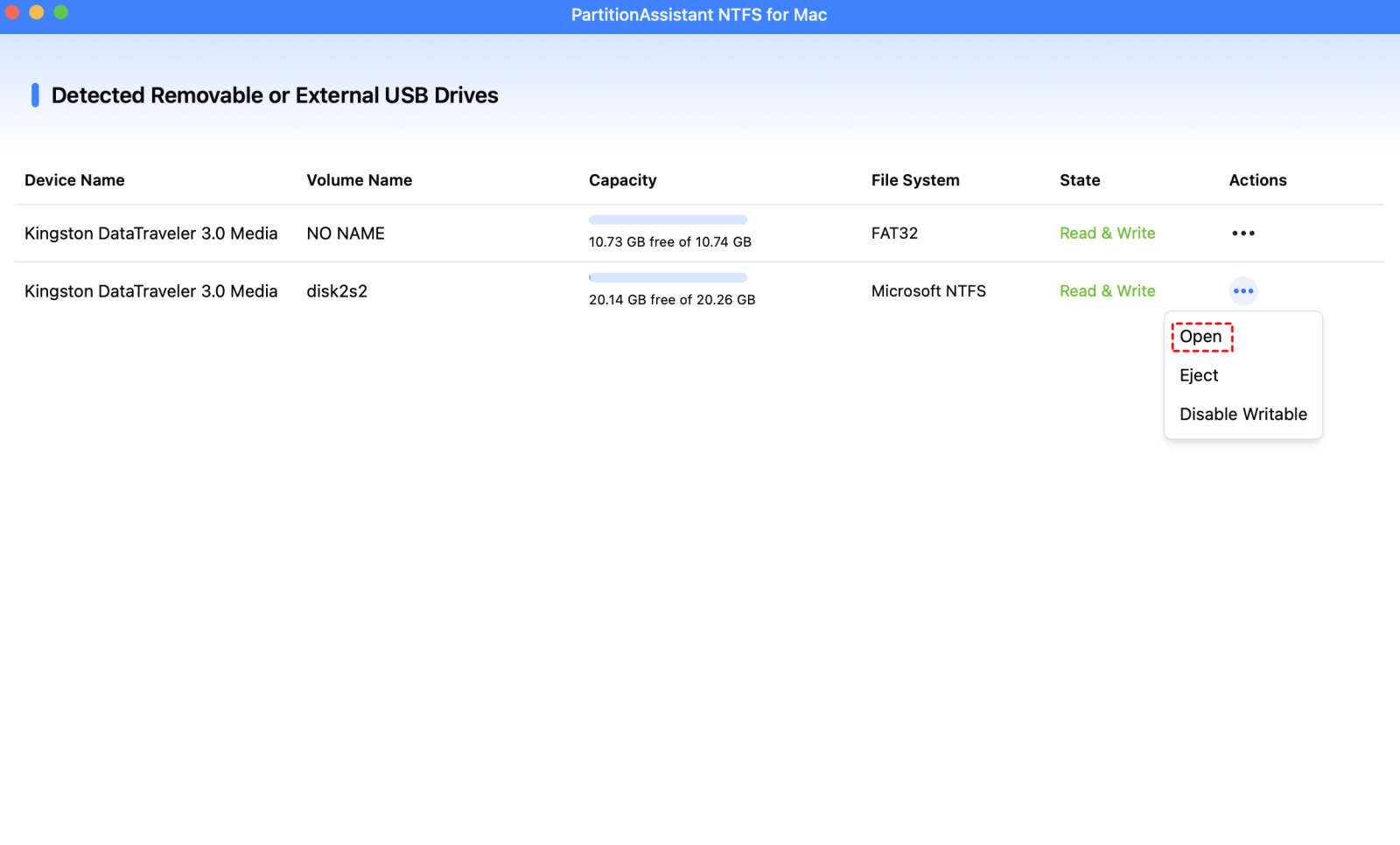
You can also copy, delete, and rename files on the drive.
Step 5. After all operations are complete, please click "Eject" to disconnect the external hard drive from your Mac.
How to fix Paragon NTFS for Mac not working?
Method 1. Update Paragon NTFS for Mac
Keeping Paragon NTFS for Mac updated ensures compatibility with your macOS and fixes many common issues.
Step 1. Open Paragon NTFS for Mac and check the current version installed.
Step 2. Visit the official Paragon website and compare your version with the latest release.
Step 3. Download and install the newest version if an update is available.
Step 4. Restart your Mac to apply the update.
Updating usually fixes bugs, but if problems persist, try reinstalling the software.
Method 2. Reinstall Paragon NTFS for Mac
A fresh installation can resolve corrupted files or broken components that prevent proper functioning.
Step 1. Open Finder and go to Applications to locate Paragon NTFS for Mac.
Step 2. Uninstall the program using its built-in uninstaller or by moving it to Trash.
Step 3. Restart your Mac to clear leftover system files.
Step 4. Download the latest installer from Paragon’s website and install it again.
Step 5. Restart your Mac to ensure the program works correctly.
Reinstalling often fixes persistent issues, but you may still need to allow permissions.
Method 3. Check the NTFS Drive for Errors
Sometimes the NTFS drive itself has errors that stop Paragon from working.
Step 1. Connect the NTFS drive to your Mac and make sure it is detected.
Step 2. Open Disk Utility and select the NTFS drive from the sidebar.
Step 3. Click First Aid to scan and repair the drive.
Step 4. Reconnect the drive after the repair process finishes.
Repairing disk errors can restore read/write access.
Conclusion
In summary, Paragon NTFS for Mac can sometimes stop working due to macOS updates, expired trials, or permission issues, making it frustrating to manage NTFS drives. PartitionAssistant NTFS for Mac provides a reliable and easy alternative by offering full read and write access, wide device compatibility, and a user-friendly interface. With this tool, you can manage your NTFS drives on Mac without repeated troubleshooting, making it a practical choice for anyone looking for a stable solution.
FAQs
🗨️ How to activate Paragon NTFS for Mac?
After installing Paragon NTFS for Mac, open the app and click the Activate or Enter License option. Enter the license key you received when purchasing the software and follow the on-screen instructions. Once activated, the app allows full read and write access to NTFS drives on your Mac.
🗨️ Why doesn't NTFS work on Mac?
macOS can only read NTFS drives by default and does not support writing to them without third-party software. If you cannot write to your NTFS drive, it is because macOS restricts write access, which is why tools like Paragon NTFS for Mac or PartitionAssistant NTFS for Mac are needed.
🗨️ Why isn't my hard drive mounting on my Mac?
A hard drive may not mount due to file system errors, macOS compatibility issues, or improper disconnection from another system. Running Disk Utility’s First Aid to repair the drive, reconnecting it, or using NTFS management software can often resolve the problem.
🗨️ How to grant full disk access to NTFS for Mac?
Open the Apple menu and go to System Settings. Select Privacy and Security, scroll down to Full Disk Access, and turn on the switch for your NTFS tool. Enter your administrator password if prompted and restart the software to apply changes.
🗨️ What is the best alternative to Paragon NTFS for Mac?
PartitionAssistant NTFS for Mac is a reliable alternative. It offers stable read and write access to NTFS drives, supports various storage devices, works with both Intel and Apple Silicon Macs, and allows you to manage files directly in Finder without complex settings or repeated troubleshooting.
