
 PartitionAssistant NTFS for Mac
6 Solutions to Sabrent Sata to USB Not Working Mac
Sabrent Sata to USB not working Mac? Don’t worry, this article will explain the most common reasons for it and provide you with six easy and effective solutions to fix it.

By Hedy / Updated on March 10, 2026


The Sabrent SATA to USB adapter has become particularly popular among technicians and Mac users because of its plug-and-play design. Many models support UASP (USB Attached SCSI Protocol) and fast data transfer speeds, sometimes reaching up to 10Gbps through USB 3.1 connections. This means you can quickly move large files or back up entire drives without installing them internally.
The adapter essentially works as a translator. It converts the SATA interface used by internal drives into a USB signal that your Mac can understand. When you connect the adapter, macOS treats the drive like a regular external storage device. Ideally, the system automatically detects the drive and mounts it in Finder.
But things don’t always go smoothly. Sometimes you plug everything in, and nothing happens. No drive appears. No mounting notification. It’s like the drive simply doesn’t exist. That’s when the frustration begins.
The truth is that Sabrent SATA to USB adapters are usually reliable, but several technical factors—power, file systems, USB compatibility, and drive health—can prevent them from working correctly on macOS.
Here is a quick look at the workable solutions. You can look through them and jump to the relevant part according to your needs.
|
Fix 1. Check Physical Connections |
Sometimes the adapter or cable connection may be loose, damaged, or improperly connected, preventing the Mac from recognizing the SATA drive through the USB adapter. |
|
Fix 2. Verify the Drive in Disk Utility |
Even if the drive doesn’t appear in Finder, it may still be detected by macOS through Disk Utility but not mounted automatically. |
|
Fix 3. Use an External Power Source for the Drive |
Some SATA drives, especially 3.5-inch HDDs, require additional power. USB ports alone may not provide enough electricity for proper operation. |
|
Fix 4. Repair the Drive Using Disk Utility First Aid |
Disk errors or corrupted file system structures can prevent macOS from accessing the drive through the SATA-to-USB adapter. |
|
Fix 5. Reformat the Drive to a macOS-Compatible File System |
If the drive uses an unsupported or corrupted file system, macOS may not properly read or mount it. |
|
Fix 6. Make NTFS Compatible on Mac |
Many external drives are formatted with NTFS, which macOS can read but cannot write to by default, causing mounting or access limitations. |
Why your Sabrent SATA to USB adapter may not work on Mac?
Below are the most common reasons why your Sabrent SATA-to-USB adapter may not work on a Mac.
1. The drive uses an unsupported file system: Many drives connected through SATA-to-USB adapters are formatted with NTFS, which is primarily designed for Windows. macOS can read NTFS drives but cannot write to them natively, so the drive may appear read-only or behave abnormally.
2. Insufficient power supply: Some SATA hard drives—especially 3.5-inch HDDs—require more power than a standard USB port can provide. A USB 3.0 port typically supplies about 0.9A, while many drives need more power to spin up.
3. Faulty cable or USB connection: A simple hardware problem can also prevent the adapter from working. Examples include:
◆ A damaged USB cable
◆ Loose SATA connection
◆ Faulty USB port
◆ Low-quality USB-C adapters or hubs
These connection issues can stop the Mac from recognizing the device.
4. macOS compatibility or software issues: Sometimes the problem comes from the system rather than the hardware. For example:
◆ Outdated macOS versions
◆ System bugs after macOS updates
◆ Firmware or driver conflicts
Such issues may prevent the adapter or drive from mounting correctly on the system.
5. Drive or adapter hardware failure: Another possibility is that either the adapter or the drive itself is faulty. Signs of hardware problems include:
◆ The drive not spinning
◆ Clicking or unusual noises
◆ The adapter disconnecting repeatedly
In these cases, the Mac may not detect the device at all.
How to fix Sabrent SATA to USB not working on Mac
If your Sabrent SATA to USB adapter is not working on your Mac, the problem may be caused by connection issues, disk errors, power limitations, or incompatible file systems. The following solutions will help you identify and fix the issue step by step.
Fix 1. Check physical connections
A loose cable, faulty USB port, or improperly connected SATA drive can prevent your Mac from detecting the Sabrent adapter. Carefully inspecting all physical connections is the first and simplest troubleshooting step.
Step 1. Disconnect the adapter from your Mac completely.
Step 2. Reconnect the SATA drive to the Sabrent adapter and make sure it is firmly attached.
Step 3. Plug the USB connector into a different USB port on your Mac.
Step 4. If you are using a USB hub or extension cable, connect the adapter directly to the Mac instead.
Step 5. Try another USB cable if your adapter uses a detachable cable.
Step 6. Test the drive on another computer to determine whether the issue is with the drive or the Mac.
Restart your Mac and reconnect the adapter to see if the drive appears.
Fix 2. Verify the drive in disk utility
Sometimes the drive is detected by macOS but does not appear on the desktop or in Finder. Disk Utility can help confirm whether the system recognizes the connected drive.
Step 1. Open Finder on your Mac.
Step 2. Click Applications and then open Utilities.
Step 3. Launch Disk Utility.
Step 4. In the left sidebar, look for your external drive or SATA disk.
Step 5. If the drive appears but is not mounted, select it.
Step 6. Click the Mount button at the top of the window.
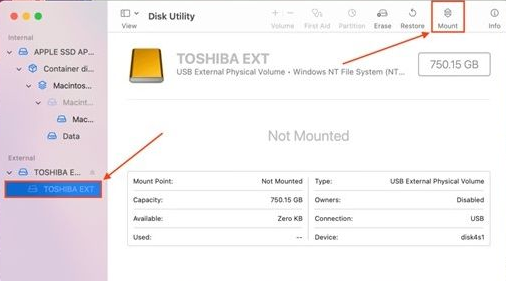
If mounted successfully, the drive should appear in Finder and become accessible.
Fix 3. Use an external power source for the drive
Some SATA drives, especially 3.5-inch HDDs, require more power than a Mac USB port can provide. Using an external power supply ensures the drive receives enough power to operate properly.
Step 1. Check whether your SATA drive is a 3.5-inch desktop drive, which usually requires external power.
Step 2. Connect the power adapter that came with the Sabrent SATA adapter.
Step 3. Plug the adapter into a wall power outlet.
Step 4. Ensure the drive spins up or shows activity lights.
Step 5. Connect the USB cable from the adapter to your Mac.
Step 6. Wait a few seconds for macOS to detect the drive.
Step 7. Open Disk Utility to confirm the drive appears.
Fix 4. Repair the drive using disk utility First Aid
File system errors can prevent macOS from mounting the drive properly. Disk Utility’s First Aid feature can scan and repair minor disk errors automatically.
Step 1. Open Disk Utility from Applications > Utilities.
Step 2. Locate the external SATA drive in the sidebar.
Step 3. Select the drive or its main partition.
Step 4. Click the First Aid button at the top of the window.
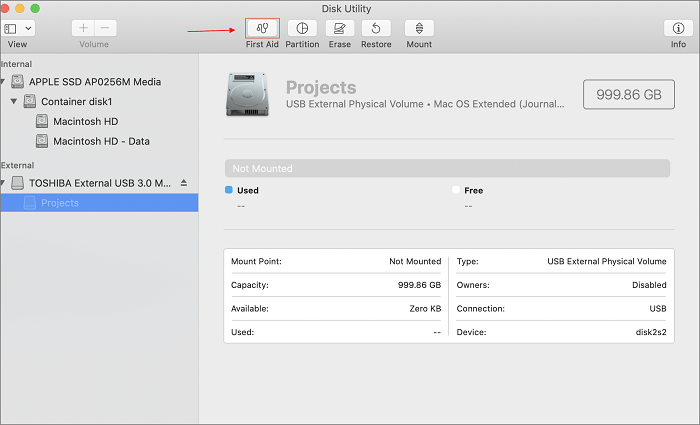
Step 5. Choose Run to begin scanning the disk.
Step 6. Wait for the process to complete while macOS checks and repairs errors.
Step 7. Once finished, reconnect the drive or mount it again to see if it works.
Fix 5. Reformat the drive to a macOS-compatible file system
If the drive uses an unsupported or corrupted file system, macOS may not be able to read or mount it. Reformatting the drive can restore compatibility and functionality.
Step 1. Open Disk Utility on your Mac. Select the external SATA drive in the left panel.
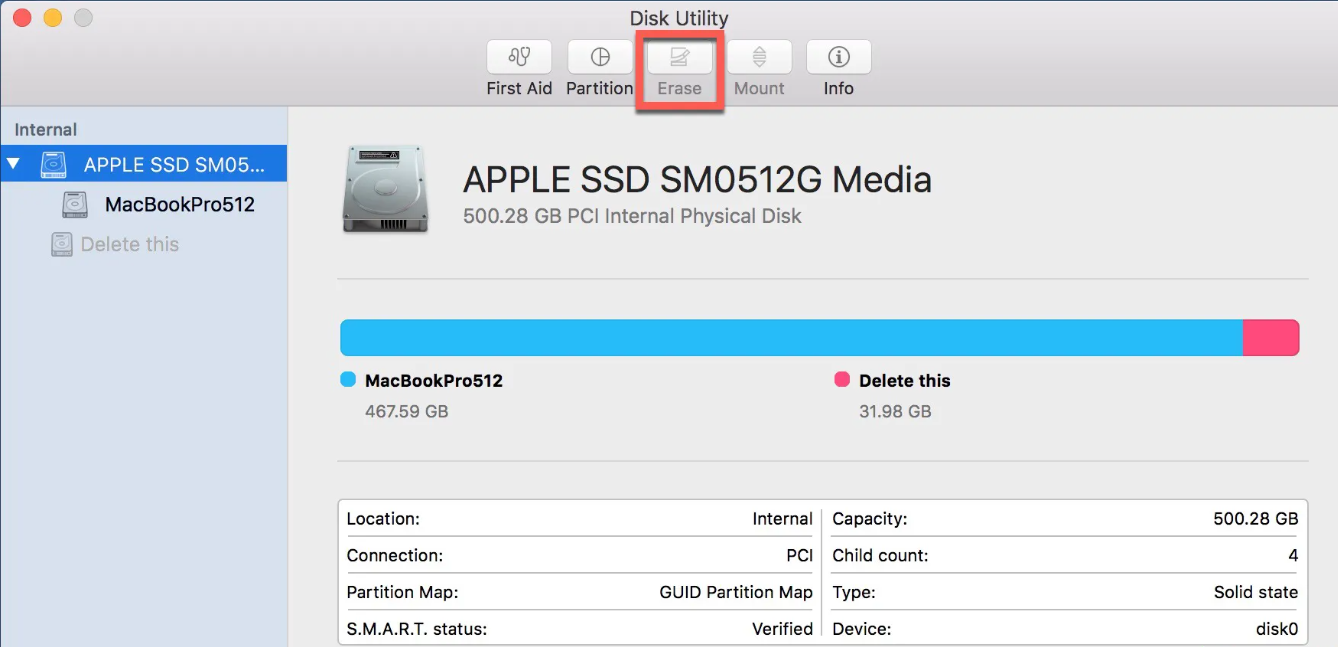
Step 2. Click the Erase button at the top of the window. Enter a name for the drive.
Step 3. Choose a compatible file system such as:
◆ APFS (best for modern macOS systems)
◆ Mac OS Extended (Journaled)
◆ exFAT (for Mac and Windows compatibility)
Step 4. Click Erase to begin formatting. After formatting finishes, reconnect the drive and verify it works.
Fix 6. Make NTFS compatible on Mac
If your Sabrent SATA-to-USB adapter is not working properly on Mac, one possible reason is the file system of the connected drive. Many SATA SSDs or HDDs used with adapters are formatted as NTFS, which macOS can read but cannot write to by default. This limitation can make the drive appear partially functional or cause file transfer issues. In such cases, using PartitionAssistant NTFS for Mac can help restore full access.
PartitionAssistant NTFS for Mac is a utility that enables full read and write access to NTFS drives on macOS. It allows Mac users to manage Windows-formatted drives—such as those connected through SATA-to-USB adapters—without reformatting them.
Once installed, the software integrates with macOS so you can work with NTFS drives directly in Finder, just like with native Mac file systems.
★ Full NTFS read and write support: Copy, edit, delete, and rename files on NTFS drives from a Mac.
★ Broad device compatibility: Works with HDDs, SSDs, USB flash drives, SD cards, and SATA drives connected via USB adapters.
★ Supports Intel and Apple Silicon Macs: Compatible with modern macOS versions and M-series chips.
★ Finder integration: Manage files directly through the macOS interface without using Terminal commands.
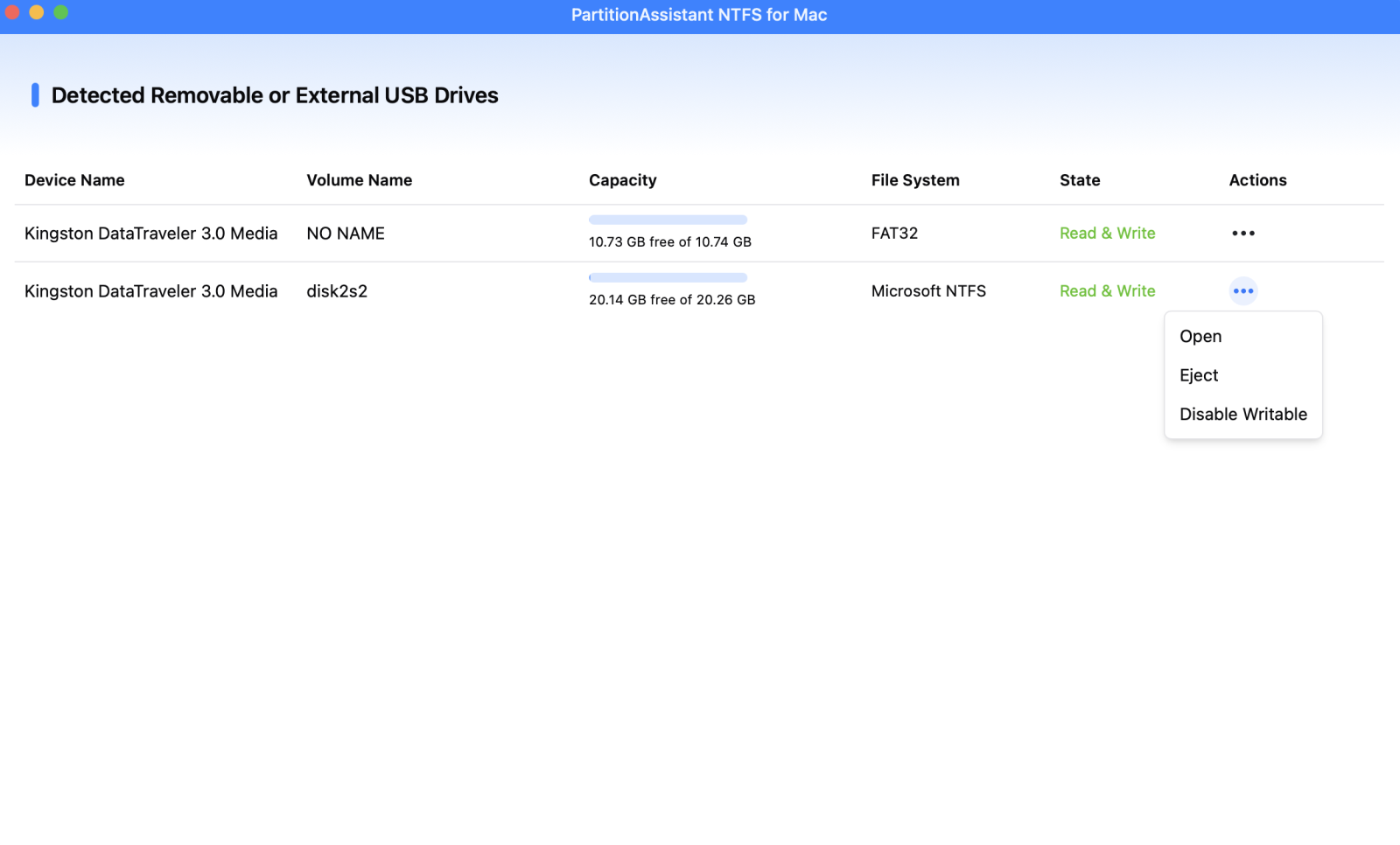
Step 1. Download and open PartitionAssistant NTFS for Mac. Connectyour external hard drive withthe Macusing Sabrent SATA-to-USB adapter. The software will automatically detect and mount the devices.
Step 2. The software will display all of your drives on your Mac.

Step 3. If your external hard drive shows "Read Only", you can change the state manually by clicking"Enable Writable".
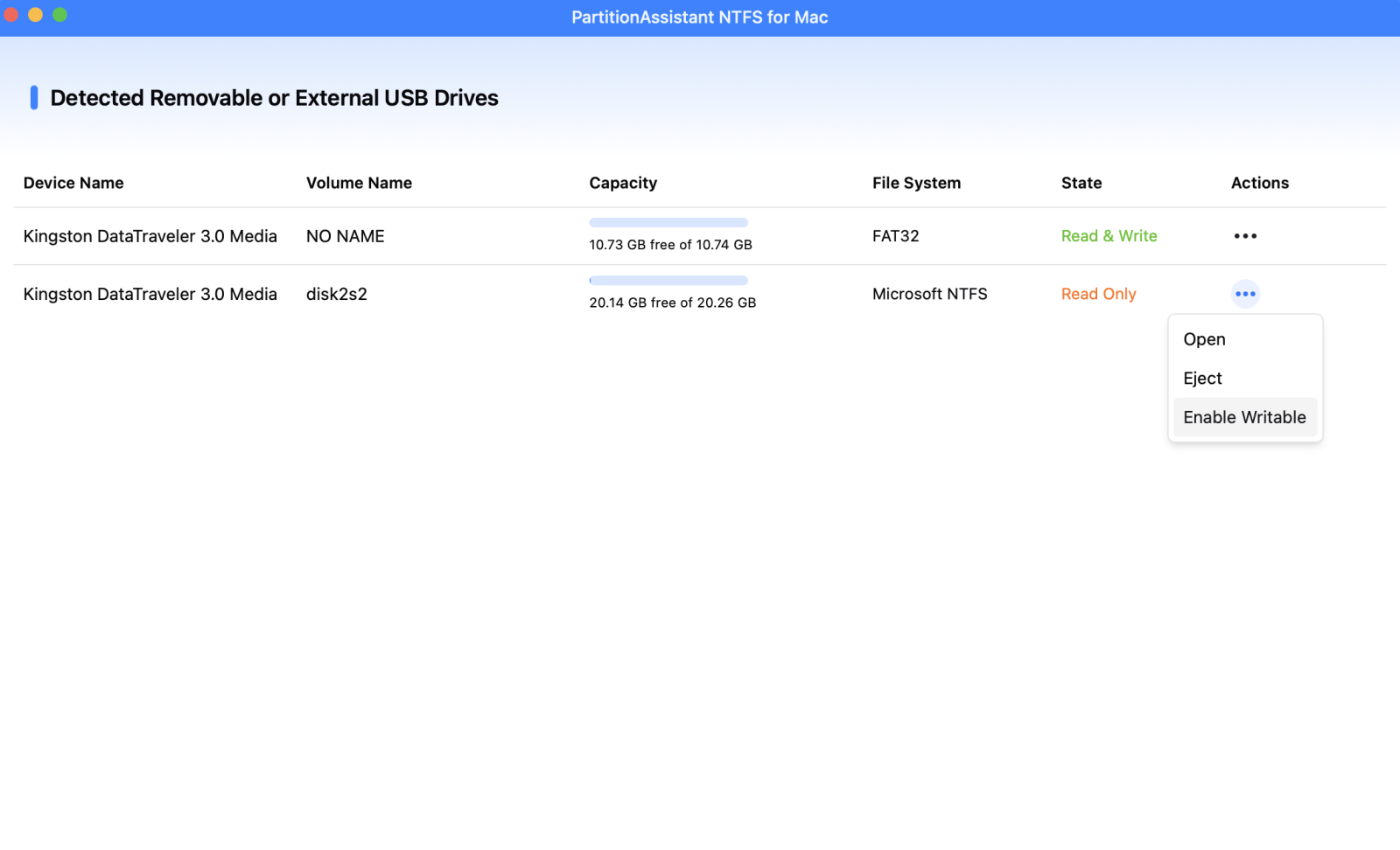
Step 4. You can now write data on your external hard drive on Mac once it is set to Read & Write.
FAQs
✍ Why is my Sabrent SATA to USB adapter not detected on Mac?
Your adapter may not be detected due to loose connections, insufficient power, incompatible file systems, outdated macOS drivers, or a faulty cable, adapter, or hard drive preventing the device from appearing in Finder or Disk Utility.
✍ Can a Sabrent SATA to USB adapter work on macOS?
Yes, most Sabrent SATA to USB adapters work with macOS. Compatibility depends on the drive format and power supply. macOS can read many formats, but NTFS drives usually allow read-only access.
✍ Why does my external drive appear but not allow writing on Mac?
This usually happens because the drive is formatted with NTFS, a Windows file system. macOS can read NTFS drives but doesn’t allow writing unless you reformat the drive or use NTFS-for-Mac software.
✍ Should I reformat my external drive for Mac?
Reformatting is recommended if you plan to use the drive mainly on Mac. Formats like APFS or exFAT provide better compatibility and full read-write access, but reformatting will erase all existing data.
✍ How do I know if my hard drive needs external power?
Desktop 3.5-inch hard drives usually require external power adapters. If the drive doesn’t spin, disconnects frequently, or isn’t detected through USB alone, it likely needs an external power source.
Conclusion
In summary, a Sabrent SATA to USB adapter usually works smoothly on Mac, but issues can arise due to power limits, connection faults, file system incompatibility, or disk errors. By checking connections, verifying the drive in Disk Utility, ensuring sufficient power, repairing disk issues, reformatting if necessary, or enabling NTFS write support, you can typically restore normal functionality and access your drive on macOS without replacing the adapter or disk.
