
 PartitionAssistant NTFS for Mac
How to Fix Toshiba External Hard Drive Not Working On Mac?
This guide helps you fix common issues when your Toshiba external hard drive is not working or showing up on Mac. Get straightforward steps to ensure proper writing and file access.

By Irene / Updated on January 12, 2026


Why is my Toshiba external hard drive not working on my Mac?
If your Toshiba external hard drive is not working on your Mac, there can be several simple reasons. Common causes include connection issues, system settings, driver problems, or disk damage.
| Reason | Explanation |
|---|---|
| Incompatible file system | The drive may be formatted as NTFS, which macOS can read but cannot write to by default. |
| Faulty USB port or cable | A damaged USB port or cable can prevent your Mac from detecting the drive. |
| Poor connection or low power | An unstable connection or not enough power can cause the drive to disconnect or not appear. |
| Outdated or incompatible drivers | Old drivers or an outdated macOS version may stop the drive from working properly. |
| External disk hidden in Finder | Finder settings may be set to hide external hard drives. |
| Drive not mounted | The Toshiba drive may be detected but not mounted in Disk Utility. |
| Corrupted or damaged hard drive | File system errors or physical damage can make the drive unreadable. |
Many users face the same issue, such as the drive not showing up on the desktop, in Finder, or in Disk Utility. The good news is that most of these problems can be fixed. In the following sections, we will explain each cause and show you clear solutions to get your Toshiba external hard drive working on your Mac again.
How to fix Toshiba external hard drive not working on my Mac?
Fix 1. Adjust to the compatible file system
One common reason a Toshiba external hard drive does not work properly on a Mac is the file system. Many Toshiba drives are formatted as NTFS, which macOS can open but cannot write to by default. This means you may see the drive, but you cannot copy, edit, or delete files on it.
To solve this problem, you can use an NTFS tool that adds full read and write access on Mac. Compared with command-based solutions, some modern NTFS apps are easier to use and more stable. PartitionAssistant NTFS for Mac works directly with macOS and allow NTFS drives to appear in Finder like a normal Mac disk.
After installation, you can open, move, rename, and delete files on the Toshiba drive without using Terminal or changing system settings. This approach avoids complex setup steps and reduces compatibility or security risks, especially on newer macOS versions and Apple Silicon Macs. It is a simple and reliable way to make an NTFS-formatted Toshiba hard drive work normally on your Mac.
Before we start, you need to configure Security Policy in iOS Recovery Mode.
Step 1. Run PartitionAssistant NTFS for Mac and connect your Toshiba NTFS hard drive.
Step 2. The connected, removable, and external hard drives will be mounted and listed.

Step 3. Select the drive you want to operate and click "Open".
Step 4. Now you can copy files on your Mac and click "Paste Item" to copy the files to the NTFS external hard drive.
Step 5. You can also copy, delete, and rename files on the Toshiba external hard drive.
Step 6. After all operations are complete, please click "Eject" to disconnect the Toshiba external hard drive from your Mac.
Fix 2. Check the connection
If your Toshiba external hard drive is not working and the cause is unclear, checking the connection is a good place to start. A loose or faulty connection is a very common reason for this problem.
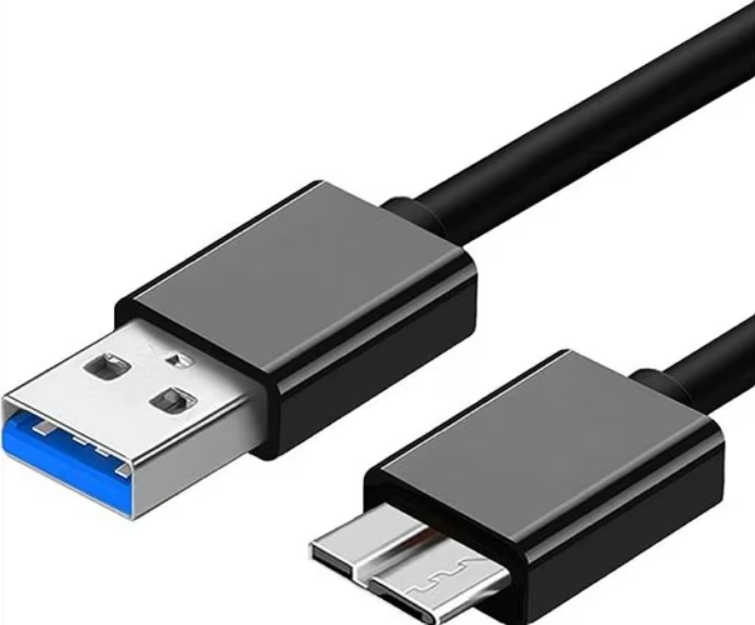
First, unplug the drive and connect it again, making sure the cable is firmly inserted into your Mac and the hard drive. Then try using a different USB port on your Mac, as a damaged or dusty port may stop the drive from being detected. You can also replace the USB cable, since cables can wear out or fail without visible damage.
If possible, connect the Toshiba hard drive to another computer. If it works there, the issue is likely related to your Mac or its ports. These simple checks often fix the problem and help rule out connection issues before moving on to more advanced solutions.
Fix 3. Open Finder Preferences and show external drives on the Desktop
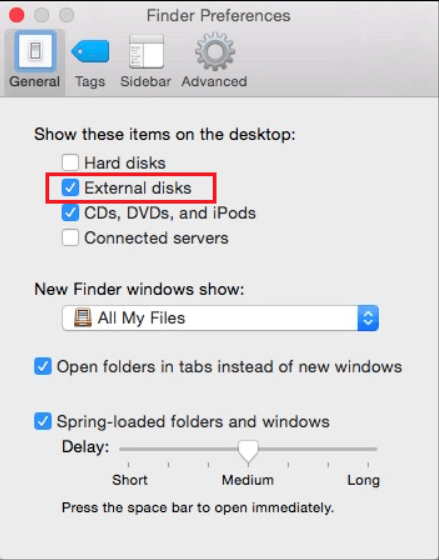
Sometimes a Toshiba external hard drive is connected and working, but Finder settings hide it from view. If external disks are not enabled in Finder Preferences, the drive will not appear on the Desktop or in Finder, which makes it seem like it is not working. Turning on the option to show external drives allows the Toshiba hard drive to appear and become accessible.
Step 1. Click the Finder icon and select Preferences from the drop-down menu.
Step 2. When the Finder Preferences show up, click on the General tab. Under the "Show these items on the desktop" section, if the External disks option is unchecked, click the box.
Fix 4. Connect the Toshiba hard drive to another Mac
Try connecting the Toshiba external hard drive to another Mac to check whether the issue is caused by a poor connection or power supply. In some cases, the drive does not show up because the original Mac’s USB port or cable is not working properly. If the drive appears and works on a different Mac, the problem is likely with your Mac or its connection. However, if it still does not show up, the issue is probably related to the hard drive itself rather than the connection.
Conclusion
In conclusion, a Toshiba external hard drive not working on a Mac is usually caused by simple issues such as file system incompatibility, connection problems, or hidden system settings. By using PartitionAssistant NTFS for Mac, checking the cable and ports, adjusting Finder preferences, testing the drive on another Mac, or using a proper NTFS tool, most problems can be fixed without difficulty. Follow the steps above in order, and you should be able to make your Toshiba external hard drive work normally on your Mac again.
FAQs
1. Why is my Toshiba external hard drive not working with my Mac?
It may be due to file system incompatibility, connection issues, or hidden Finder settings.
2. Is Toshiba external hard drive compatible with Mac?
Yes, but macOS may not natively write to NTFS-formatted drives.
3. Why does my external hard drive not work on my Mac?
Common causes include faulty cables, USB ports, or incompatible file systems.
4. How to set up Toshiba hard drive for Mac?
Format it to a Mac-compatible file system like exFAT or use an NTFS driver for full access.
5. How do I get my Mac to read my external hard drive?
Connect it properly, check Finder preferences, or use an NTFS tool if needed.
