
 PartitionAssistant NTFS for Mac
Western Digital for Mac: Software Installation and Troubleshooting Guide
This article explores the Western Digital for Mac. It discusses installing Western Digital software for Mac.dmg and suggests helpful solutions for situations where the drive is not showing up.

By Irene / Updated on January 23, 2026


For macOS users and IT administrators working with Western Digital storage, NTFS file system compatibility is a common technical limitation. Although Western Digital hardware is generally reliable, macOS only provides native read-only support for NTFS. This restriction can lead to issues such as failed installations, mounting problems, and the inability to create, edit, or delete files on the drive.
To address this, PartitionAssistant NTFS for Mac can be used to add full read-write support for NTFS volumes on macOS. The software enables macOS to interact more completely with NTFS-formatted drives, which can help reduce access errors and improve drive recognition in Finder.
For environments that require regular write access to NTFS-formatted Western Digital drives, installing PartitionAssistant NTFS for Mac before running manufacturer-provided utilities can help ensure proper file system access and minimize compatibility-related issues.
Why do Western Digital Mac drives face compatibility issues?
In professional macOS environments, compatibility issues between Western Digital external drives and Apple computers are most often traced to file system design rather than hardware defects. Many Western Digital drives, including the widely used My Passport series, ship preformatted with NTFS to maximize compatibility with Windows systems.
While macOS can read data stored on NTFS volumes, it does not support native write access without third-party drivers.This architectural limitation creates a significant barrier for tasks such as file editing, backup management, and routine data organization. When write support is unavailable, the drive typically mounts in read-only mode, and in some cases may fail to mount correctly at all. These behaviors can give the impression of data loss, even though the underlying files remain intact.
Fix: Download Western Digital software for Mac
When macOS cannot write to NTFS drives, Western Digital external drives may show up as read-only. This can stop you from copying, editing, or deleting files. It can also cause errors that look like problems with Western Digital software, even though the real issue is NTFS compatibility.
In this case, Install Western Digital Software for Mac.dmg refers to installing PartitionAssistant NTFS for Mac, which provides full NTFS support for macOS. This tool allows your Mac to properly access NTFS-formatted Western Digital drives.
- ★After installing PartitionAssistant NTFS for Mac, your Mac can:
- Write to NTFS drives normally
- Create, edit, and delete files on Western Digital NTFS disks
- Mount NTFS drives correctly in Finder and reduce access problems
- Maintain stable and fast file transfers
By installing this NTFS tool first, you remove the main compatibility barrier between macOS and NTFS. This makes your Western Digital drive work smoothly on Mac and fixes common issues such as being unable to write data to the drive. To resolve NTFS-related problems, download and install PartitionAssistant NTFS for Mac. This ensures your Mac has full NTFS access and prevents read-only errors.
🌟Note: Please remember to configure the Security Policy in iOS Recovery Mode. macOS can only read NTFS drives by default. To enable write access, you need to install a third-party NTFS driver and allow system extensions so it can work correctly.
Step 1. Open PartitionAssistant NTFS for Mac and connect the Western Digital hard drive. All connected external drives will be automatically mounted and shown in the list.

Step 2. Choose the drive you want to use. Make sure its status shows Read & Write, then click Open. If it doesn’t, click the three dots to change the setting.
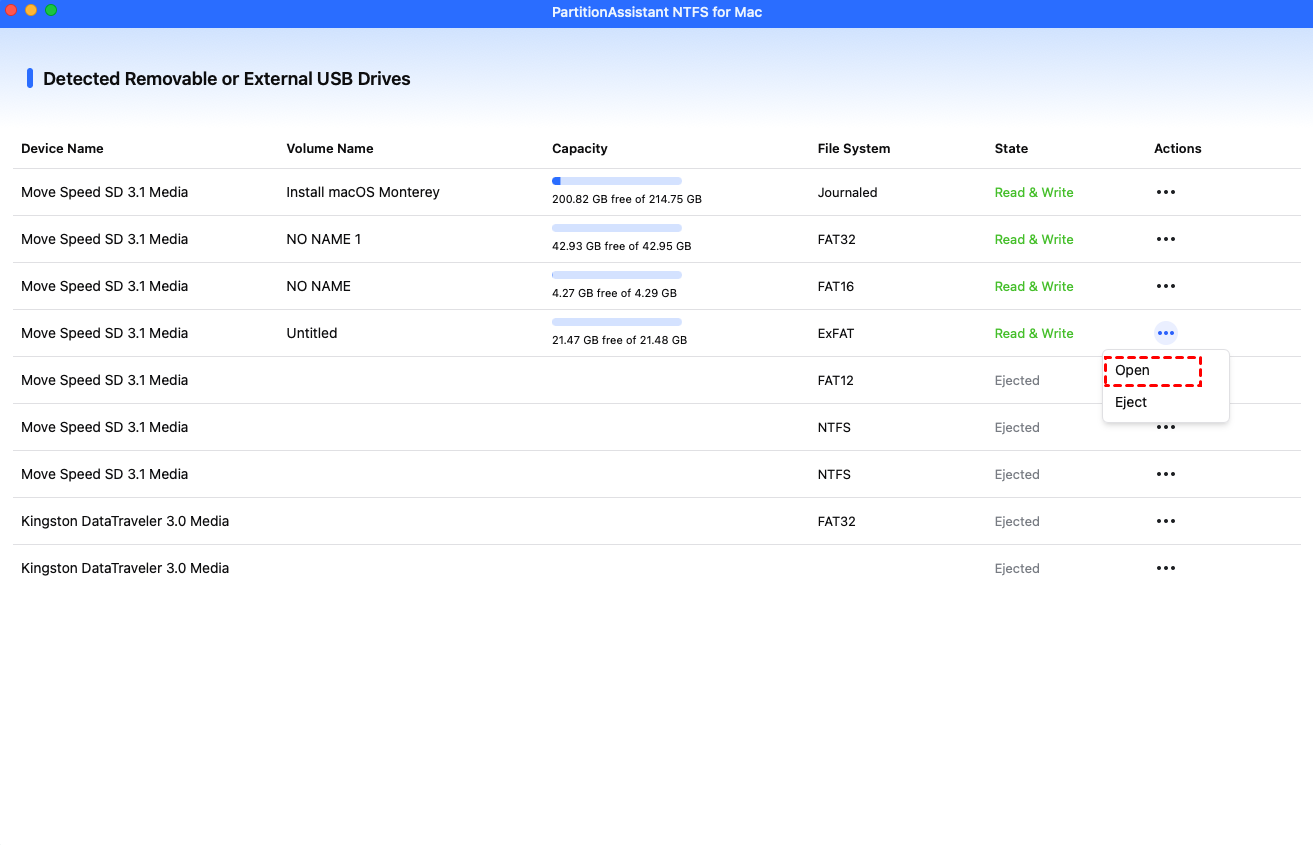
Step 3. Now you can write files from Western Digital on your Mac.

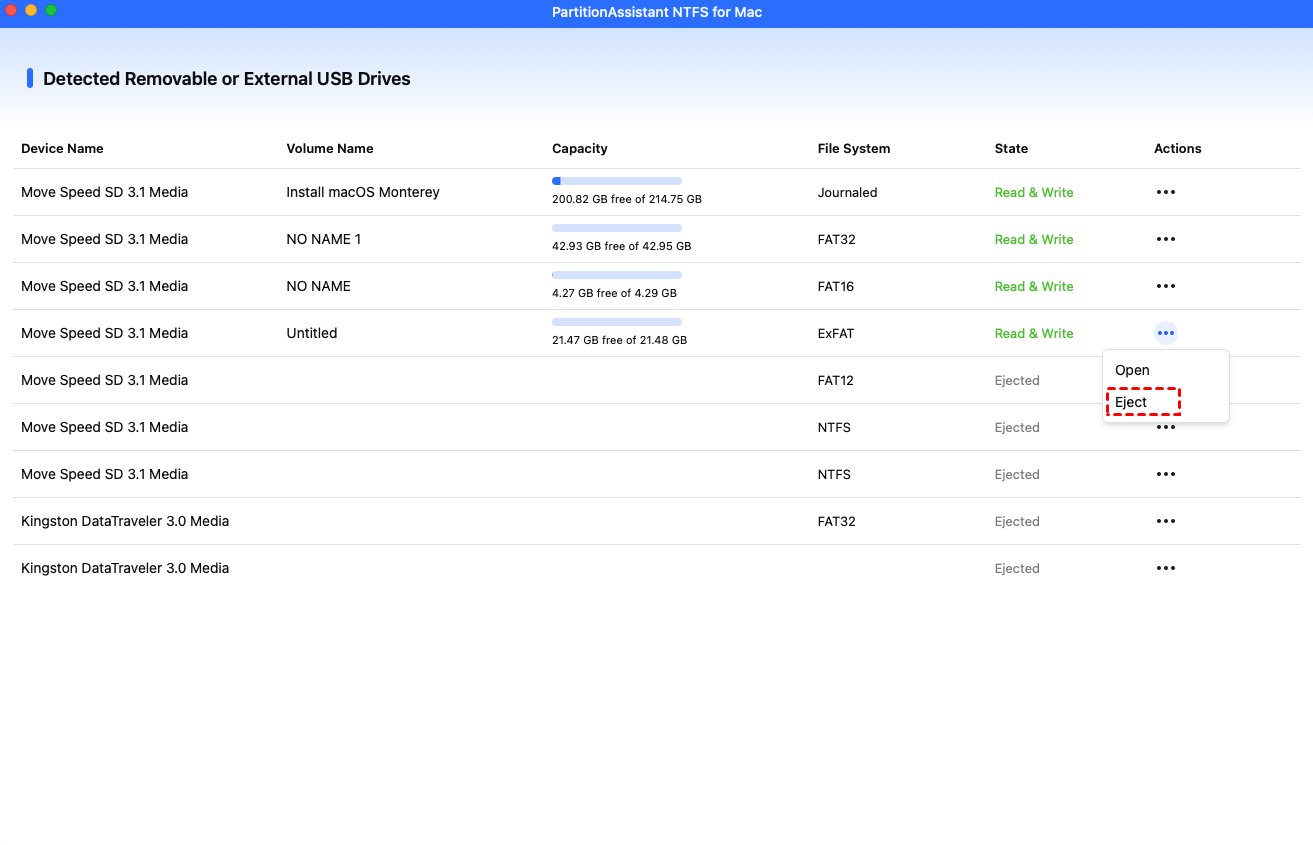
Step 4. After all operations are complete, please click "Eject" to disconnect the Western Digital external hard drive from your Mac.
How to fix Western Digital drives not showing up on Mac?
In addition to read-only access and file operation errors, NTFS compatibility limitations can also lead to other problems like WD My Passport for Mac not showing up at all. When full NTFS support is not available, macOS may fail to complete the mounting process, even though the drive is physically connected and functioning.
When a Western Digital My Passport drive does not appear on Mac, the cause is therefore often related to file system handling rather than a physical hardware failure. Because macOS does not fully support NTFS by default, the operating system may have trouble mounting large NTFS volumes or volumes that were not safely ejected from a Windows system.
In these cases, macOS may pause during its file system check process or refuse to mount the drive due to file system flags that it cannot properly resolve. As a result, the drive may not appear in Finder even though it is powered on and connected.
Here is the architectural approach to resolving this:
✔️ Launch PartitionAssistant NTFS for Mac: Open the utility for compatibility and see if the drive is recognized at the physical level, even if it is not mounted in Finder.
✔️ Force Mount: Use the tool's "Mount" feature. PartitionAssistant bypasses the standard macOS limitations and can often force a stubborn NTFS volume to mount securely.
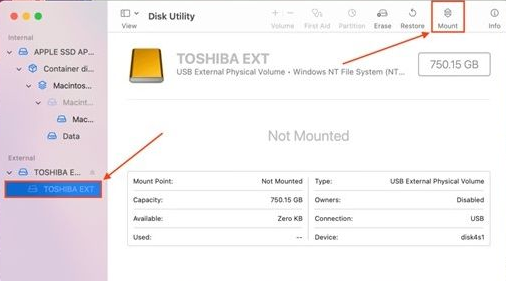
✔️ Repair the File System: If the drive still does not appear, you can run First Aid to check and repair your disk on Mac, this tool is specifically engineered to correct NTFS header errors and directory corruption.
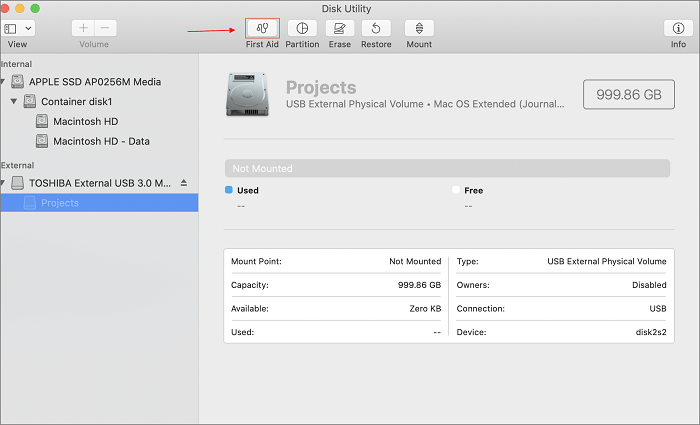
✔️ Check Power and Cables: Ensure the drive is receiving adequate power. However, if the drive light is on and spinning, the issue remains software-based, and the NTFS driver is your primary fix.
Extra tip: How to maintain data integrity and performance
The integrity of your data relies on the stability of the connection between the operating system and the storage medium. Relying on unstable or read-only access methods introduces a risk of data corruption, especially during large file transfers or backups.
By standardizing your workflow on PartitionAssistant NTFS for Mac, you align your setup with professional IT standards. You ensure that your Western Digital software for Mac operates in a stable environment, your Western Digital My Passport for Mac remains accessible across platforms, and your valuable data is protected against file system errors.
For the ultimate reliability in cross-platform storage, the combination of Western Digital hardware and PartitionAssistant NTFS for Mac is the superior choice for macOS users.
Conclusion
Western Digital drives are reliable, but NTFS file system limitations often prevent macOS from using them properly. Without full NTFS support, users may face read-only access, mounting errors, or missing drives. Installing PartitionAssistant NTFS for Mac enables full read and write access, improves drive recognition, and ensures stable file operations. For macOS users working with Western Digital NTFS drives, this solution provides a practical and dependable way to avoid compatibility issues and protect data integrity.
FAQs
🗨️ Does Western Digital work with Mac
Yes. Western Digital drives work with macOS, but many are formatted with NTFS. macOS can read NTFS drives by default but cannot write to them without additional NTFS support software.
🗨️ Do I need to install Western Digital software for Mac
Not always. For basic access, macOS can read the drive directly. If the drive is NTFS formatted and you need to copy, edit, or delete files, installing an NTFS driver such as PartitionAssistant NTFS for Mac is necessary.
🗨️ How do I make my WD hard drive compatible with my Mac
Compatibility can be achieved by enabling full NTFS support on macOS using a third party NTFS driver or by reformatting the drive to a macOS supported file system if cross platform use is not required.
🗨️ How do I access my WD hard drive on a Mac
Connect the drive to the Mac and open Finder. If the drive is NTFS formatted, it may appear as read only. Installing an NTFS driver allows full access and proper mounting in Finder.
🗨️ Why is Ctrl+V not working in Mac
macOS uses Command+V instead of Ctrl+V for paste. If paste still does not work, the issue may be related to drive permissions or a read only file system such as NTFS without write support. You can follow to change permission on WD password on Mac.
