
 PartitionAssistant NTFS for Mac
Best Disk Mounter Software For Mac: Top Free & Paid Software Reviews
This article evaluates the best free external hard disk mounting software for Mac. It provides comprehensive insights into NTFS software, helping users choose the right mounter.

By Irene / Updated on January 12, 2026


Why you need a disk monuter software for Mac?
When you connect a Windows-formatted drive to a Mac, you may find that you can view files but cannot edit, delete, or add new ones. This happens because macOS uses APFS or HFS+, while Windows uses NTFS. macOS does not provide native write support for NTFS, so the drive is treated as read-only unless you install a third-party driver.
To solve this problem, many users rely on disk mounter software for Mac. This type of software enables macOS to fully access NTFS drives, including writing, copying, and managing files. As a result, choosing the right disk mounter becomes important for users who regularly work between macOS and Windows systems. Since built-in support is limited, users often look for free or low-cost external hard disk mounting software to manage their data without extra restrictions.
Many people search for a free NTFS mounter for Mac that works with minimal setup. Available options include open-source tools that may require technical knowledge, as well as free trials of paid software. Selecting reliable NTFS for Mac software helps ensure stable performance and data safety while using external drives across different platforms. In the following sections, we will introduce some of the best disk mounter software for Mac to help you choose the most suitable option.
What are the standards of the best NTFS for Mac software?
Choosing the best NTFS for Mac software is not only about whether you can see files on a Windows drive. A good tool should let macOS and Windows work together smoothly, while keeping your data and system safe. To make the right choice, it helps to look at several key standards used by professionals.
1. Data safety and stability
The most important standard is protecting your data. Some free NTFS tools for Mac may work at first but can be unstable. This may cause files to become corrupted or disappear after restarting your Mac. High quality NTFS for Mac software is designed to keep data consistent, even if a transfer is interrupted. This reduces the risk of drive errors or unreadable disks.
2. Speed and performance
Good performance makes a big difference, especially when copying large files. The best NTFS mounter for Mac should offer speeds close to native Mac formats. Many free options allow basic access but often slow down when handling videos or large photo folders. Reliable software keeps transfers fast and efficient.
3. System compatibility and security
A professional NTFS tool must work well with modern Macs and new macOS versions. This includes full support for Apple Silicon chips and the latest systems. It should also follow Apple’s current security standards, using modern system extensions instead of outdated methods that may cause crashes or system issues.
4. Ease of use and support
Ease of use is another key factor. Free tools often require manual steps or Terminal commands. Premium software usually works automatically once the drive is connected. In addition, professional tools provide technical support, which can be helpful if problems occur.
In short, the best NTFS for Mac software is stable, fast, secure, and easy to use. It should protect your data, work smoothly with the latest macOS versions, and integrate well into the system. These standards help you decide whether a free or paid solution better fits your needs.
Overview of the best disk mounter software for Mac
When you connect an NTFS drive to a Mac, you may find that you can open files but cannot edit or save changes. This can be troublesome, especially when you are working with important data. Disk mounter software solves this problem by helping macOS properly read and write NTFS drives. Below is a clear review of five commonly used disk mounter tools for Mac, so you can quickly understand their differences and choose the right one.
| Software | Type | Key Features | Pros | Cons | Overall Evaluation |
|---|---|---|---|---|---|
| PartitionAssistant NTFS for Mac | Free | Full NTFS read and write, automatic mounting, simple interface | Totally free, safe, easy to use, stable performance | Fewer advanced customization options | Best choice overall: free, reliable, and beginner-friendly |
| Paragon NTFS for Mac | Paid | Full NTFS access, high speed, automatic mount | Very stable, near-native speed | Expensive, requires system permissions | Powerful but costly |
| NTFS-3G | Free | NTFS read and write via command line | Free, flexible, widely supported | Complex setup, slow speed | Suitable for advanced users |
| FUSE for macOS | Free/Paid | File system extension framework | Highly customizable, community-supported | Hard to configure, not ideal for NTFS writing | Better as a base tool, not standalone |
Each disk mounter has its own strengths. Paid tools like Paragon focus on performance and automation, while open-source tools offer flexibility at the cost of ease of use. Among them, PartitionAssistant NTFS for Mac stands out as the best option because it is completely free, safe, easy to operate, and suitable for most users. If you want a simple and reliable way to mount NTFS drives on Mac, it is the most balanced choice.
Reviews of the best disk mounter software for Mac
🔥 Top 1. PartitionAssistant NTFS for Mac (Free)
PartitionAssistant NTFS for Mac is a reliable disk mounter designed for Mac users who need full access to NTFS drives. Since macOS only supports NTFS in read-only mode by default, this tool helps solve the compatibility issue by enabling stable read and write access. Once installed, NTFS drives can be mounted automatically and used like native Mac disks.
What makes PartitionAssistant NTFS for Mac stand out is that it is completely free and safe to use. There are no hidden costs, trial limits, or forced upgrades. The software focuses on simplicity, allowing users to copy, edit, delete, and save files on NTFS drives with just a few clicks. It is suitable for both beginners and regular users who often move data between Windows and Mac.
Note: Before beginning, you need to configure Security Policy in iOS Recovery Mode.
Step 1. Open the installed PartitionAssistant NTFS for Mac, then connect your NTFS drive, and the software will automatically mount and display all connected external hard drives on your Mac.

Step 2. Find the NTFS drive you want to write data, and click "Enable Writable". If the status is already Read & Write, simply click “Open” to start using the NTFS external hard drive on your MacBook.
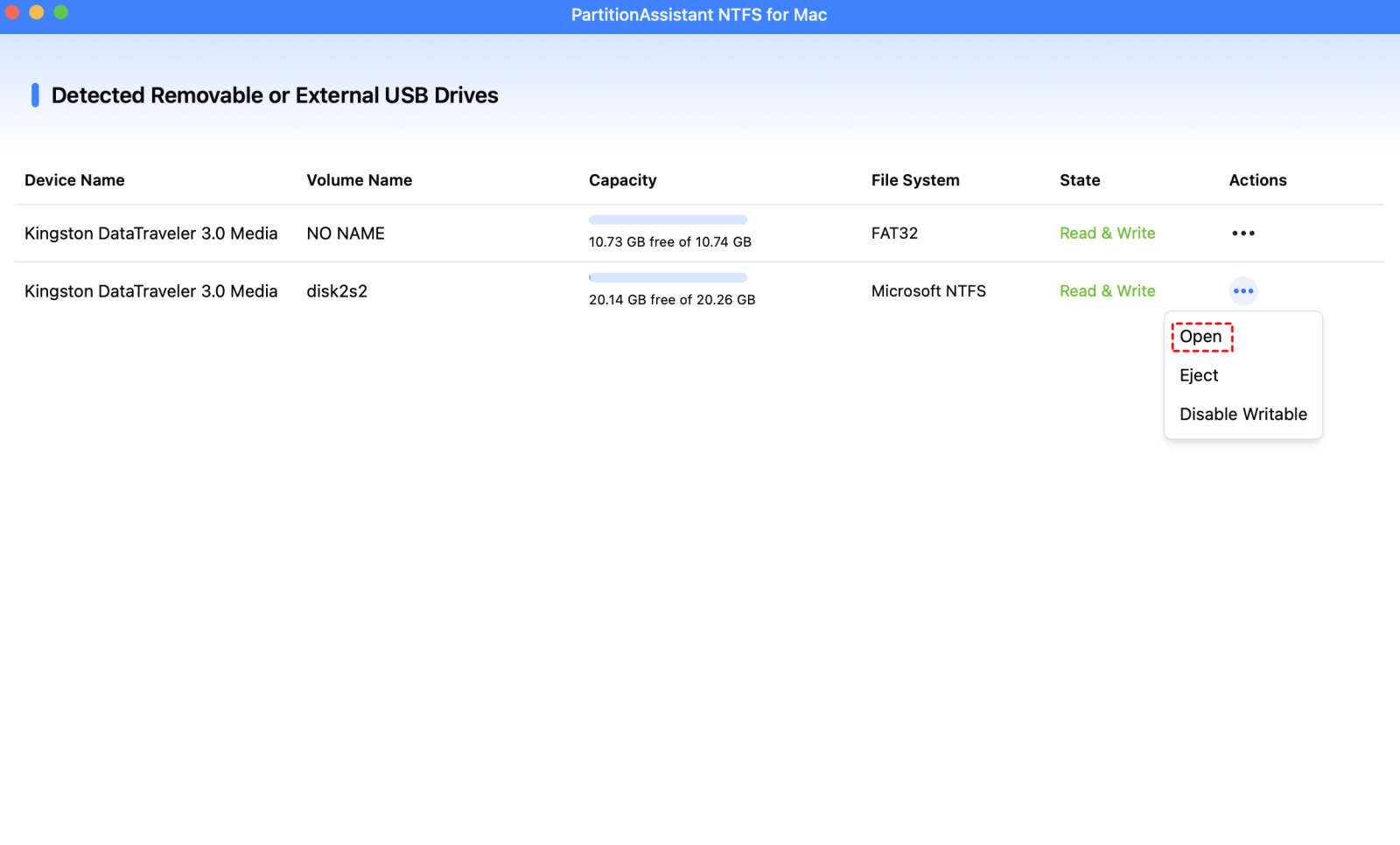
Step 3. You can now use the best disk mounter software for Mac to copy, move, delete files without formatting the NTFS drive.

Step 4. After all operations are complete, please click "Eject" to disconnect the external hard drive from your Mac.
Pros:
✔️ Totally free with no time limit
✔️ Full read and write support for NTFS drives
✔️ Simple interface and easy operation
✔️ Safe and stable performance
Cons:
❌ The design is simple and easy to use, but it may feel too minimal for users who want more detailed control over disk operations.
Key Features
🌟 Automatically mounts NTFS drives when connected
🌟 Supports common NTFS operations like copy, move, rename, and delete
🌟 Works smoothly with modern macOS versions
🌟 Does not require complex Terminal commands
Limitations
❗Not designed for users who need deep system-level customization
Overall, PartitionAssistant NTFS for Mac is the best choice for most users who want a free, safe, and easy disk mounter on Mac without sacrificing basic performance or data security.
Top 2. Paragon NTFS for Mac (Paid)
Paragon NTFS for Mac is a well-known solution for users who want full and smooth read and write access to NTFS drives on macOS. Since NTFS is mainly designed for Windows, this software helps Mac users mount NTFS drives easily and manage files without limits. It supports common operations such as mounting, unmounting, checking, and verifying NTFS volumes.
Paragon NTFS for Mac also offers advanced control options. Users can choose to mount drives in read-only mode for sensitive data or manage volume access manually. It supports different languages and characters, making file naming and organization more flexible. But sometimes, you may encounter Paragon NTFS for Mac not working issue. Overall, it is designed for users who want strong performance and deeper control over NTFS drives.
Pros:
✔️ Full and unlimited read and write support for NTFS
✔️ Automatic mounting at system startup
✔️ Fast and stable data transfer
✔️ Advanced mounting and security options
Cons:
❌ Paid software and relatively expensive. You will need to enter a serial number, license, or product key
❌ Closed-source and less flexible
Key Features
🌟 Allows editing, deleting, renaming, and copying files on NTFS drives
🌟 Protects data integrity during file transfer
🌟 Supports automatic volume mounting
🌟 Works well with large files and external drives
Limitations
❗Higher cost compared to many NTFS tools
❗One license usually covers only a single Mac. Multiple devices require extra licenses
Pricing
Single license usually costs around $19.95
Multi-device licenses are available at a lower average price
Bundles may include other Paragon tools
In summary, Paragon NTFS for Mac is a powerful and feature-rich NTFS solution for Mac users who are willing to pay for performance and advanced control. However, due to its price and licensing changes, it is best to review the latest details on the official website before purchasing.
Top 3. NTFS-3G (Free)
NTFS-3G is a free and open-source NTFS driver that allows Mac users to read and write NTFS drives. By default, macOS only supports NTFS in read-only mode, and NTFS-3G helps remove this limitation. With this tool, users can create, edit, rename, and delete files on NTFS-formatted drives. It works on both Apple Silicon and Intel Macs and does not require changes to the macOS core system.
This software is often chosen by technical users who prefer open-source solutions. It supports large files and basic NTFS partition management, making it suitable for general file transfer tasks between Mac and Windows systems. However, it mainly relies on command-line operations, which may not be convenient for beginners.
Pros:
✔️ Completely free and open-source
✔️ Full read and write access to NTFS drives
✔️ Works across multiple platforms, including macOS and Linux
✔️ Stable for basic file operations
Cons:
❌ Slower transfer speed compared to paid tools
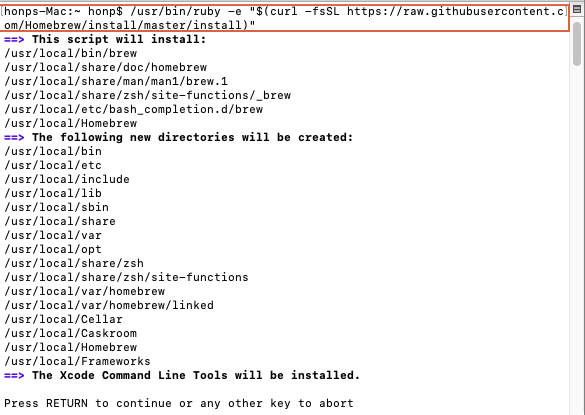
❌ Installation and use require Terminal commands
❌ Less friendly or hard to use for beginners
Like this:
Key Features
🌟 Supports creating, deleting, renaming, and modifying files
🌟 Works without kernel-level changes, improving portability
🌟 Can mount and recover NTFS volumes after system interruptions
🌟 Handles large files reliably
Limitations
❗Requires installing additional components such as macFUSE
❗Runs in user space, which causes performance overhead
❗Limited support for advanced Windows NTFS features
To sum up, NTFS-3G is a solid choice for users who want a free and proven NTFS solution and are comfortable using the command line. While it is safe and flexible, its slower speed and complex setup make it less suitable for users who want a simple, plug-and-play experience.
Top 4. FUSE for macOS (Free/Paid)
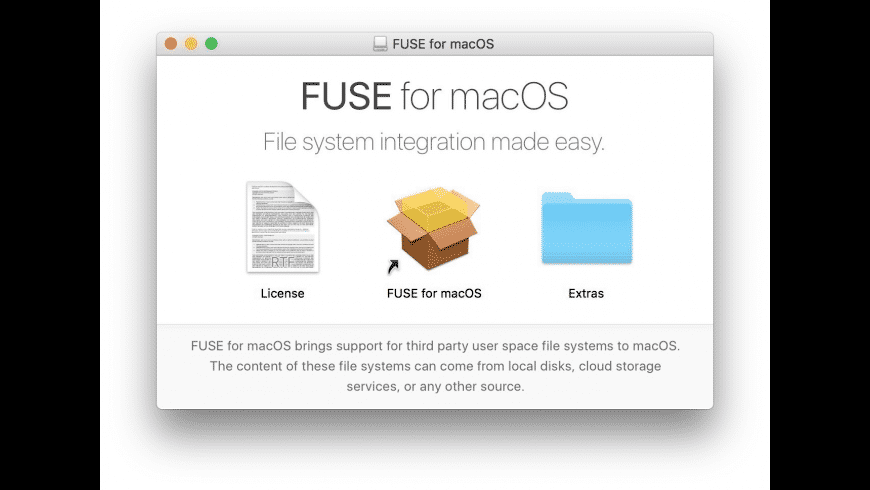
FUSE for macOS is an open-source framework that extends the file system support of macOS. Instead of being a complete NTFS solution on its own, it acts as a bridge that allows third-party file systems to run in user space. With FUSE for macOS, users can access file systems that macOS does not support by default, such as NTFS, SSHFS, and other custom formats.
This tool is mainly designed for developers and advanced users who need flexibility and customization. It supports multiple APIs and programming languages, making it possible to build or use different file system plugins. While powerful, it requires extra configuration and usually works together with other tools, rather than providing direct NTFS read and write access by itself.
Pros:
✔️ Open-source and supported by an active community
✔️ Supports many file systems beyond macOS defaults
✔️ Highly flexible and extensible through plugins
✔️ Safer design by running file systems in user space
Cons:
❌ Not beginner-friendly and takes time to learn
❌ Does not support automatic NTFS mounting
Key Features
🌟 Uses kernel extensions and user-space libraries to connect file systems
🌟 Reduces system crash risks compared to kernel-only drivers
🌟 Allows access to local disks, network locations, and cloud storage
🌟 Works as a base platform for tools like NTFS-3G
Limitations
❗Requires additional software to handle NTFS writing
❗Manual setup and configuration are needed
❗Not suitable for users looking for a simple, plug-and-play NTFS solution
In short, FUSE for macOS is best for advanced users who want maximum control and customization. For everyday NTFS read and write needs, most users will find a dedicated NTFS for Mac tool easier and more practical.
Conclusion
Choosing the right disk mounter for Mac is one of the easiest ways to avoid problems when working with Windows-formatted drives. By focusing on key factors such as data stability, transfer speed, and system security, you can make sure your external drive works smoothly on macOS, just like a native Mac disk, without putting your data at risk.
While some advanced users may enjoy the flexibility of open-source tools, most users prefer a dedicated NTFS for Mac solution. Tools like PartitionAssistant NTFS for Mac stand out because they are free, safe, and very easy to use. With the right NTFS mounter, whether free or paid, you can stop worrying about read-only limits or file permission issues and spend more time on your actual work.
In the end, the best free external hard disk mounting software for Mac should feel simple and effortless. Whether you are transferring large media files or backing up everyday documents, a reliable NTFS tool helps save time and protects your storage devices. Now that you understand the differences between the top options, you can confidently choose the one that fits your Mac and your workflow.
FAQs
🗨️ What is the disk mounter app for Mac?
A disk mounter app for Mac is a tool that helps macOS recognize and access storage devices or disk images. It allows you to mount, unmount, and manage drives such as external hard disks, USB drives, and disk image files. Some disk mounter apps also enable read and write access to file systems that macOS does not fully support by default, such as NTFS.
🗨️ What is the alternative to Disk Image Mounter on Mac? Can I use NTFS on a Mac?
Besides the built-in Disk Image Mounter, you can use third-party tools like NTFS mounter software. macOS can read NTFS drives by default, but it cannot write to them. To fully use NTFS on a Mac, you need an NTFS for Mac tool that enables both reading and writing.
🗨️ Is there any free NTFS for Mac?
Yes. There are free NTFS for Mac solutions available. Some are open-source tools that require more setup, while others offer a simpler interface. For users who want an easy and safe option, free tools like PartitionAssistant NTFS for Mac provide full NTFS read and write access without extra cost.
🗨️ Is NTFS recognized by Mac?
Yes. macOS can recognize and mount NTFS drives automatically. However, by default, it only allows read access. You need additional software if you want to edit, delete, or save files to an NTFS drive.
🗨️ Is NTFS still used today?
Yes. NTFS is still widely used today, especially on Windows computers and many external hard drives. It supports large files, strong data protection, and efficient storage management, which makes it popular for both personal and professional use.
