
 PartitionAssistant Recovery


Full Guide on Fixing Application Load Error 3:0000065432
The application load error 3:0000065432 can appear when attempting to start games on Steam. This guide offers several effective solutions to help resolve the issue and restore smooth gameplay.

By Hedy / Updated on September 2, 2025


Overview of application load error 3:0000065432
Steam is a leading platform for digital game distribution, offering users the ability to buy, play, share, and even design their own games. It delivers an immersive gaming environment that enhances the overall experience.
Yet, despite its popularity, the platform isn’t immune to problems. One common frustration is the application load error 3:0000065432, which can prevent games from launching.
This error frequently occurs with Bethesda titles such as Fallout 4, Skyrim, or Doom. Several factors may trigger it, including:
★ Conflicts with antivirus software
★ The game being installed outside the default Steam directory
★ Corrupted or unverified game files
★ A faulty or incomplete Steam installation
Fortunately, there are effective ways to resolve this error. The following guide outlines practical solutions to help you get back to gaming without disruption.
How to fix application load error 3 0000065432
The application load error 3:0000065432 is a common problem that usually shows up when trying to launch games on platforms like Steam, Bethesda, or other launchers. Here are some proven ways to fix it:
Method 1. Run Steam as an administrator
A quick way to fix the application load error 3:0000065432 is by running Steam with administrative privileges.
Step 1. Right-click the Steam shortcut on your desktop and choose Properties.
Step 2. Navigate to the Compatibility tab and check the box for Run this program as an administrator.
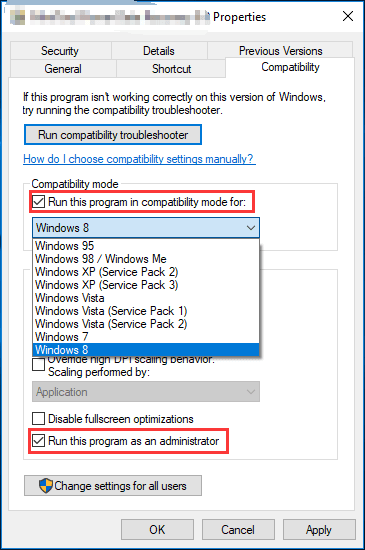
Step 3. Click Apply, then OK to confirm the changes.
Step 4. Once done, restart Steam and try launching the game again to check if the error is resolved.
Method 2. Verify the integrity of game files
Another effective method to resolve the Steam application load error 3:0000065432 is by verifying the integrity of your game files.
Step 1. Open the Steam client and head to your Library.
Step 2. Right-click the game causing the issue and select Properties.
Step 3. Navigate to the Local Files tab and choose Verify Integrity of Game Files.
Step 4. Allow the scan to finish, then restart your computer.
Step 5. After rebooting, launch the game again to check if the problem has been fixed.
Method 3. Move the game to its original directory
The application load error 3:0000065432 can also occur if a game is installed outside the default Steam directory. To resolve this, move the game back to the original Steam folder.
Step 1. Open the Steam client.
Step 2. Click Steam in the top-left corner and select Settings.
Step 3. Go to Downloads and click Steam Library Folders on the right.
Step 4. Add a library folder located at C:\Program Files (x86)\Steam.
Step 5. Return to your Library, right-click the affected game, and choose Properties.
Step 6. Navigate to Local Files and select Move Install Folder.
Step 7. In the next window, pick C:\Program Files (x86)\Steam as the install location and click Next to begin.
Step 8. After the transfer is complete, restart the game to see if the error has been resolved.
Method 4. Reinstall Steam
Sometimes, the application load error 3:0000065432 can be caused by a faulty Steam installation. In such cases, reinstalling Steam is the best solution.
Step 1. Press Windows + R to open the Run dialog.
Step 2. Type appwiz.cpl and press Enter.
Step 3. In the Uninstall or Change a Program window, right-click Steam and choose Uninstall.
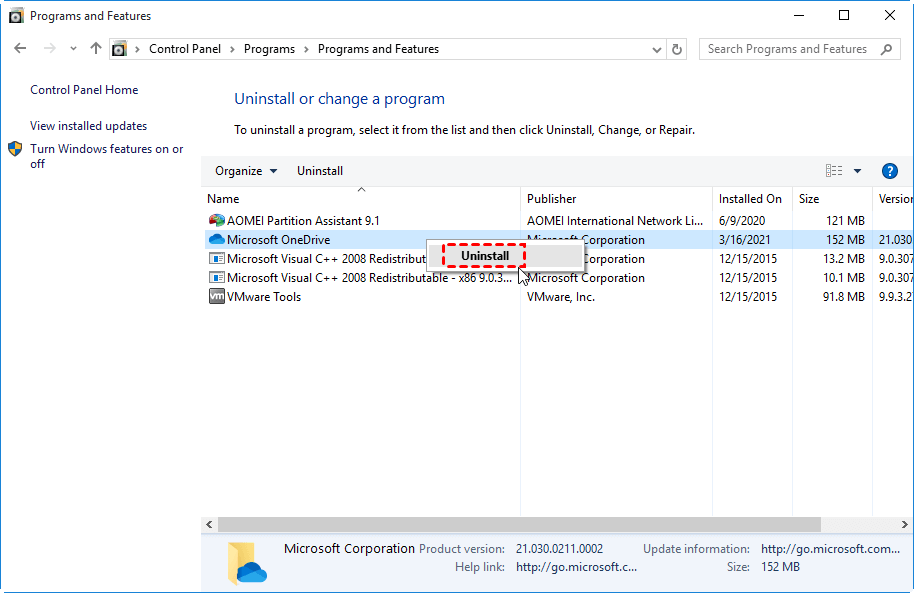
Step 4. Once the process is complete, restart your computer.
Step 5. Download and reinstall Steam from the official Steam website.
Step 6. After reinstalling, launch the client and check if the issue has been resolved.
Bonus tip: How to recover data from application load error 3 0000065432
When facing application load error 3:0000065432, it often indicates issues with the system, storage device, or game installation files. While this error is frustrating enough, the bigger concern is the risk of losing valuable data if the problem is linked to disk corruption or file system errors. This is where PartitionAssistant Recovery comes into play.
PartitionAssistant Recovery is a powerful and reliable disk management and recovery tool designed to help users recover lost or inaccessible data with ease. Some of its key benefits include:
✅ Comprehensive data recovery: Supports recovery of documents, photos, videos, and more from hard drives, SSDs, USB drives, and memory cards.
✅ Quick and deep scan modes: Ensure you can find both recently deleted files and deeply buried data caused by software or disk errors.
✅ User-friendly interface: Even if you’re not tech-savvy, you can recover files step by step without difficulty.
By using PartitionAssistant Recovery, you not only have a chance to restore lost files but also to stabilize your system and prevent further problems.
Step 1. Install and launch PartitionAssistant Recovery. Choose the exact partition or disk where your data lost and click Scan.

Step 2. Then, the recovery tool starts to scan and search. It will execute the “Quickly Scan" first for finding your deleted data fast, and then execute the “Deep Scan" for searching for other lost data.

Step 3. Once the scan is completed, all deleted files, recycle bins, and other missing files will be displayed. Please select the file you would like to recover and then click "Recover".

Step 4. Then, select a folder path to save your recovered files.

Step 5. Wait patiently for this process of recovery to end.
Conclusion
The application load error 3:0000065432 is a common Steam issue, often triggered by antivirus conflicts, file corruption, or improper installation paths. Fortunately, it can be fixed by running Steam as administrator, verifying game files, moving games to the default directory, or reinstalling Steam. To safeguard data if errors involve disk issues, PartitionAssistant Recovery offers reliable solutions, ensuring smooth gameplay and preventing data loss while keeping your system stable.
