
 AOMEI Partition Assistant
Solved: PC Will Automatically Restart in One Minute
The “Your PC will automatically restart in one minute” error may be an annoying thing. This guide outlines practical, proven solutions designed to restore stability and keep your system running smoothly. Follow the methods below to resolve the issue efficiently.

By Hedy / Updated on January 8, 2026


Why is my PC will automatically restart in one minute?
This message is Windows’ way of saying something critical has gone wrong in the background. Instead of freezing or crashing instantly, the system schedules a forced restart to prevent further damage.
You may see messages like:
“Windows will restart automatically in one minute.”
“The system process terminated unexpectedly.”
“Critical system error detected.”
Here are the main reasons for why your PC restarts automatically:
⭐ Windows update service failure: A stuck or broken update can throw Windows into panic mode. When update services crash, the system may repeatedly force restart.
⭐ Corrupted system files: Missing or damaged core files confuse Windows. When it can’t rely on its own instructions, it chooses a reboot.
⭐ Malware or virus infection: Some malware intentionally crashes system processes, triggering restart loops to avoid detection.
⭐ Driver conflicts: Outdated or incompatible drivers—especially graphics and chipset drivers—can destabilize the system.
⭐ Hardware overheating issues: Overheating CPUs or GPUs may force Windows to restart as a safety measure.
How to fix PC will automatically restart in one minute
The “Your PC will automatically restart in one minute” error usually appears after a failed Windows update, corrupted system files, or a critical service crash. Here are effective, step-by-step solutions to fix it.
Method 1. Use the Startup Repair
Windows includes a built-in Startup Repair tool designed to quickly diagnose and fix common boot-related problems. If the message “Your PC will automatically restart in one minute” appears in Windows 11 or Windows 10, running Startup Repair is a practical first step.
Step 1. Press Windows + I to open Settings, then select Update & Security.
Step 2. Open Recovery and click Restart now under Advanced startup.
Step 3. In the Windows Recovery Environment, choose Troubleshoot > Advanced options > Startup Repair.
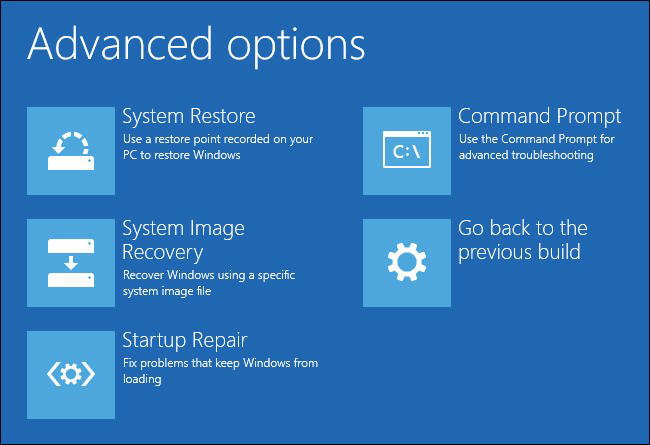
However, if Startup couldn't repair your PC, you can resort to a third-party boot repair tool called AOMEI Partition Assistant that can help resolve the “Your PC will automatically restart in one minute” error by fixing underlying boot and system issues that trigger forced restarts. It provides several practical features to address these problems safely and efficiently.
1. Repair boot problems: This feature can rebuild the boot environment and restore normal startup behavior.
2. Check and fix disk errors: The Check Partition function scans and repairs disk errors that may be disrupting system stability.
3. Rebuild or manage system partitions: It allows you to set the correct system partition as active and adjust partition structure without data loss.
4. Create bootable media for unbootable PCs: This allows you to access the system, repair boot issues, and manage disks even when the PC keeps restarting.
5. Disk and system optimization: By aligning partitions, converting disks safely, and checking disk health, the software helps prevent future system errors that may lead to unexpected restarts.
Step 1. Install AOMEI Partition Assistant on a working PC and connect a USB drive to it. Run this software, select the Boot Repair option below the Recover section.

Step 3. Then, click the create a bootable disk option to create a WinPE Boot Repair drive for recovery.
Step 4. Connect the newly created drive to the malfunctioning computer and enter the BIOS/UEFI settings. Set the USB device as the primary boot option. Once configured, the system will start from the drive and automatically launch the Boot Repair tool, which scans for and detects existing boot-related problems.
Step 5. Select the repairable boot entries you want to repair and click the Repair button.
Step 6. After the process finishes, disconnect the bootable disk and restart the computer using the original system drive.
Method 2. Scan your system for viruses or malware
The “Your PC will automatically restart in one minute” error in Windows 10 can also be triggered by malware or virus infections. Running a thorough antivirus scan helps rule out this possibility and restore system stability.
Step 1. Open Settings and go to Update & Security.
Step 2. Select Windows Security, then click Virus & threat protection on the right.
Step 3. Choose Scan options.
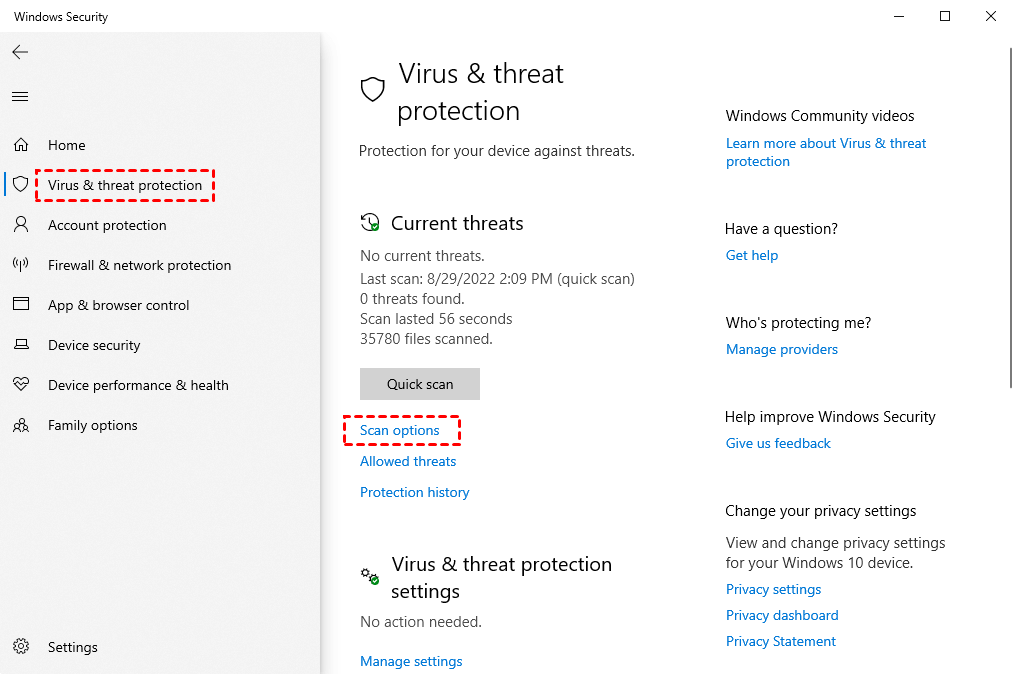
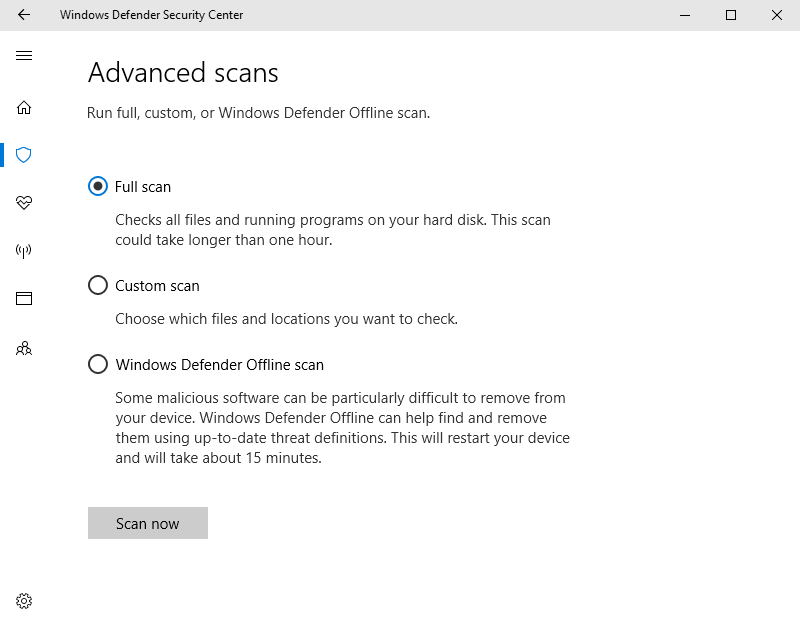
Step 4. Select Full scan and click Scan now. If threats are found, follow the on-screen instructions to remove them.
If no infections are detected, consider temporarily disabling third-party antivirus software to determine whether it is causing the automatic restart behavior.
Method 3. Run SFC and DISM scans
Damaged or missing system files can also trigger the “Your PC will restart in one minute” error. When this happens, running SFC and DISM scans is an effective way to repair core Windows components and restore normal operation.
Step 1. Type Command Prompt in the search box and select Run as administrator.
Step 2. In the elevated window, enter sfc /scannow and press Enter.

Step3.Allow the scan to finish, then restart the computer. Open Command Prompt as an administrator once again.
Step 4. Run the following commands one by one, pressing Enter after each:
DISM /Online /Cleanup-Image /CheckHealth
DISM /Online /Cleanup-Image /ScanHealth
DISM /Online /Cleanup-Image /RestoreHealth

Step 5. Restart the system after completion and verify whether the error message persists.
Method 4. Check your hard drive for errors
Disk-related problems, such as file system corruption or bad sectors, can also trigger the “Your PC will restart in one minute” error. In this situation, open Command Prompt with administrator privileges and run chkdsk C: /f /r /x to scan for and repair disk errors. Replace C with the letter of your system drive.

As an alternative, AOMEI Partition Assistant offers a user-friendly approach to disk checking. This comprehensive disk management tool can assess drive health with minimal effort. Follow the steps below to scan your hard drive for errors using AOMEI Partition Assistant.
Step 1. Launch AOMEI Partition Assistant. Right-click the partition you want to check (e.g., the C: drive) and navigate to "Advanced" > "Check Partition."
Step 2. In the pop-up window, select the way of checking errors to perform. The first option just checks, the second checks and fixes errors, and the third checks for bad sectors. For a thorough check, select "Check partition and fix errors in this partition by using chkdsk.exe" and click "OK."
Step 3. The scan will begin. If the partition is in use, it will ask to schedule it on the next reboot.
Method 5. Rebuild MBR
A corrupted MBR (Master Boot Record) can prevent Windows from starting properly and may cause the “Your PC will automatically restart in one minute” error to appear repeatedly. Repairing the MBR can often resolve this reboot loop.
Step 1. Boot your PC into Windows Recovery Environment (WinRE) using a Windows installation media.
Step 2. Select Troubleshoot > Advanced options > Command Prompt.
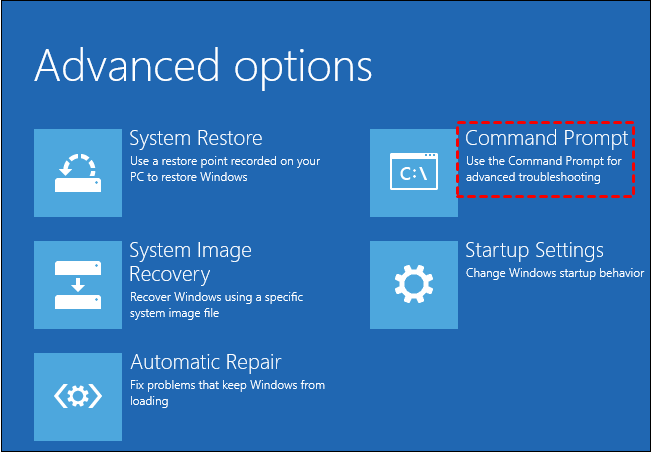
Step 3. In the Command Prompt, enter the following commands one by one, pressing Enter after each:
bootrec /fixmbr
bootrec /fixboot
bootrec /scanos
bootrec /rebuildbcd
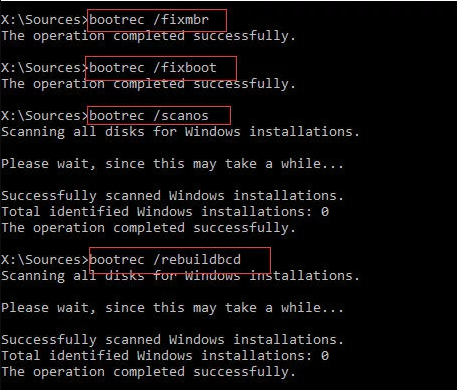
This process repairs the MBR and rebuilds the boot configuration, helping your system start normally.
Method 6.Clean boot your PC
If you suspect that conflicting software is causing the “Your PC will automatically restart in one minute” error in Windows 10 or 11, performing a clean boot can help. This process starts Windows with a minimal set of drivers and startup programs, making it easier to identify the software causing the problem.
Step 1. Right-click the Start button and select Run.
Step 2. Type msconfig in the Run dialog and press Enter.
Step 3. Go to the Services tab, check Hide all Microsoft services, and then click Disable all.
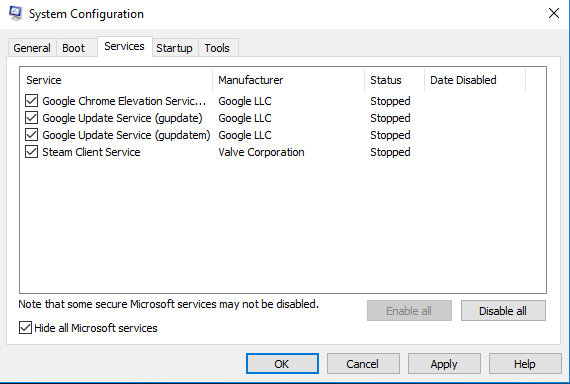
Step 4. Switch to the Startup tab and click Open Task Manager.
Step 5. In Task Manager, disable all startup programs by right-clicking each item under the Startup tab and selecting Disable.
Step 6. Click Apply > OK to save the changes, then choose Restart when prompted to perform a clean boot.
This approach isolates problematic programs and helps prevent automatic restarts caused by software conflicts.
Conclusion
In conclusion, the “Your PC will automatically restart in one minute” error is usually caused by update failures, corrupted files, malware, or boot issues. By using Startup Repair, system scans, disk checks, and tools like AOMEI Partition Assistant, you can effectively diagnose the root cause, restore system stability, and prevent repeated forced restarts.
