
 AOMEI Partition Assistant
Full Guide on ASUS G14 2020 SSD Upgrade
Wondering whether the SSD in the ASUS ROG Zephyrus G14 can be upgraded? This detailed guide will walk you through the key considerations for completing a smooth and successful SSD upgrade.

By Hedy / Updated on March 2, 2026


Is ASUS 14 2020 SSD upgradeable?
Yes, ASUS ROG Zephyrus G14 2020 (2020 model) does support an SSD upgrade. It uses a single removable M.2 NVMe PCIe SSD slot inside the chassis, so you can replace the stock drive with a larger or faster M.2 NVMe SSD if you need more storage or better performance.
Here are the key points:
● The internal SSD in the 2020 G14 is user‑replaceable — you can remove the existing M.2 drive and swap in another compatible NVMe SSD.
● It uses a single M.2 slot, so you can’t add a second SSD without removing the original one.
● Most people upgrade to larger capacity NVMe drives (e.g., 1 TB or 2 TB), but make sure the replacement is M.2 2280 NVMe form factor and fits physically inside the chassis.
● Note that RAM and other components may have limited upgradeability on this model, but SSD storage itself is upgradeable.
● If you plan to replace your SSD, back up your data and be comfortable opening a laptop — or consider professional installation.
Preparations before Upgrading the ASUSG14 2020 SSD
Before upgrading the ASUS G14 2020 SSD, proper preparation is crucial to avoid data loss or hardware issues. Here’s a clear step-by-step overview:
➤ Check upgrade compatibility: Confirm your ASUS G14 2020 model supports SSD upgrades. Most models use M.2 NVMe SSDs, but check the exact form factor and interface in the manual or ASUS website.
➤ Backup important data: Save all files, documents, and software to an external drive or cloud storage. SSD replacement may erase your existing data.
➤ Prepare Windows recovery or installation media: Download and create a Windows 10 or 11 bootable USB in case you need to reinstall the OS after installing the new SSD.
➤ Gather necessary tools: Small Phillips screwdriver, anti-static wrist strap (to prevent static damage), and possibly a plastic spudger to open the laptop safely.
➤ Update BIOS and drivers: Make sure your BIOS is up-to-date. Some SSDs may require the latest firmware or BIOS updates to function properly.
➤ Check SSD capacity and speed: Make sure the new SSD meets your performance needs. Higher NVMe speeds can improve boot and load times significantly.
How to perform ASUSG14 2020 SSDupgrade
Upgrading the SSD on your ASUS G14 2020 can be done in two main ways. The first method involves swapping out the old SSD for a new one and performing a fresh Windows installation. The second approach lets you preserve all your data by migrating your entire operating system to the new SSD before replacing the old drive.
This guide focuses on the second method, which ensures you won’t lose any files during the upgrade. To make this process smooth and reliable, you’ll need third-party software—specifically, AOMEI Partition Assistant.
Part 1. Initialize a new SSD
Before you can use a brand-new SSD, it must be initialized as either MBR or GPT. Windows’ built-in Disk Management tool makes this process straightforward.
Step 1. Connect the new SSD to your ASUS G14 using a USB adapter.
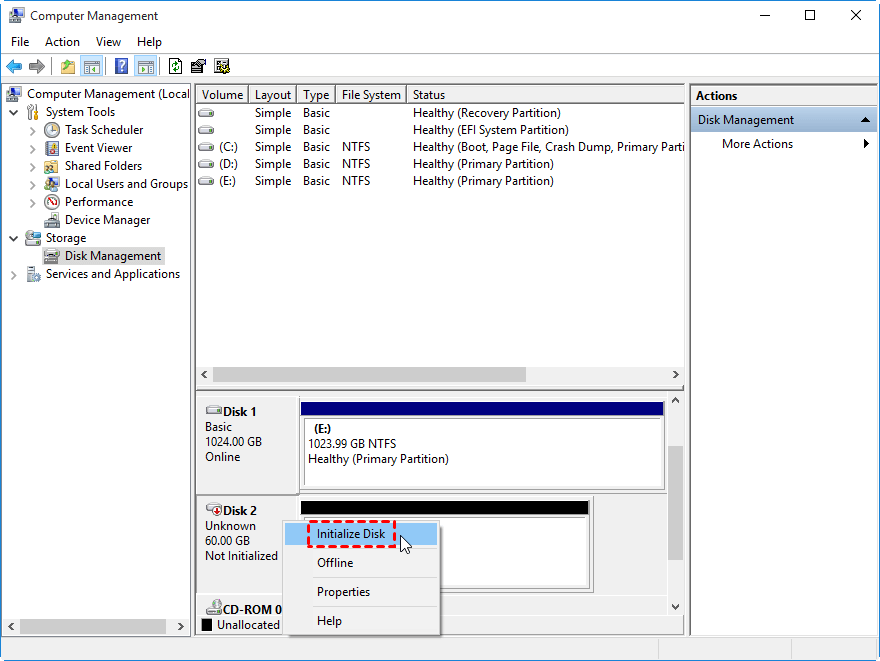
Step 2. Press Windows + R to open the Run dialog. Type diskmgmt.msc and hit OK to launch Disk Management.
Step 3. Locate the new SSD, right-click on it, and choose Initialize Disk.
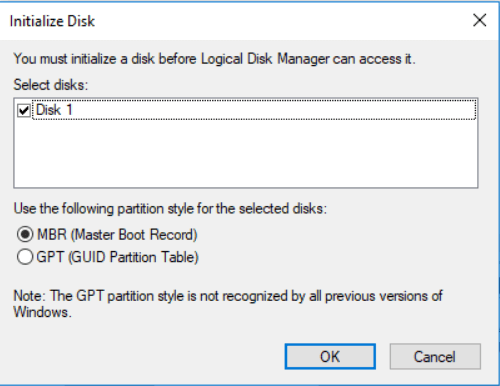
Step 4. In the pop-up window, select the partition style to match your current SSD (MBR or GPT), then click OK. Follow the on-screen prompts to complete the initialization.
Part 2. Clone old SSD to new SSD
To upgrade your ASUS G14 2020 SSD without losing data, a third-party tool like AOMEI Partition Assistant is essential. Its Copy Disk or Migrate OS to SSD/HD features make transferring your operating system quick and reliable.
Beyond SSD migration, AOMEI Partition Assistant offers a wide range of disk management capabilities. You can create, delete, resize, or extend partitions, convert MBR to GPT, rebuild the MBR, recover lost data, adjust cluster sizes, format SD cards to FAT32, and much more. This versatility makes it a powerful solution for managing all your storage needs.
Step 1. Launch AOMEI Partition Assistant. From the main dashboard, select “Clone”, then choose “Clone Disk”.

Step 2. Pick the drive you want to copy — for example, your current SSD — and click “Next”.

Step 3. Select the target disk where the cloned data will be stored. Click “Next” to continue.

Step 4. Review both the source and destination disks in the preview window. If needed, switch to “Sector to Sector Clone”. Once everything looks correct, click “Confirm”.

Use “Settings” to resize partitions on the target disk. If the destination is an SSD, enable “4K Alignment” to optimize the performance of SSD.

Note: When cloning to a smaller drive, the “Clone without resizing partitions” option will be unavailable. A reminder about how to boot OS from the new disk will appear — review it carefully.
Step 5. Return to the main interface, verify the pending task, then click “Apply” followed by “Proceed” to execute the cloning process.

Conclusion
In conclusion, the ASUS G14 2020 offers flexible SSD upgradeability thanks to its removable M.2 NVMe slot. With proper preparation and reliable tools like AOMEI Partition Assistant, users can safely migrate data and enhance storage capacity without reinstalling the system. Whether aiming for faster performance or expanded space, upgrading the SSD in this ASUS gaming laptop is a practical and worthwhile improvement.
