AOMEI Partition Assistant
How to Fix Disk Management Connecting to Virtual Disk Issues and Resolve VHD Errors
Fix virtual disk errors easily! This guide covers troubleshooting virtual drive not showing up in disk management and provides a step-by-step tutorial on using AOMEI Partition Assistant to manage and clone VHDs efficiently.

By Lucas / Updated on January 16, 2026


Virtual Hard Disks (VHDs) are essential for modern computing, allowing users to test software, run multiple operating systems, or manage backups without altering the physical partition structure. However, many users encounter frustrating hurdles when disk management connects to virtual disk processes, fail to initialize or recognize the drive.
Whether you are facing a "virtual disk manager incorrect function" error or find your virtual drive not showing up in disk management, these issues can halt your productivity. This guide will explore why these problems occur and provide comprehensive solutions using both Windows built-in tools and professional third-party software.
Why is Disk Management Connecting to Virtual Disk Failing?
Understanding the root cause of VHD errors is the first step toward a permanent fix. Often, these issues stem from file system corruption, outdated drivers, or improper detachment of previous sessions.
When you attempt to attach a VHD, Windows communicates with the Virtual Disk Service (VDS). If this communication is interrupted or if the VHD file itself is "sparse" or stored on an incompatible partition, you might see the virtual disk manager incorrect function error. Additionally, if the drive letter conflicts with an existing physical drive, you might experience the virtual drive not showing up in disk management, leaving the disk invisible to the user despite being "attached."
Troubleshooting the Virtual Disk Manager Incorrect Function Error
The virtual disk manager incorrect function error is one of the most common hurdles when attempting to initialize a virtual disk or attach a virtual drive. This error typically points to an issue with the underlying physical storage or a permission conflict.
This specific error often triggers when the VHD file is stored on a drive formatted with an incompatible file system or if the file is compressed/encrypted at the NTFS level. To fix this, ensure the host partition has enough contiguous space and that the VHD file is not set to "Read-Only." Additionally, restarting the Virtual Disk Service in services.msc can often clear temporary communication blocks that cause the "incorrect function" response.
1. Using System Tools to Fix Disk Management Connecting to Virtual Disk Issues
Windows provides built-in command-line utilities that can bypass some of the graphical interface limitations that cause connection errors. These tools allow for a more direct interaction with the storage stack.
If you are struggling with disk management connecting to virtual disk processes, the diskpart utility is your first line of defense. By manually selecting the VHD file and issuing an "attach" command through the console, you can often bypass the "incorrect function" errors found in the GUI.
Step 1. Open Command Prompt as an administrator. Type diskpart and press Enter.
Step 2. Type select vdisk file="C:\path\to\your\file.vhd" (Replace with your actual path).
Step 3. Type attach vdisk.
If the disk attaches but stays invisible, type list partition, select partition X, and assign letter=V.
2. Resolving VHD Issues with AOMEI Partition Assistant Standard
When Windows built-in tools fail to provide a stable connection, a professional third-party utility like AOMEI Partition Assistant Standard is the most reliable alternative. It provides a specialized environment for handling virtual storage without the common registry and service conflicts found in native Windows tools.
AOMEI Partition Assistant Standard is a comprehensive disk management software designed to simplify partition handling, disk conversion, and system optimization. For users dealing with a virtual drive not showing up in disk management, this software offers a dedicated "Virtual Disk" feature that provides a streamlined interface to manage VHD and VHDX files with higher success rates than the default Disk Management console.
 100% Secure
How to Create or Attach VHD using AOMEI Partition Assistant
The "Virtual Disk" tool within AOMEI is specifically engineered to handle the nuances of virtual storage mounting and initialization.
Option 1. Create a new Virtual disk to fix disk management connecting to virtual disk failure
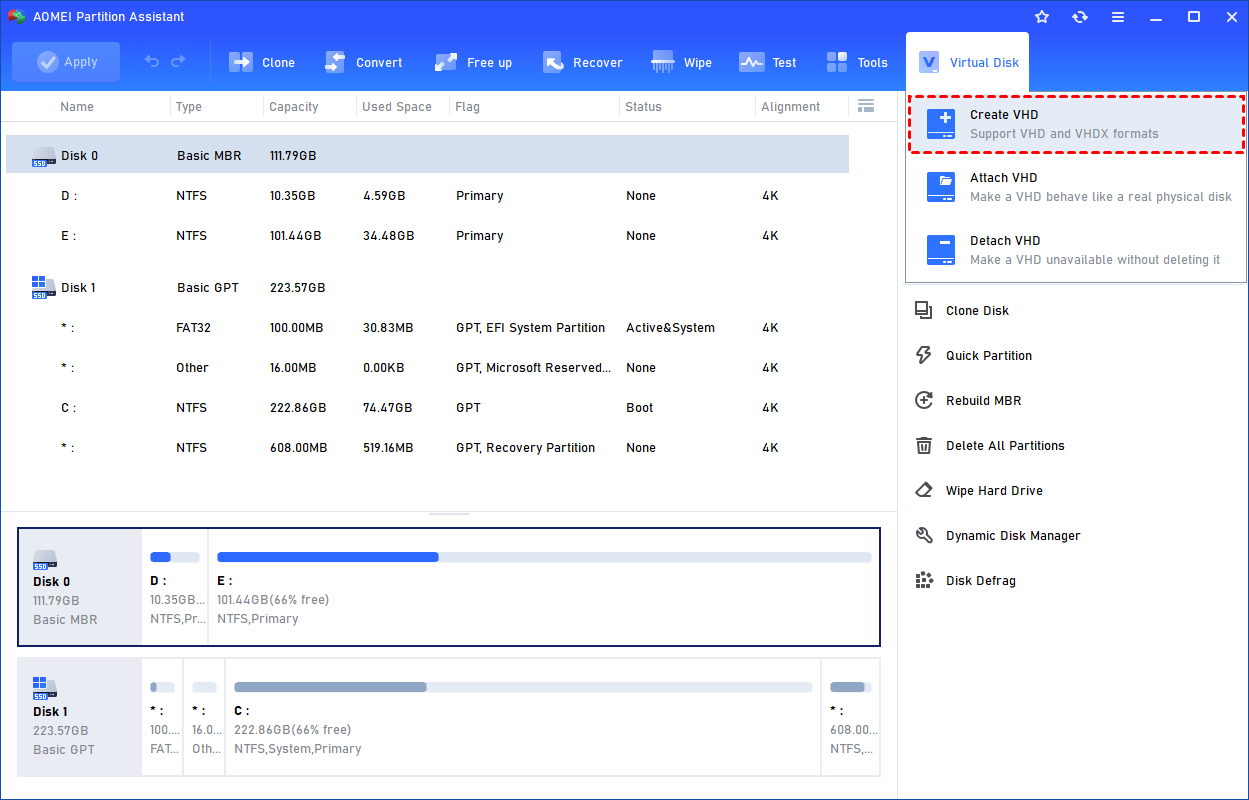
Step 1: Click "Create VHD" to Create VHD or VHDX. Select the "Create VHD" option after clicking the "Virtual Disk" tab.
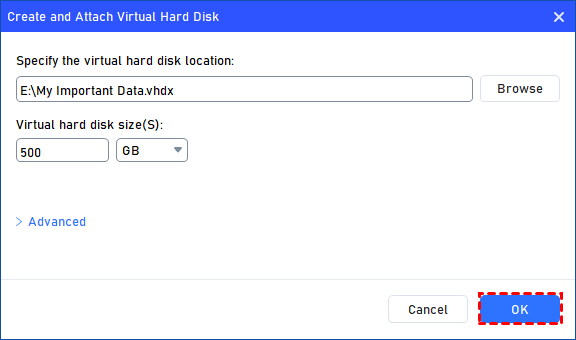
Step 2: Specify VHD Location and Size(s). You can specify the virtual disk location and size. Optionally, you can click the "Advanced" option to set the virtual hard disk format and type. (By default, the VHDX format and the Dynamically expanding type are checked.)
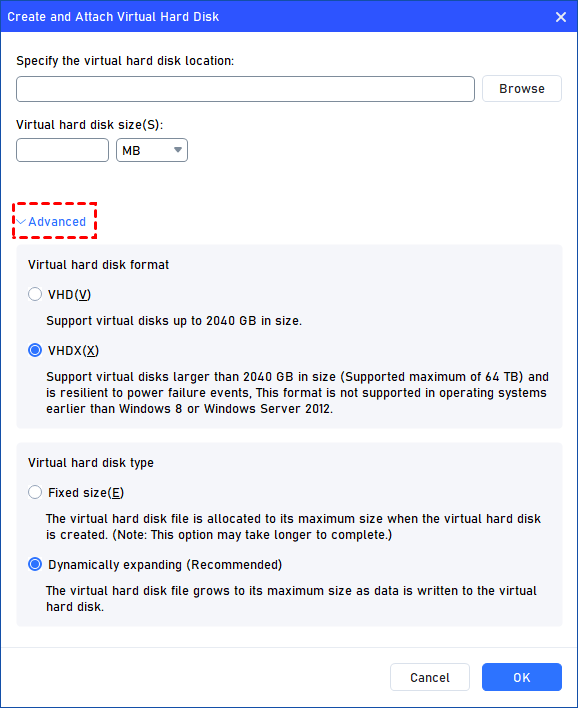
Virtual hard disk format: VHD and VHDX are supported.
For VHD, it supports virtual disks up to 2040GB in size.
For VHDX, it supports virtual disks larger than 2040GB in size. (Up to 64TB) This format is not supported in operating systems earlier than Windows 8 or Windows Server 2012.
Virtual hard disk format: Fixed size and Dynamically expanding are supported.
For fixed size, the virtual hard disk file will be allocated its maximum size when it is created. So it will take much longer to create.
For Dynamically expanding, the virtual hard disk file will grow to its maximum size as data is written to it. (Recommended)
Click "Browse" to select a location to create the VHD. Please enter a file name for the virtual disk and click "Save".
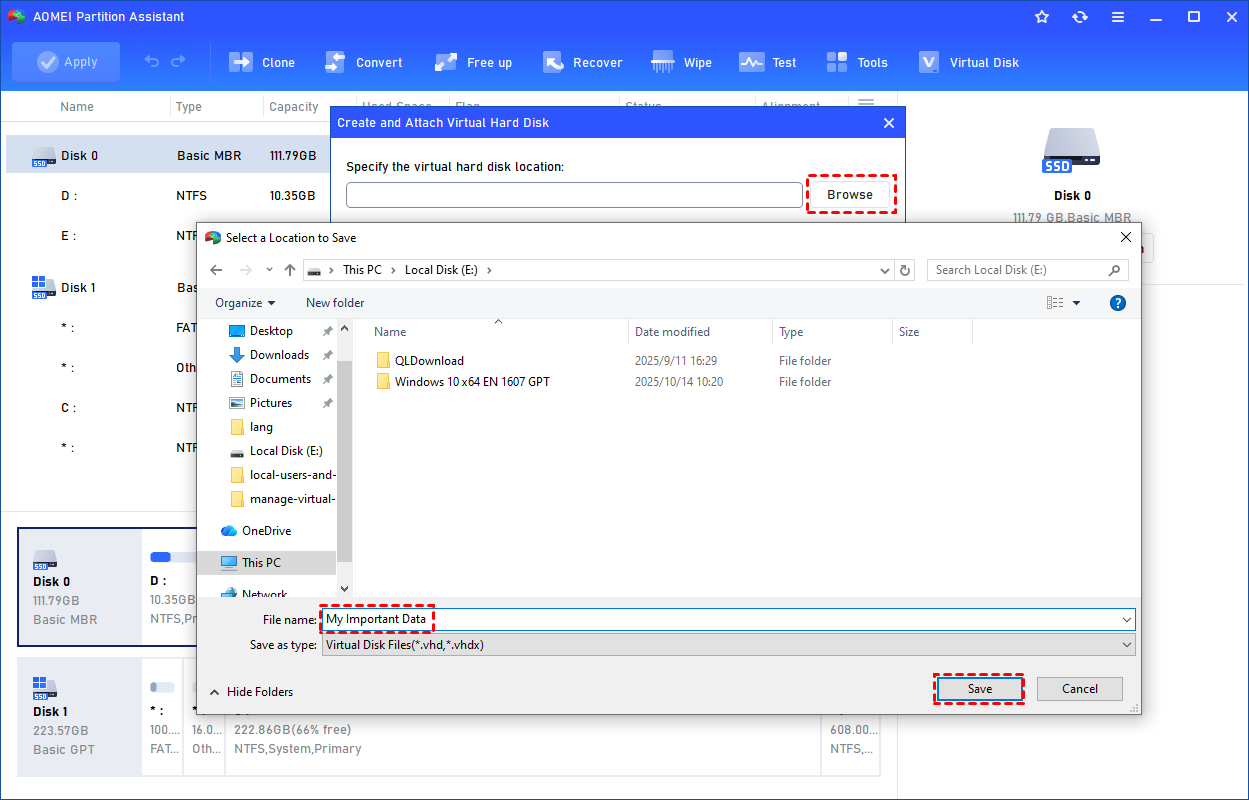
Step 3: Start Creation VHD. Once the virtual disk location and size are set up, you can click "OK" to start creating the VHD.
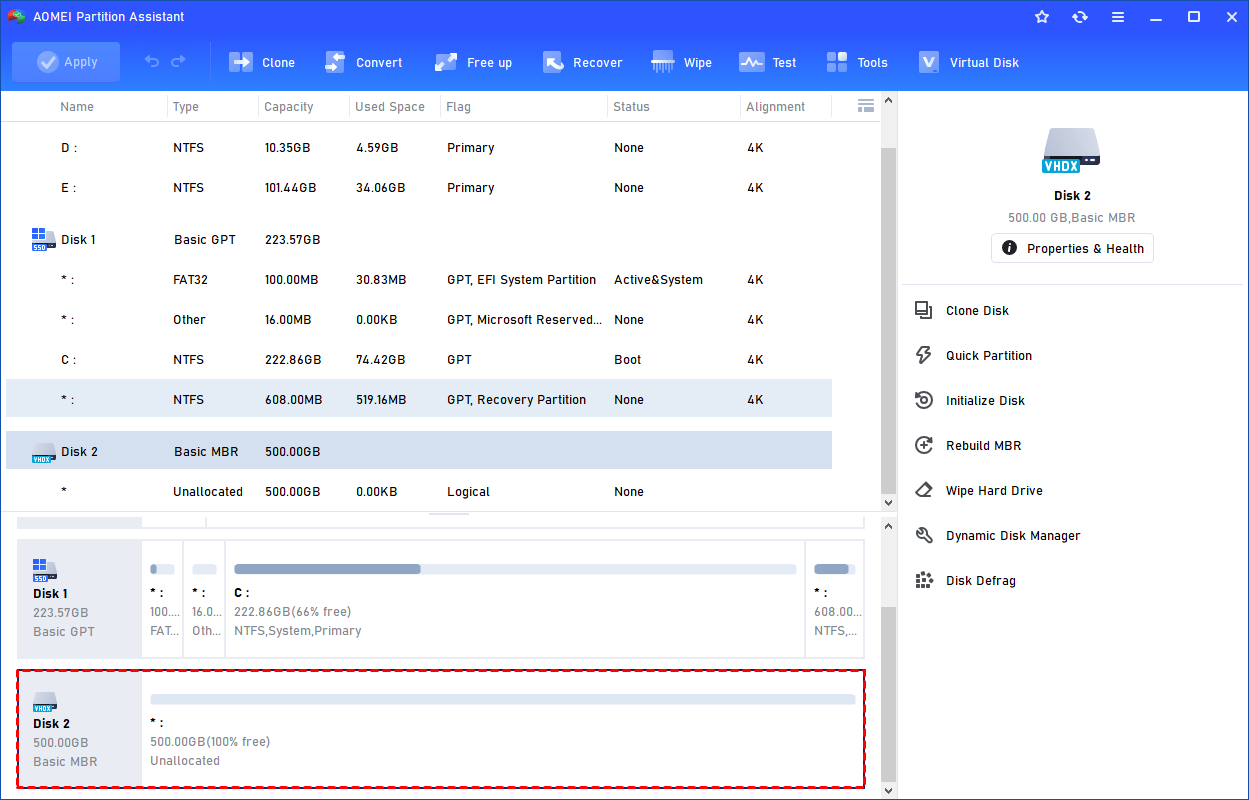
Step 4: Create the VHD Successfully. After the reload process is finished, you will see that the VHD has been created successfully. It will be attached automatically.
Option 2. Use the tool to re-attach your VHD
If your VHD is accessible, you can try to attach it via this tool.
Step 1.Click "Attach VHD". Select the "Attach VHD" option after clicking the"Virtual Disk" tab.

Step 2. Browse and Select VHD File. Click "Browse" to locate the location where the .vhd or .vhdx file is saved. Select the .vhd or .vhdx file you want to attach and click "Open" to attach it.
Step 3. Start Attach VHD. Once the virtual file is selected, you can click "OK" to start attaching the VHD.
Step 4. Attach VHD Successfully. Once the process is finished, you will see that the VHD is attached successfully.
Beyond basic VHD management, AOMEI Partition Assistant Professional is a complete toolkit with other handy functions, such as migrating your entire operating system to an SSD, cloning disks, converting between MBR and GPT partition styles without deleting data, and recovering lost partitions.
✨ Other Handy Functions of AOMEI Partition Assistant
Beyond managing virtual disks, AOMEI Partition Assistant Professional is equipped with numerous features to maintain the health of your storage. It can convert MBR to GPT (and vice versa) without losing data, which is essential for modern UEFI boot requirements. It also allows you to resize partitions, merge partitions to eliminate wasted space, and even wipe a hard drive securely to protect your privacy.
Ending
Dealing with disk management errors that connect to virtual disk issues can be a major setback, especially when the virtual disk manager incorrectly functions and prevents access to vital data. By understanding the causes—ranging from drive letter conflicts to service errors—and utilizing tools like diskpart or the specialized Virtual Disk feature in AOMEI Partition Assistant Standard, you can quickly resolve these issues. Whether you need to attach VHD files that are acting up or create a new VHD for a new project, having a professional tool in your arsenal ensures your virtual storage remains accessible and efficient.
FAQs
Q1: Why does my virtual drive not show up in Disk Management even after I attach it?
A: This usually happens because the system hasn't assigned a drive letter to the volume, or the disk is in an "Offline" state. You can right-click the disk in Disk Management to bring it online or use AOMEI Partition Assistant to assign a new drive letter.
Q2: What is the main cause of the "Virtual Disk Manager Incorrect Function" error?
A: This error is often caused by trying to attach a VHD that is stored on a compressed or encrypted folder, or due to a failure in the Virtual Disk Service. Moving the VHD to a different partition or using AOMEI's "Attach VHD" feature can often bypass this.
Q3: Can AOMEI Partition Assistant Standard help if my VHD is marked as Read-Only?
A: Yes, AOMEI can help manage partition attributes. If the VHD is attached but you cannot write to it, you can use the software to check the partition status and ensure it is formatted correctly for your needs.
Q4: Is it better to use VHD or VHDX when creating a new virtual disk?
A: VHDX is generally better for modern Windows systems as it supports larger capacities (up to 64TB), is more resilient to power failure corruption, and offers better performance compared to the older VHD format.
Q5: Does AOMEI Partition Assistant Standard work on Windows 11?
A: Yes, AOMEI Partition Assistant Standard is fully compatible with Windows 11, 10, 8.1, 8, and 7, providing a stable platform for all your disk management needs.