
 AOMEI Partition Assistant
Fixed: A Virtual Disk Support Provider For The Specified File Was Not Found
Learn the common causes of the a virtual disk support provider for the specified file was not found error and see clear steps to solve VHD/VHDX support provider problems.

By Irene / Updated on November 28, 2025


What causes the A Virtual Disk Support Provider For The Specified File Was Not Found error?
This error often appears when Windows cannot communicate with the Virtual Disk Service, which results in the system being unable to open a VHD or VHDX file. Since the process depends on correct paths, proper permissions, healthy system files, and a stable software environment, any disruption in these areas may lead to the issue. In addition, certain virtual-disk features may be limited on Windows Home, which can also cause this error.
|
Cause |
Explanation |
Suggested Approach |
|
Wrong file path |
When a VHD or VHDX file is moved or renamed, the system can no longer locate it |
The virtual machine settings may be updated so the path matches the current file location |
|
Permission problems |
Administrator privileges are required, and network storage often restricts access |
Using a local drive and ensuring the account has full read and write permissions usually helps |
|
File damage |
Corrupted VHD files or damaged Windows components prevent proper loading |
Comparing with a new VHD and running System File Checker often resolves related issues |
|
Software conflicts |
Backup, security, or disk management tools may interrupt the Virtual Disk Service |
Adjusting or temporarily disabling conflicting programs often reduces this interference |
A VHD or VHDX file tends to function more reliably when it is stored on a local drive and accessed with full permissions. Ensuring the file path remains accurate and confirming that no third-party software interferes with the Virtual Disk Service often contributes to smoother operation. Because Windows Home may lack certain virtual-disk providers or advanced features, considering an edition that includes those features could be relevant when ongoing limitations are observed.
How to fix A Virtual Disk Support Provider For The Specified File Was Not Found error?
This error happens when Windows cannot access a VHD or VHDX file. You can fix it by addressing common causes like temporary service issues, corrupted system files, driver problems, or software conflicts.
Fix 1. Try AOMEI Partition Assistant
AOMEI Partition Assistant is a reliable tool for managing virtual disks on Windows. VHDs, or Virtual Hard Disks, are used to run virtual machines, back up data, and even store entire operating systems. They function like physical hard drives and can store files such as documents, videos, music, pictures, and boot files which allow you to boot from VHD. The common file types are .vhd and .vhdx, with .vhdx recommended for better performance.
The Virtual Disk feature in AOMEI Partition Assistant allows users to create, attach, and detach virtual disks independently of Windows services. This makes it particularly effective for fixing the “A Virtual Disk Support Provider For The Specified File Was Not Found” error, which often occurs due to service failures, system file issues, or software conflicts. By providing its own stable environment, the tool can access, repair, or mount virtual disks even when Windows cannot, making it the preferred first solution for VHD errors in Windows 10.
 AOMEI Partition Assistant
The Best Windows Disk Partition Manager and PC Optimizer
If you want to create a VHD, you can follow the steps below:
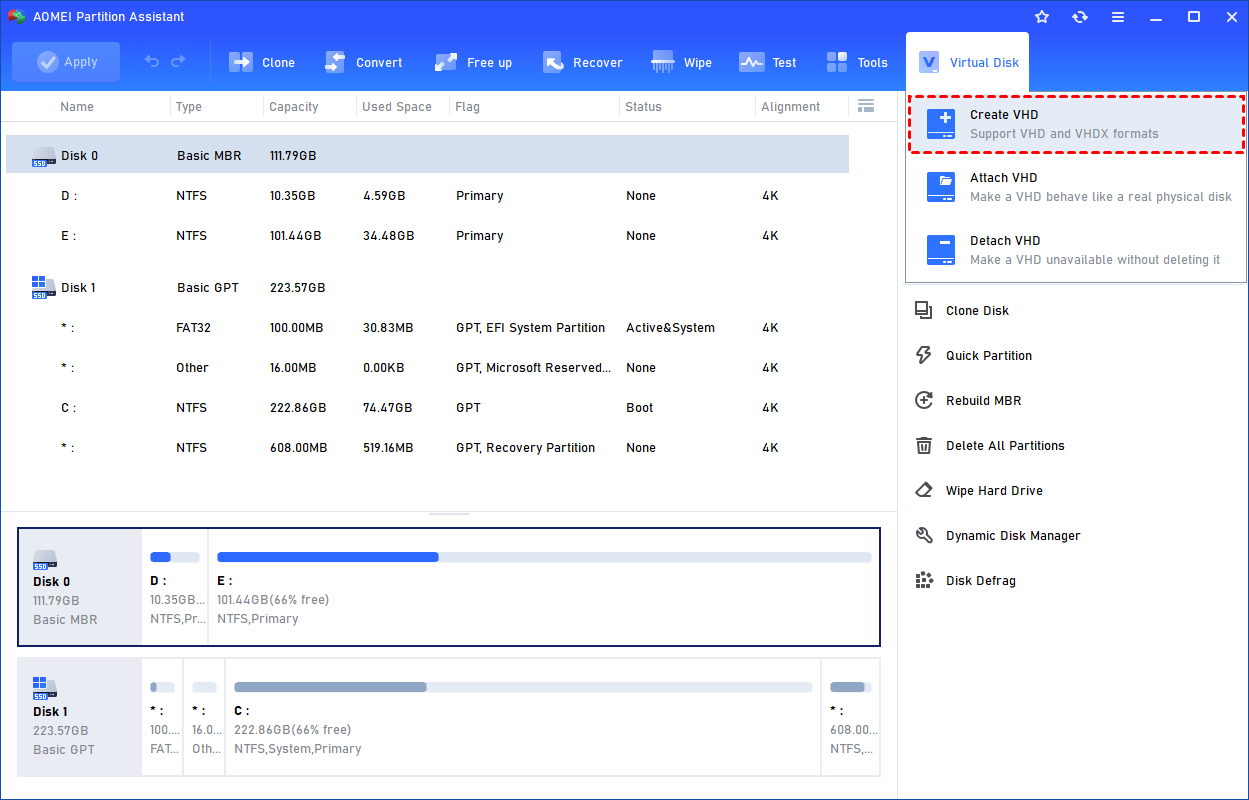
Step 1. Click the tab "Virtual Disk", you will see 3 options available for VHDs: create VHD, attach VHD, and detach VHD. Select the "Create VHD" option after clicking the "Virtual Disk" tab.
Step 2. You can specify the virtual disk location and size.
Optionally, you can click the "Advanced" option to set the virtual hard disk format and type. (By default, the VHDX format and the Dynamically expanding type are checked.)
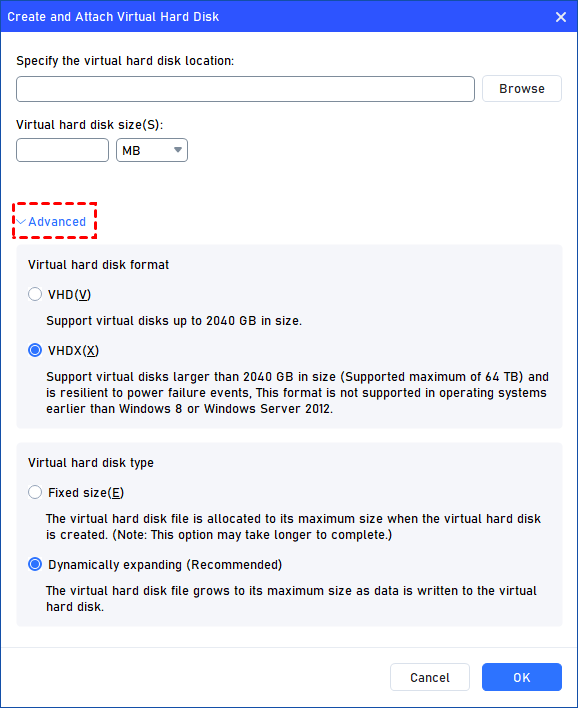
Virtual hard disk format: VHD and VHDX are supported.
For VHD, it supports virtual disks up to 2040GB in size.
For VHDX, it supports virtual disks larger than 2040GB in size. (Up to 64TB) This format is not supported in operating systems earlier than Windows 8 or Windows Server 2012.
Virtual hard disk format: Fixed size and Dynamically expanding are supported.
For fixed size, the virtual hard disk file will be allocated its maximum size when it is created. So it will take much longer to create.
For Dynamically expanding, the virtual hard disk file will grow to its maximum size as data is written to it. (Recommended)
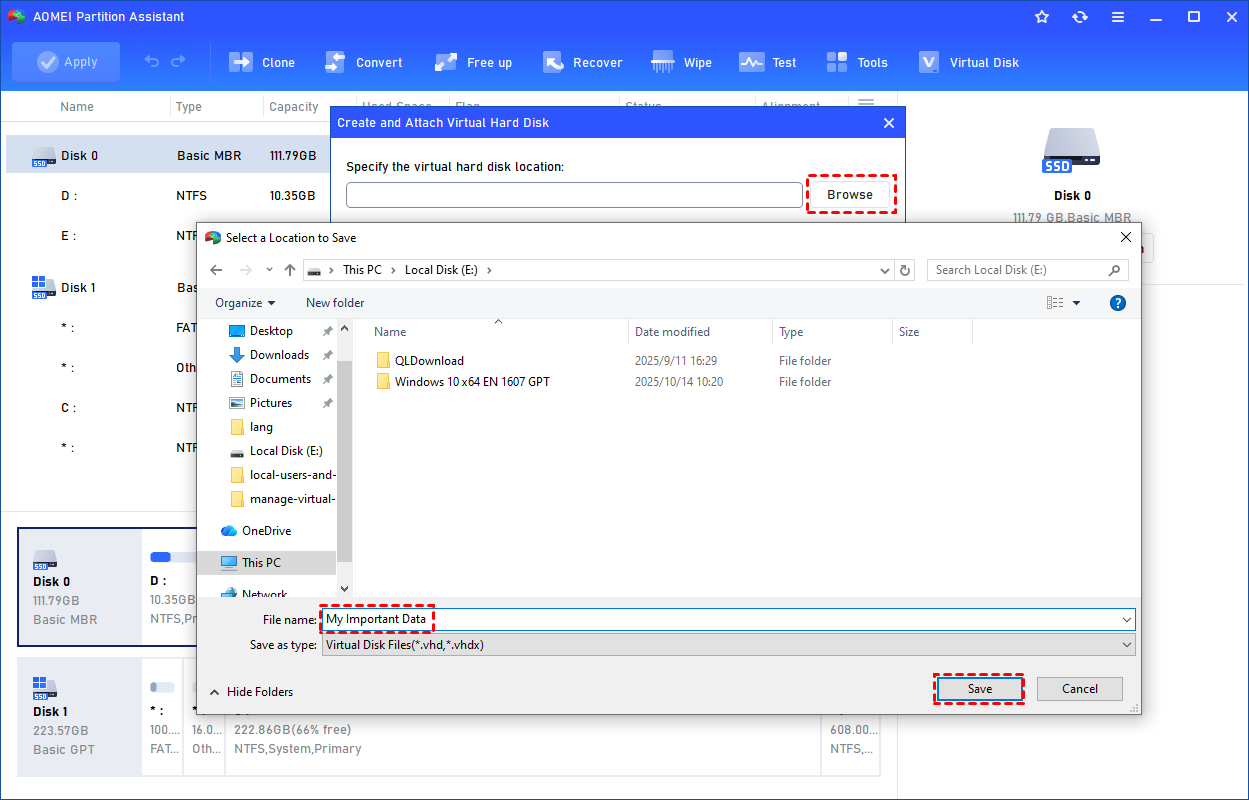
Click "Browse" to select a location to create the VHD. Please enter a file name for the virtual disk and click "Save".
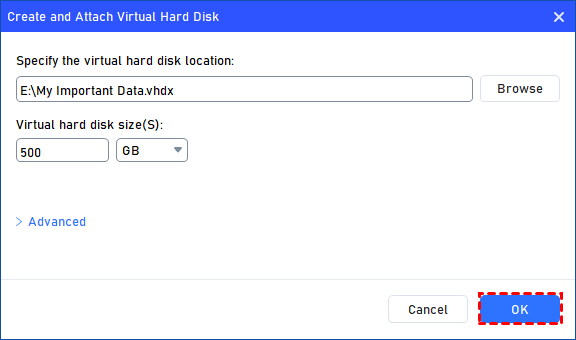
Step 3. Once the virtual disk location and size are set up, you can click "OK" to start creating the VHD.
Step 4. After the reload process is finished, you will see that the VHD has been created successfully. It will be attached automatically.
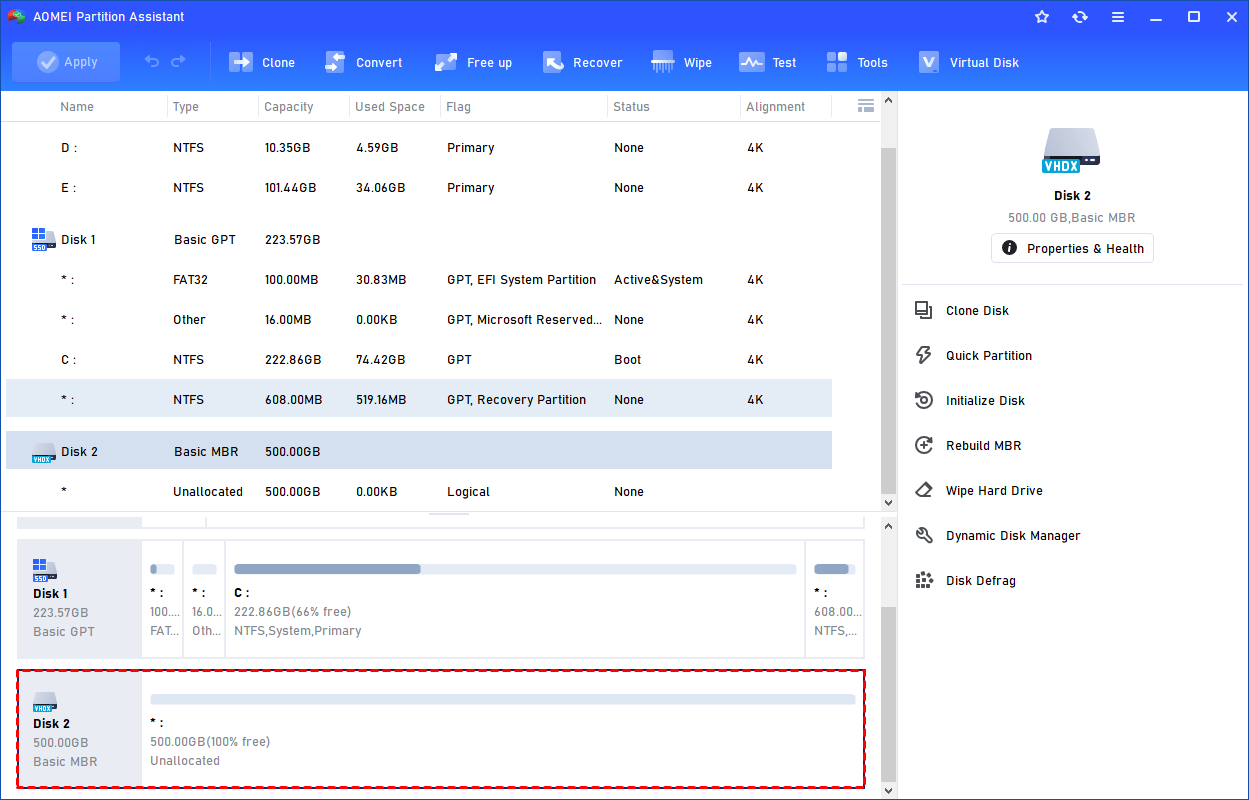
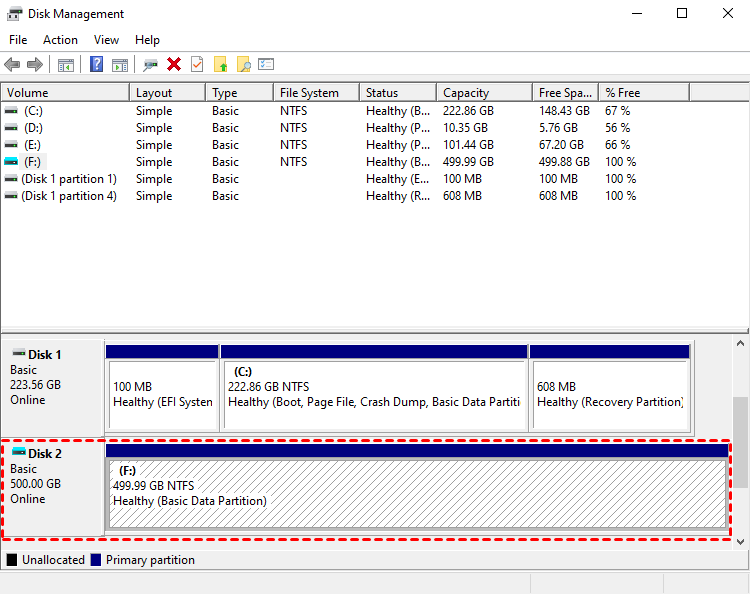
You can also view the VHD in Windows Disk Management.
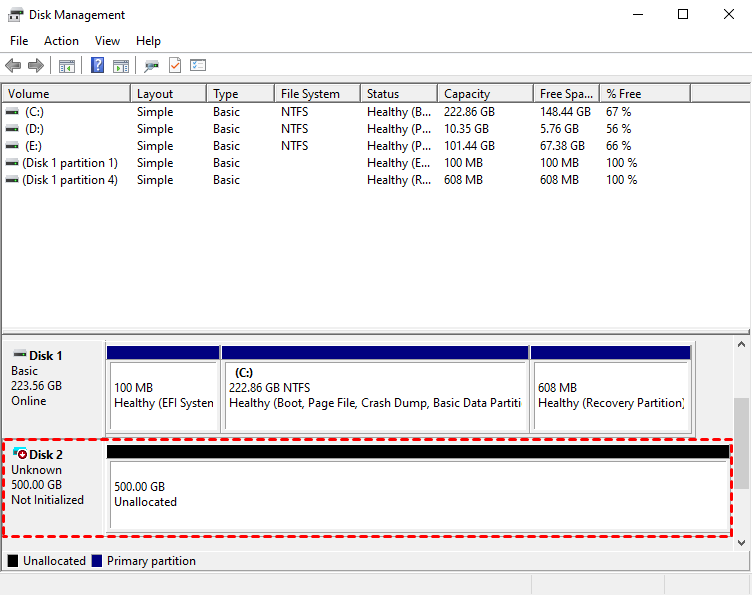
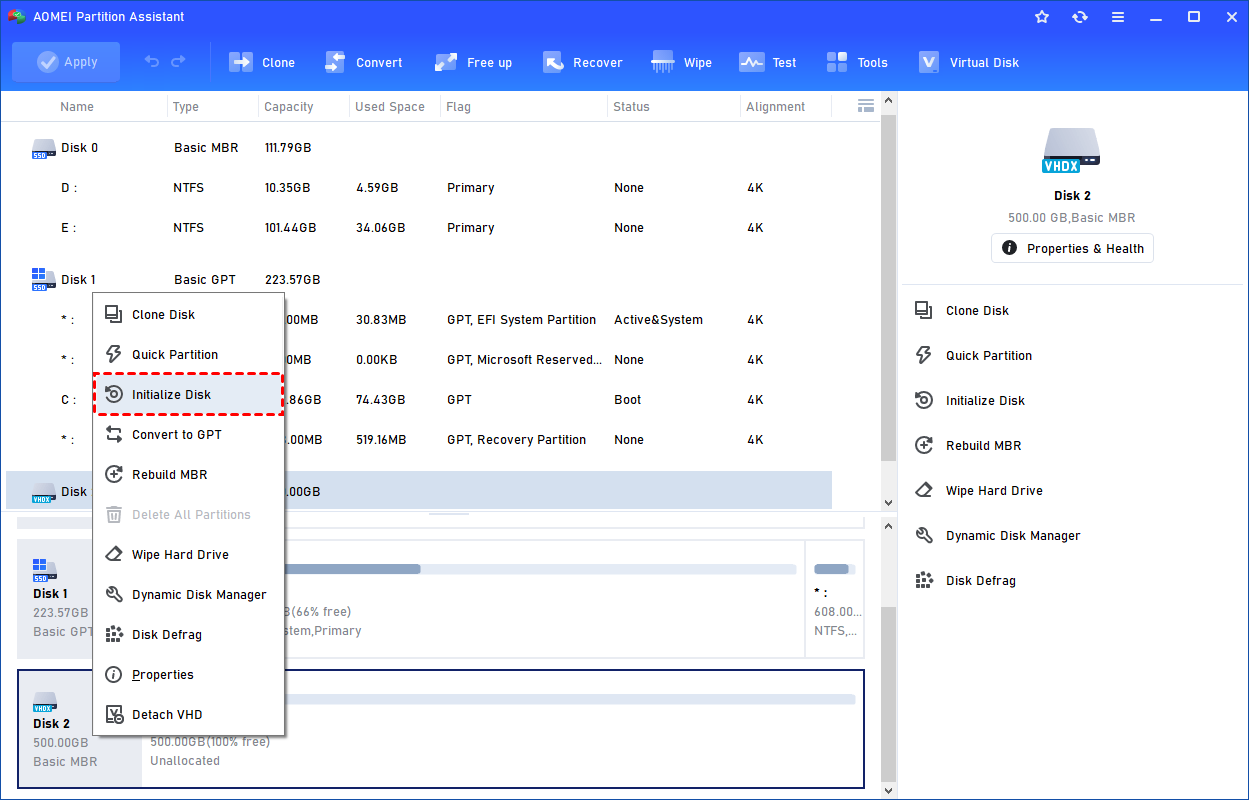
The created VHD will be uninitialized so it is empty without any data or file system. To make it useful, you need to initialize the disk, create a partition, and assign a drive letter.
You can initialize the drive in Partition Assistant.
Or, initialize it in Windows Disk Management.
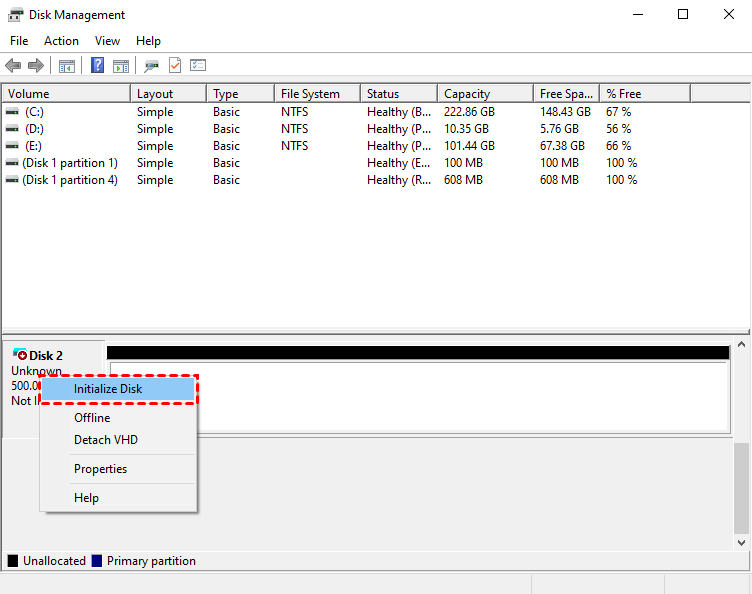
Then, you can create a partition and assign a drive letter for the partition. Finally, you can use the VHD normally.
Fix 2. Restart the Virtual Disk Service or Your Computer
Restarting clears temporary issues that can block the virtual disk.
Step 1: Press Win + R, type services.msc, and press Enter.
Step 2: Find Virtual Disk in the list.
Step 3: Right-click it and select Restart.
Step 4: Restart your computer if the problem persists.
Fix 3. Run System File Checker (SFC)
SFC repairs damaged Windows system files that may prevent virtual disks from working.
Step 1: Open Command Prompt as administrator.
Step 2: Type sfc /scannow and press Enter.
Step 3: Wait for the scan to complete and repair any issues.
Step 4: Restart your computer.
Fix 4. Check or Reinstall the Virtual Disk Driver
A missing or outdated driver can cause this error. Editing access.
Step 1: Press Win + X and select Device Manager.
Step 2: Locate the virtual disk device or any device with a yellow warning icon.
Step 3: Right-click it and select Update driver or Uninstall device.
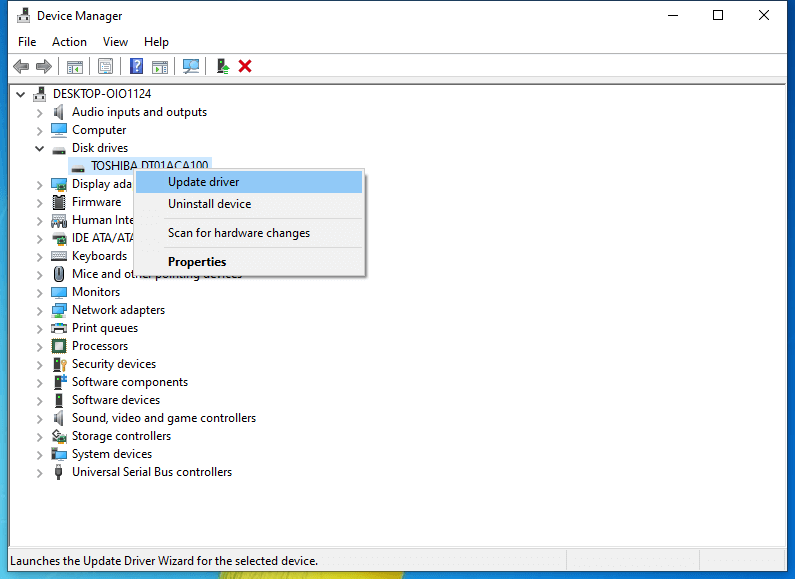
Step 4: Restart your computer to let Windows reinstall the driver.
Fix 5. Temporarily Disable Security Software
Security programs can block the virtual disk service.
Step 1: Open your antivirus or security software.
Step 2: Turn off real-time protection temporarily.
Step 3: Try accessing the virtual disk.
Step 4: Re-enable the security software afterward.
Fix 6. Disconnect External Drives
External drives can sometimes interfere with virtual disks.
Step 1: Unplug all external drives.

Step 2: Restart your computer.
Step 3: Try the virtual disk operation again.
Fix 7. Advanced: Edit the Registry (For Older Windows Versions)
Changing the FsDepends service start value allows Windows to load the virtual disk service correctly.
Step 1: Back up your registry.
Step 2: Press Win + R, type regedit, and press Enter.
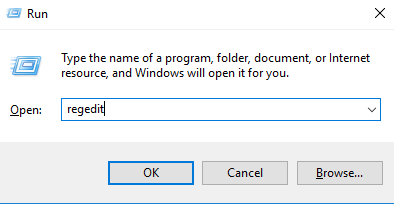
Step 3: Navigate to HKLM\SYSTEM\CurrentControlSet\Services\FsDepends.
Step 4: Find Start, right-click, select Modify, and change the value from 3 to 0.
Step 5: Restart your computer.
Conclusion
The “A Virtual Disk Support Provider For The Specified File Was Not Found” error usually occurs when Windows cannot access a VHD or VHDX file due to service issues, corrupted system files, driver problems, or software conflicts. Using tools like AOMEI Partition Assistant provides a stable environment to manage, repair, and mount virtual disks, effectively bypassing Windows limitations. Simple steps such as restarting the Virtual Disk Service, running System File Checker, updating drivers, and ensuring proper file permissions often resolve the problem. Following these methods ensures smoother access to virtual disks and prevents future errors, making it easier to work with VHD and VHDX files on Windows. This software also supports backing up VHD files, enabling BitLocker for VHD, and so on.
AOMEI Partition AssistantThe Best Windows Disk Partition Manager and PC Optimizer
