
 AOMEI Partition Assistant
Do I Need to Clone Boot Recovery and EFI Partitions?
Do I need to clone boot recovery and EFI partition? This article will give you the answer and show you how to clone the boot recovery and EFI partition with ease.

By Hedy / Updated on September 12, 2025


Do I need to clone boot recovery and EFI partition?
Yes — when you’re migrating your operating system to a new drive (for example, replacing an HDD with an SSD), you generally need to clone the boot-related partitions along with your main system partition.
That usually includes:
✬ EFI system partition (ESP): Stores bootloaders and files required for UEFI-based systems to start Windows.
✬ Recovery partition: Contains recovery tools and, in some cases, the files needed to reset or repair Windows.
✬ Microsoft reserved partition (MSR, if present): Required for GPT disks to work properly with Windows.
✬ C: drive (OS/System partition): Where Windows itself, your programs, and personal files are stored.
If you only clone the C: drive and ignore EFI or recovery partitions, your new drive might not boot, and you could lose access to Windows recovery options.
Preparations before you clone EFI partitions
Before cloning the boot recovery and EFI (Extensible Firmware Interface) partitions, it’s important to make the right preparations to avoid data loss and ensure the cloned partitions work properly on the target drive. Here’s what you need to prepare:
▶ Check disk health: Make sure the source drive (where the EFI and recovery partitions are located) and the target drive (the one you’re cloning to) are in good condition with no bad sectors or errors.
▶ Backup important data: Even though cloning is usually safe, errors can occur. Always back up important files on both the source and target drives.
▶ Use the correct drive type: Ensure the target drive has enough space to accommodate the EFI, recovery, and other partitions. If you’re moving from HDD to SSD, make sure the SSD is compatible with your system.
▶ Partition style compatibility (MBR vs GPT): Check whether your current disk uses MBR or GPT partition style. The target disk should support the same format, especially if you plan to boot from it.
▶ Boot mode settings: Verify your system’s firmware boot mode (UEFI or Legacy BIOS).Make sure the cloned disk will match the system’s boot mode; otherwise, Windows may fail to boot.
▶ Cloning software: Choose reliable cloning software. Ensure the tool supports cloning of system partitions, EFI, and recovery partitions.
▶ Unallocated space on target drive: Leave enough unallocated space on the target drive for the EFI and recovery partitions to be cloned properly.
Disconnect extra drives (Optional but recommended): To avoid boot confusion, disconnect other drives during the cloning process.
How to clone boot recovery and EFI partition
AOMEI Partition Assistant is a comprehensive disk management tool designed for both beginners and advanced users, offering a range of features to manage partitions safely and efficiently. One of its key functionalities is the ability to clone partitions, including critical system partitions such as Boot Recovery and EFI (Extensible Firmware Interface) partitions.
Cloning these partitions is essential when migrating your operating system to a new drive, upgrading to an SSD, or creating an exact backup of your system’s boot environment. The Boot Recovery partition contains files required to recover Windows during boot failures, while the EFI partition stores boot loaders and essential data for UEFI-based systems. Without properly cloning these partitions, your system may fail to boot on a new drive.
AOMEI Partition Assistant simplifies this process with a user-friendly interface and step-by-step cloning wizards, ensuring that both boot and EFI partitions are transferred accurately. It supports cloning to different storage devices, preserves data integrity, and allows for easy adjustments of partition sizes during the cloning process. With this tool, you can safely migrate your Windows system to a new drive without the risk of boot errors.
Step 1. Install and launch AOMEI Partition Assistant, right-click the partition you want to clone and select the "Clone Partition" tool to run partition clone. (You can also click the "Clone" main tab and select "Clone Partition".)

Step 2. In next window, select the destination partition or unallocated space to hold your source partition, and then click "Confirm".
Step 3. Then, you will enter the Confirm interface where you can check the source and destination clone location. After all is set, you can click the "Confirm" button to continue.
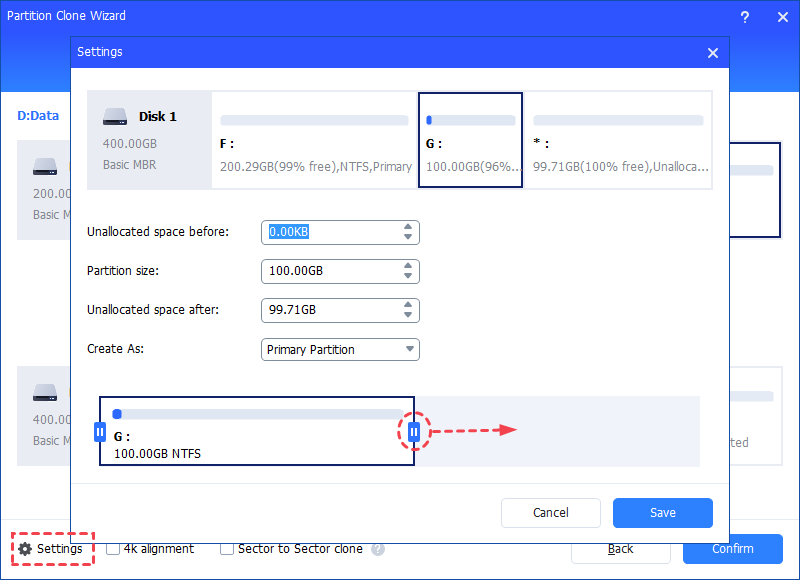
Step 4. In the next window, you can click the "Settings" button to adjust the target partition size. As you can see from the screenshot, you could adjust the size of source partition in order to fit the target partition as per your need, or directly skip the step and click "Save".
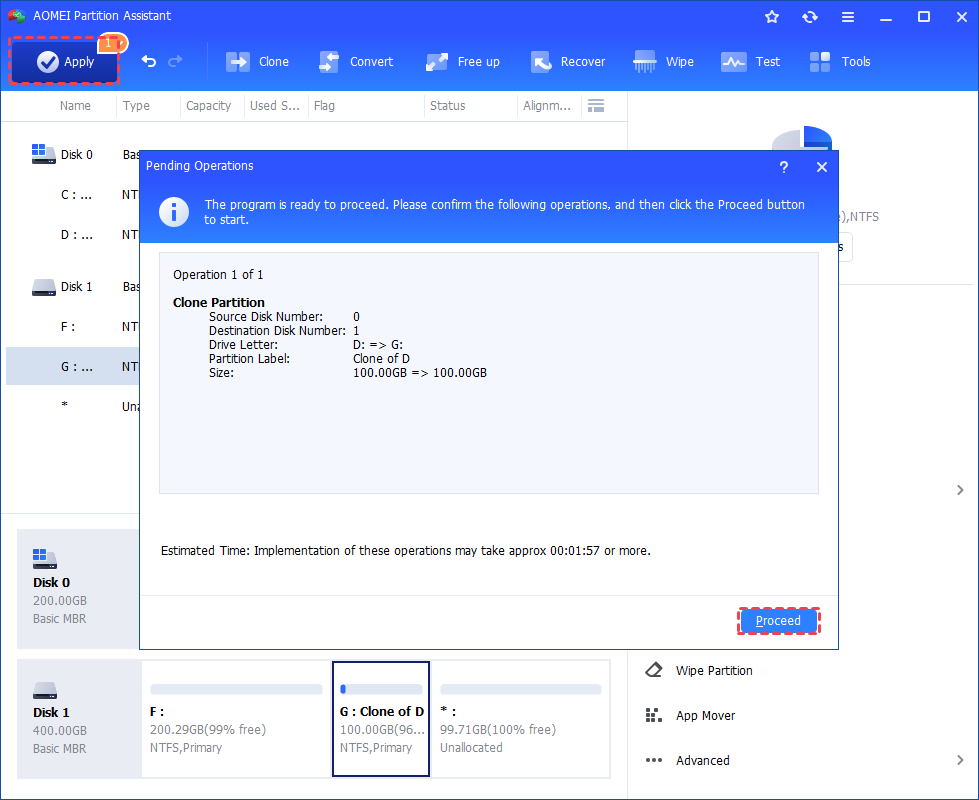
Step 5. You can preview the partition copy operating by viewing the "Pending Operations". To commit the "Pending Operations", please click "Apply" and "Proceed".
Conclusion
This guide explains how to copy an EFI partition to another drive, whether for backup purposes or system migration. Using AOMEI Partition Assistant, you can safely and efficiently transfer your operating system along with the hidden EFI System Partition (ESP).
