
 AOMEI Partition Assistant
How to Fix the FAT32 Full Repair Needed Error?
If you see the EFI system partition marked as FAT32 full repair needed, you can read this guide. It will tell you what it means and how to fix the issue.

By Irene / Updated on July 10, 2025


What is the FAT32 Full Repair Needed error?
The EFI system partition (also called the ESP) is a special partition formatted as FAT32 when Windows is installed on a GPT disk. It stores important files like boot loaders, drivers, and system tools. Keeping this partition healthy is important for your system to work properly.
Sometimes, you may see errors like “EFI partition becomes RAW,” “EFI partition is corrupted,” or “FAT32 full repair needed.” This post focuses on the last one.
The message “FAT32 full repair needed” often appears on Windows 11 systems using a GPT disk. It can show up even when the EFI partition looks healthy in Disk Management. Based on feedback from many users on the Microsoft forum, this error could mean:
System files are corrupted.
A system bug or glitch is causing the message, but there are no real problems.
The hard disk has bad sectors.
Don’t worry. The next section will explain how to fix this issue step by step. Let’s continue.
How to fix the system FAT32 Full Repair Needed error?
Fix 1. Check the EFI system partition
To rule out problems with the EFI system partition itself, you should check if it has bad sectors. However, since the EFI partition doesn’t have a drive letter, you can’t see it in File Explorer or scan it using CHKDSK.
In this case, you can use a professional tool like AOMEI Partition Assistant. It allows you to scan the EFI partition for bad sectors and fix file system errors. This tool also offers many useful features, such as partitioning hard drives, migrating Windows to SSD or HDD, cloning disks, converting MBR to GPT without losing data, rebuilding MBR, and more. Here’s how you can use AOMEI Partition Assistant to check for bad sectors on the EFI partition.
 AOMEI Partition Assistant
The Best Windows Disk Partition Manager and PC Optimizer
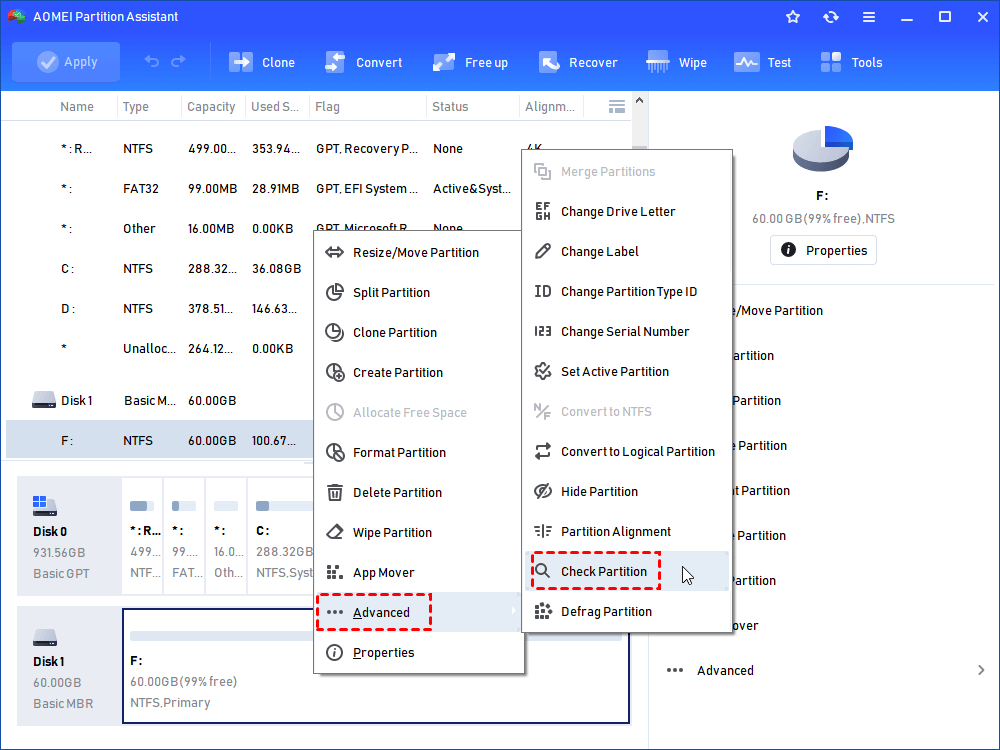
Step 1. Install and run AOMEI Partition Assistant. Right-click the partition you want to check and select “Advanced” > “Check Partition”.
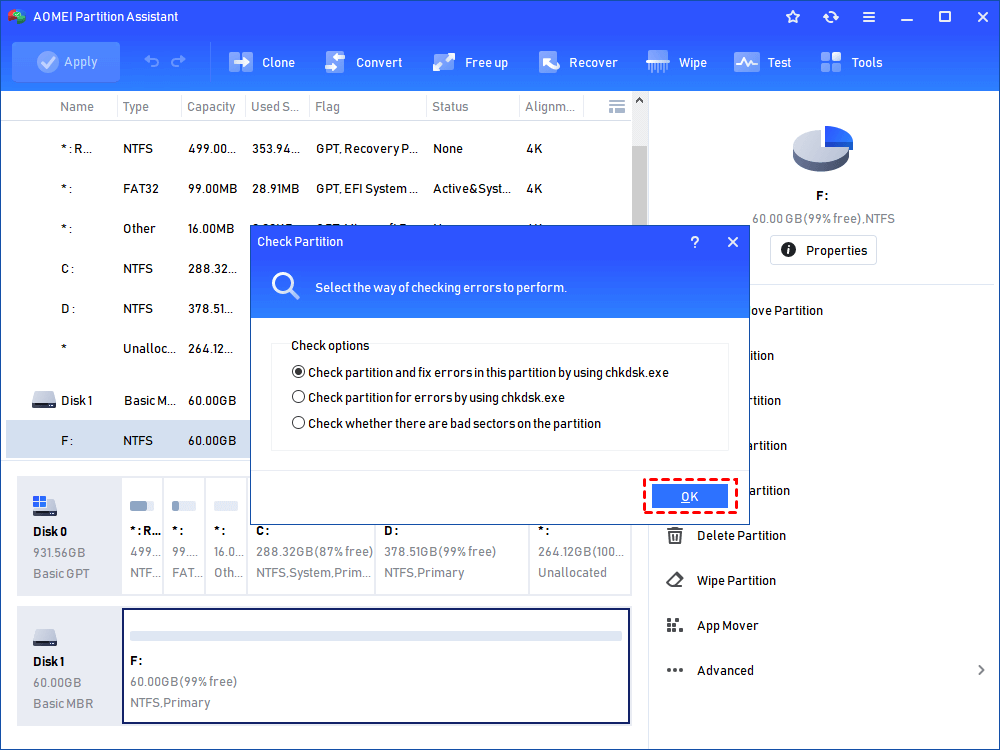
Step 2. In the pop-up window, select the way of checking errors to perform. There are three choices, and here we choose the first one “Check partition and fix errors in this …”. Then, click “OK” to continue.
Step 3. After that, you will see the window below. After the progress is completed, click “OK”.
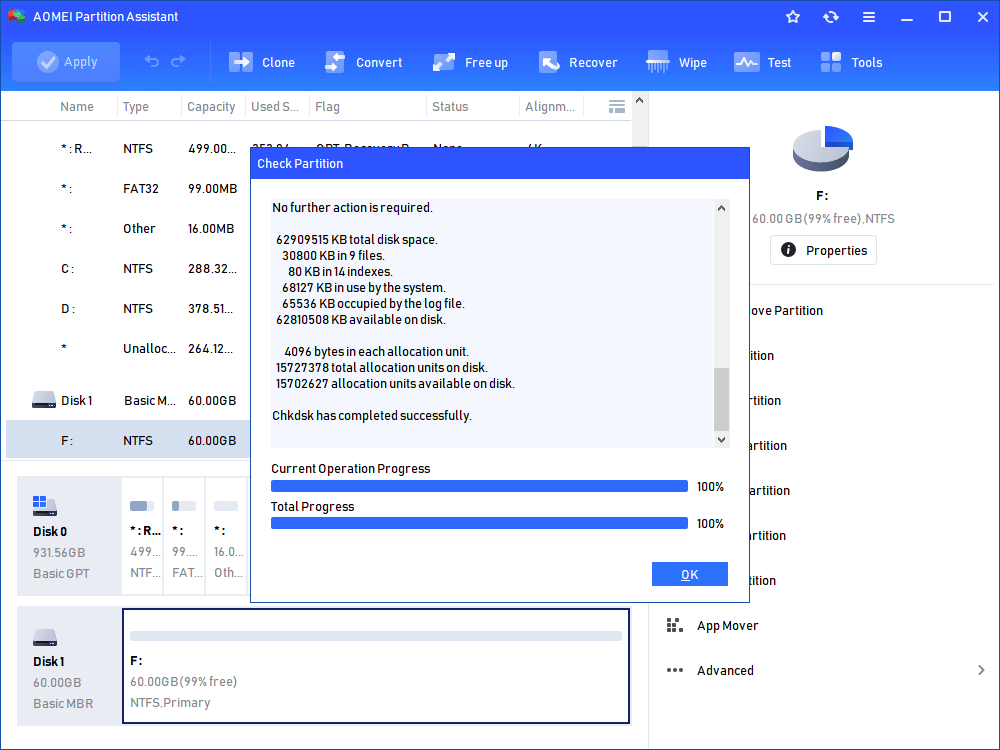
Thus, you have already successfully removed bad sectors from the hard disk permanently. If you need to execute more tasks on your hard drive, AOMEI Partition Assistant can meet all of your needs!
Fix 2. Create a new EFI system partition
If the “FAT32 full repair needed” error is caused by bad sectors on the drive, one effective solution is to create a new EFI system partition. You can do this using the DiskPart tool in Command Prompt with administrator rights. If your computer won’t start because of this issue, you can use a Windows 11 installation USB. On the first setup screen, press Shift + F10 to open Command Prompt directly.
Here’s how to recreate the EFI partition:
Step 1. Click the Start menu. Then hold the Shift key and click Restart under the Power icon. Your PC will boot into Windows Recovery Environment. Now select Troubleshoot > Advanced options > Command Prompt.
Step 2. In Command Prompt, use DiskPart to shrink an existing partition and create a new EFI partition. Enter the following commands one by one:
list disk
select disk X (replace X with your disk number)
list partition
select partition N (choose the partition to shrink)
shrink desired=500
create partition efi size=500
format fs=fat32 quick
exit
Step 3. To rebuild the EFI boot files, run this command (replace X with your Windows drive letter and Y with the new EFI partition):
bcdboot X:\windows /s Y:
Once done, you can remove or move the old EFI partition if needed.
Fix 3. Perform a system restore
If the "FAT32 full repair needed" message only appears on certain versions of Windows 11, the issue might be related to recent system changes. In this case, you can try System Restore to return your PC to a previous state when the EFI partition was working correctly.
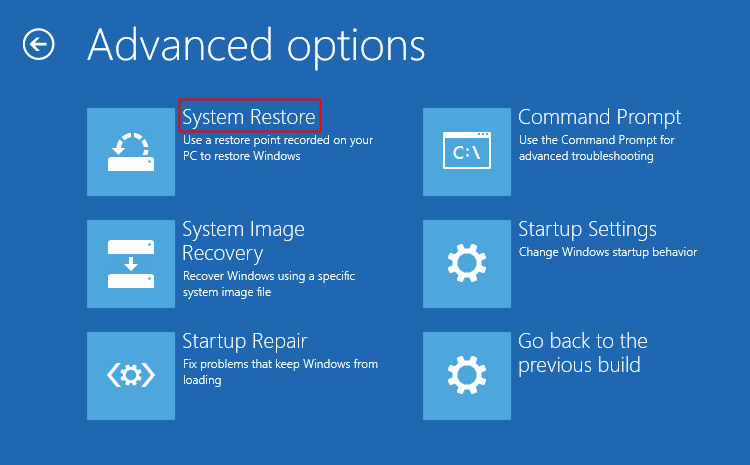
Step 1. Boot into the Windows Recovery Environment (WinRE) as explained earlier. Then go to Advanced options and select System Restore.
Step 2. The System Restore window will appear. Click Next to continue.
Step 3. Choose a restore point from the list. If you don’t see all available options, check the box that says Show more restore points. Select the one you want and click Next.
Step 4. Click Finish to confirm. Your system will begin restoring to the selected point. Once the process is complete, check if the EFI system partition is back to normal.
Fix 4. Perform a boot repair
If the error is caused by missing or corrupted boot files inside the EFI System Partition (ESP), rebuilding the BCD can help restore those files and may fix the issue. AOMEI Partition Assistant offers an easy-to-use Boot Repair tool that can automatically fix problems with the BCD. If your computer won’t start after a system update or shows errors like 0xC000000F, 0xc0000034, or 0xc000014C, this tool can help you get back into Windows quickly. It's user-friendly for beginners but also powerful enough for advanced users. Plus, it works on Windows 11, 10, 8, and 7.
AOMEI Partition AssistantThe Best Windows Disk Partition Manager and PC Optimizer
Case 1: Repair an running PC
Step 1. Install and launch AOMEI Partition Assistant. In the Main Tab, please click the "Recover" tab and select "Boot Repair".

Step 2. The Boot Repair tool will pop up. Please click "Next" to start the system’s boot entries scan process.

Step 3. After the process is completed, it will display the scan result: system paths, system versions, and boot status. And, all repairable boot entries will be available to select.

Advanced Settings: Select a location to store the repaired boot entry.
◆ Repair to the current disk: The system will boot from the current disk and ensure the boot files are complete and functioning properly. (By default)
◆ Repair to another disk: This operation will repair the boot entry or create a new system boot entry to ensure the system can boot from the disk you select.

Step 4. Select one/multiple repairable boot entries you want to repair and click the "Repair" button to start the boot repair.

Step 5. Wait for the repair process to finish. Once it is finished, you can check the repair result. If it succeeds, you will get a "Repair Successfully" result.

Case 2: Repair Boot for PC that is unable to Boot
Step 1. Install and launch AOMEI Partition Assistant on a working PC, click "Recover"-"Boot Repair" and then click the "create a bootable disk" option to create a WinPE "Boot Repair" disk.

Step 2. Plug the bootable disk you created into the target computer you wish to repair the boot issue.
Step 3. Enter BIOS in your computer, choose the bootable disk as the boot drive to access AOMEI Partition Assistant.
Step 4. The PC that cannot boot into WinPE will automatically load the Boot Repair tool and start the boot entries scan process. All boot entries will be displayed. Then you can follow the same operations as the above shows.
Conclusion
The “FAT32 Full Repair Needed” error is often linked to issues within the EFI system partition, which is vital for booting Windows on GPT disks. While the problem may seem serious, it can usually be fixed using reliable methods. You can check and repair the partition using tools like AOMEI Partition Assistant, create a new EFI partition if needed, perform a system restore to undo recent changes, or rebuild the BCD to repair boot files. By following the solutions provided, you can restore your system’s normal startup and ensure your EFI partition works properly again.
