
 AOMEI Partition Assistant
[Quick Fixes] How to Fix Game Stuttering with High FPS?
Experiencing game stutters despite high FPS? This guide explains common causes and provides effective fixes to eliminate stuttering, ensuring smooth, stable, and enjoyable gaming performance.

By Irene / Updated on September 11, 2025


Why does a game stutter with high FPS?
Game stuttering with high FPS is a frustrating problem many gamers face today. You may notice your game running at 60, 120, or even 200 frames per second, yet the gameplay feels choppy, delayed, or inconsistent. This stuttering can show up as small freezes, brief pauses, or uneven frame pacing that breaks the smooth experience you expect from a powerful PC.
Interestingly, stuttering is not always caused by very specific causes. In fact, even high-end gaming computers with strong graphics cards and fast processors can experience this issue. For example, stuttering may appear during fast in-game actions, large explosions, or when loading new assets and textures. These interruptions can ruin immersion and make games much less enjoyable.
So, why does this happen? Here are some common causes that may lead to game stutters with high FPS.
| Cause | Explanation |
|---|---|
| Old or Low-Storage Disk | Slow or nearly full disk delays loading game data, causing stutters. |
| CPU Bottleneck | CPU can’t process game tasks fast enough, leading to uneven frames. |
| Driver Issues | Outdated or faulty GPU drivers reduce performance and stability. |
| Background Programs | Other apps use system resources, interrupting smooth gameplay. |
Game stuttering with high FPS can be annoying, but the good news is that it’s usually not permanent. In most cases, a few simple tweaks to your system or settings can make a big difference. From fixing storage problems to updating drivers, there are several ways to reduce or completely remove stuttering. Here’s how you can fix it and enjoy smoother gameplay.
How to fix stuttering in games with high FPS?
Fix 1. Upgrade your disk
One of the most effective ways to fix game stuttering with high FPS is to upgrade your storage drive. Replacing an old HDD with an SSD or upgrading to a faster SSD can make a noticeable difference. A faster drive reduces loading times, improves game responsiveness, and helps prevent freezes during demanding scenes.
Upgrading is simple. First, choose a reliable gaming SSD. Then, you can either clone your current disk to the new drive or migrate your operating system. Tools like AOMEI Partition Assistant make this process easier and safe, letting you upgrade without reinstalling Windows or losing files.
With AOMEI Partition Assistant, you can:
Clone Disk – copy your entire system or data drive to the new disk.
By using a well-configured SSD, your games will run smoother, lag will be reduced, and stuttering caused by slow or old storage will be minimized. This simple upgrade can greatly improve your gaming experience, even when running at high FPS.
 AOMEI Partition Assistant
The Best Windows Disk Partition Manager and PC Optimizer
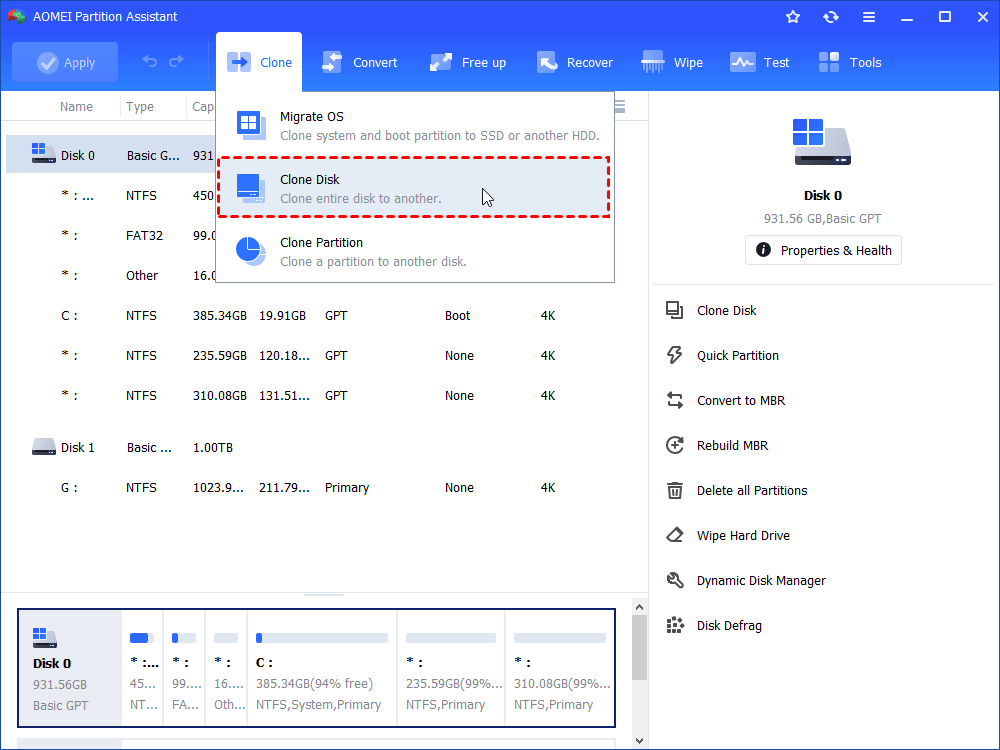
Step 1. Install and launch AOMEI Partition Assistant, click "Clone" in the main interface and select "Clone Disk".
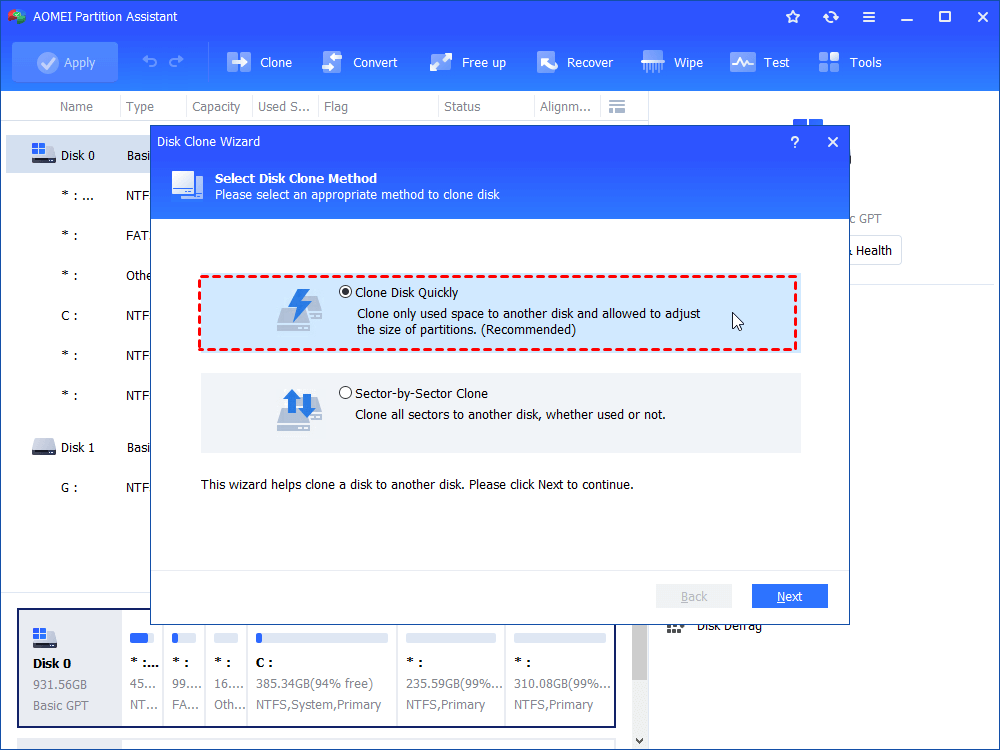
Step 2. Choose the hard disk that you need to clone as the source disk and click "Next".
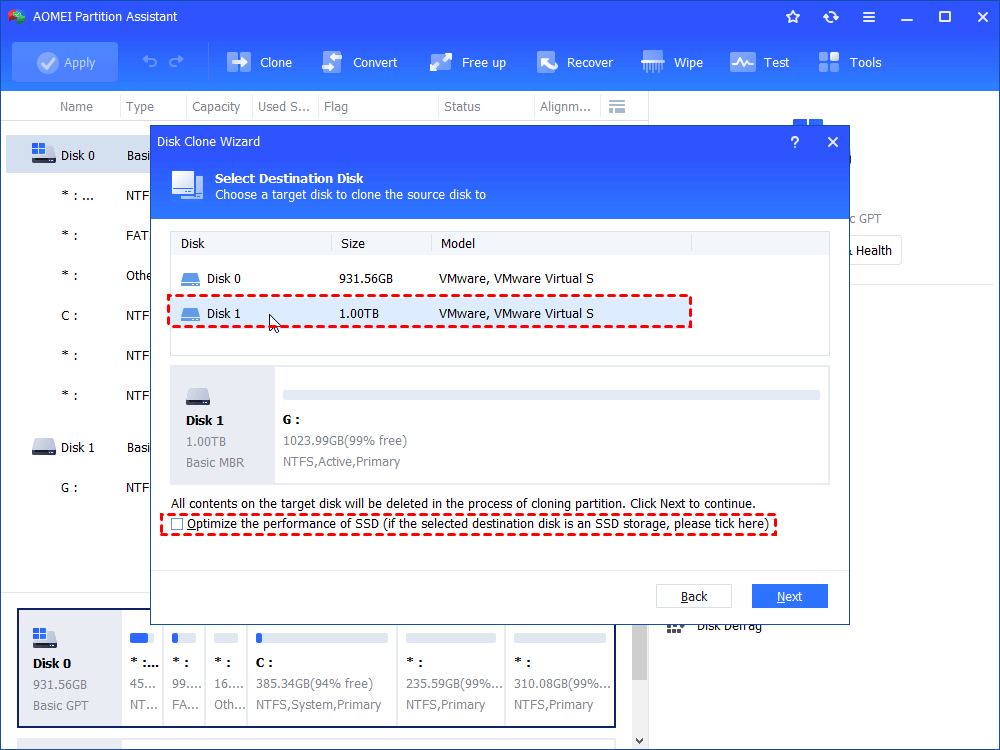
Step 3. Select the destination disk to store the data on the source disk, and then click "Next".
Step 4. Then, you can check the source and destination disk in the next window or change to “Sector to Sector clone”, and click the "Confirm" button to continue if there is no problem.
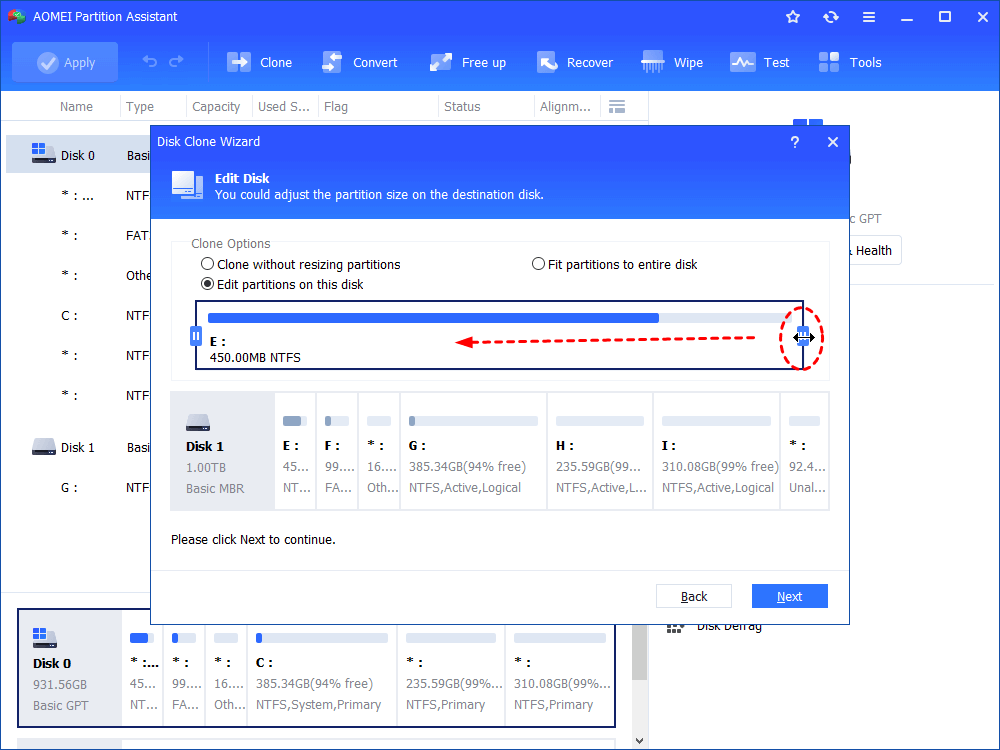
Here, you can also click the "Settings" button to adjust the partition size on the destination disk or tick "4k alignment" to improve the reading and writing speed of SSD if the target disk is an SSD drive.

Step 5. At last, click "Apply" and "Proceed" in the main interface to start cloning the hard drive.
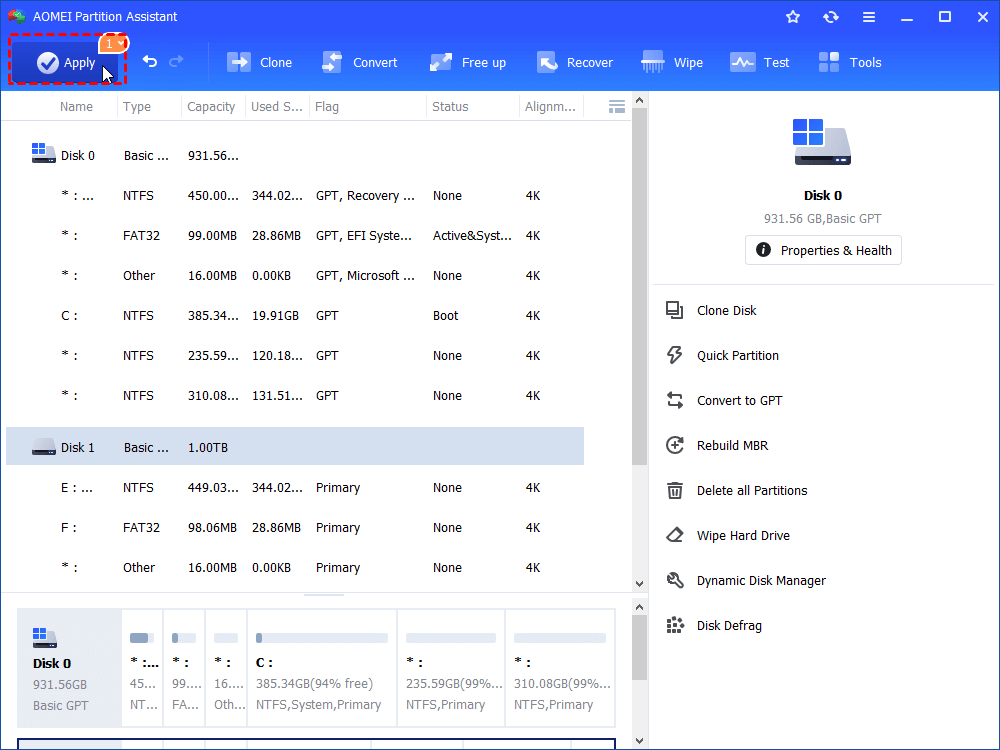
If you want to separate your OS and games, you can use the Migrate OS function to only move system on your new disk.
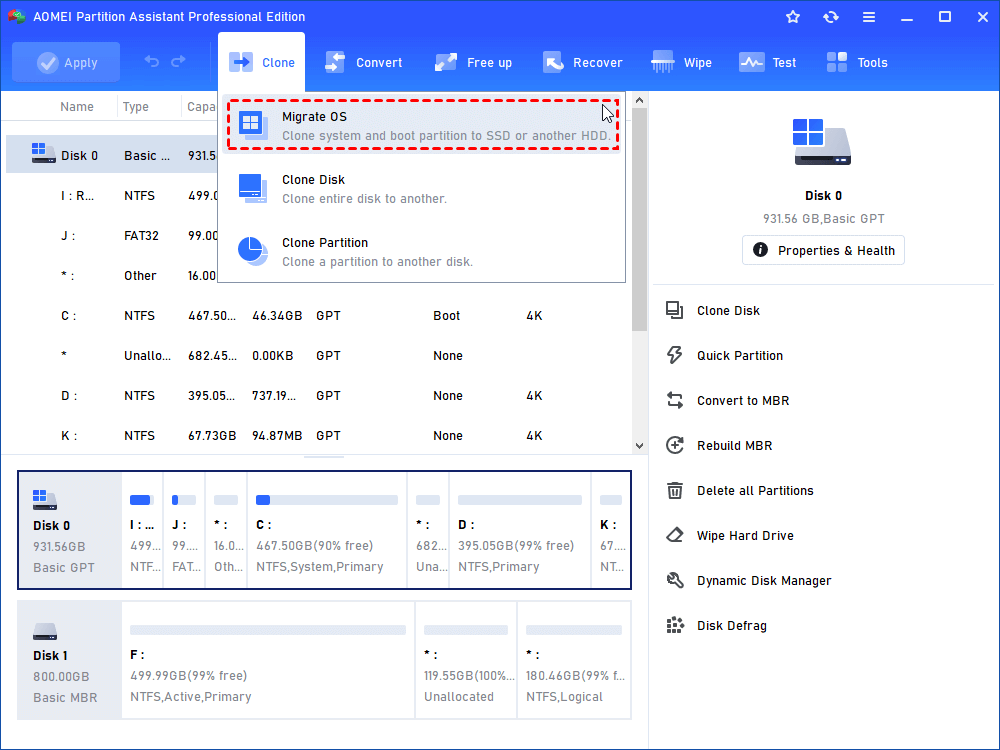
Or, if your disk has other partitions, you can also only move your games to another drive without reinstalling and make your C drive a system partition only.
Fix 2. Turn On Game Mode in Windows 11
Windows has a built-in Game Mode that helps boost performance while gaming. Enabling it can reduce stutters and make gameplay smoother.
Step 1. Click the Windows icon in the lower-left corner and select Settings.
Step 2. On the left sidebar, go to Gaming and select Game Mode.
Step 3. Toggle Game Mode on.
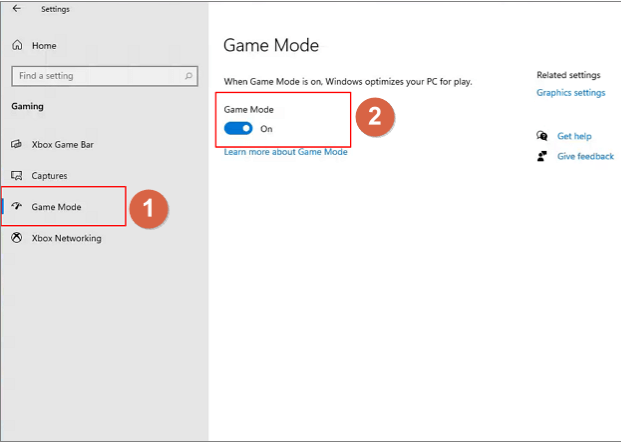
Once turned on, Windows will prioritize system resources for your games, helping maintain stable FPS.
Fix 3. Enable Auto HDR
HDR (High Dynamic Range) improves game graphics with better colors and contrast. Windows 11 supports Auto HDR, which turns HDR on automatically if your monitor supports it.
Step 1. Make sure you have an HDR-compatible monitor. If not, you’ll need to get one.
Step 2. When you install Windows 11 on an HDR monitor, Auto HDR will be automatically enabled.

With Auto HDR, your games will look more vivid and immersive, enhancing the visual experience while playing.
Fix 4. Upgrade RAM
RAM (Random Access Memory) acts as temporary storage for data and programs, allowing your system to quickly access the information it needs. Many modern games require 16GB or more, but most PCs come with less. Upgrading your RAM can improve game performance and let you run multiple programs without lag.
Before buying new RAM or increasing RAM, check your motherboard’s supported memory capacity to ensure compatibility.
Key Considerations When Upgrading RAM
| Consideration | Details |
|---|---|
| Speed | Match the speed of your new RAM with your existing modules. |
| Timing | Ensure the timing aligns with your current RAM. |
| Manufacturer | For best compatibility, buy from the same manufacturer. |
| Capacity & Frequency | 16GB or 32GB kits at 3200MHz provide excellent performance for Intel and AMD systems. |
Recommended RAM for Gaming PCs
| Brand & Model | Capacity & Type | Frequency |
|---|---|---|
| TEAM XTREEM ARGB | 16GB DDR4 | 3600MHz C14 |
| Corsair Dominator Platinum RGB | 32GB DDR4 | 3200MHz |
| G.Skill Trident Z Neo | 32GB DDR4 | 3600MHz |
| Colorful CVN Guardian | 16GB DDR4 | 3200MHz |
| G.Skill Trident Z Royal | 16GB DDR4 | 4000MHz |
If you’re unsure whether to choose DDR4 or DDR5, research the differences before purchasing. Once you have the right RAM, follow a guide to upgrade or replace your memory modules safely.
Conclusion
Game stuttering with high FPS can be frustrating, but it is usually fixable. Most issues are caused by hardware or software limitations, such as old or slow storage, CPU bottlenecks, outdated drivers, or insufficient RAM. By upgrading your disk, enabling Windows Game Mode, turning on Auto HDR, or increasing your RAM, you can significantly improve performance and enjoy smoother gameplay.
Taking these steps ensures your system runs more efficiently, reduces freezes and lag, and lets you fully experience games at high frame rates. With the right upgrades and settings, even demanding games can run smoothly, giving you a more immersive and enjoyable gaming experience.
