
 AOMEI Partition Assistant
How Do I Find Out What Windows Version I Have and Check If I Need to Update?
The article describes how do I find out what Windows I have and explains how Windows shows version, edition, and update information, giving you a simple understanding of your system.

By Irene / Updated on November 14, 2025


If you want to check software compatibility, ensure security updates, troubleshoot issues, access certain features, and plan upgrades to newer versions. Knowing the version helps them make informed decisions about updates and system requirements. How do I find out what Windows I have? This passage outlines the steps to check the Windows version and explains how to update to the latest version.
How do I find out what Windows I have?
Knowing your Windows version helps you understand whether your device is using the Long-Term Servicing Channel (LTSC) or the General Availability Channel. The LTSC version is meant for specialized devices and lacks many built-in apps like Microsoft Edge, Microsoft Store, Cortana, Mail, Calendar, and Photos. The General Availability Channel, on the other hand, allows feature updates as soon as Microsoft releases them, which is useful for testing or for developers who need the latest features.
There are several ways to check your Windows version, each providing different details:
1. Use System Properties: Go to Start > Settings > System > About to see your Edition, Version, and OS Build.

2. Run Search Bar: Type winver and press Enter to see version details, or type msinfo / msinfo32 to open System Information.

3. Perform Command Prompt or PowerShell:
Type systeminfo | findstr /B /C:"OS Name" /B /C:"OS Version" and press Enter.

Type slmgr /dlv to see detailed licensing information, including edition details.

Each method gives useful information, so it’s helpful to know multiple ways to check your Windows version.
How to check for Windows updates?
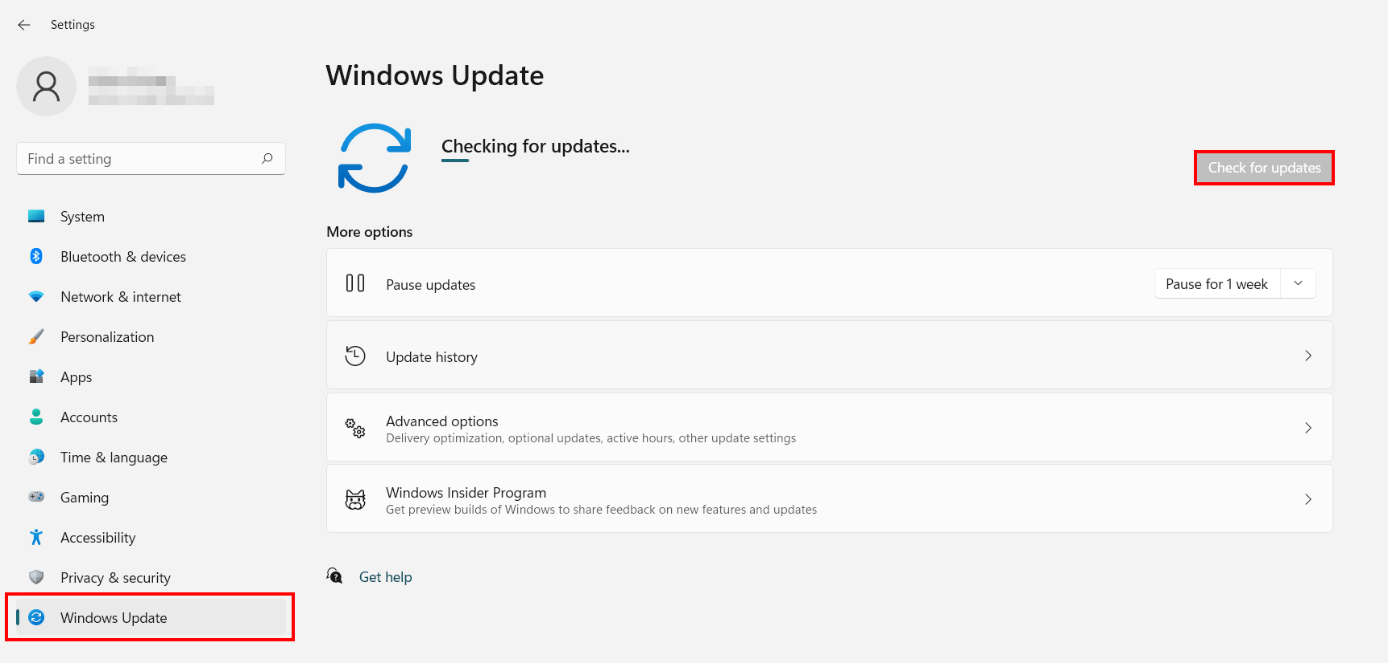
To get the update, go to Settings > Windows Update > Check for updates. If it’s available for your device, select Download and install. For most Home and Pro editions, the update installs automatically once eligible.
Before updating, it’s important to make sure your PC meets the requirements. Not all computers can install the newest Windows version, as updates need the right hardware, enough storage, and proper system settings. Here’s an easy way to check if your device can get the latest update and how to install it.
Step 1. Open Settings. Click Start, then Settings, and select Windows Update.
Step 2. Check for updates. Select Check for updates. If the latest Windows version, like Windows 11 25H2, is available, you’ll see the option to Download and install.
Step 3. Review eligibility. Use Microsoft’s PC Health Check to confirm your device meets Windows 11 requirements. Ensure TPM 2.0, Secure Boot, and a compatible processor are supported. At least 64 GB storage is required, though 128 GB or more is recommended.
Step 4. Automatic updates. Windows 11 Home and Pro usually install updates automatically when eligible. If the update isn’t visible, it may be rolling out gradually, or you can upgrade manually using the Windows 11 Installation Assistant.
What to do if you can't update the Windows version?
If your PC cannot meet the update requirements, you may encounter various error during the process. Here are some solutions to help you fix that.
Fix 1. Temporarily disable antivirus programs
Antivirus software may potentially interfere with the Windows updates, causing a variety of issues. When you encounter specific update troubles, it is usually a good idea to temporarily off the antivirus. You should turn off both the third-party antivirus software and the built-in Windows Defender and Firewall.
Disable Windows Defender
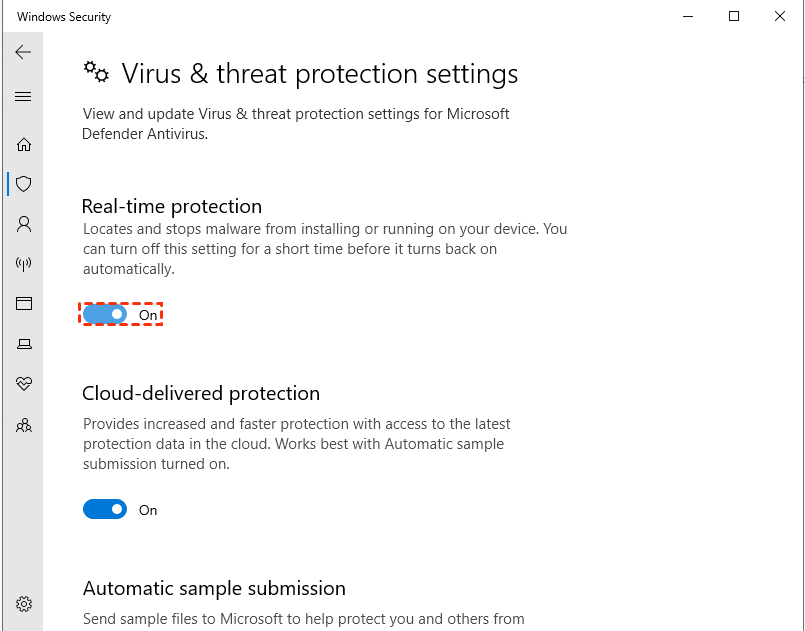
Step 1. Go to Windows Settings > Update & Security > Windows Security > Virus & threat protection.
Step 2. Click Virus & threat protection settings and toggle off the button of Real-time protection.
Disable Firewall
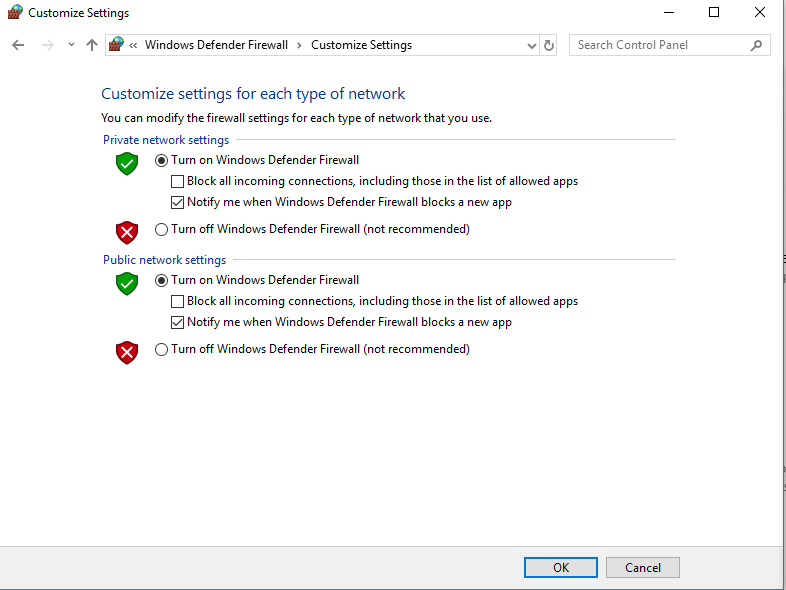
Step 1. Open Control Panel and go to System and Security > Windows Defender Firewall > Turn Windows Defender Firewall on or off.
Step 2. Choose the Turn off Windows Defender Firewall option for both private and public network settings.
Then, try upgrading to Windows again to see whether the problem has been repaired. You must immediately re-enable your antivirus and firewall after completing the installation or if the technique fails to resolve the issue. Otherwise, your system will be jeopardized.
Fix 2. Ensure enough space
A common reason Windows updates fail is insufficient space on the drive. Updates need free space to download files, create backups, and complete installation, and a full drive can cause errors. Expanding the C drive provides the room Windows needs to finish the update.
One effective method is using the Allocate Free Space feature in AOMEI Partition Assistant. This lets you move unused space from another partition, such as D: or E:, to the C drive safely without deleting data. The process is simple and beginner-friendly, making it ideal for resolving installation errors caused by limited disk space. The tool also offers other solutions for fixing a full C drive.
 AOMEI Partition Assistant
The Best Windows Disk Partition Manager and PC Optimizer
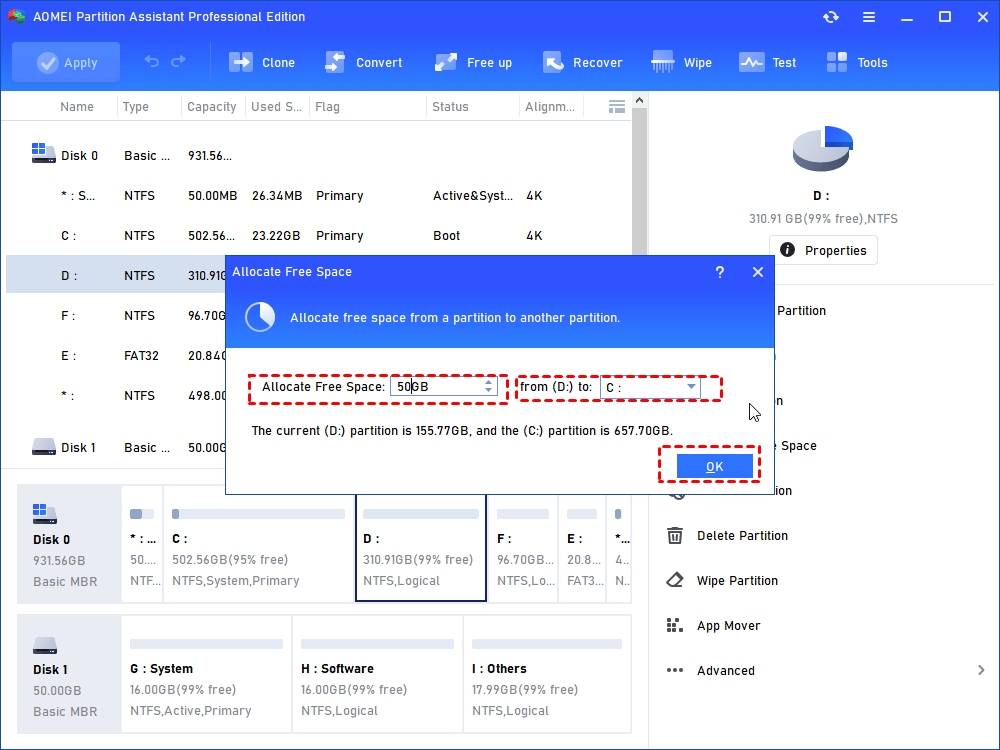
Step 1. Right click partition D and select Allocate Free Space.
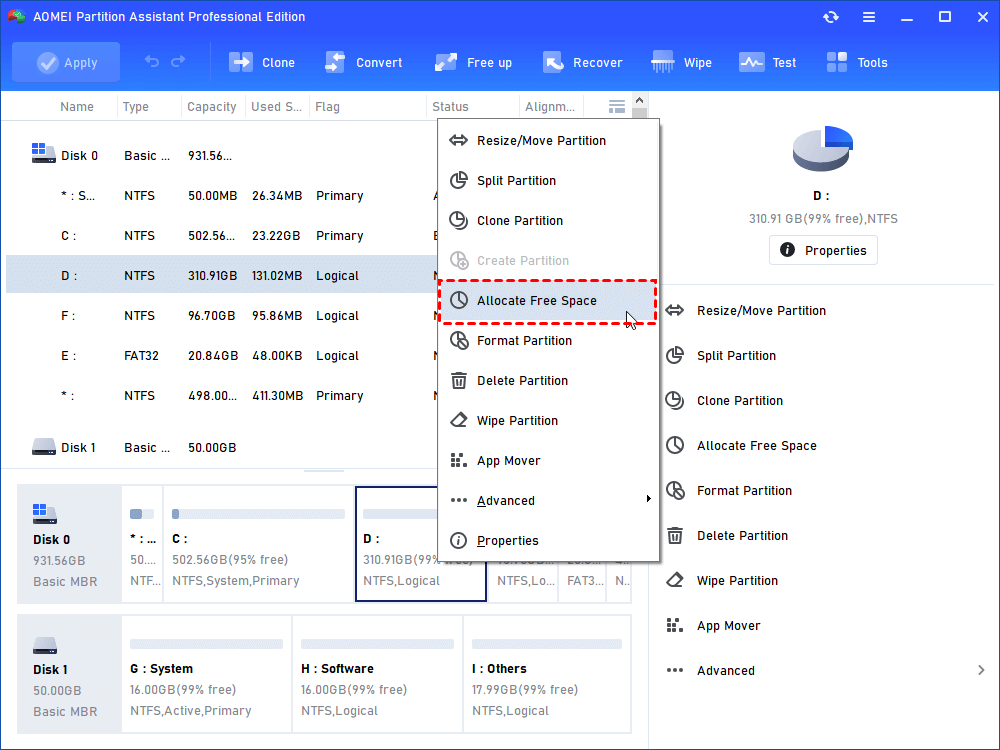
Step 2. Set how much space you want to allocate form partition D and choose C partition as a target partition.
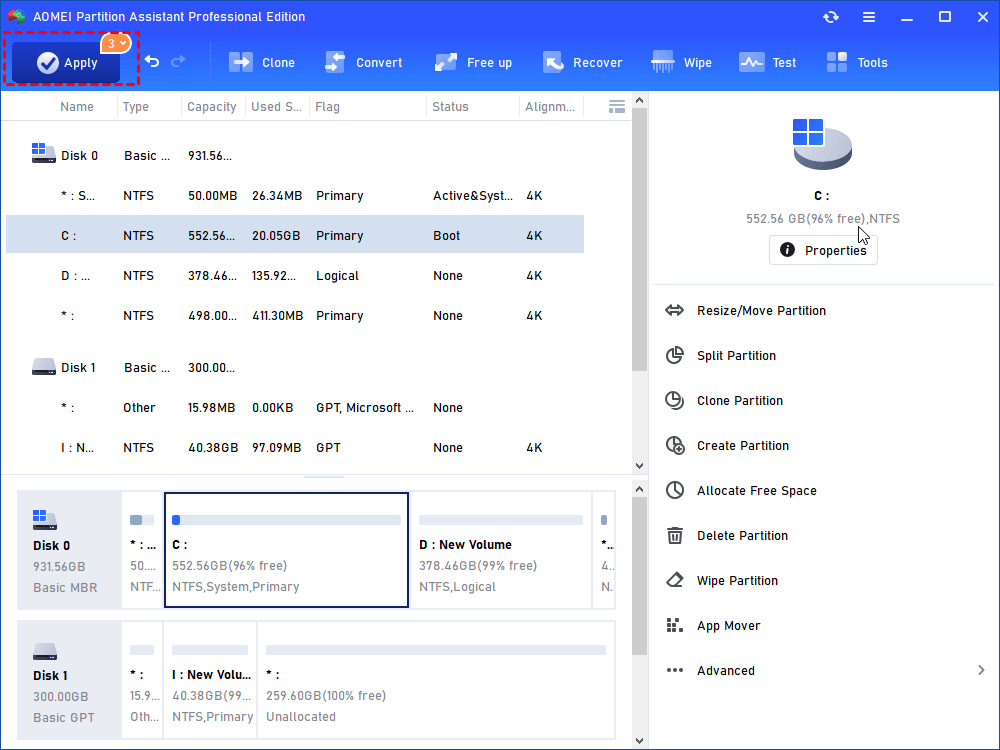
Step 3. Preview the result after allocation. If that’s what you want, just click "Apply" on upper left to carry out the operation.
Notes:
1. If it looks not like what you want, or you want C drive to be larger, you can click Discard behind Apply and do the operations above once more.
2. You can also complete the “increase c drive space from d drive” task using Extend Partition feature of this software.
Fix 3. Modify Registry settings
According to the users' feedback, some users were able to solve the issue by making modifications to the Windows Registry. You can also give it a go. However, before making any changes, create a backup of the existing registry. Here's how to accomplish it with Windows 10.
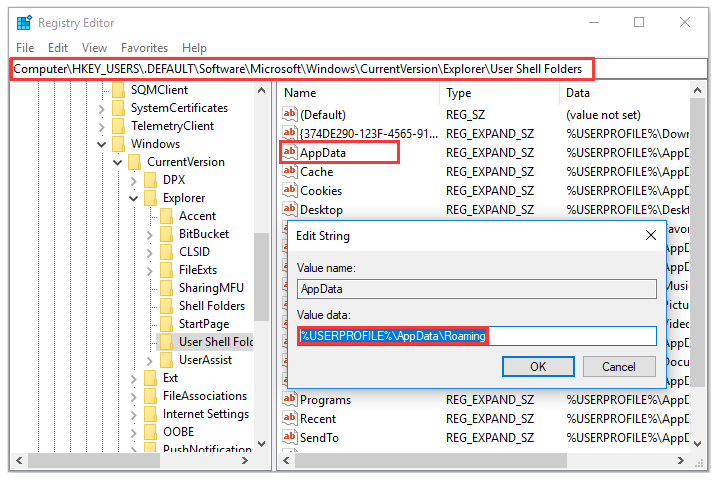
Step 1. Invoke the Run window, input regedit and press Enter to open Registry Editor.
Step 2. Copy and paste the following path to the address bar and press Enter: Computer\HKEY_USERS\.DEFAULT\Software\Microsoft\Windows\CurrentVersion\Explorer\User Shell Folders
Step 3. In the right pane, double-click AppData string and set its Value data as %USERPROFILE%\AppData\Roaming. Click OK to save the change.
Fix 4. Check disk health
If you still encounter Windows update errors, it is time to check your disk health. While SFC and DISM are powerful command-line tools for checking and repairing system files, not everyone finds the command line easy to use. AOMEI Partition Assistant is user-friendly disk management software for Windows, offering a graphical interface that makes complex operations simple.
Instead of relying only on command-line tools, it provides intuitive features to check your system drive. You can scan the file system for errors and test the disk surface for bad sectors, giving a clear visual way to ensure your hard drive’s health, which is essential for stable Windows performance and successful updates.
AOMEI Partition AssistantThe Best Windows Disk Partition Manager and PC Optimizer
Step 1. Run AOMEI Partition Assistant on your Windows 10/11. Right-click the drive you want to check and go to Advanced > Check Partition. In the pop-out window, you have three options available, check the error only, check and fix the error, and find bad sectors. Choose the one that suits you.
Step 2. Open AOMEI Partition Assistant. Right-click the disk you want to scan and select Test > Disk Surface Test. It will mostly check the bad sectors of the selected disk.
Step 3. Click Start to do the surface test. You may want to tick Quick Check to perform a fast test.
Tip: If you can't boot your system successfully, you can create a bootable media to enter this tool.
Conclusion
How do I find out what Windows I have? This article shares detailed information. Knowing your Windows version is essential for managing updates, ensuring compatibility, and keeping your system secure. By checking your version, using Windows Update, and applying fixes when needed, you can maintain a stable and up-to-date PC. Tools like AOMEI Partition Assistant make troubleshooting easier, helping you resolve space, registry, or disk issues and complete updates smoothly. If you are using Windows Server, please choose the AOMEI Partition Assistant Server edition.
AOMEI Partition AssistantThe Best Windows Disk Partition Manager and PC Optimizer
