
 AOMEI Partition Assistant
What Is Happening With Windows 10? Is Windows 10 Really Ending Support?
Find out what is happening with Windows 10 and whether support is really ending. This summary offers a clear view of Microsoft’s plans and how the changes may affect everyday use.

By Irene / Updated on November 14, 2025


What is happening with Windows 10?
What is happening with Windows 10? Microsoft stopped providing security updates after October 2025, raising concerns about safety and the need to upgrade. At the same time, social media and tech news have amplified these worries, making the topic widely discussed.
Windows 10 reached the end of official support on October 14, 2025. After this date, Microsoft no longer provides security updates or patches. Your computer will continue to work, but it will be more vulnerable to malware, ransomware, and other attacks because new security flaws will not be fixed.
Many people still use Windows 10. Some devices are not compatible with Windows 11, while others simply have not upgraded. This means millions of users could be running an operating system without security updates. Over time, software and games may also stop supporting Windows 10, which could prevent you from installing updates or using the latest features.
Microsoft recommends upgrading to Windows 11 if your hardware allows it or buying a new device with Windows 11 pre-installed. Other options include switching to a different operating system, such as Linux or ChromeOS.
For now, Windows 10 will continue to work, but planning ahead is important. If your PC is used for sensitive work or stores important data, upgrading sooner is safer. Older devices that cannot run Windows 11 may need to be used offline or switched to an alternative system. Always back up your data and stay informed about future support changes.
How to keep using Windows 10 safely after October 2025?
If you want complete safety, the best choice is to upgrade from Windows 10 to Windows 11. "What happens if I don't update to Windows 11 nor do anything for Windows 10?" Staying on Windows 10 without updates makes your PC more exposed to malware, ransomware, and other attacks, especially if you browse the internet or install new software.
If you still want to use Windows 10 safely after October 2025, enabling BitLocker can help because it protects your data even though the system no longer receives security updates. Once Windows 10 stops getting patches, the system becomes more vulnerable to new threats, but BitLocker encrypts your entire drive and makes your files unreadable to anyone who tries to access them without permission.
This means that if your device is lost, stolen, or physically accessed by someone else, your data remains protected. It also reduces the risk of sensitive information being exposed if your system is ever compromised. BitLocker does not fix Windows security flaws, but it adds a strong layer of protection for your personal files when the operating system is no longer updated.
To enable and disable BitLocker, we can simply use “Settings”. Once you enable BitLocker Windows 11, please keep the password in mind. You will be asked for authentication if you need to disable it or make any changes.
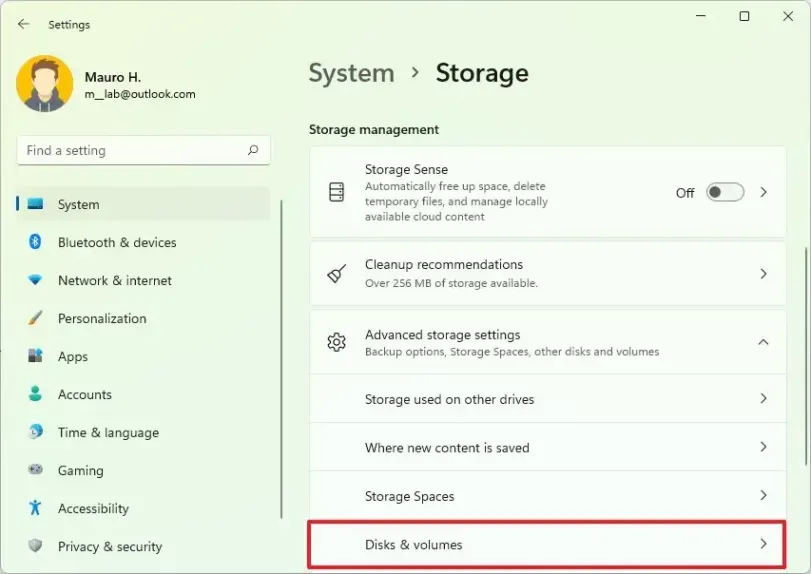
Step 1. Enter “Settings” and click “Storage”. Under the “Storage management” menu, select the “Advanced storage settings” option.
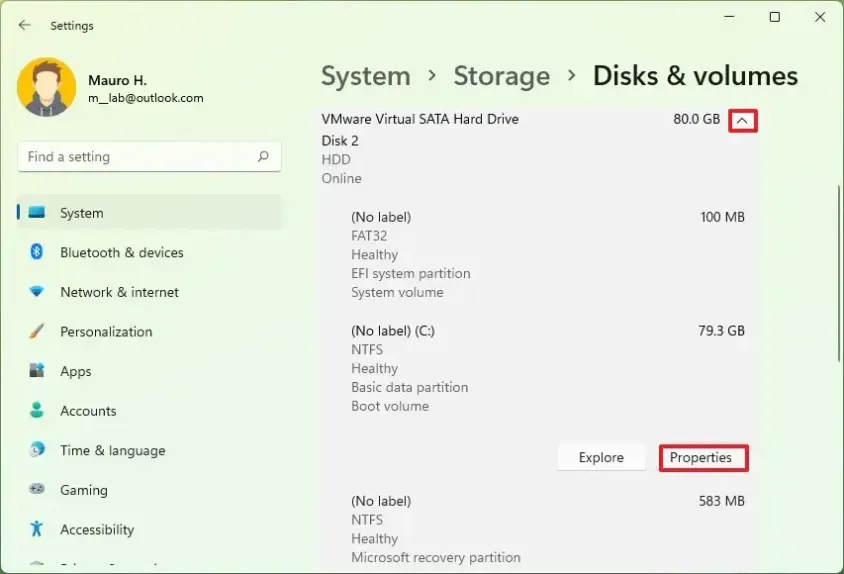
Step 2. Choose the volume to enable BitLocker. Click “Properties”.
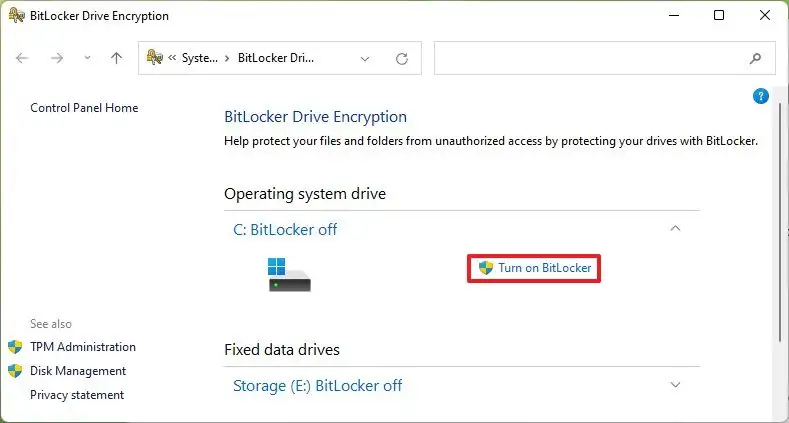
Step 3. Choose “Turn on BitLocker” and input the password.
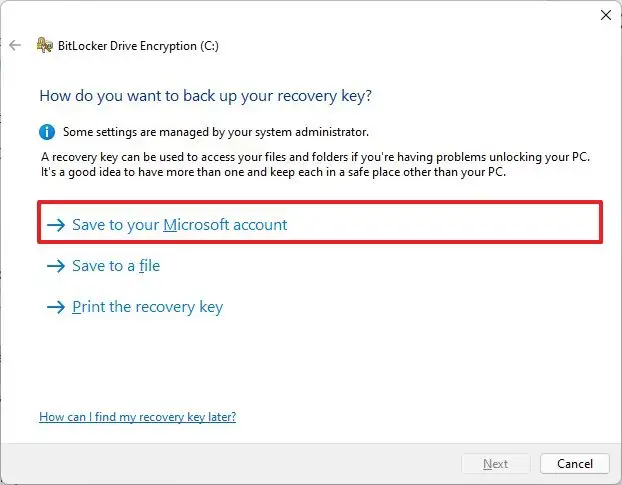
Step 4. You can choose an option to back up the recovery key like choosing “Save to your Microsoft account”.
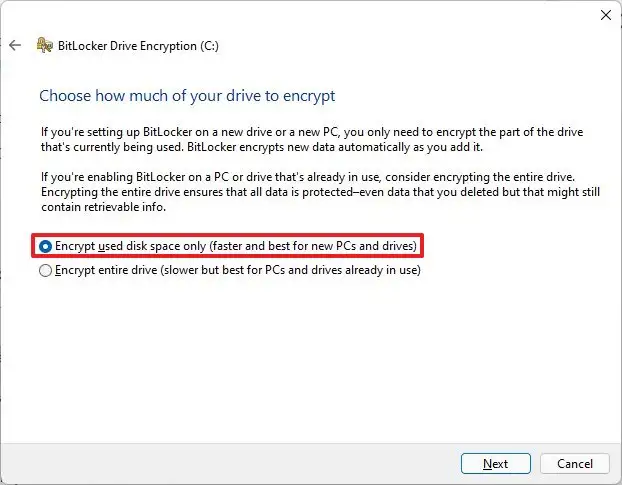
Step 5. Select the “Next” button. In the next interface, tick “Encrypt used disk space only”.
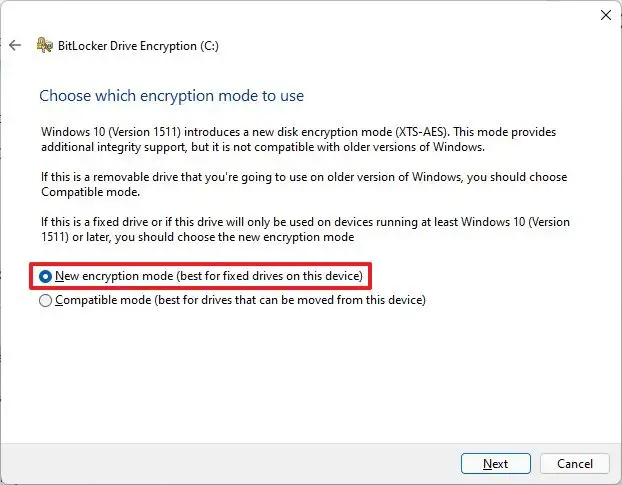
Step 6. After choosing “Next”, check the “New encryption mode” option to continue.
Note: The second option “Compatible mode” suits to encrypt a drive to use it on an older version of Windows.
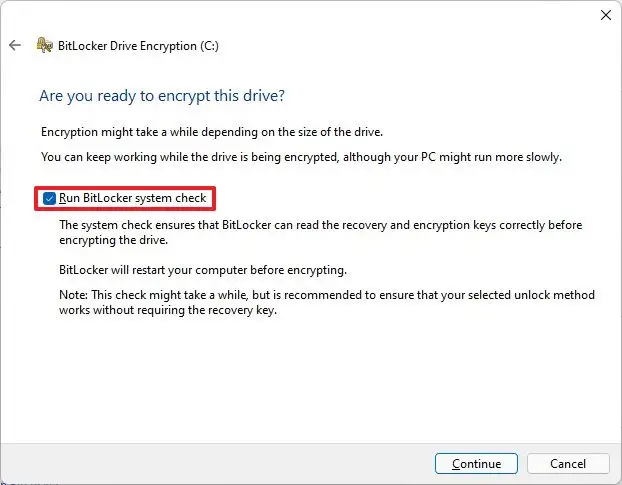
Step 7. Here you can tick the “Run BitLocker system check” option or not.
Step 8. Then, press the “Restart now” button to finish all the processes.
How to enable BitLocker on Windows 10 Home edition?
If you try to open BitLocker through a shortcut or command, Windows shows a message such as "This feature is not available in your edition of Windows." “The volume does not support BitLocker encryption.” or no encryption icon or exclamation mark appears on the drive, that means you are using Windows Home edition which not support this advanced feature.
Windows 10 Home does not include the full BitLocker feature, so users cannot turn it on directly through the system settings. Normally, the only way to use BitLocker would be to pay for an upgrade to the Pro edition, which can be quite expensive. This is why AOMEI Partition Assistant is necessary for Windows 10 Home users. It offers a simple and affordable way to enable BitLocker without upgrading the entire system. With this tool, you can turn on drive encryption, back up your recovery key, change your password, and lock or unlock your encrypted drives, all of which are functions that are usually limited to the Pro or Enterprise versions. It gives Windows 10 Home users full access to BitLocker’s protection at a much lower cost.
 AOMEI Partition Assistant
The Best Windows Disk Partition Manager and PC Optimizer
Step 1. Install and open AOMEI Partition Assistant. Go to the "Tools" section and choose "BitLocker".
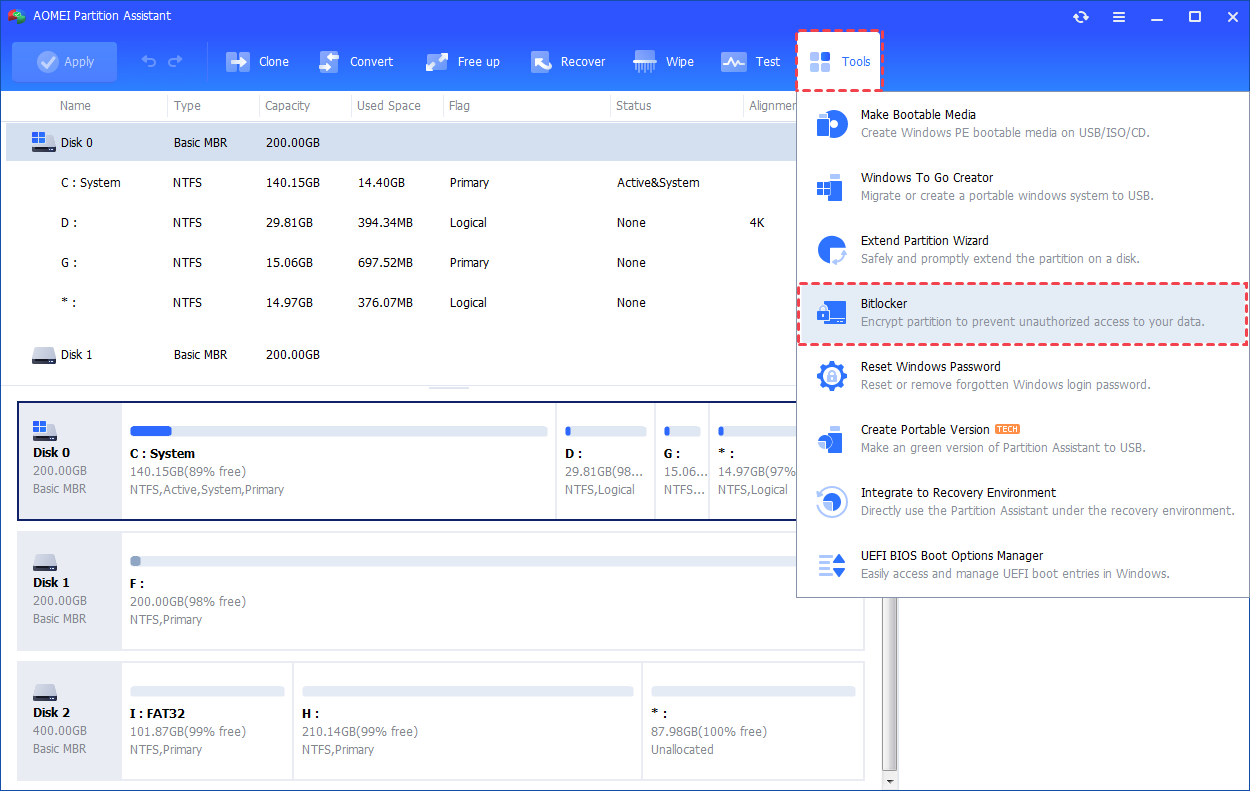
Step 2. Pick the drive partition you wish to encrypt and tap on "Turn on BitLocker".
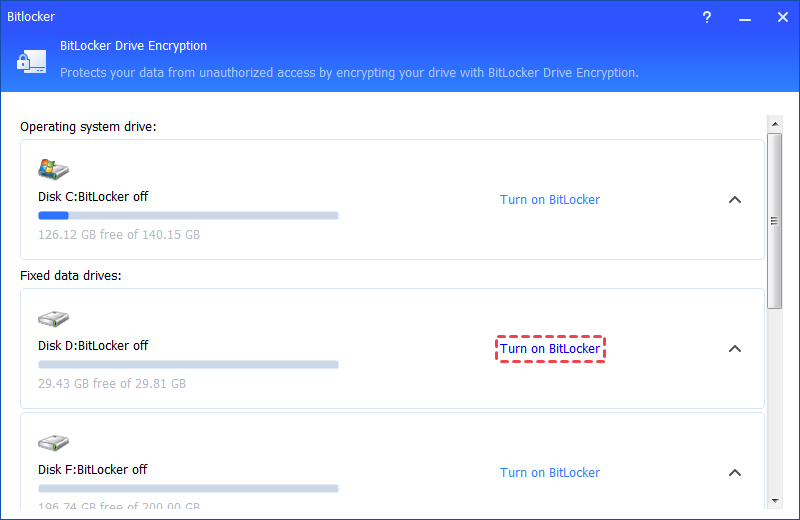
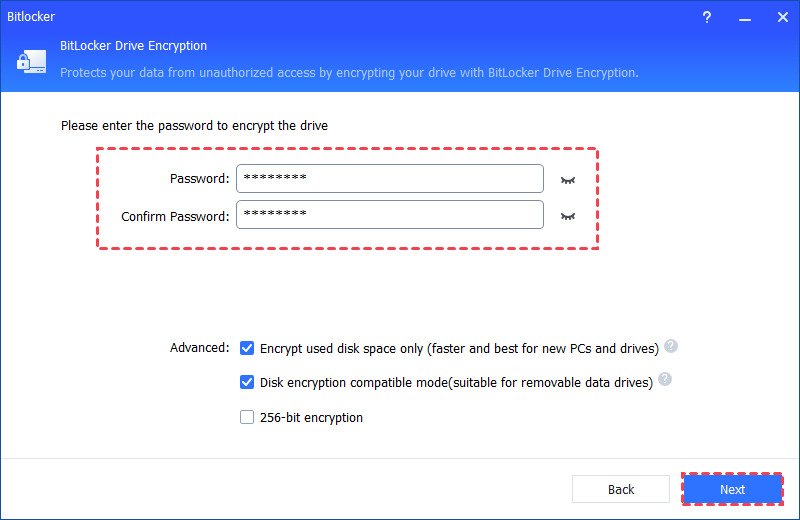
Step 3. Create a password, verify it, and press "Next" to proceed.
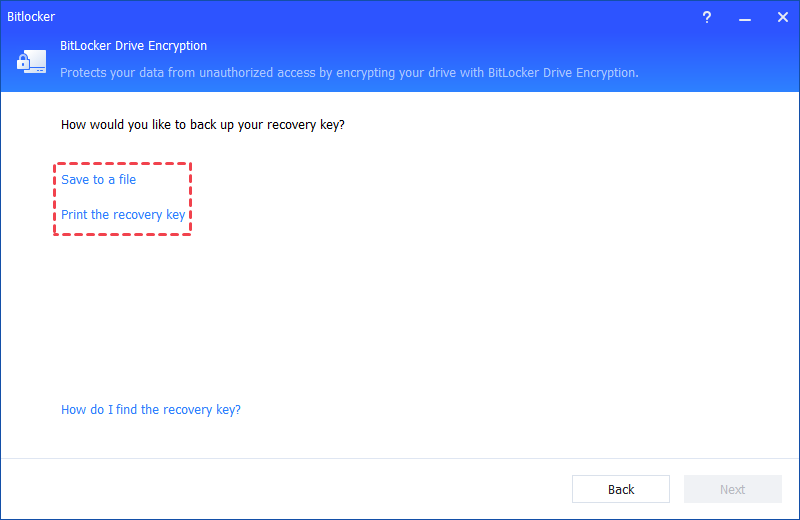
Step 4. Decide how to back up your recovery key: either "Save to a file" or "Print the recovery key". Then, click Next to start the encryption process.
Conclusion
What is happening with Windows 10 becomes clearer when you understand that the system keeps working after support ends, but it no longer receives security updates. This means the longer you stay on it, the more security risks you may face. Upgrading to Windows 11 is the safest option, but if you choose to remain on Windows 10, adding protection such as BitLocker can help safeguard your data. Tools like AOMEI Partition Assistant also allow Windows 10 Home users to use drive encryption without paying for a system upgrade. No matter your choice, backing up your files and planning ahead will help you stay safe in the long run.
AOMEI Partition AssistantThe Best Windows Disk Partition Manager and PC Optimizer
