
 AOMEI Partition Assistant
Is Windows 10 Still Supported after October 2026?
Wondering if Windows 10 will get updates after October 2025? This guide explains support status, end of support timeline, extended security updates, and what it means for keeping your PC safe and updated.

By Irene / Updated on December 29, 2025


Is Windows 10 still supported after October 2025?
Is Windows 10 end of support? Yes. But you’ll still be able to run Windows 10 after October 2025, but it won’t receive future updates or help from Microsoft.
Windows 10 reaches the end of its official support on October 14, 2025. After this date, Microsoft will no longer provide security updates, feature improvements, or technical assistance. While devices running Windows 10 will continue to operate, the absence of updates increases vulnerability to security threats and reduces compatibility with newer applications.
Users who want to continue using Windows 10 have several options. Devices that meet Windows 11 requirements can upgrade to the newer operating system, ensuring ongoing support, improved security, and access to updated features. For PCs that cannot run Windows 11, Microsoft offers the Extended Security Updates program, providing paid security updates for an additional period, typically up to three years.
| Audience / Region | Price or Option | Notes |
|---|---|---|
| Consumer (non‑EEA) | US $30 (one‑time, one year) | For individuals outside the European Economic Area. |
| Consumer (EEA – European Economic Area) | Free (no charge) | Users in the EEA may access ESU without paying, by meeting certain conditions. |
| Business / Volume Licensing |
Year 1: US $61 per device Year 2: US $122 Year 3: US $244 |
For organisations using volume licensing. |
For those considering new hardware, purchasing a device with Windows 11 preinstalled is an efficient way to maintain a secure and modern computing environment. For users who remain on Windows 10, applying strong security practices is essential. Using reliable antivirus software, enabling BitLocker to encrypt your data, and practicing cautious online behavior can help reduce potential risks.
Anyway, Windows 10 will continue to function after October 2025, but without official updates it will become increasingly exposed to threats. Planning an upgrade, enrolling in the ESU program, or adopting security measures such as BitLocker are effective ways to maintain a safe and reliable computing experience.
What can you do after Windows 10 end of support?
Option 1. Upgrade to Windows 11
After Microsoft ended support for Windows 10 in October 2025, you can choose to upgrade to Windows 11, which offers better performance, modern features, and stronger protection.
Before starting the upgrade, it is important to make sure your PC meets Windows 11 system requirements. Microsoft has listed specific hardware standards, including processor type, RAM, storage, and security features like TPM 2.0 and Secure Boot. You can also use tools such as the AOMEI Partition Assistant that provides Windows 11 Update Checker to easily see if your device is ready for the upgrade. UEFI is a modern firmware that replaces BIOS for faster, more secure startup; with AOMEI Partition Assistant, you can switch to UEFI and convert MBR to GPT safely for Windows 11 installation. If your PC meets all the requirements, you can move on to the next steps to safely and successfully upgrade from Windows 10 to Windows 11.
 AOMEI Partition Assistant
The Best Windows Disk Partition Manager and PC Optimizer
Stage 1. Convert MBR to GPT
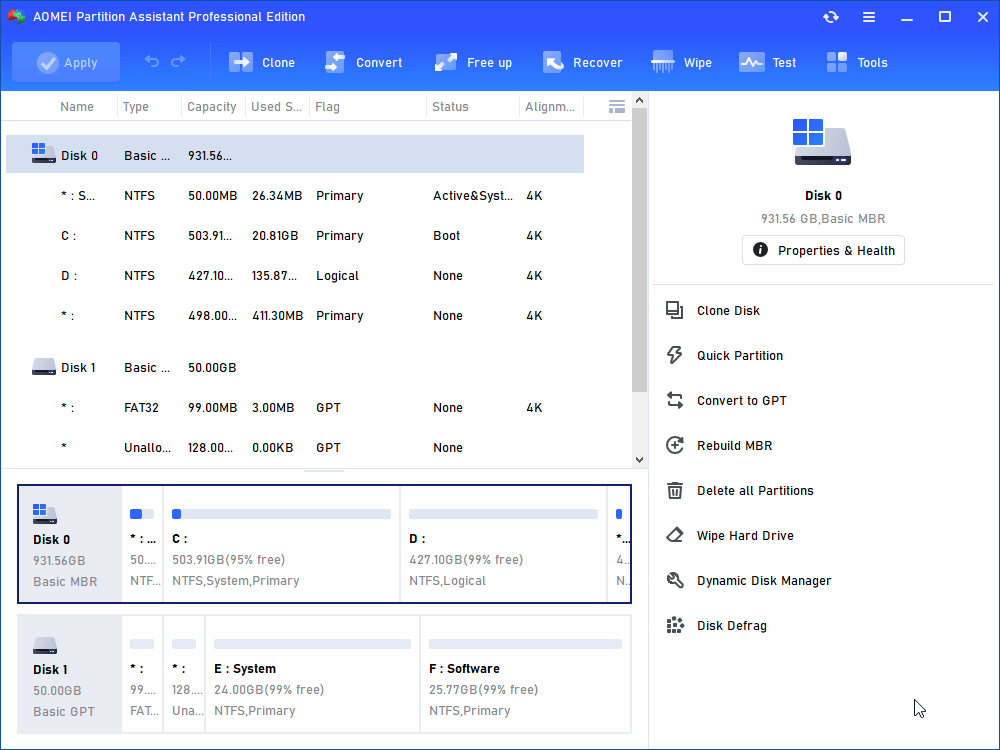
Step 1. Install and launch AOMEI Partition Assistant. Right-click the target MBR boot hard drive and select "Convert to GPT".
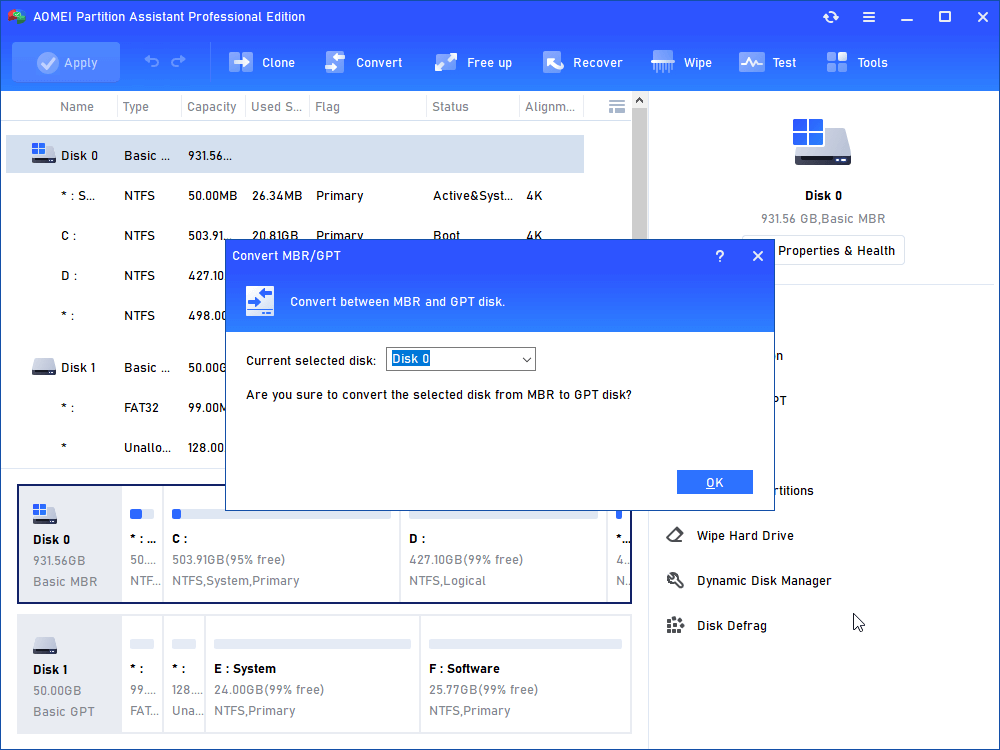
Step 2. Click "OK" to confirm your operation.
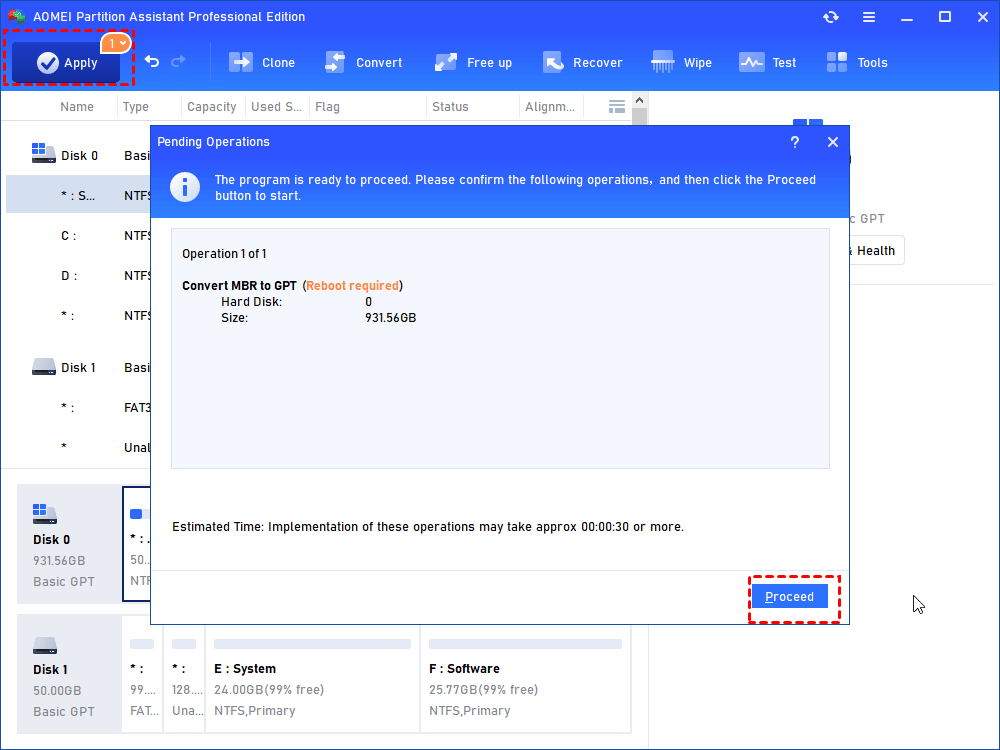
Step 3. Click "Apply" to commit the conversion.
Stage 2. Change Legacy BIOS to UEFI
After converting the disk to GPT partition scheme, you need to take the following steps to change Legacy BIOS to UEFI boot mode.
Step 1. Restart your computer and continuously press a specific key to enter the EFI Setup menu. If you don’t know which key to press, just press Esc to get a full menu, and then you can select BIOS Setup.
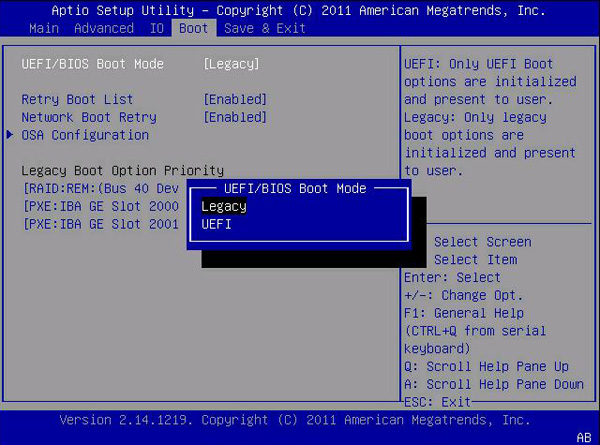
Step 2. Access to Boot tab and hit on UEFI/ BIOS Boot Mode, disable Legacy and enable UEFI.
Step 3. Press F10 to save the settings and then exit to finish Legacy BIOS to UEFI switch.
Now, you have converted MBR system hard drive to GPT and changed the boot mode from Legacy BIOS to UEFI. Next is how to complete Windows 10 version 20h2 upgrade to Windows 11.
Stage 3. Upgrade Windows 10 20H2 to Windows 11
Step 1. Go to Start Menu, and click on "Settings".
Step 2. Click on "Updates&Security" on the Windows Settings screen.
Step 3. In the Windows Update screen, click "Check for updates". If the free Windows 11 upgrade is available, you’ll see an option to download and install it.
Step 4. Click "Download and install". Follow on-screen prompts and configure Windows 11 settings.

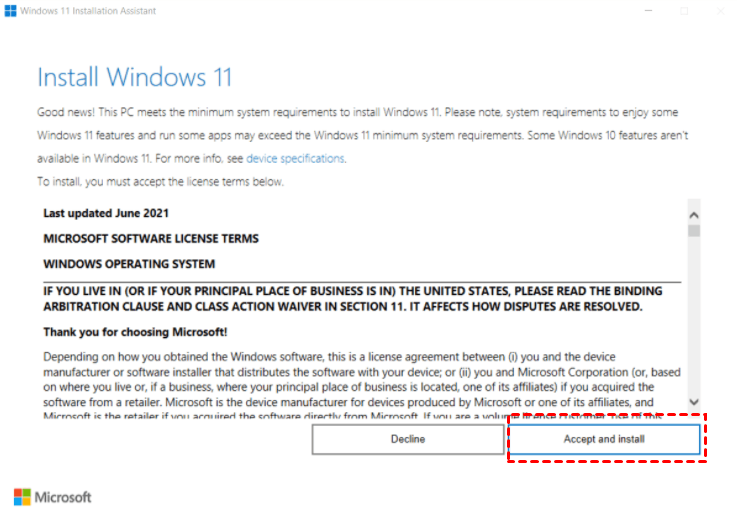
If the Windows 11 update is not available your computer, you can directly turn to Windows 11 Installation Assistant. Open the Download Windows 11 page and click the "Download now" button under the Windows 11 Installation Assistant section.

Open the downloaded Windows11InstallationAssistant.exe file and select Accept and install to begin the upgrade. The tool will automatically install Windows 11 on your device. When the process is complete, you will be asked to restart your computer right away or wait up to 30 minutes if you need time to save your work. After the restart, sign back into your account, and once the final setup finishes, you will see your new Windows 11 desktop ready to use.
Option 2. Enable BitLocker on Windows 10
After October 14, 2025, Windows 10 will stop receiving security patches, increasing the risk of malware infections and data breaches. For users who are unable to upgrade to Windows 11 or purchase Extended Security Updates, protecting personal data becomes a top priority. One of the most effective ways to strengthen system security is through drive encryption.
Microsoft provides BitLocker, a built-in encryption tool that secures your data by restricting unauthorized access. However, BitLocker is not included in the Windows 10 Home edition. If you are using that version, AOMEI Partition Assistant is a dependable alternative that offers similar encryption capabilities. It allows you to encrypt your drives easily, ensuring that sensitive files remain protected. Even after Windows 10 support officially ends, using encryption software like this can continue to safeguard your information and reduce potential security risks.
AOMEI Partition AssistantThe Best Windows Disk Partition Manager and PC Optimizer
Step1. Install and launch AOMEI Partition Assistant. Click the "Tools" main tab and select "BitLocker".
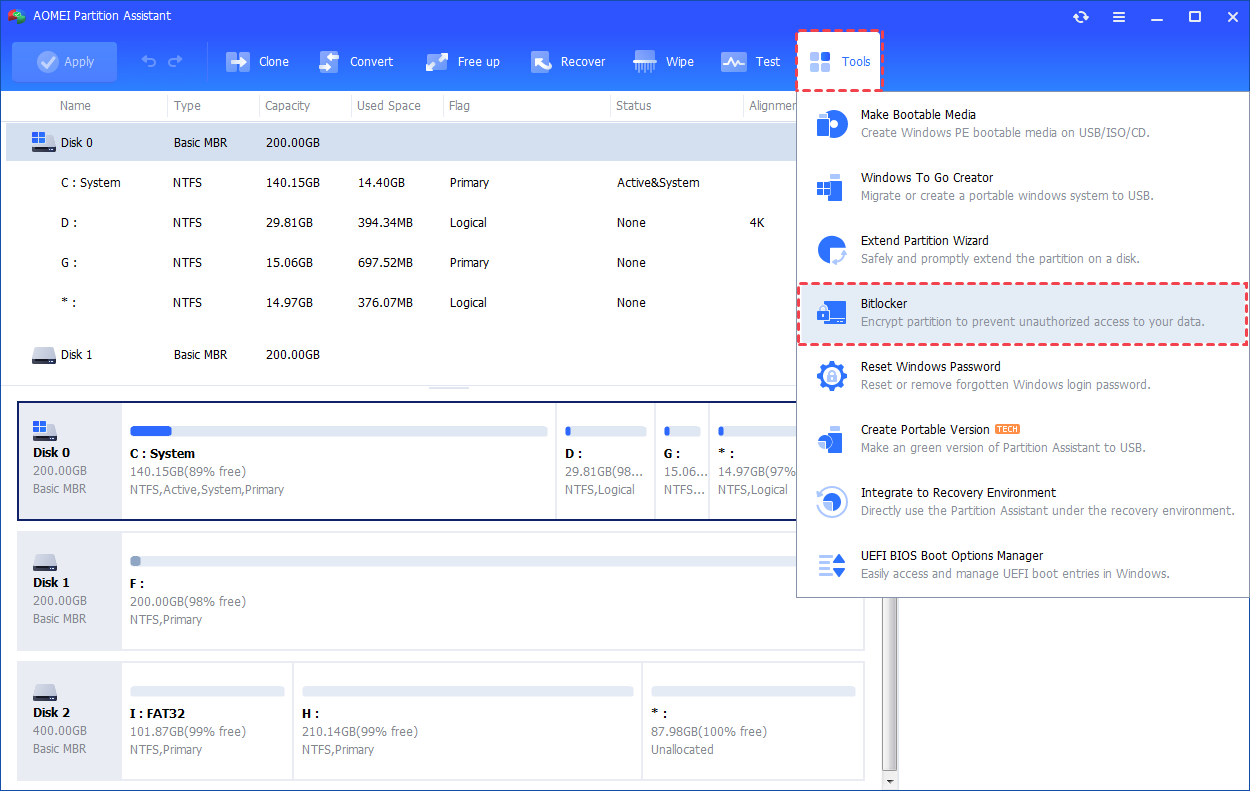
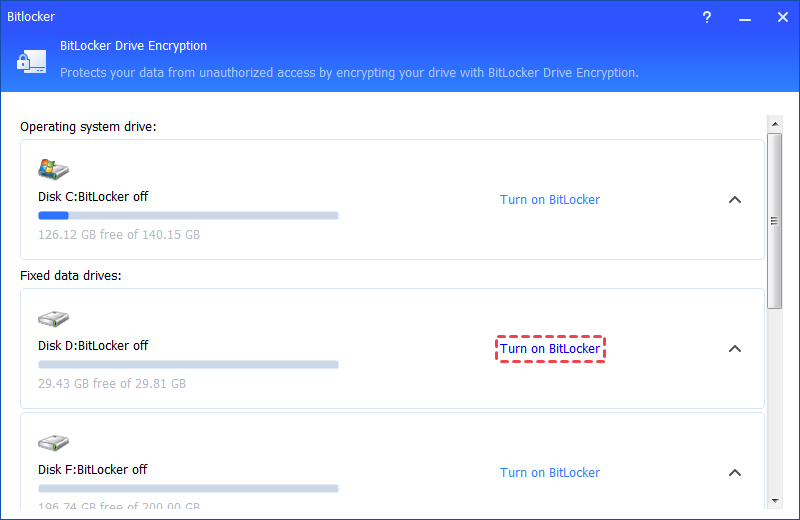
Step 2. All drives on the system will be displayed, including operating system drives, fixed data drives, and removable drives. Please find the system partition you would like to encrypt BitLocker and click the "Turn on BitLocker" option. (Here, we take the drive D: as an example.)
⚠️Notes: It only supports encrypting NTFS partitions. Other partition file systems, for example, FAT or FAT32 cannot be encrypted. To fix this, you can convert FAT32 to NTFS without losing data.
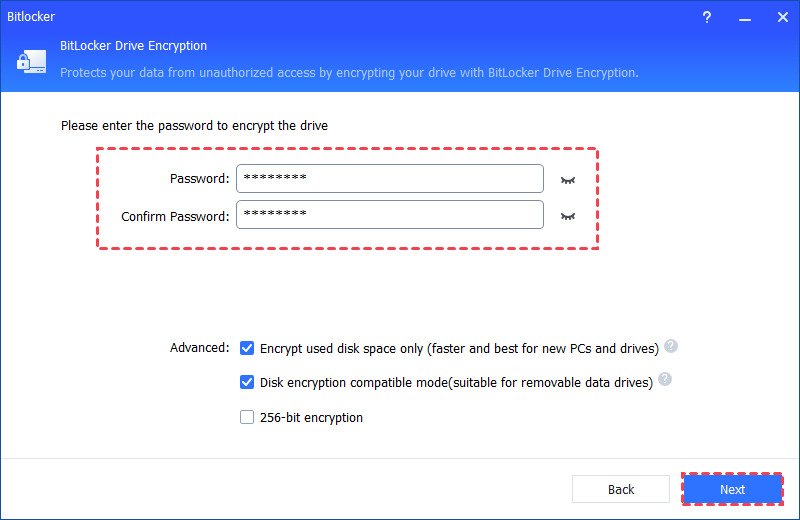
Step 3. Please set and confirm a password to encrypt the drive and click "Next".
Step 4. Select a way to back up your recovery key. You can either select "Save to a file" or "Print the recovery key".
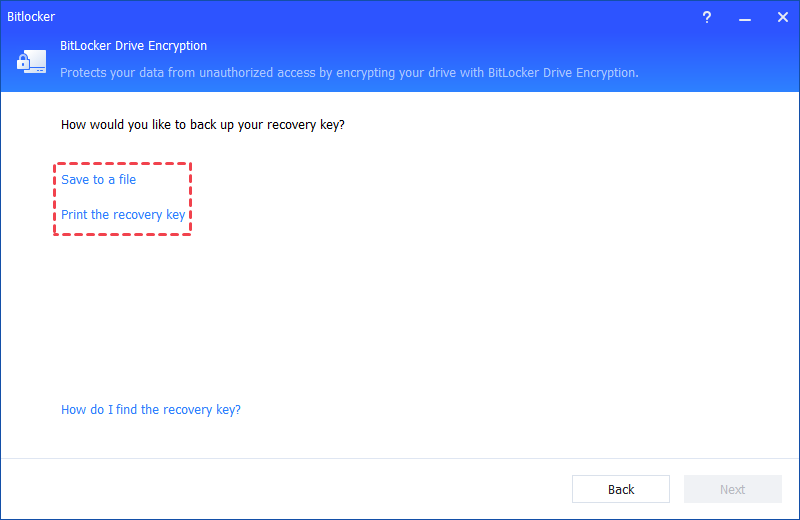
🌟Tips: Please do not save the recovery key in the encrypted drive path. For example, it is unable to encrypt D: and save the recovery key on the same D: drive.
Step 5. If you select "Save to a file", please choose a location on your PC to save the recovery key.
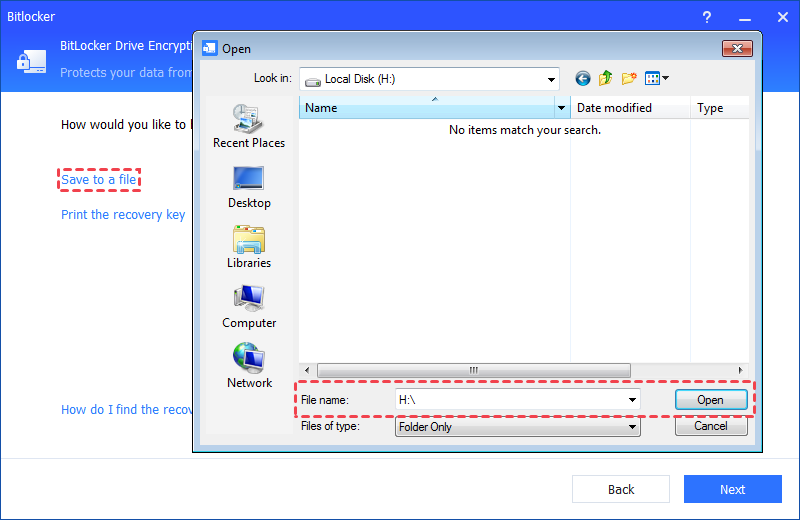
Then, please click the "Next" button to start the encryption process, then you will be required to restart your PC to enter into the Windows PE environment to BitLocker encrypt system drive. Please click "OK" to continue.
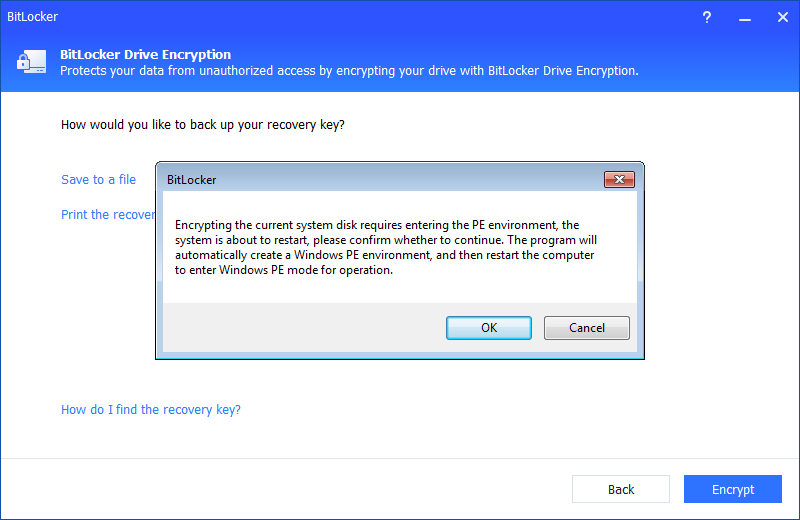
The program will automatically create a Windows PE environment on your PC.
Tips: AOMEI Partition Assistant will automatically detect whether your system has installed Windows AIK/ADK or not. If yes, it will start the Windows PE creation and then enter into WinPE to encrypt the drive. If not, please download and install Windows AIK/ADK first.
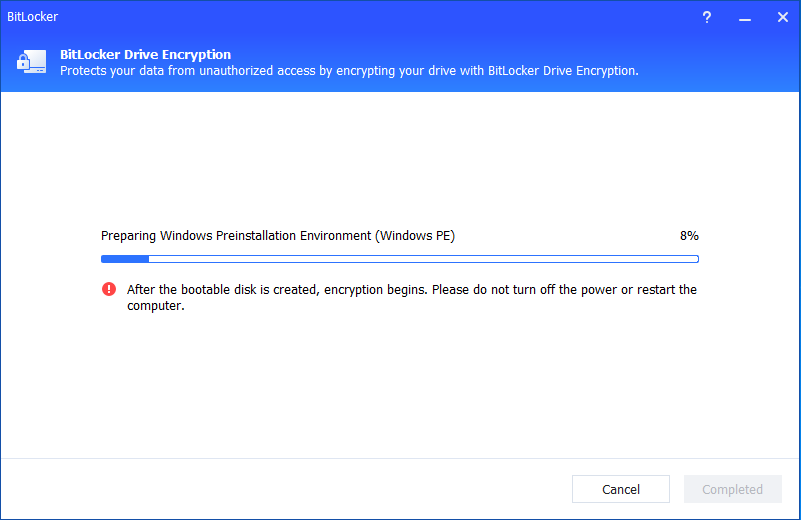
After it is created successfully, the PC will reboot into Windows PE mode to encrypt the drive. After the encryption is completed, you will get an encryption complete window and you can click "OK" to restart your PC.
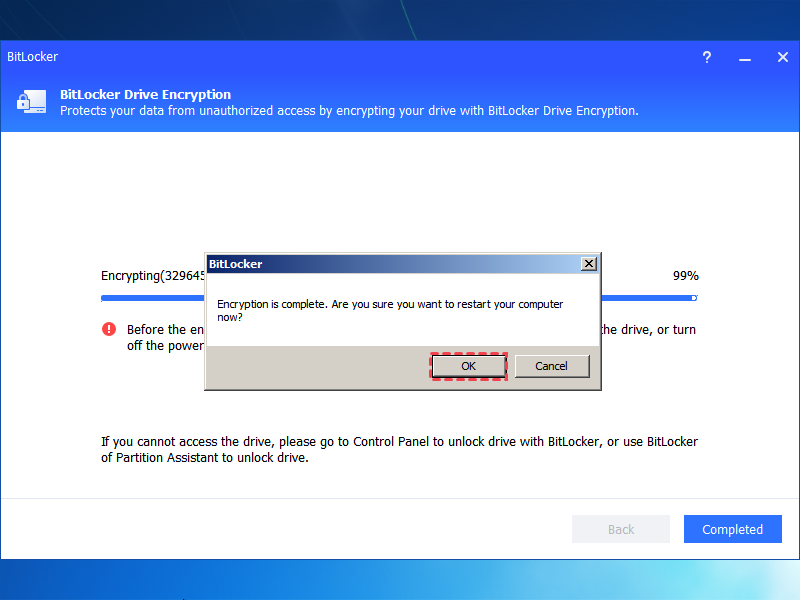
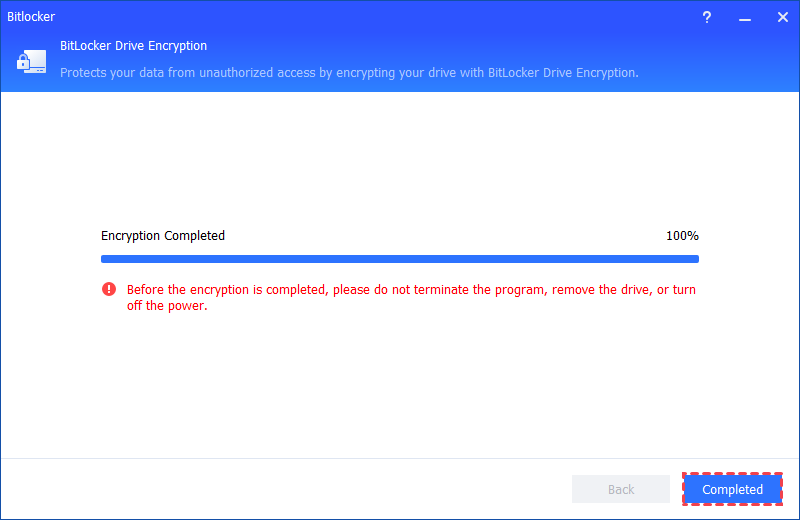
Step 5. The encryption process might take time to encrypt the drive. Before the process is finished, please do not terminate the program, remove the drive, or turn off the power. Once the encryption process is finished, please click "Completed". Finally, the system drive is BitLocker encrypted.
Further reading: Why can't I see the ESU option?
If you want to access the ESU subscription, it is available through the Windows Update panel. Search for Windows Update in the taskbar or Settings, and you may see an Enroll now option for Extended Security Updates on the right side of the panel.
The enrollment wizard is now available on most Windows 10 PCs. If you do not see it yet, keep checking Windows Update, as it may appear after installing the latest monthly updates. Regular checks will ensure you can access and enroll in the program when it becomes visible.
It is important not to ignore extended updates, as staying on Windows 10 without them increases security risks over time. If you continue using Windows 10, enabling BitLocker with AOMEI Partition Assistant and following strong security practices can help protect your data and reduce potential vulnerabilities.
 AOMEI Partition Assistant
The Best Windows Disk Partition Manager and PC Optimizer
For users who prefer not to enroll in ESU or upgrade to Windows 11, moving to another platform, such as a Windows-like Linux distribution, is a practical way to maintain a secure computing environment.
Conclusion
In conclusion, Windows 10 will continue to run after October 2025, but it will no longer receive official updates or support from Microsoft. To stay protected and maintain smooth performance, users should consider upgrading to Windows 11, joining the Extended Security Updates program, or using strong security measures such as BitLocker encryption. Taking these steps ensures your system and data remain safe even after Windows 10 reaches its end of support.
