
 AOMEI Partition Assistant
How to Delete A VHD in Windows 10?
Follow to learn how a VHD can be removed in Windows 10 and provides clear solutions for situations where the system cannot delete the file properly.

By Irene / Updated on November 4, 2025


User case: how to delete a VHD?
I created a VHD from Disk 0, now i'm wondering how do i delete this virtual disk 1 or at list resize it, help please...
- Question from learn.microsoft.com
If you created a virtual hard disk (VHD) in Windows 10 and now need to remove or resize it, you might find it confusing. Many users ask how to delete a VHD in Windows 10 or how to remove a VHD when the system says the file is still in use. Sometimes Windows shows an error like “VHD file is open in system,” preventing deletion. This guide will explain safe and simple ways to delete or manage your VHD without affecting your main system.
How to delete a VHD?
There are different ways to remove a virtual hard disk depending on your preference and system situation. You can delete it through Command Prompt if you are comfortable with command lines, or use Disk Management for a simpler visual method. Both options allow you to safely detach and delete a VHD from your computer.
Method 1. Remove a VHD with Command Prompt
If you prefer a technical approach, you can detach and delete a VHD using Command Prompt. This method works even when the VHD is currently in use.
Step 1. Open Command Prompt by typing cmd in the Start menu, right-click it, and select Run as administrator.
Step 2. Click Yes to allow the program to make changes.
Step 3. Enter the command:
diskpart
This opens the DiskPart utility for managing disks.
Step 4. Select the VHD you want to delete by typing:
select vdisk file="
Step 5. Detach the VHD with the command:
detach vdisk
Step 6. Exit DiskPart by typing:
exit

After these steps, the VHD is safely detached and can be removed from your system.
Method 2. Use Disk Management to delete a VHD
For users who prefer a graphical interface, Windows’ Disk Management tool allows you to delete or detach a VHD without using commands.
Step 1. Right-click This PC and select Manage. Alternatively, press Windows + R, type diskmgmt.msc, and press Enter.
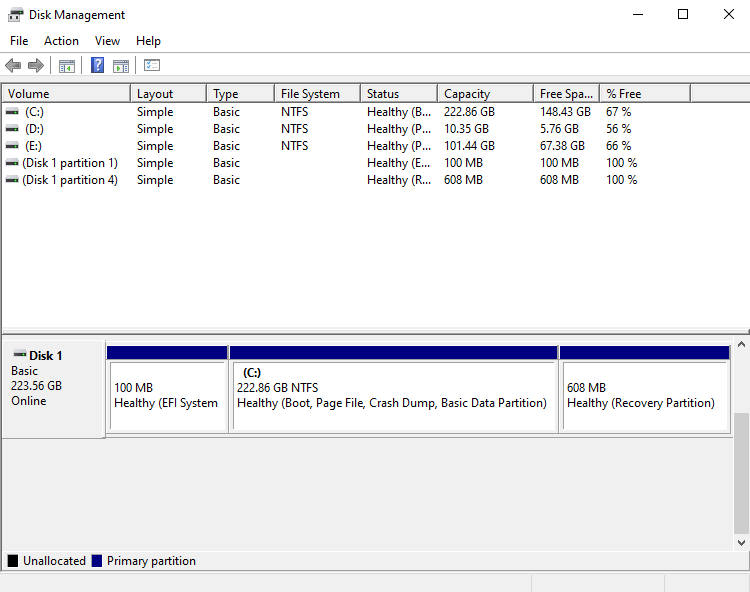
Step 2. In the Computer Management window, go to Storage → Disk Management to see all connected drives, including VHDs.
Step 3. Right-click the VHD you want to remove and select Delete Volume. Confirm when prompted.
Step 4. The VHD will now appear as Unallocated. To completely remove it, right-click the VHD disk icon and select Detach VHD.
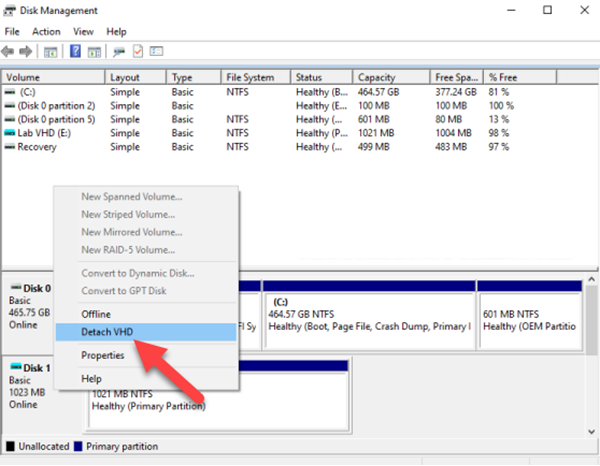
After this, the VHD is fully removed from your system.
What to do if you can not remove a VHD?
In some cases, Windows 10 may prevent you from deleting a VHD, showing errors like “VHD file is open in system” or refusing to remove a mounted virtual disk. This is where a tool like AOMEI Partition Assistant can help. It allows you to safely detach and delete VHD or VHDX files without relying on Command Prompt. Even virtual disks that are currently attached or in use can be managed easily, and multiple VHDs can be handled at once. With its clear interface and preview feature, the software ensures that deleting or managing VHDs is fast, safe, and error-free, making it a practical solution when Windows’ built-in tools are limited.
 AOMEI Partition Assistant
The Best Windows Disk Partition Manager and PC Optimizer
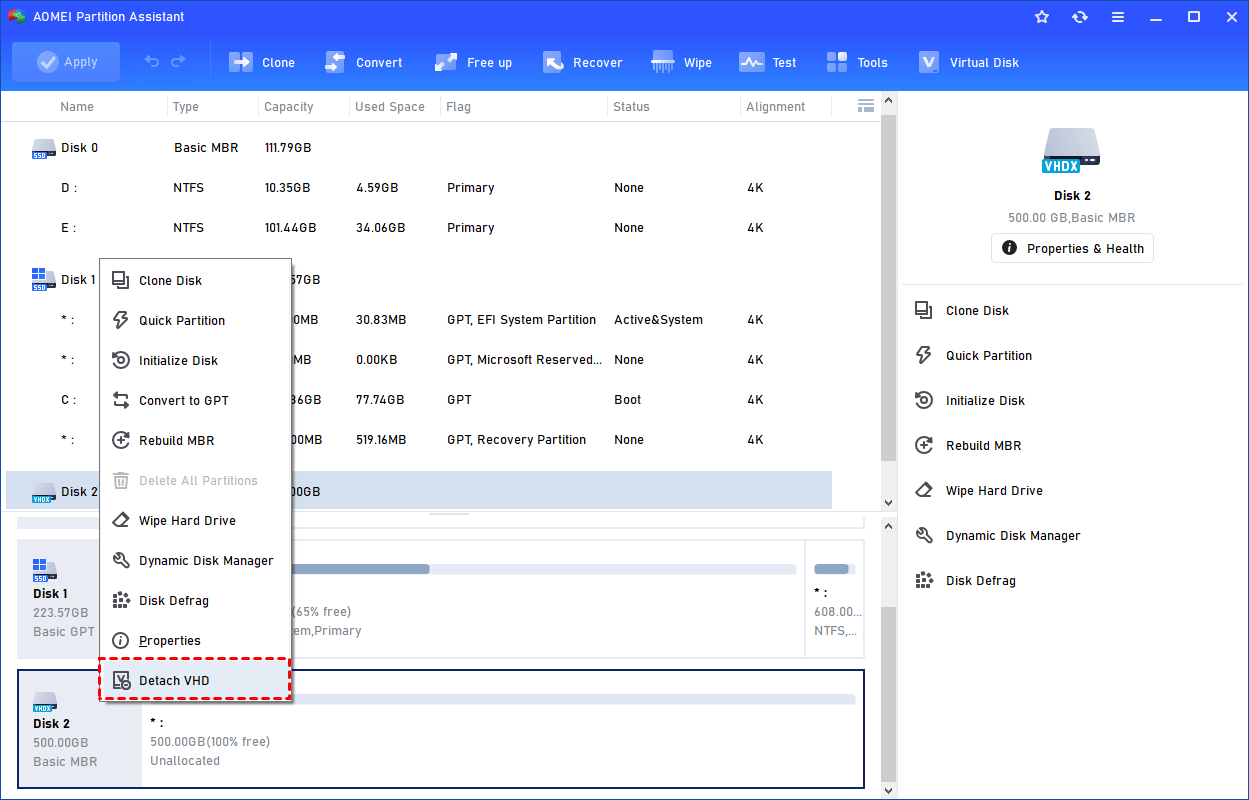
Step 1. Click Detach VHD
You can right-click the attached VHD in Partition Assistant and select the "Detach VHD" option to detach it.
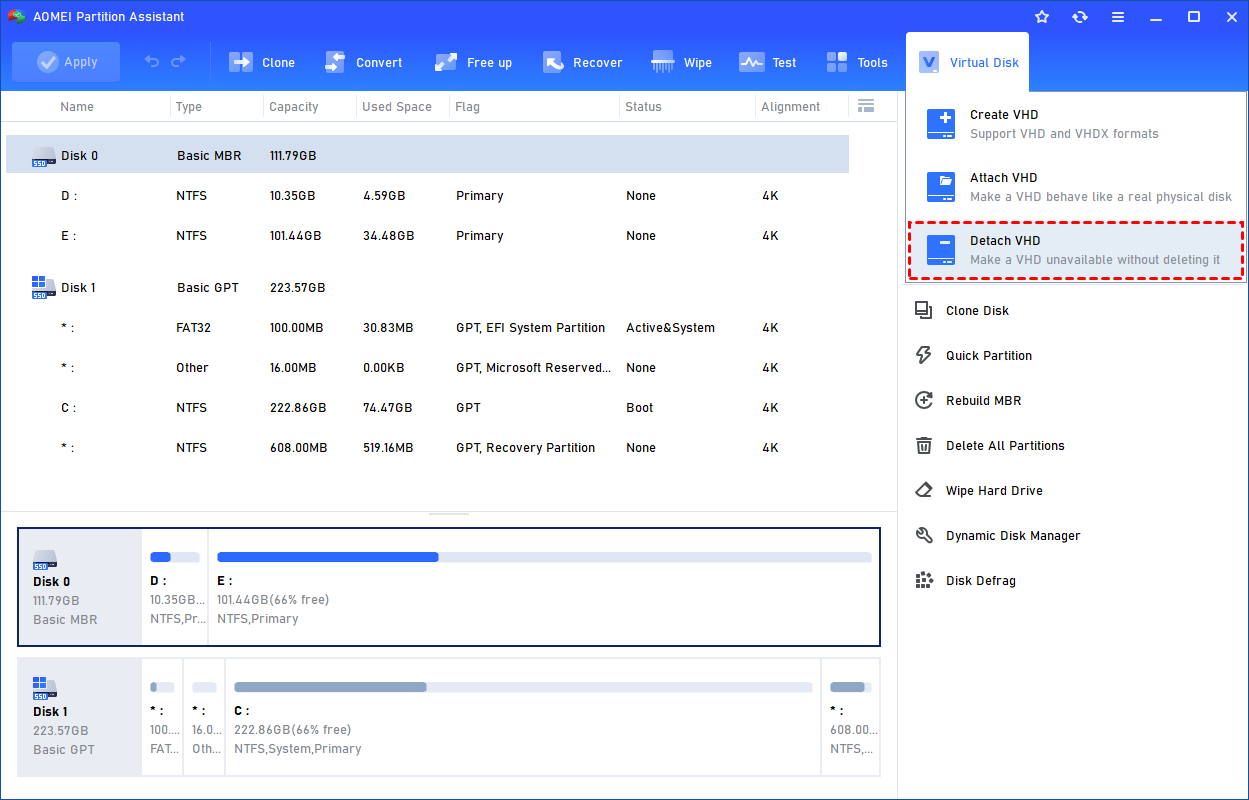
Or, you can select the "Detach VHD" option after clicking the"Virtual Disk" tab.
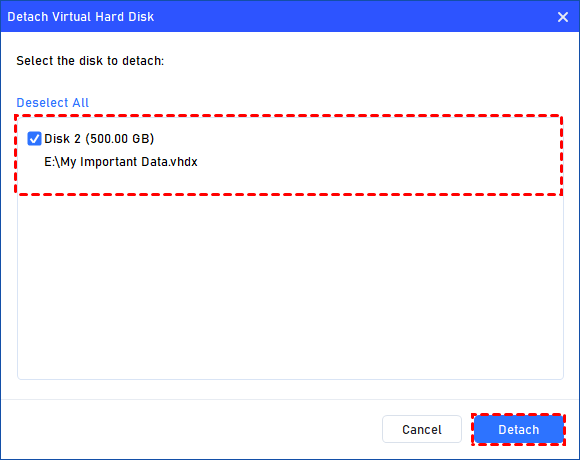
Step 2. Select the Virtual Disk to Detach
You can select and deselect the virtual disk(s) and click the "Detach" button to start detaching the VHD(s).
Step 3. Detach VHD Successfully
Once the process is finished, you will see that the VHD(s) has been removed successfully.
Conclusion
Deleting a VHD in Windows 10 can be done easily using either Command Prompt or Disk Management. However, if Windows reports that the VHD file is still in use or refuses to delete it, a reliable third-party tool like AOMEI Partition Assistant can make the process much simpler and safer. With its clear interface and quick steps, it helps you remove or manage VHDs without errors, ensuring your system stays clean and well-organized. If you are a Windows Server user who needs to delete a VHD, please choose AOMEI Partition Assistant Server edition. With this multifunctional software, you can enhance system performance, free up disk space, clone your drive without reinstalling anything, and even repair boot issues easily at home.
