
 AOMEI Partition Assistant
How to Move OS File to Partition Windows 10/11
Why need to move OS file to another partition? In this post, you will know the reasons and learn how to move OS file to partition Windows 10/11 step by step.

By Hedy / Updated on March 5, 2026


Why move OS file to another partition?
What exactly are OS files? Simply put, they’re the heart and soul of Windows. These include files needed to boot, run, and manage your system — things like winload.exe, system registries, drivers, and more. By default, Windows stores all these on the C drive, often crowding it up over time.
Moving OS files or even the entire operating system to another partition can serve several purposes. Here are the main reasons why someone might choose to do this:
1. Free up space on the system drive
If your C: drive (usually the system partition) is running out of space, moving OS-related files or even migrating the OS to a larger partition can help improve system performance and prevent errors.
2. Optimize disk usage
Sometimes, the OS is installed on a small SSD while there's a much larger HDD available. Moving the OS to the larger or faster drive can make better use of available storage or speed up the system.
3. Upgrade to a new drive
When upgrading from an old hard drive to a newer, faster SSD, many users migrate the OS to the new drive to enjoy quicker boot times and better performance without reinstalling everything.
4. System backup &recovery
Having the OS on a separate partition makes it easier to back up and restore your system without affecting personal files. This setup is useful for disaster recovery.
5. Fix OS errors or corruption
If the original system partition is corrupted or damaged, moving OS files to a new partition may be a way to recover the system or restore functionality.
What to do before moving OS file to a partition?
Before moving the OS files—or migrating the entire operating system—to another partition, it's important to take several precautionary and preparatory steps. This ensures the process goes smoothly and avoids system failure or data loss.
Here’s a checklist of what you should do before moving OS files to another partition:
1. Backup your entire system
To avoid data loss, it’s imperative to create a full system image backup to an external drive or cloud storage. Use backup tools like Windows Backup or AOMEI Backupper to backup important personal files separately as well.
2. Check disk health
Use tools like CHKDSK or third-party software to check for bad sectors on both the source and target partitions. This ensures the destination partition is healthy enough to hold OS files.
3. Ensure enough free space on target partition
Make sure the new partition has enough free space to accommodate the operating system and related files. Ideally, the target partition should be larger than the used space on the current system partition.
4. Clean up the current OS partition
Delete unnecessary files, temporary files, and unused programs. Run Disk Cleanup or a third-party tool like AOMEI Partition Assistant to reduce the amount of data that needs to be moved.
5. Defragment the disk (If using HDD)
If you’re moving from or to a mechanical hard drive (HDD), run defragmentation to optimize file placement. Skip this step if using an SSD, as defragmentation isn't needed and can shorten SSD lifespan.
6. Choose the right tool for migration
It’s hard to simply cut system files and paste to another partition. One of the safe ways is to use a reliable OS migration tool, which always comes with specialized functions to complete the operation.
How to move OS file to partition Windows 10/11
To move the OS to another partition in Windows 10/11, you typically need third-party software since Windows doesn't offer a built-in tool for migrating the operating system. AOMEI Partition Assistant is a powerful and user-friendly disk management tool designed for Windows users. It's widely trusted for tasks like resizing, merging, splitting, and formatting partitions.
One of its standout features is the ability to move the operating system (OS) to another partition or disk, making system migration easier and more efficient, especially when upgrading to a new SSD or reorganizing disk space.
With the "Migrate OS to SSD/HDD" feature, you can transfer all essential system files, boot files, and configurations from your current system partition to another partition or even a different drive. This process ensures that your computer can boot successfully from the new location without needing to reinstall Windows or any applications.
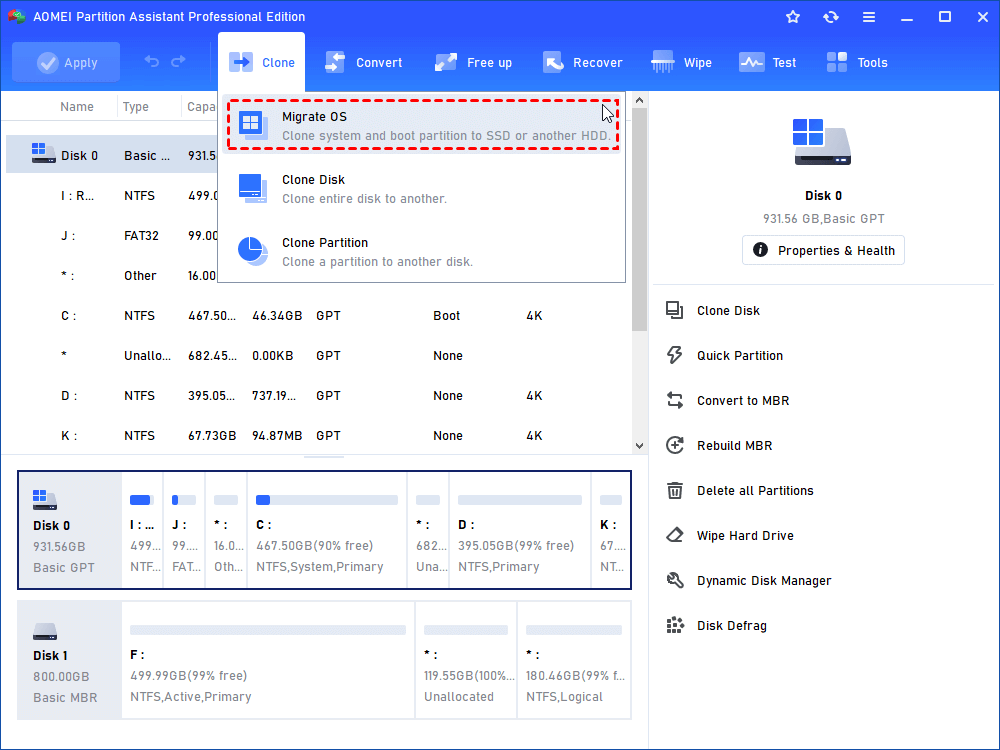
Step 1. Install and run AOMEI Partition Assistant. Next, click on the ‘Migrate OS’ option and read the introduction.
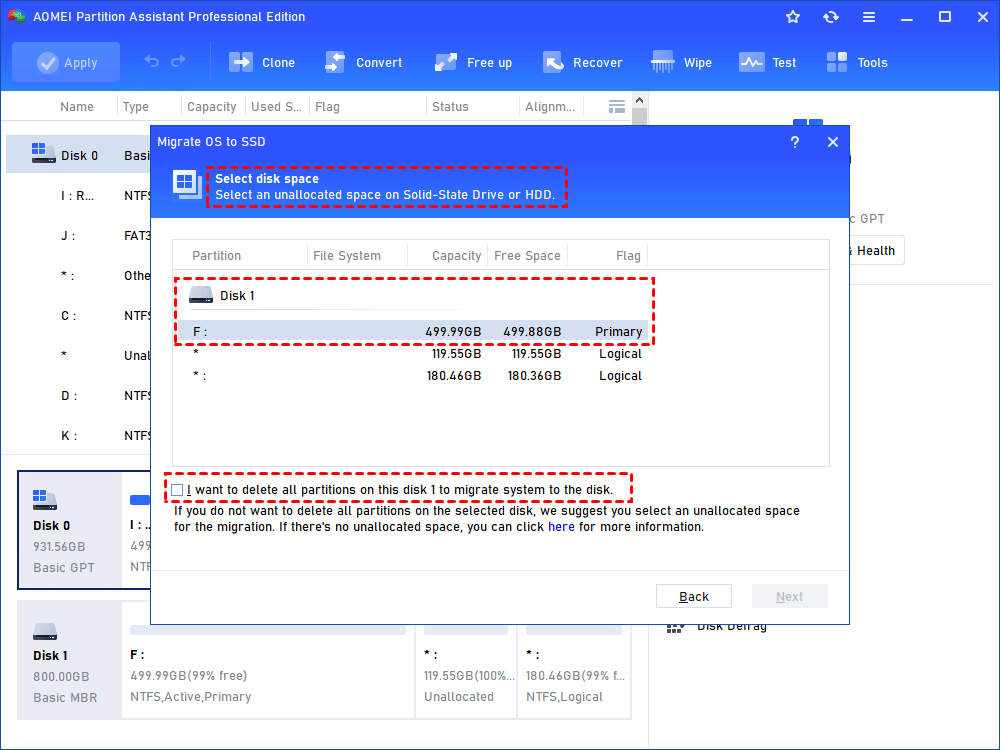
Step 2. Select your SSD as the destination for the OS transfer. If there are partition on the SSD you need to check “I want to delete all partitions on the disk 2 to migrate system to the disk”. Once checked, the ‘Next’ button will activate, you should now click on it.
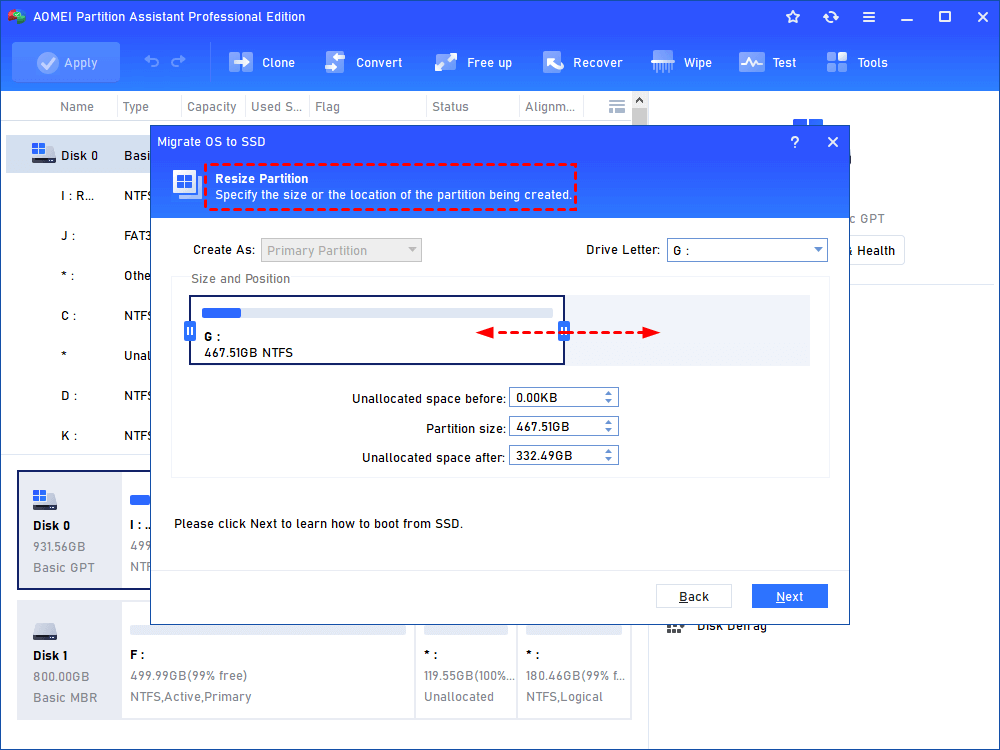
Step 3. You now have the option to resize the system partition and change the drive letter on the new SSD.
Step 4. Read the troubleshooting guide on how to boot from the destination disk as you may need this later.
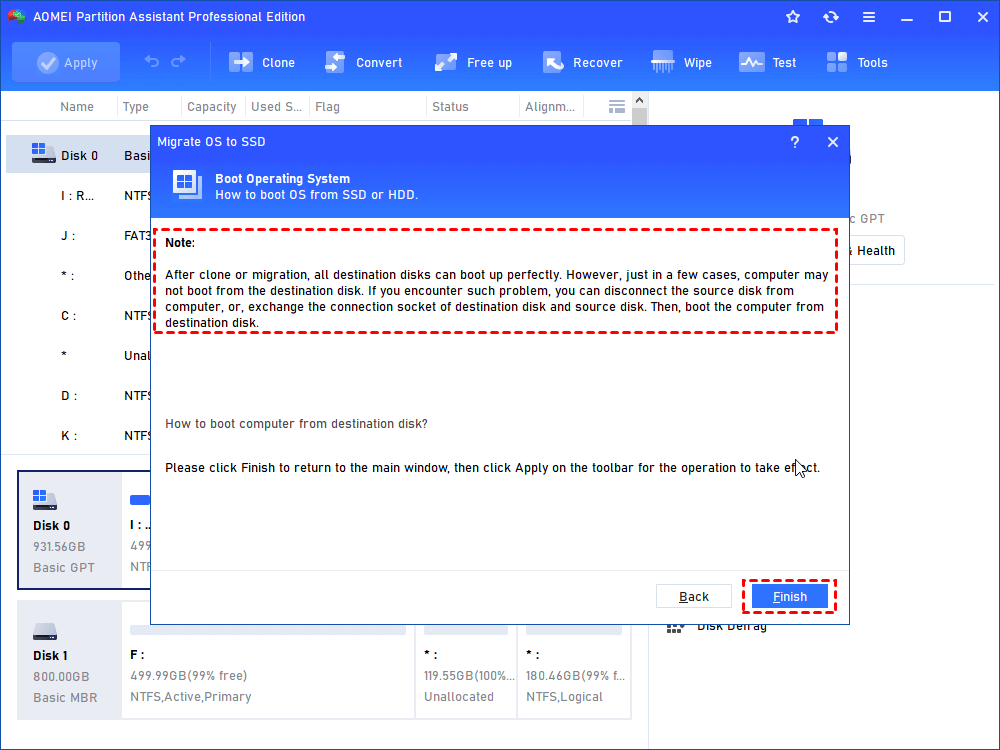
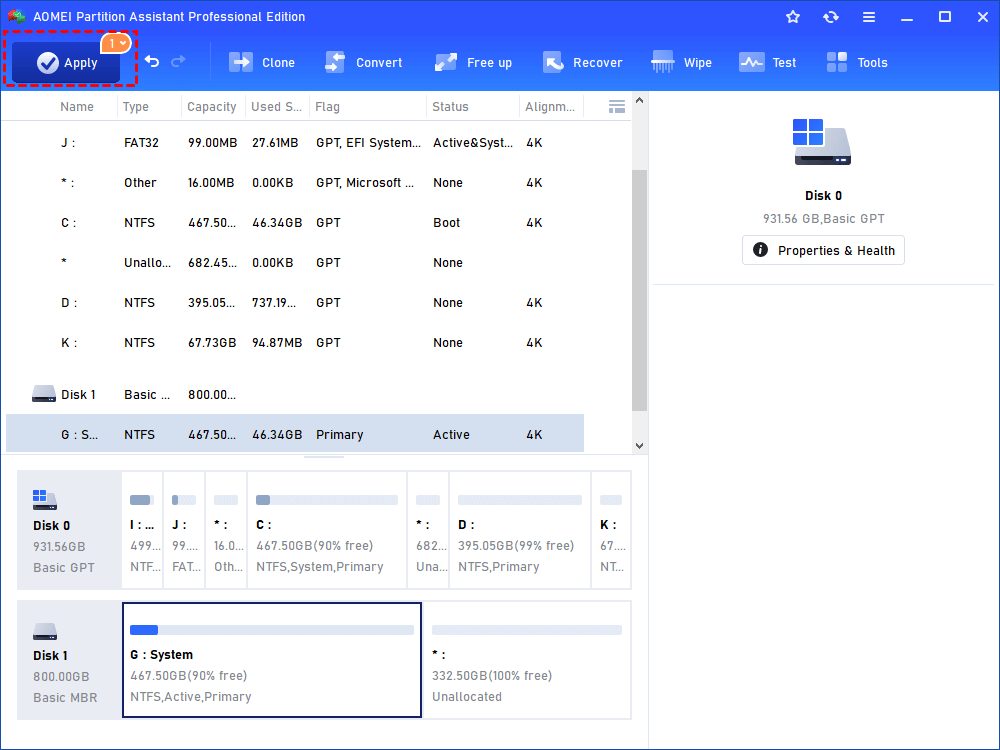
Step 5. Click ‘Apply’ and then ‘Proceed’ to transfer OS to new SSD drive.
Conclusion
That’s all about how to move OS file to partition Windows 10 or 11. This post recommends a reliable tool called AOMEI Partition Assistant to realize the process of moving OS files to another partition. With its “Migrate OS to SSD/HDD” feature, you can safely transfer your operating system without reinstalling everything, ensuring a smoother, faster, and more efficient computing experience.
In addition, AOMEI Partition Assistant is also a good helper in solving other partition problems, such as SSD not showing up, can’t open files on USB, cloned SSD won’t boot, and so on.
