
 AOMEI Partition Assistant
Resolving the "Virtual Disk Manager Incorrect Function" Error in Windows
Struggling with 'virtual disk manager incorrect function' when you initialize a disk? Learn how to fix the issue with step-by-step solutions and discover a powerful tool that resolves errors Disk Management can't.

By Lucas / Updated on November 18, 2025


When you manage storage on your PC, the built-in Disk Management tool is usually a reliable utility. However, users can be stumped by a cryptic and frustrating error message: "Virtual Disk Manager: Incorrect function." This issue often appears when you're trying to perform a fundamental task, such as creating a new partition, assigning a drive letter, or, most commonly, when you see the virtual disk manager incorrect function initialize disk error with a new drive.
This error is particularly prevalent for users on newer systems, with many searching for a fix for virtual disk manager incorrect function Windows 11. This guide will explain the common causes behind this vague error and provide you with a clear path to resolving it, including a look at a powerful alternative to the default Windows tools.
Why is Virtual Disk Manager Incorrect Function?
The "Incorrect function" error is frustrating because it offers no specific details about the problem's source. This section will break down the most common underlying causes. The error is typically a signal that the operating system has encountered an unexpected problem while trying to communicate with the storage device. This can stem from several issues:
Driver or Hardware Issues: The most common culprit is a problem with the connection or the drivers. This could be a faulty USB cable, a problematic motherboard port, or outdated or corrupted storage controller drivers that prevent Windows from interacting with the disk correctly.
Disk Errors or Corruption: The hard drive or SSD itself might have bad sectors, a corrupted file system, or be in a raw or uninitialized state that the standard Disk Management tool struggles to handle.
Third-Party Software Conflicts: Sometimes, other disk management utilities, antivirus software, or encryption tools can interfere with the low-level disk operations that Virtual Disk Manager relies on.
The Drive is Write-Protected: In some cases, a physical switch on a USB adapter or a software-level protection setting can prevent Windows from making changes to the disk, triggering the error.
How to Fix "Virtual Disk Manager Incorrect Function"
Before seeking out alternatives, it's worth attempting to resolve the issue with some built-in Windows troubleshooting steps. This section provides a few methods to try.
1. Basic Hardware Troubleshooting
Step 1. Start with the simplest potential points of failure.
Step 2. Check Connections: Unplug the drive and plug it back in firmly. If it's an external drive, try a different USB port and a different cable if you have one.
Step 3. Test on Another PC: Connect the drive to a different computer. If it works there, the issue is likely with the drivers or ports on your original machine.
2. Update Storage Drivers
Outdated drivers are a frequent cause of communication errors.
Step 1. Right-click the Start button and select "Device Manager." Expand the "Disk drives" and "Storage controllers" sections.
Step 2. Right-click on your disk drive and the relevant controller (e.g., "Standard NVM Express Controller" or "Intel SATA AHCI Controller") and select "Update driver."
Step 3. Choose "Search automatically for drivers" and let Windows find the best one.

3. Use the DiskPart Command-Line Utility
DiskPart is a more powerful tool than Disk Management and can sometimes force an operation to succeed where the graphical interface fails. Warning: The following steps will permanently erase all data on the selected disk.
Step 1. Open Command Prompt as an administrator. Type diskpart and press Enter.
Step 2. Type list disk to see all connected drives. Identify the problematic disk and type select disk X (where X is the disk number).
Step 3. Type clean and press Enter. This will wipe all partition information from the disk.
You can now try to initialize the disk again in Disk Management.
Alternative to Virtual Disk Manager--AOMEI Partition Assistant
If the native tools fail to resolve the virtual disk manager incorrect function, it’s time to turn to a more robust and user-friendly solution. AOMEI Partition Assistant Professional is a comprehensive disk and partition management suite that serves as a powerful alternative to the standard Windows Virtual Disk Manager. It is designed with advanced algorithms that can often succeed where the built-in tools fail, all through a clean and intuitive graphical interface.
AOMEI Partition Assistant Professional is not just a problem-solver; it's a complete disk management toolkit. Recently, it has expanded its feature set to include integrated virtual disk functions, allowing you to create, attach, and detach VHD/VHDX files directly within the software. This makes it a true, all-in-one replacement for managing both your physical and virtual storage.
 100% Secure
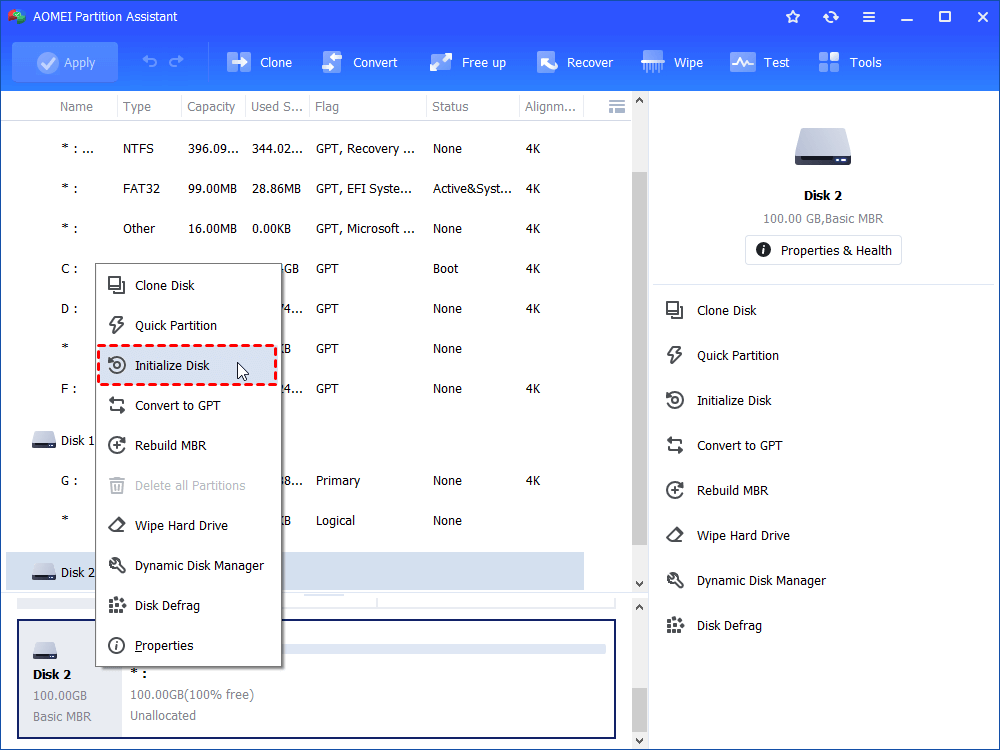
Step 1: Select Disk to Initialize. Launch AOMEI Partition Assistant and right click on the raw disk which you want to initialize, let's take Disk 2 as an example. Choose "Initialize Disk" in the pop-up menu.
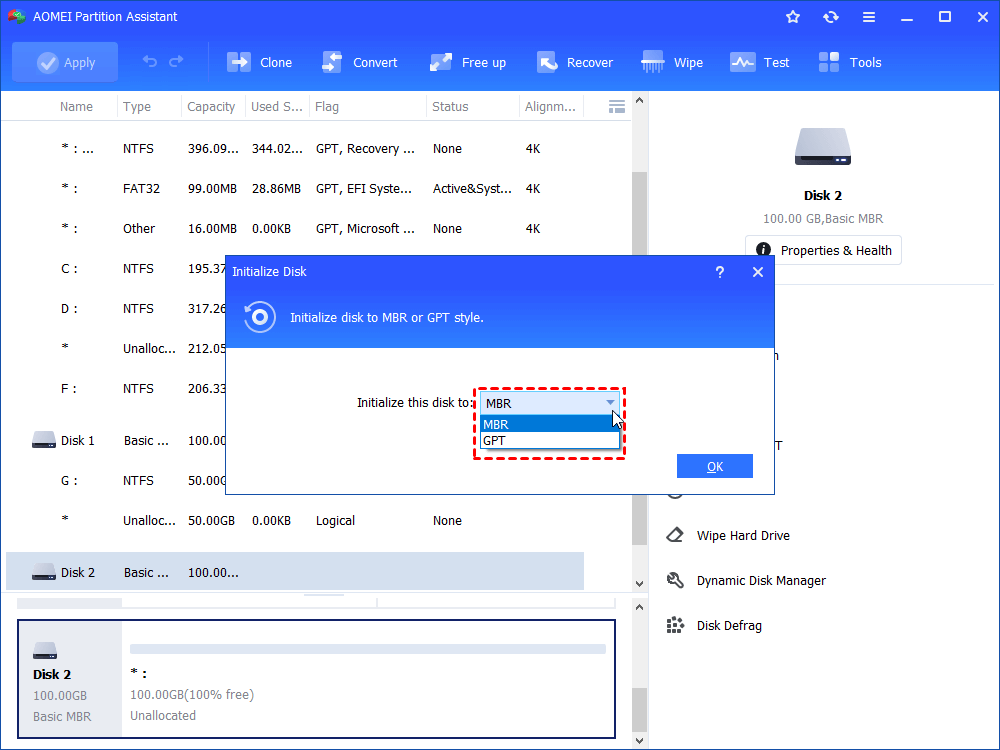
Step 2: Select Disk Type to Initialize. In the pop up window, there will be two options for you to choose. You can initialize the disk to MBR or GPT style. Click "OK" to continue.
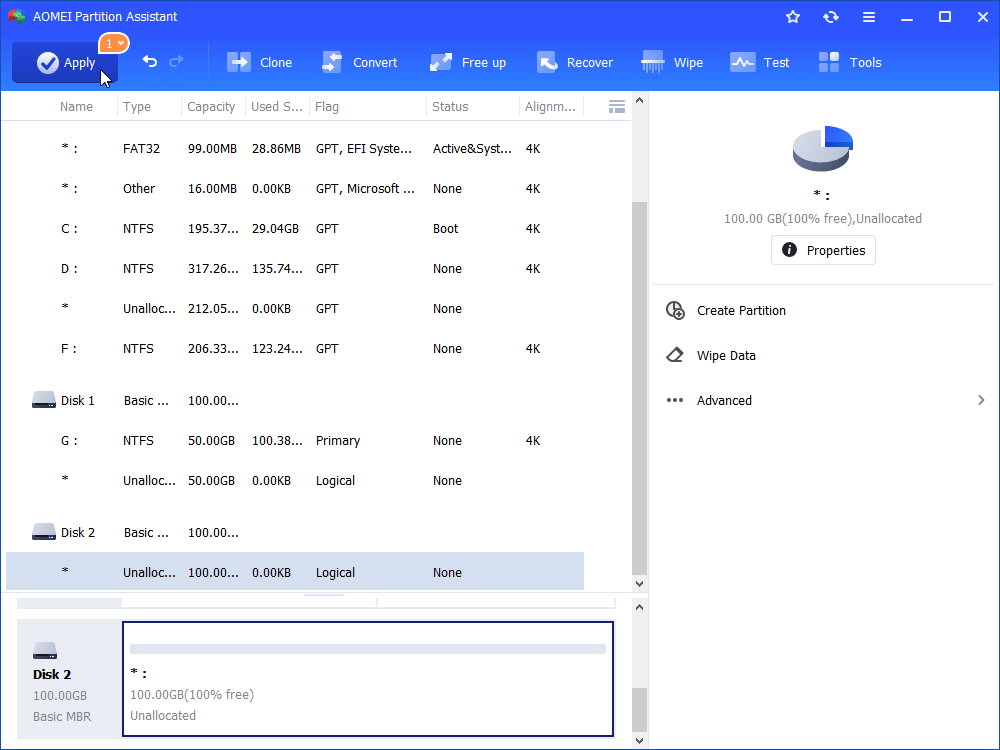
Step 3: Apply to Proceed. Click "Apply" to wait for process to complete.
Beyond this fix, AOMEI Partition Assistant Professional is packed with other handy functions that Windows tools can't match, such as:
- Migrating your entire OS to a new SSD without reinstallation.
- Converting between MBR and GPT partition styles without data loss.
- Cloning an entire disk to another for backup or upgrade.
- Recovering lost or deleted partitions.
To sum up
Encountering the "virtual disk manager incorrect function" error can be a major roadblock, but it is not an insurmountable one. While basic troubleshooting like checking hardware and updating drivers should be your first steps, the limitations of built-in Windows tools can often leave you stuck.
For a reliable, powerful, and user-friendly solution, AOMEI Partition Assistant Professional stands out as a superior alternative. It not only resolves common errors with ease but also provides a vast suite of advanced features for managing both physical and virtual disks, making it an essential tool for any serious Windows user.
