
 AOMEI Partition Assistant
Windows Security Update Fee: How Much Does Windows 10 ESU Cost?
The article introduces the Microsoft Windows security update fee and the cost of Windows 10 ESU after support ends. It also shares a simple way for users to keep Windows 10 protected.

By Irene / Updated on November 7, 2025


What is the Windows Security Update fee?
Microsoft has confirmed that support for Windows 10 will end on October 14, 2025. After this date, your computer will no longer receive security updates, new features, or technical help. To stay protected, Microsoft encourages users to upgrade to Windows 11.
However, if your PC cannot run Windows 11, you can join the Extended Security Updates (ESU) program. This paid service provides critical security patches for a limited time, helping you keep your system safe from threats. For home users, the ESU program costs $30 per year, while businesses and schools have different pricing plans depending on the edition.
Below is an overview of the estimated ESU costs for each Windows 10 edition:
| Year | Windows 10 Pro | Windows 10 Enterprise | Windows 10 Education | Windows 10 Home |
|---|---|---|---|---|
| 2025–2026 | $61 per device | $47 per device | ~$1–$5 per device | Not eligible |
| 2026–2027 | $122 per device | $94 per device | ~$2–$10 per device | Not eligible |
| 2027–2028 | $244 per device | $188 per device | ~$4–$20 per device | Not eligible |
The ESU price increases every year, so upgrading earlier can help lower costs. For individual users, Microsoft also offers a free one-year update option if you connect your OneDrive account and enable cloud backup. This allows continued updates until October 2026, though extra storage fees may apply if your backup exceeds the 5GB free limit.
In short, the Windows 10 Security Update fee depends on your device type and edition. If your PC supports Windows 11, upgrading is the most cost-effective long-term choice. But if not, the ESU or OneDrive option ensures your system stays secure for a bit longer.
What can you do after Windows 10 end of support?
When Windows 10 support ends on October 14, 2025, your PC will stop receiving security updates. Without these updates, your system could be at risk from viruses, malware, and other cyber threats. The safest approach is to move to Windows 11 if your hardware allows it. For those who cannot upgrade, the Extended Security Updates (ESU) program is an option, but it does not cover Windows 10 Home unless you switch to Pro or Enterprise.
Another way to protect your data is by encrypting your drives. Encryption ensures that files are unreadable without the right password or key. Windows includes BitLocker, but it is only available for Pro, Enterprise, and Education editions. For Home users, AOMEI Partition Assistant provides a similar encryption feature that works on all Windows 10 editions. With this tool, you can secure your system drive so your files remain safe even after Windows 10 stops receiving updates.
Using encryption gives you continued protection and peace of mind without depending on Microsoft’s updates.
 AOMEI Partition Assistant
The Best Windows Disk Partition Manager and PC Optimizer
Step1. Install and launch AOMEI Partition Assistant. Click the "Tools" main tab and select "BitLocker".
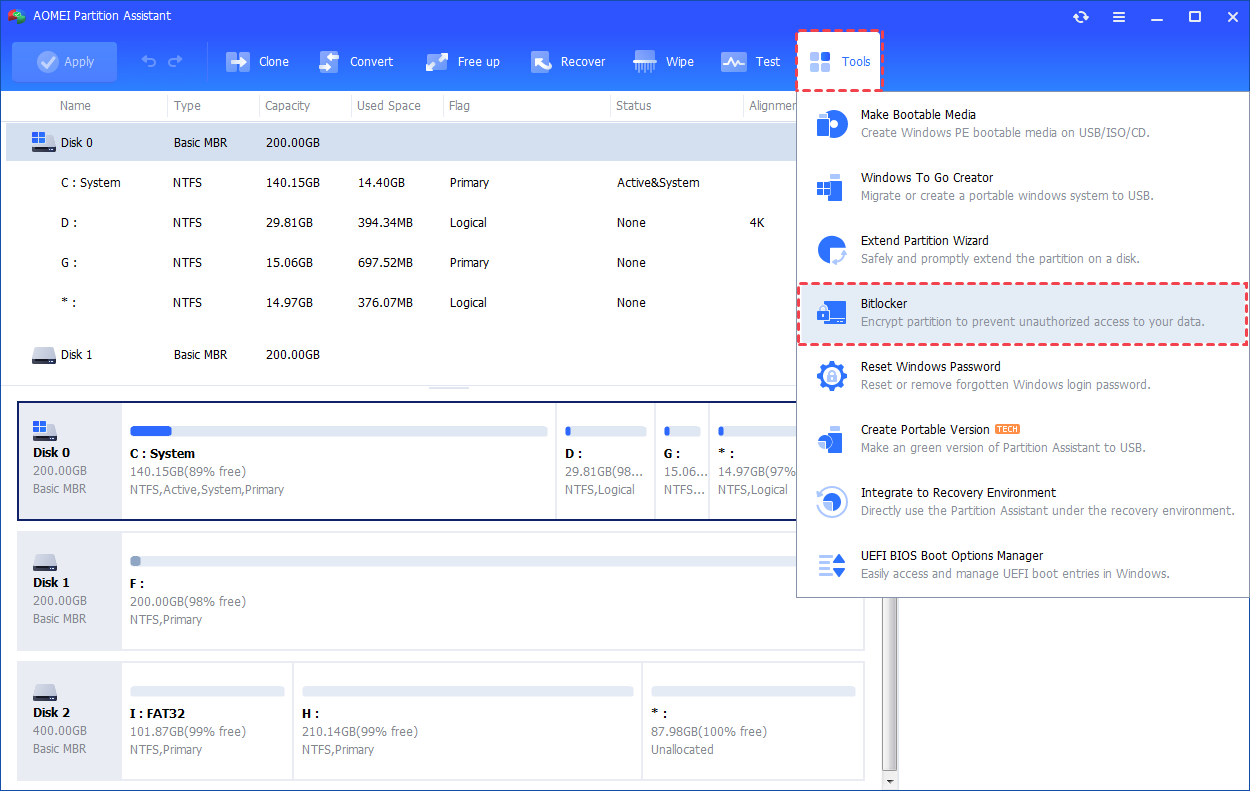
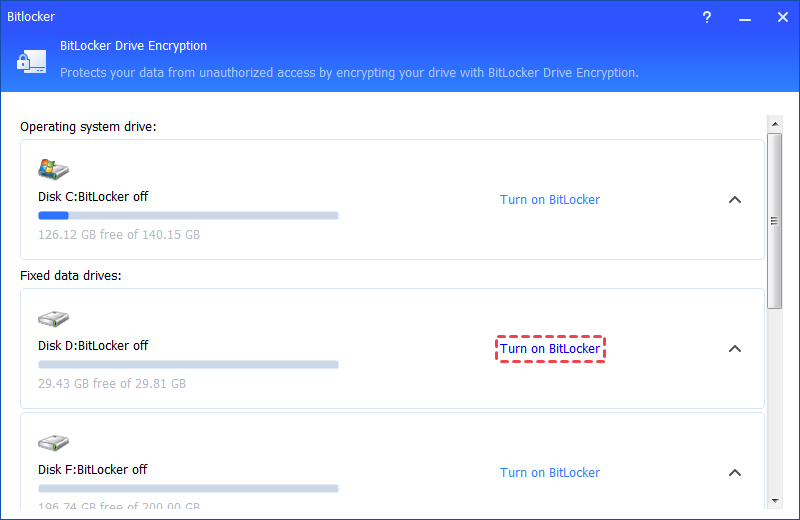
Step 2. All drives on the system will be displayed, including operating system drives, fixed data drives, and removable drives. Please find the system partition you would like to encrypt BitLocker and click the "Turn on BitLocker" option. (Here, we take the drive D: as an example.)
⚠️Notes: It only supports encrypting NTFS partitions. Other partition file systems, for example, FAT or FAT32 cannot be encrypted. To fix this, you can convert FAT32 to NTFS without losing data.
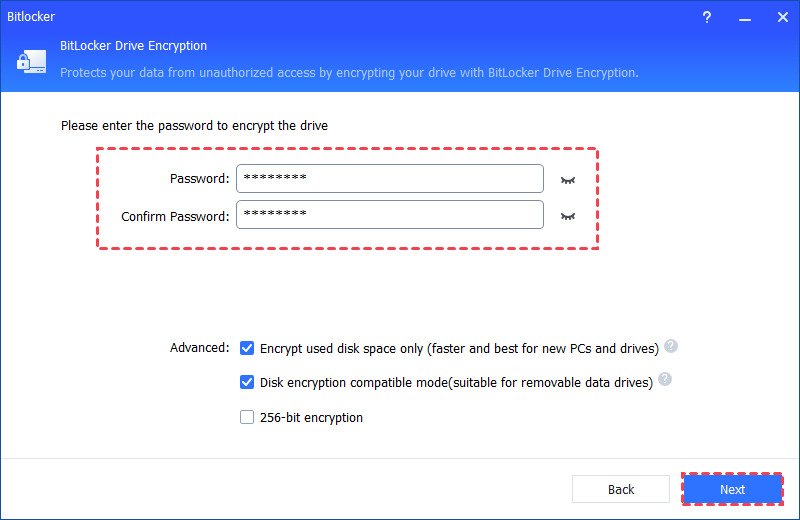
Step 3. Please set and confirm a password to encrypt the drive and click "Next".
Step 4. Select a way to back up your recovery key. You can either select "Save to a file" or "Print the recovery key".
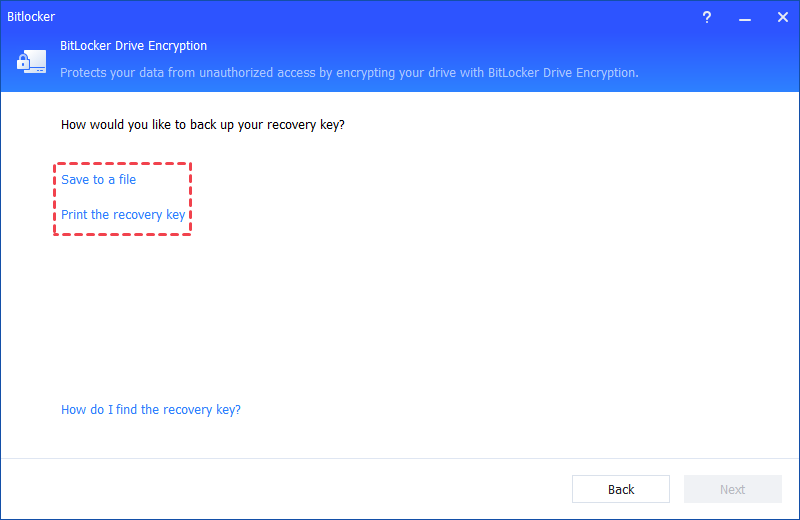
🌟Tips: Please do not save the recovery key in the encrypted drive path. For example, it is unable to encrypt D: and save the recovery key on the same D: drive.
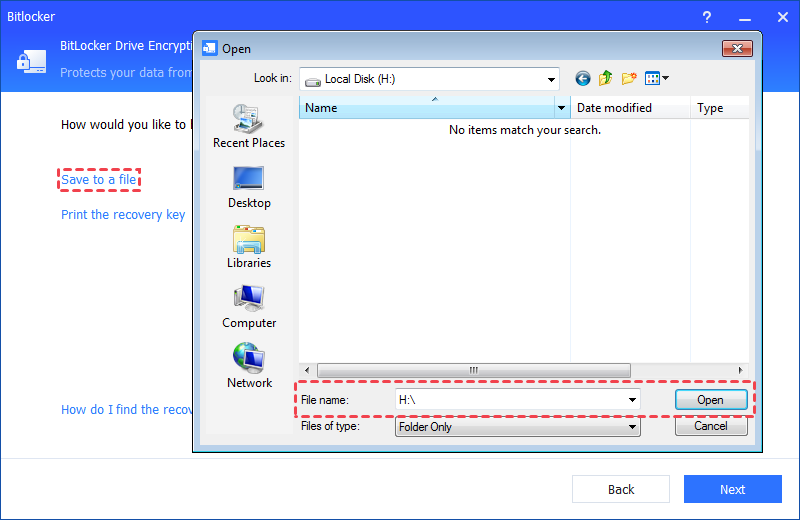
Step 5. If you select "Save to a file", please choose a location on your PC to save the recovery key.
Then, please click the "Next" button to start the encryption process, then you will be required to restart your PC to enter into the Windows PE environment to BitLocker encrypt system drive. Please click "OK" to continue.
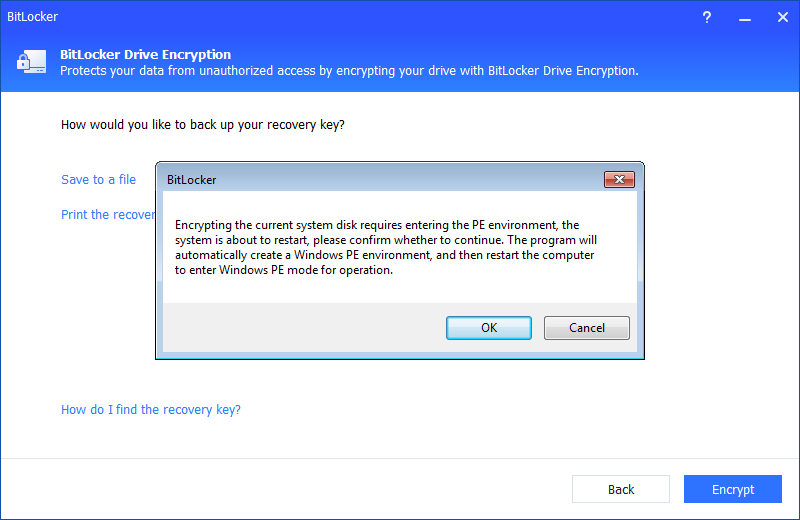
The program will automatically create a Windows PE environment on your PC.
Tips: AOMEI Partition Assistant will automatically detect whether your system has installed Windows AIK/ADK or not. If yes, it will start the Windows PE creation and then enter into WinPE to encrypt the drive. If not, please download and install Windows AIK/ADK first.
AOMEI Partition AssistantThe Best Windows Disk Partition Manager and PC Optimizer
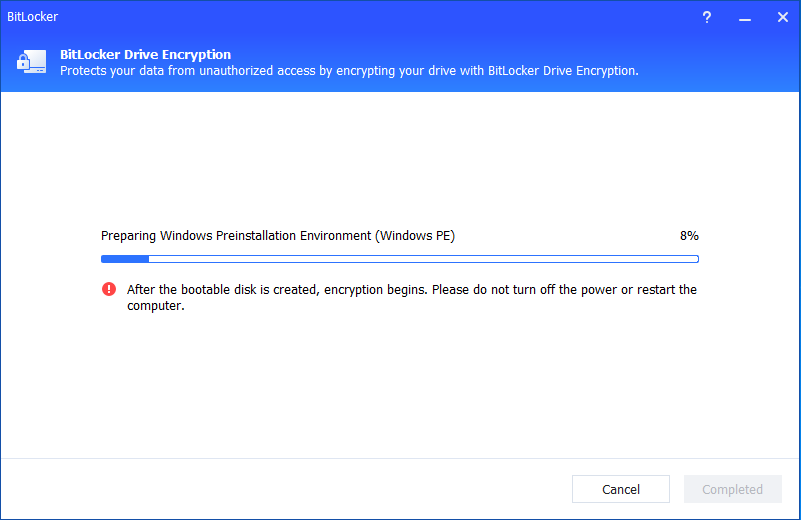
After it is created successfully, the PC will reboot into Windows PE mode to encrypt the drive. After the encryption is completed, you will get an encryption complete window and you can click "OK" to restart your PC.
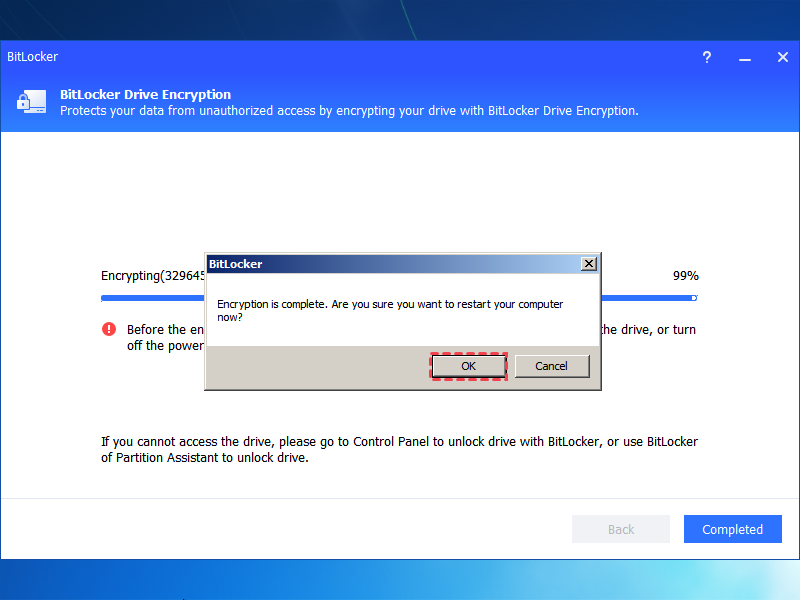
Step 5. The encryption process might take time to encrypt the drive. Before the process is finished, please do not terminate the program, remove the drive, or turn off the power. Once the encryption process is finished, please click "Completed". Finally, the system drive is BitLocker encrypted.
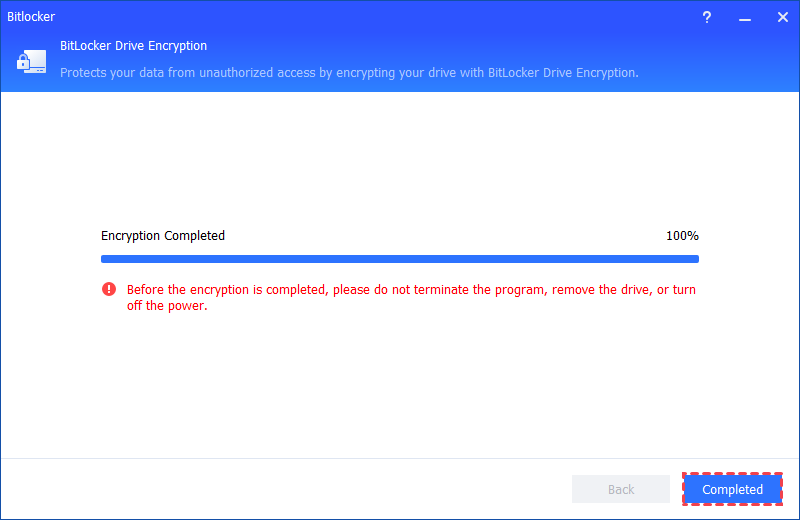
Enabling BitLocker on Windows 10 is a practical way to protect your data—it encrypts your drive and prevents unauthorized access if your device is lost or stolen. However, BitLocker cannot block system-level threats, such as malware or exploits that take advantage of unpatched security holes. So while BitLocker adds an extra layer of protection, it’s not a complete solution. For full, ongoing security—especially online—it’s strongly recommended to upgrade to Windows 11. The more details can be found in the related article: Can I Still Use Windows 10 After 2025.
Optional: Extend C drive space for upgrading Windows 11
Windows 11, released by Microsoft in 2021, offers a fresh design, larger icons, a redesigned Start menu, and a more user-friendly layout. It also supports virtual desktops, letting users create multiple desktops to organize different tasks. These improvements make upgrading from Windows 10 very appealing for many users.
However, some users hesitate because they are unsure about the space required for the update. Large programs on the C drive often take up much more space than personal files, and a small C drive can block the upgrade process. Extending the C drive is a practical solution, but manually moving programs or resizing partitions can be complicated. Programs generate files in multiple locations, and losing any of them during migration can prevent the program from running. Disk Management can extend the C drive, but it only works if there is unallocated space immediately after it, which is not always available.
AOMEI Partition Assistant is a powerful tool that solves these problems. It can safely move all the files a program needs while keeping it functional and allows users to use free space from other drives to expand the C drive. With this tool, upgrading to Windows 11 becomes much easier, safer, and more efficient, even for users with limited technical experience.
AOMEI Partition AssistantThe Best Windows Disk Partition Manager and PC Optimizer
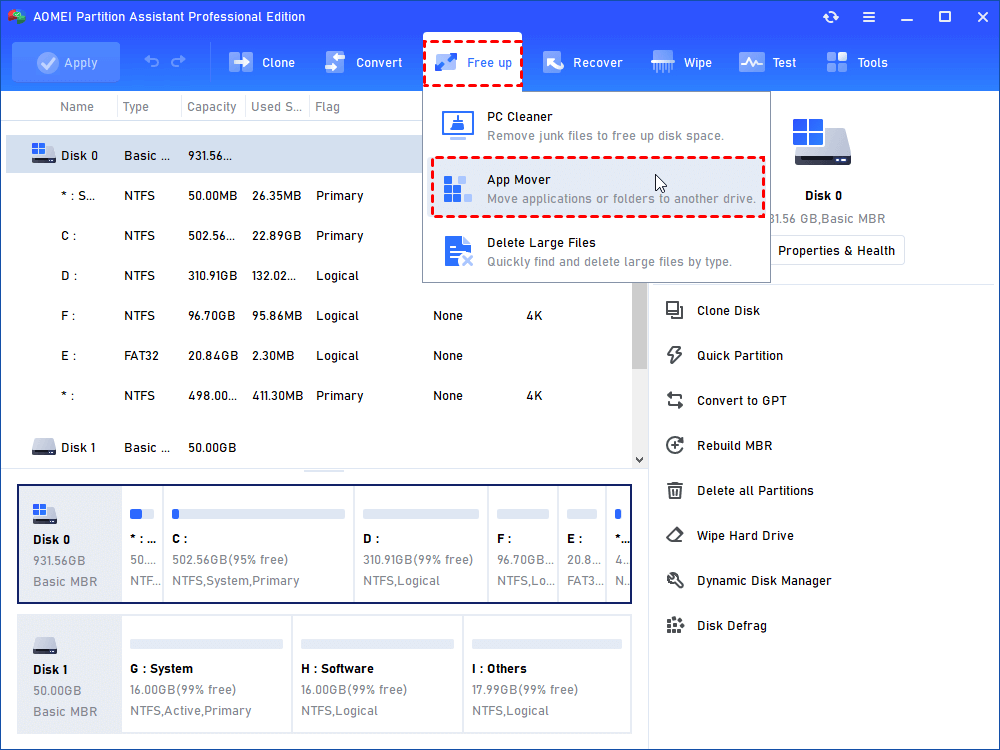
Step 1. Install and run AOMEI Partition Assistant, click “Free up” and choose “App Mover” at the top menu.
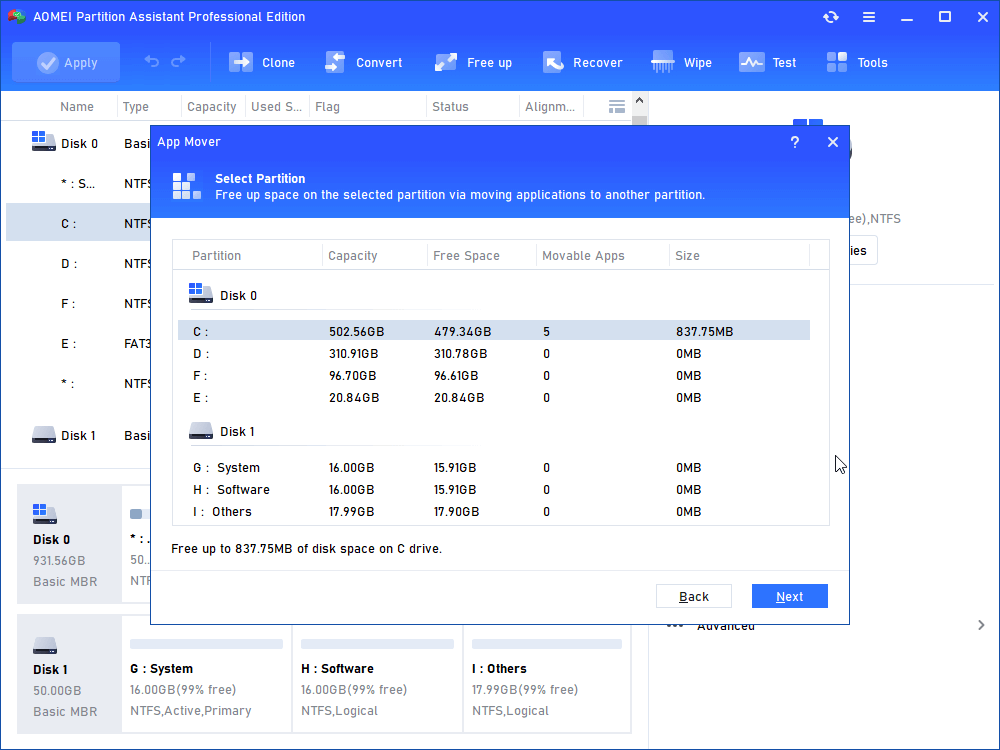
Step 2. In the pop-up window, select C drive and then click “Next”.
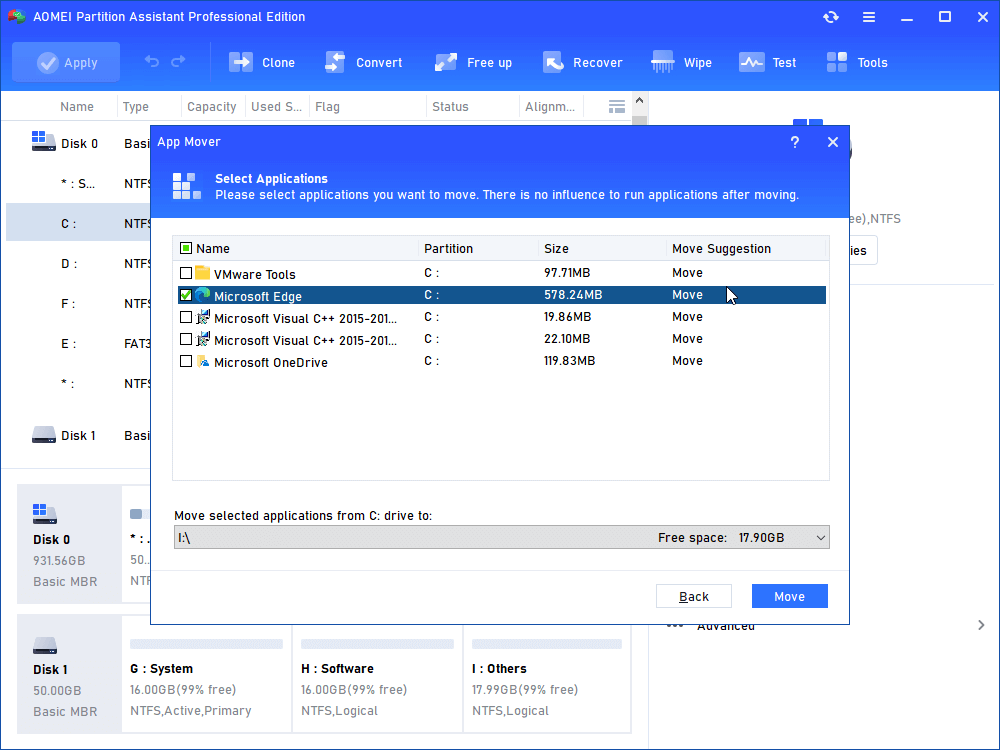
Step 3. All movable apps on C drive will be listed. Choose one or multiple apps that you want to move and the destination partition. Then click “Move”.
Step 4. Confirm that you have closed the apps that you will move. Then, click "OK".
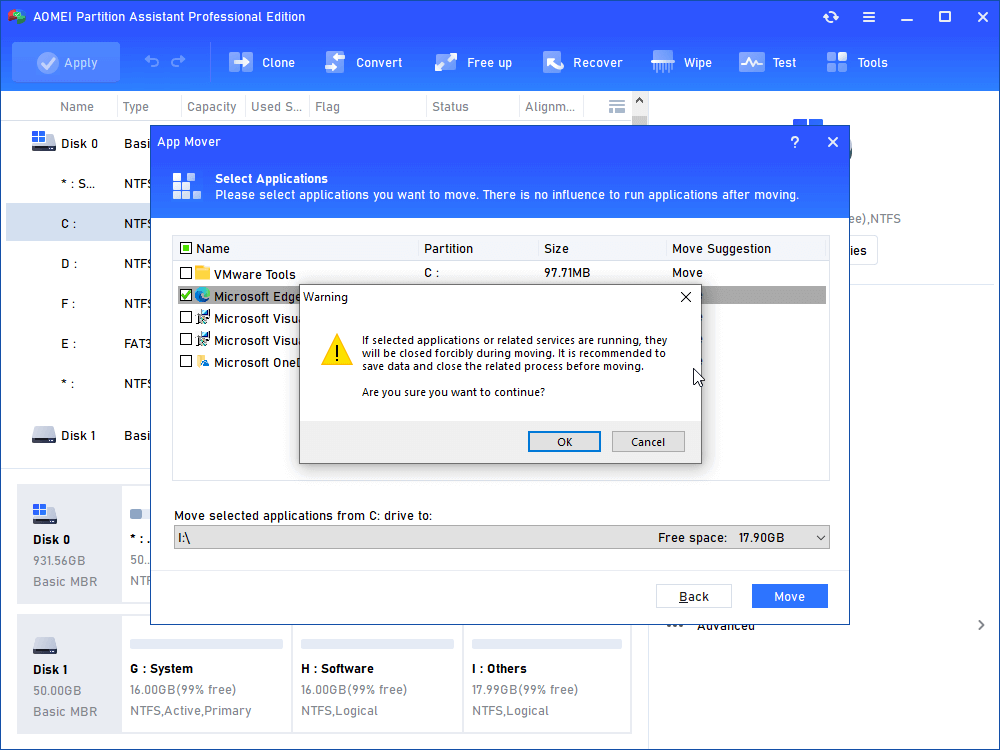
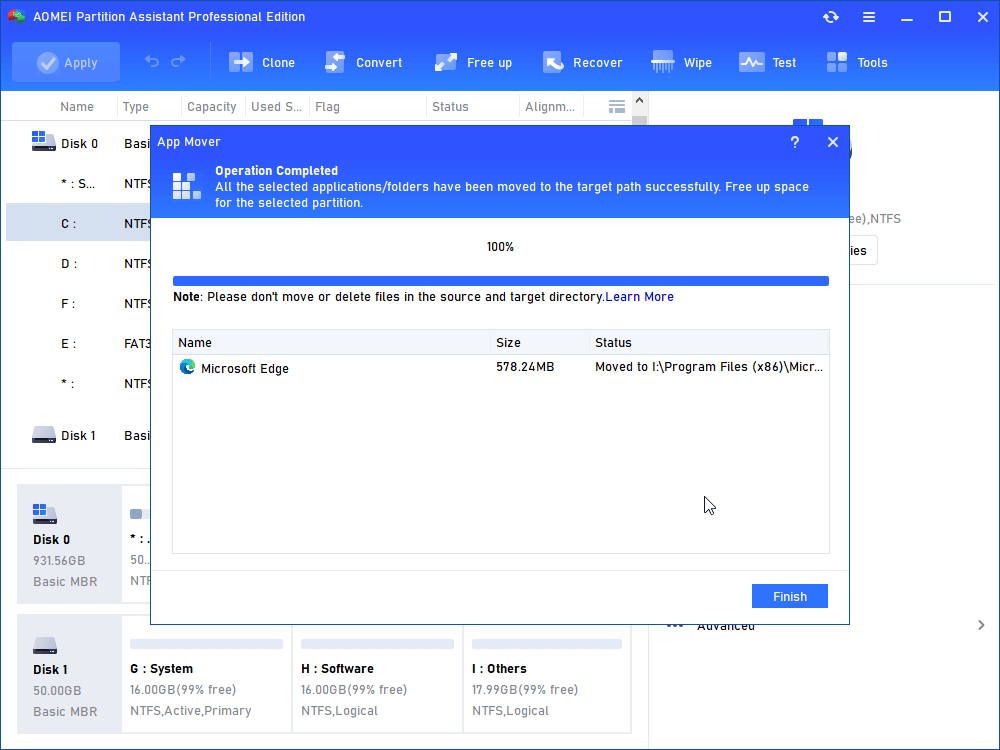
Step 5. Wait for the move process to complete. Then, click "Finish".
Conclusion
In summary, after Windows 10 support ends in October 2025, keeping your system secure requires planning. Upgrading to Windows 11 is the safest long-term choice, but for PCs that cannot upgrade, options like the Extended Security Updates program, OneDrive backup, and drive encryption with tools like AOMEI Partition Assistant can help protect your data. Using these solutions ensures your system stays safer and your important files remain secure.
