
 AOMEI Partition Assistant
How to Fix Unable To Update Window Security in Windows 10?
When you are unable to update Windows Security in Windows 10, you can try to get sufficient space first. And you can also learn to recover lost data due to this problem.

By Irene / Updated on July 23, 2025


Why You Are Unable Update Windows Security in Windows 10
Microsoft regularly releases updates for Windows 10 to improve system performance, fix bugs, and strengthen security. These updates are usually installed through the built-in Windows Update tool. However, sometimes the updates fail, especially those related to Windows Security. This can leave your system unprotected and vulnerable.
If you've tried updating but it keeps failing, you're not alone. Many users report problems like updates getting stuck, failing to install, or showing error messages. Let’s look at the common reasons why Windows Security updates might not working in Windows 10.
| Cause | Description |
|---|---|
| Incorrect Registry Keys | Editing or damaging registry settings can break the Windows Update service and block updates. |
| Disabled Update Service | If the Windows Update service is stopped or disabled, your system won’t receive or install updates. |
| Corrupted Temporary Files | Damaged files in the SoftwareDistribution folder can interrupt the update process. |
| Corrupt System Files | Missing or broken system files can prevent Windows from applying updates correctly. |
| Third-Party Antivirus | Some antivirus programs interfere with Windows updates or block necessary services. |
| Low Disk Space | If your C drive doesn’t have enough free space, updates can fail to download, install, or unpack. |
Now that you understand the possible reasons why your Windows Security update is not working, let’s explore the solutions. In the next section, we’ll show you step-by-step methods to fix the issue and get your system updated and protected again.
How to fix Windows Security Update won't install in Windows 10
If the Security Update for Windows 10 not installing, you can try to use the following 4 fixes to fix the issue.
Fix 1. Ensure sufficient C drive space
When Windows installs updates, especially security patches, it needs enough space on the C drive to download files, install them, store temporary data, and create a rollback backup. If there isn’t enough space, the update may freeze, show errors, or fail without warning.
Some users try to fix this by resizing partitions using command-line tools, but this method can be dangerous, especially for those unfamiliar with CMD. A small mistake may lead to serious problems, including system failure or the inability to boot Windows. And if there’s no recovery USB available, you won’t be able to use recovery options like Startup Repair.
To avoid these risks, it’s better to use a trusted partition tool such as AOMEI Partition Assistant. This program supports Windows 11, 10, 8, and 7, and lets you extend the C drive easily without losing data or formatting partitions. With its “1-Click Adjust Space” feature, you can simply drag partition borders to reallocate unused space from other drives to the C drive.
This solution is quick, safe, and user-friendly, helping you make room for updates and get Windows Security working again. Next, we’ll explore more practical ways to troubleshoot and fix update errors in Windows 10.
 AOMEI Partition Assistant
The Best Windows Disk Partition Manager and PC Optimizer
Step 1. Install and launch AOMEI Partition Assistant. Right-click a partition (here is D: partition) you want to adjust space and select "1-Click Adjust Space".

Tip: It cannot select unallocated space to adjust because the feature is just for partition space adjustment.
Step 2. For example, if you want to use the space on F: to expand D:, you can simply drag the dot near the partition F: head backward to shrink the partition F: and enlarge the partition D: simultaneously. Then click "OK".
You can simultaneously drag the dot near the partition C: tail forward to shrink the partition C: so the D: will also be enlarged with the space of C: at the same time. In this case, you can adjust all partition space (C:, D:, and F:) on the disk.
Step 3. You can preview the operation by viewing the "Pending Operations". To commit the "Pending Operations", please click "Apply" and "Proceed".
The process will start and you can check the progress. It might take time to finish the operation.
Wait for the operation to be finished, your computer will restart after you change the size of C drive.
Fix 2. Restart Windows Update Service
The first way to resolve this problem is by restarting the Windows Update service. Make sure the service is running, as it is responsible for keeping the operating system up to date.
Step 1. Press the Windows + R keys together to open the Run dialog box. Type services.msc into the box and hit Enter or click "OK" to open the Services window.
Step 2. In the Services list, press the W key to quickly find "Windows Update".
Step 3. Once you locate it, right-click on "Windows Update" and choose "Properties". In the Properties window, find the "Startup type" dropdown menu and set it to "Automatic".
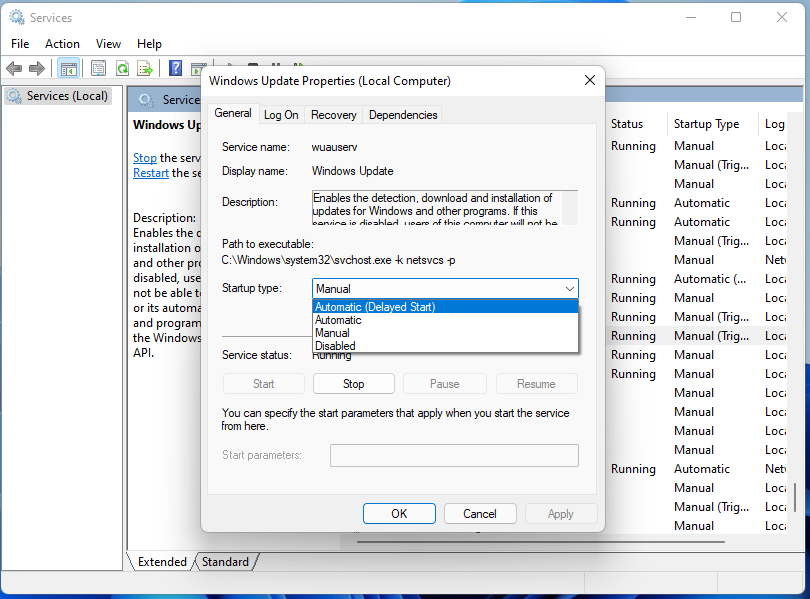
Step 4. If the service is not running, click the "Start" button to launch it. Then click "OK". Finally, click "Apply" to save the changes, and check whether Windows Update is working properly now.
Fix 3. Reset Windows Update Registry Keys
Sometimes, the registry keys in your Windows system may get corrupted or changed. Resetting them to their default settings can often help fix the problem. Follow these steps to do that.
Step 1. Click the provided link to download the Windows Update Reset file.
Step 2. After the download is complete, open the file and select "Run".
Step 3. When prompted, click "Yes" to confirm the action.
Step 4. Wait for the process to finish, then check if the issue has been resolved.
Fix 4. Run a DISM and SFC Command Lines
You can run DISM check health to fix Windows Update not responding. DISM (Deployment Image Servicing and Management) and SFC (System File Checker) are built-in Windows tools used to repair system files and Windows images. If a corrupted file is causing the update issue, running these tools can help fix it. Here’s how to do it:
Step 1. Open the Start Menu and type “Command Prompt” in the search bar.
Step 2. Right-click on the Command Prompt app and choose “Run as Administrator.”
Step 3. In the Command Prompt window, enter the following commands one at a time, pressing Enter after each:
DISM /Online /Cleanup-Image /RestoreHealth sfc /scannow
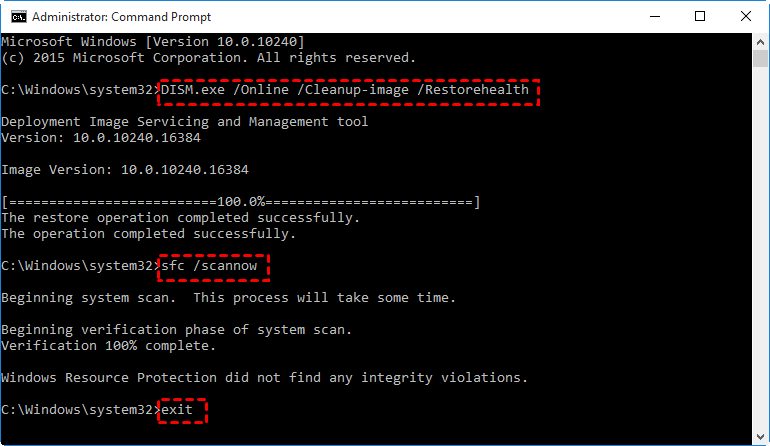
Step 4. After both commands finish running, close the Command Prompt and see if the issue is fixed. If the problem persists, try the next method.
Conclusion
If you are unable to update Windows Security in Windows 10, it’s often due to issues like low disk space, disabled update services, corrupted files, or conflicts with third-party software. By following the fixes provided, such as freeing up space with AOMEI Partition Assistant, restarting the update service, resetting registry keys, and repairing system files, you can resolve the problem and get your system protected again.
AOMEI Partition AssistantThe Best Windows Disk Partition Manager and PC Optimizer
