Disk Copy Tool for Windows PC and Server: AOMEI Partition Assistant
Disk copy means to create a duplicate of a disk and save the duplicate to another hard drive. It can help you to upgrade hard disk drive to SSD or replace existing disk with larger one without apps and OS reinstallation. Then how to clone a disk to another disk? You can employ AOMEI Partition Assistant, powerful and professional disk copy tool for Windows PC and Server. It can clone all partitions, including hidden partition, like Recovery partition from one disk to another disk. It can clone only used spaces on the source disk, enabling you to clone hard drive to smaller SSD/HDD. Meanwhile, it’s available to make SSD alignment to improve its performance during cloning to SSD.
How to clone disk to disk via the disk copy tool?
Step 1. Install and run the disk copy software. Go to All Tools and Disk Clone Wizard.
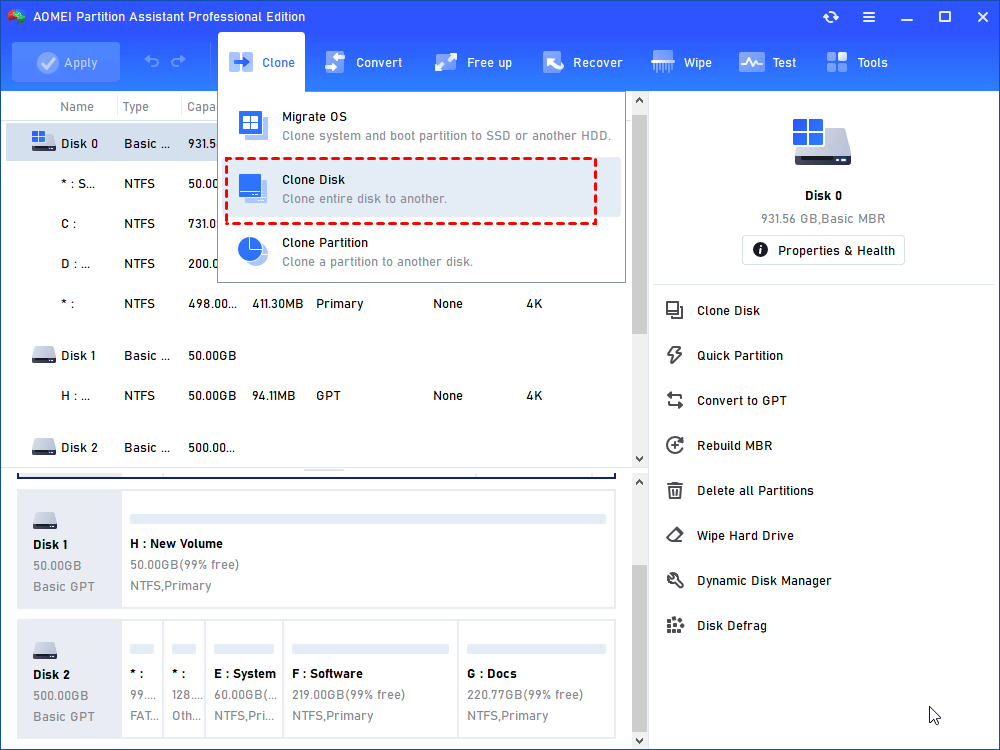
Step 2. In this window, choose a way and click Next (Here I choose |Clone Disk Quickly).
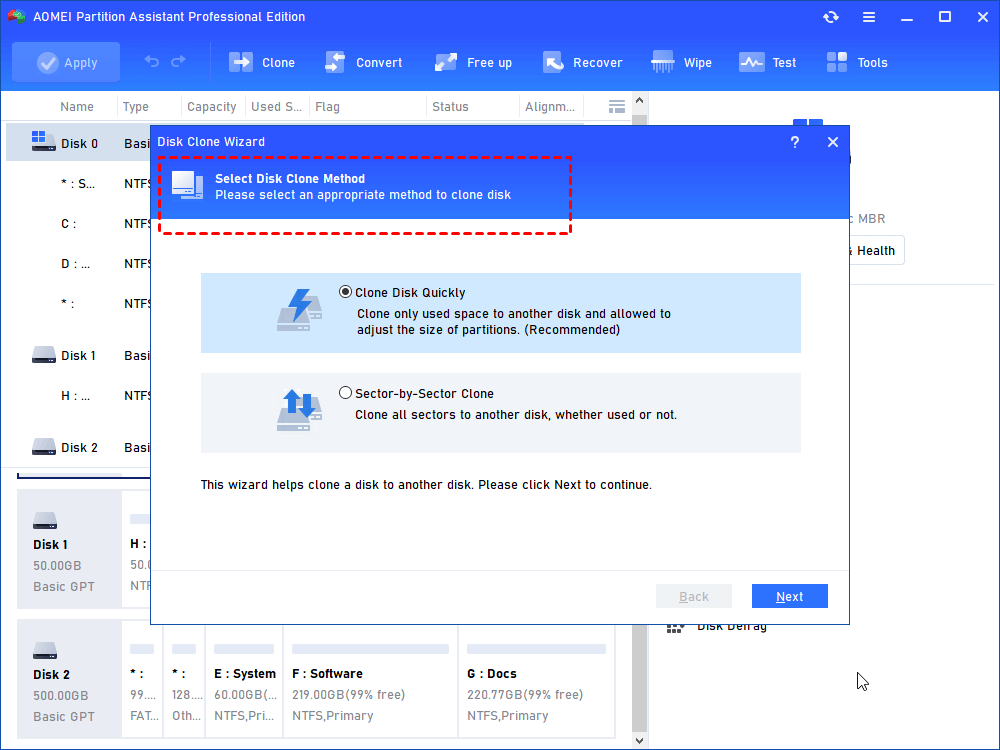
Step 3. Choose your source disk and click Next.
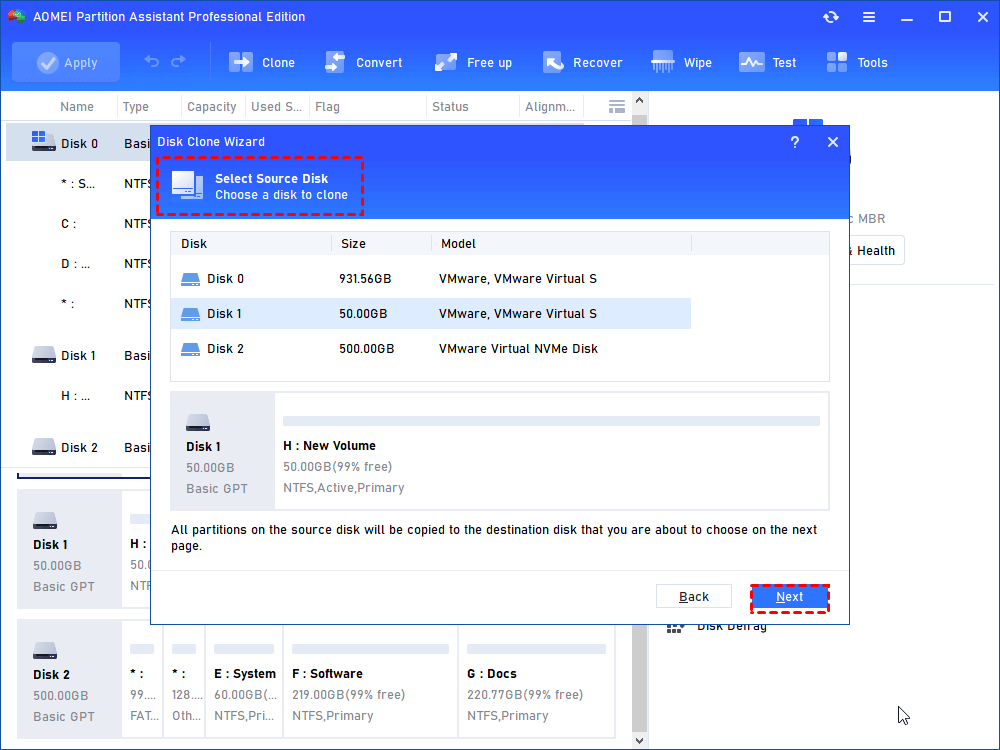
Step 4. Select your destination disk and click Next. If the target one is SSD, check Optimize the performance of SSD to align SSD partitions.
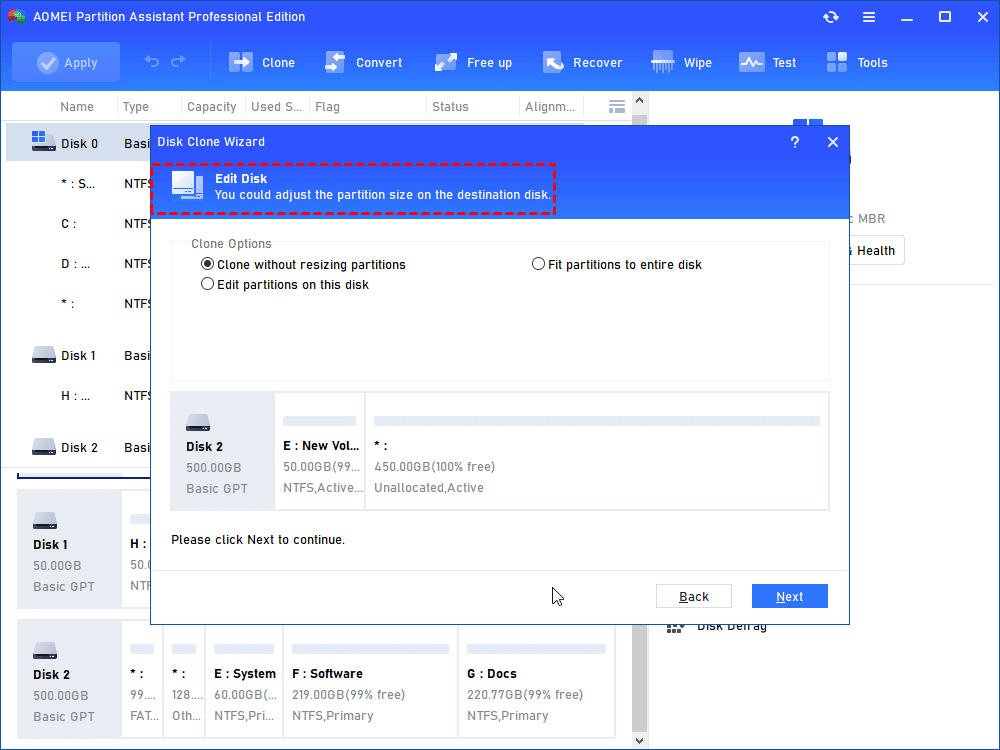
Step 5. Here you can adjust partition size.
Step 6. A Note about how to boot from the cloned disk after cloning, read it and keep it in mind.
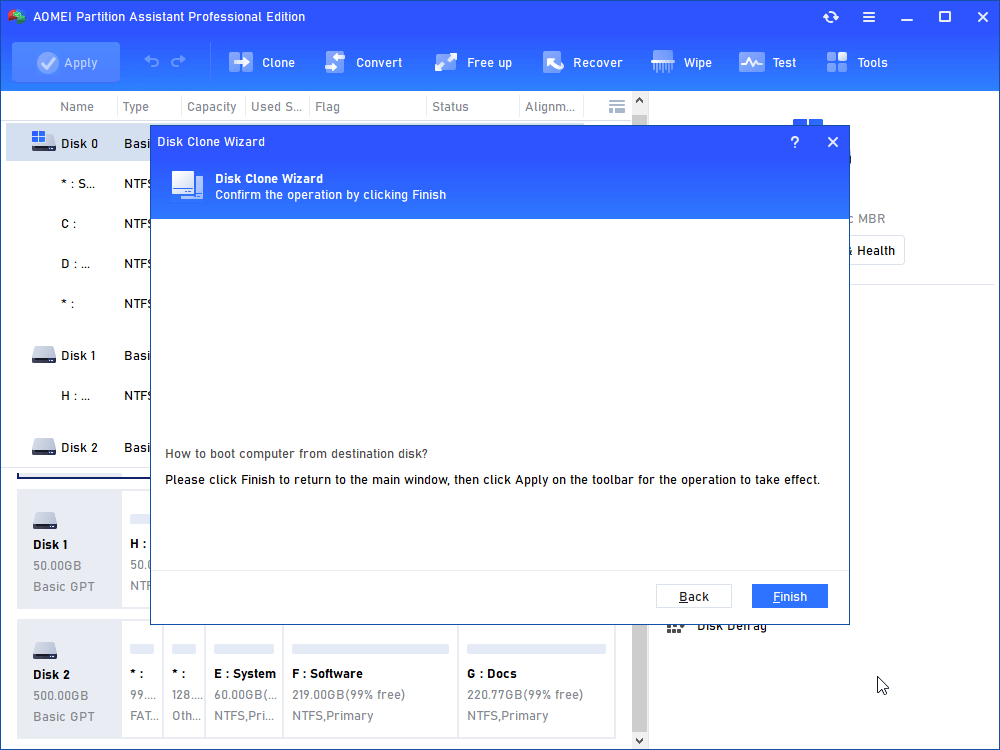
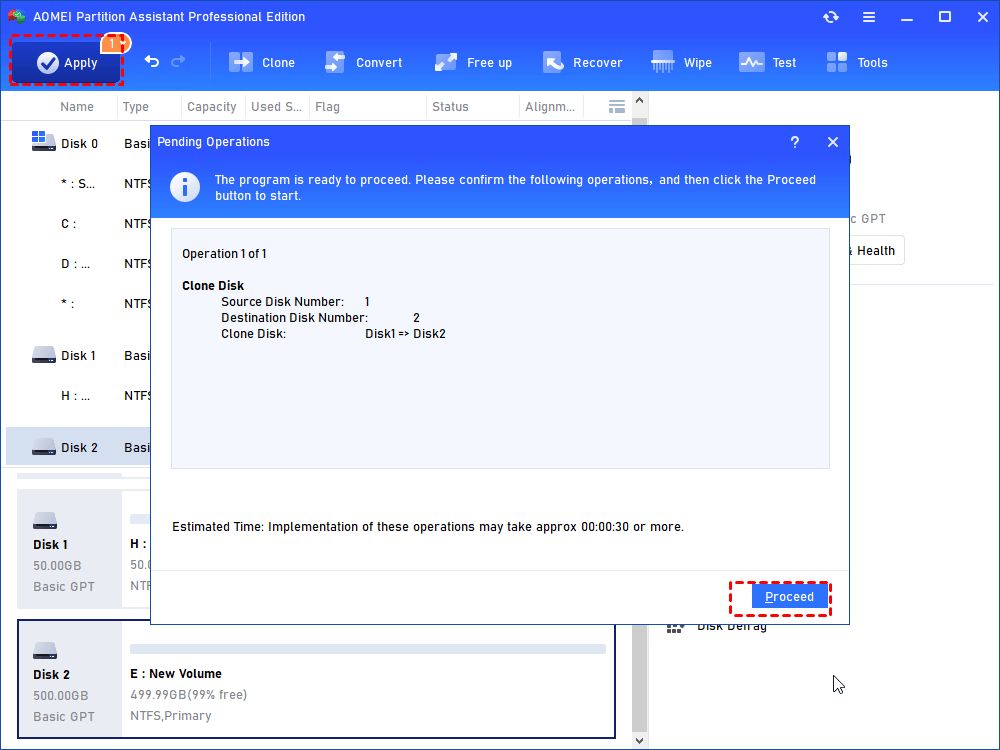
Step 7. Click Apply and Proceed to commit the operation.