


[Answered] Can I Delete Delivery Optimization Files In Disk Cleanup?
If you are asking can I delete delivery optimization files in Disk Cleanup, you are not alone. This article explains what they are, why they exist, and how to safely remove them.

By Irene / Updated on September 19, 2025


Can I delete delivery optimization files in Disk Cleanup?
Hello, can I delete delivery optimization files in Disk Cleanup? In disk cleanup, there is an option to delete delivery optimization files (1.26 GB). What are these used for and is it safe to delete them? Is it safe to delete delivery optimization files in Windows 10?
- Question from Reddit
What are delivery optimization files? Delivery Optimization is a Windows feature introduced in Windows 10 to make downloading updates faster. It works by allowing your computer to share update files with other PCs on your network or even with nearby devices. While this helps speed up updates, it also creates Delivery Optimization files that can take up a lot of disk space over time.
If you are running low on space, you may wonder whether it’s safe to delete them. The good news is yes! You can delete Delivery Optimization files through Disk Cleanup without harming your system. Removing them will not affect your computer’s performance. The only difference is that future Windows updates may take a little longer to download since those cached files are no longer available.
So, if you need to free up space, it’s completely fine to delete these files. And in the next section, we’ll show you how to do it step by step.
How to delete delivery optimization files?
If Delivery Optimization files are taking up too much space on your PC, you can safely delete them to free up storage without affecting system performance. Windows offers a built-in Disk Cleanup tool that lets you remove Delivery Optimization files along with other unnecessary data. However, if your computer still feels slow after using Disk Cleanup, a professional cleanup tool like PartitionAssistant Cleanup can provide a deeper scan and more advanced options. Below are two effective ways to delete Delivery Optimization files and reclaim valuable disk space.
Option 1. Run Disk Cleanup
The Windows Disk Cleanup tool in Windows is a built-in utility that helps you remove unnecessary files and free up storage space. With it, you can safely delete items such as Windows error reports, diagnostic files, DirectX shader cache, Delivery Optimization files, and even previous Windows installation files. Follow the steps below to use Disk Cleanup to clear system files effectively:
Note: If you find Disk Cleanup is not working, you can follow to fix it.
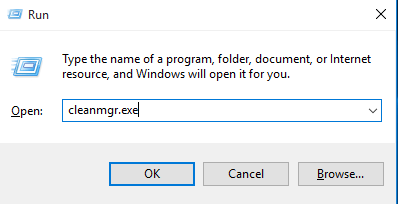
Step 1. Press the "Windows+R" to open the run program, then enter "cleanmgr.exe" and press "Enter".
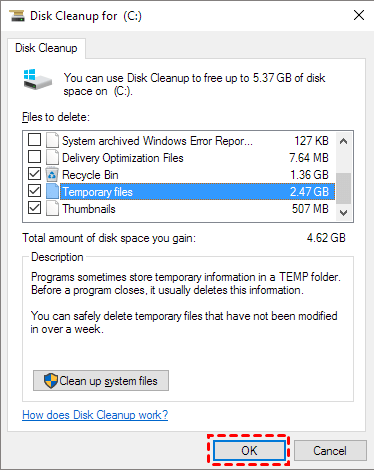
Step 2. Tick the system files you want to delete in the listed files, then click "OK" to start cleaning the selected files.
Option 2. Run professional PC cleanup tool
Using the Windows Disk Cleanup tool is one way to remove Delivery Optimization files and other system junk. But sometimes, cleaning up system files alone is not enough, and your computer may still feel slow. In this case, a more powerful solution is recommended—PartitionAssistant Cleanup.
-
Clean Junk Files: Deeply scans your computer to remove all kinds of junk files, including system junk and registry junk.
-
Delete Large Files: Helps you find and safely delete files larger than 16MB that take up valuable space.
-
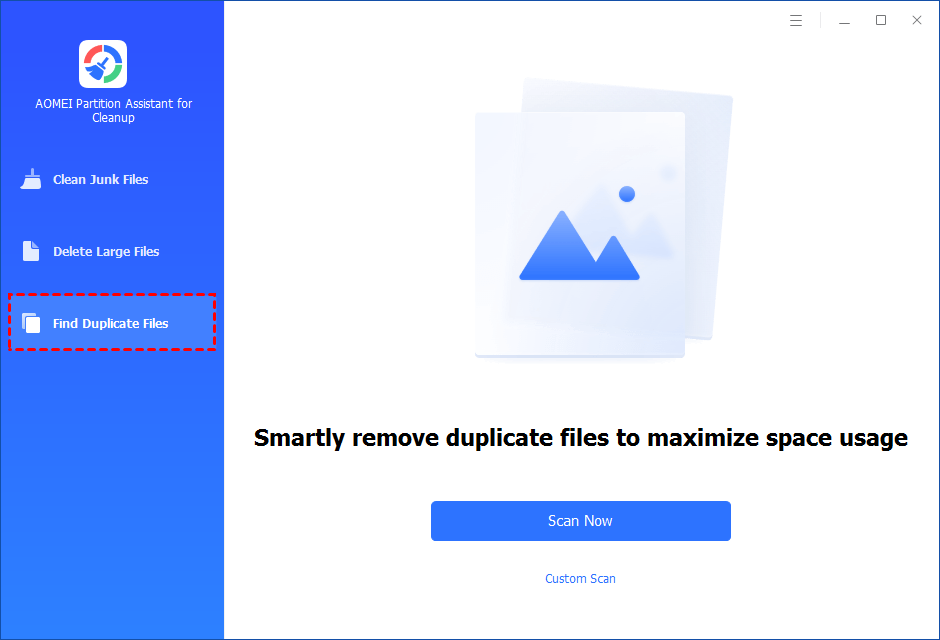
Find Duplicate Files: Accurately scans your computer to detect and remove duplicate files that waste disk space and slow down performance. With an easy-to-use interface, it’s suitable for both beginners and advanced users.
In addition, PartitionAssistant Cleanup provides advanced features like migrating OS to SSD, cloning disks, and converting file systems between FAT32 and NTFS. It’s a safe and reliable choice if you want to clean up Delivery Optimization files and keep your PC running smoothly.
 PartitionAssistant Cleanup
The Best Windows Disk Partition Manager and PC Optimizer
Step 1. Initiate Find Duplicate Files. Install and launch PartitionAssistant Cleanup. Click the "Find Duplicate Files" tab.
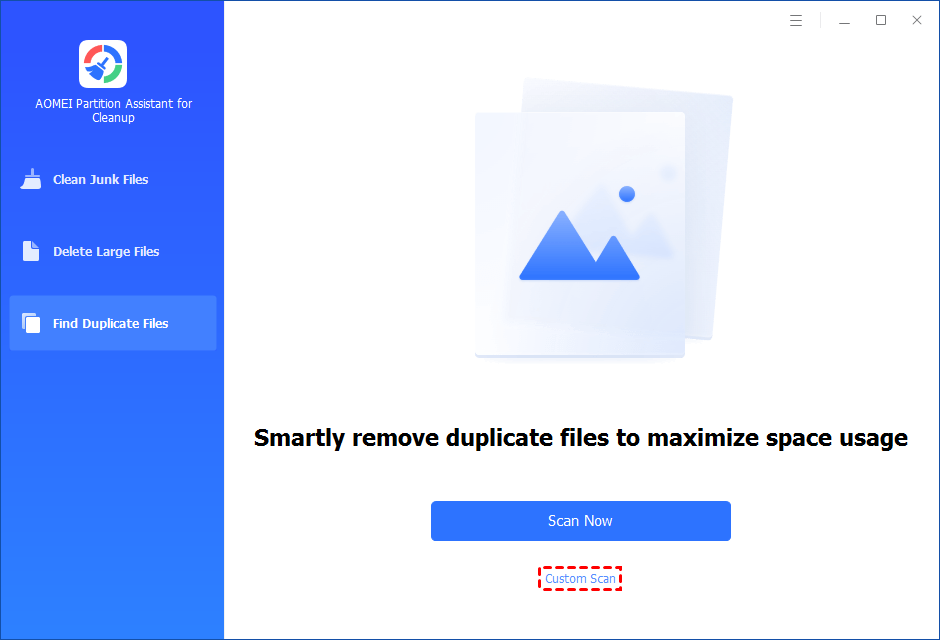
Step 2. Select a path to scan duplicate files. You can either click "Scan Now" to start the scan of your system C: drive. Or, click "Custom Scan" to manually select paths to be scanned. (Here, we take the "Custom Scan" as an example.)
Step 3. After clicking "Custom Scan", all local and external drives on your PC will be displayed. You can also click the "Add Path" button, and then a browse folder window will pop up. So you can add more paths on this PC, like Desktop, Downloads, and other folder paths.
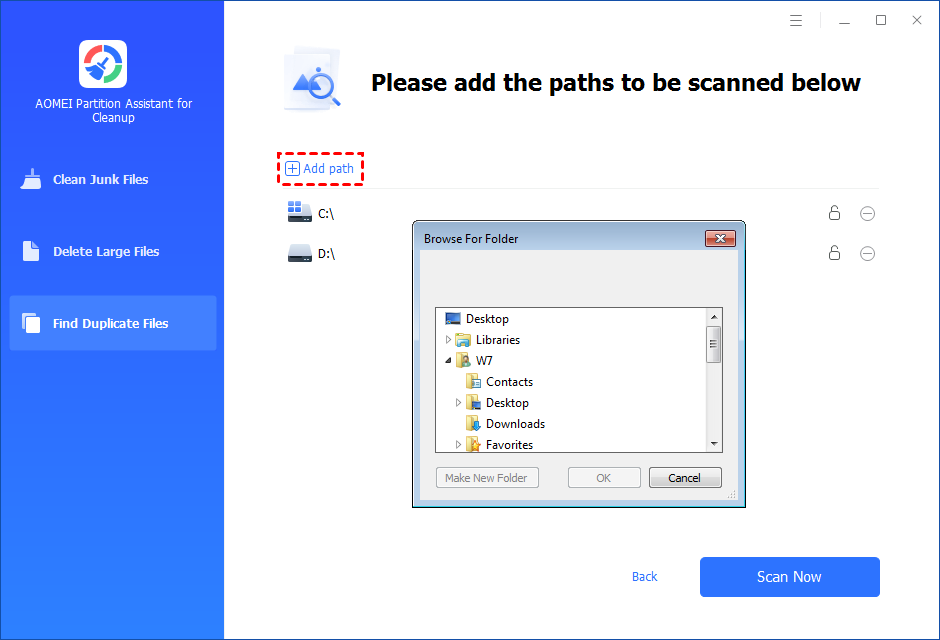
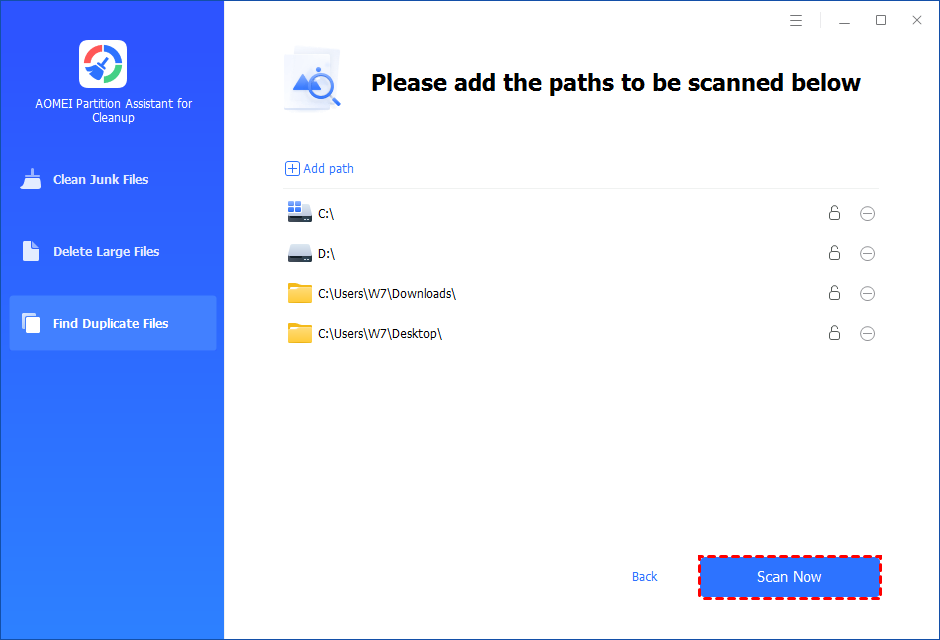
Step 4. Once necessary paths are added, you can click the "Scan Now" button to start the scan process.
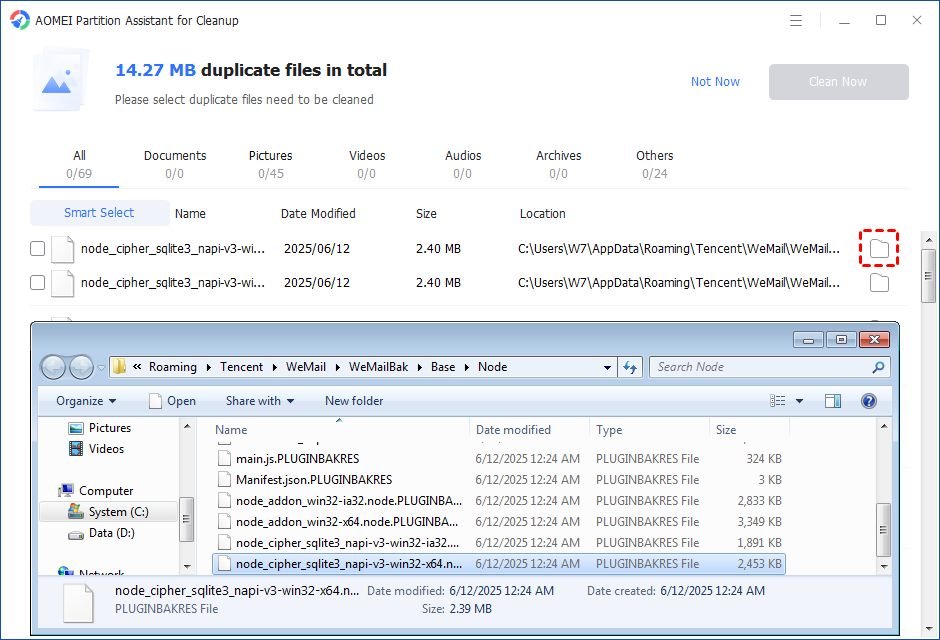
Step 5. The scan process might take time. After the scan is complete, all duplicate files will be listed. You can click the button behind to locate them.
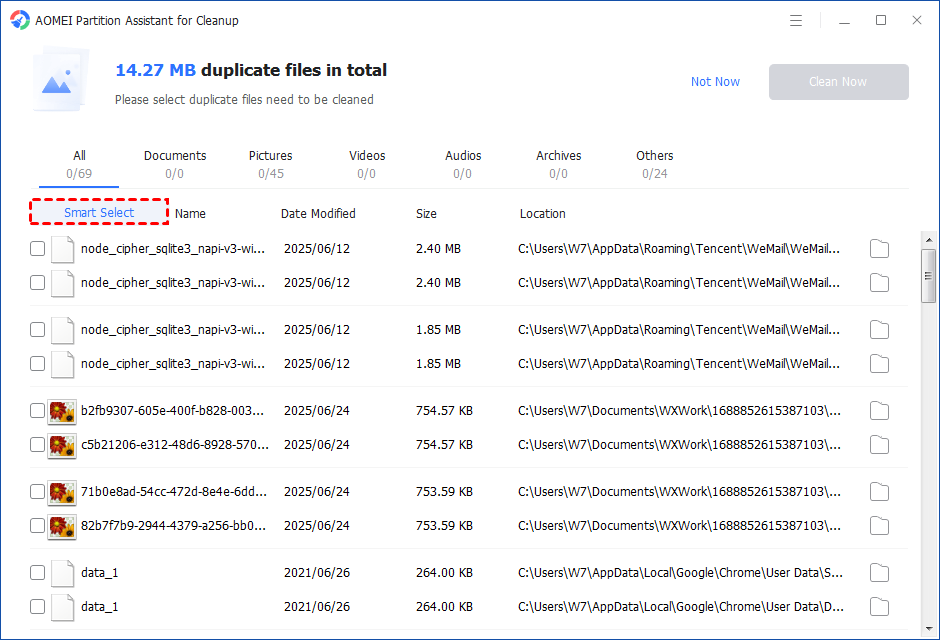
Step 6. Select duplicate files to start deletion. You can either manually select duplicate files, or click the "Smart Select" button to automatically select unnecessary duplicate files to delete.
Tips: If the "Smart Select" is ticked, only the oldest duplicate file will be unticked. It means that all duplicate files except the oldest one will be ticked to delete. (The oldest file means the file that was created first. This file will not be deleted. All other duplicate files are considered copies of the oldest file. )
If you manually select all copies of duplicate files, you will get a pop-up warning window to keep at least one copy of the duplicate files. If you indeed want to delete all copies of duplicate files, you can click "OK" so all copies of duplicate files will be selected to delete.

After unnecessary duplicate files are selected, please click the "Clean Now" button to start the deletion.

Step 7. Delete successfully. The deletion might take time. After the process is finished, the selected files will be deleted, and you will get a cleaning completed window displaying how much data you deleted in total.

Conclusion
Delivery Optimization files are mainly used to speed up Windows updates, but they can also take up valuable disk space. If you are running low on storage, it is safe to delete Delivery Optimization files in Windows 10 or Windows 11 using Disk Cleanup. For deeper cleaning and better PC performance, tools like PartitionAssistant Cleanup provide more advanced options such as removing junk files, large files, and duplicate files. This way, you can keep your computer clean, organized, and running smoothly.
PartitionAssistant CleanupThe Best Windows Disk Partition Manager and PC Optimizer
