


Solved: Could Not Determine Available Disk Space for Updates
What to do if you could not determine available disk space for updates? This post will walk you through the possible reasons and comprehensive solutions to help you get rid of it.

By Hedy / Updated on January 12, 2026


Why could not determine available disk space for updates?
The error “Could not determine available disk space for updates” usually appears on Windows when the system cannot correctly check how much free space is available to install updates. This can happen for several reasons:
✍ Insufficient free space on system drive: If your C: drive is nearly full, Windows cannot confirm if updates can be installed. Updates require several gigabytes of free space, and low storage is the most common culprit.
✍ Corrupted Windows update components: Sometimes, files related to Windows Update can get corrupted. This prevents Windows from assessing the space properly, triggering the error.
✍ Temporary file buildup: Over time, Windows accumulates temporary files, cache, and leftover installation files. These can confuse the system when calculating free disk space.
✍ Disk errors and bad sectors: Damaged sectors or file system errors on your disk can prevent Windows from reading storage information correctly, causing the error.
How to fix “could not determine available disk space for updates”
If you encounter the error message “could not determine available disk space for updates” in Windows, it usually indicates that your system cannot verify enough free space for updates. This can prevent important Windows updates from installing. Below are step-by-step fixes:
Fix 1. Check available disk space
Before applying any fixes, it’s important to verify that your system drive has sufficient free space. Sometimes, hidden files or previous update remnants consume space that Windows cannot use.
Step 1. Press Windows + E to open File Explorer.
Step 2. Right-click on the C: drive (or system drive) and select Properties.
Step 3. Check the Used space and Free space. Windows updates typically need at least 20–30 GB free.
Step 4. If space is low, consider deleting unnecessary files or moving data to another drive.
Fix 2. Clean up temporary files
Temporary files can accumulate quickly, taking up space that prevents updates. Removing them can free up significant storage and often resolve update issues.
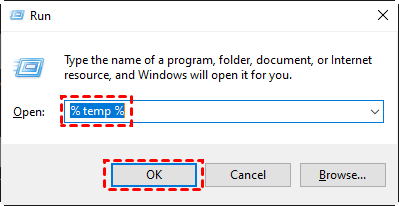
Step 1. Press Windows + R, type %temp%, and press Enter.
Step 2. Select all files in the folder (Ctrl + A) and press Delete.
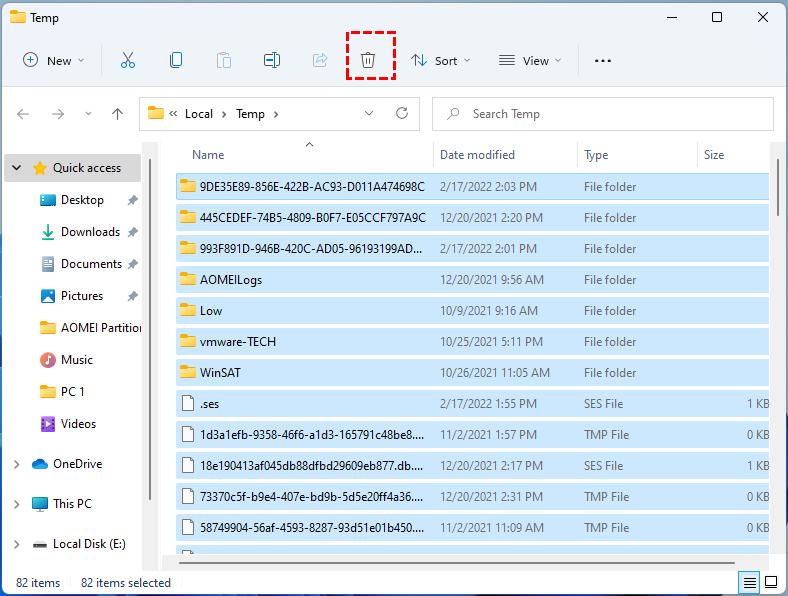
Step 3. Empty the Recycle Bin to permanently remove them.
Step 4. Restart your PC and try the update again.
Fix 3. Use Disk Cleanup for system files
Windows includes a built-in tool that can remove temporary system files, old Windows updates, and other unnecessary data. Cleaning these files often resolves space-related update errors.
Step 1. Press Windows + S, type Disk Cleanup, and open the app.
Step 2. Select your system drive (usually C:) and click OK.
Step 3. Click Clean up system files.
Step 4. Check boxes for Windows Update Cleanup, Temporary files, Recycle Bin, and other unwanted files.
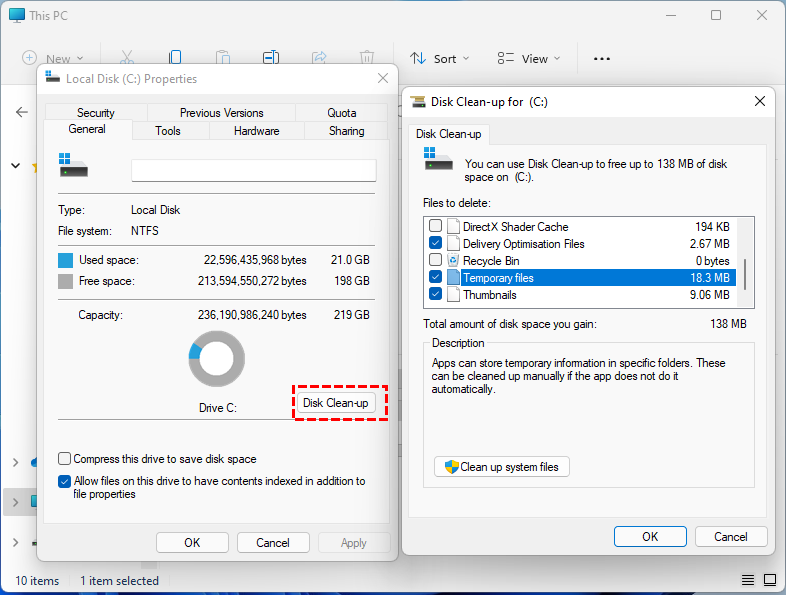
Step 5. Click OK > Delete Files, then restart your PC.
In addition, you can also resort to a third-party disk cleanup program called PartitionAssistant Cleanup. It is a practical and user-friendly tool designed to help you safely clean system files and free up valuable disk space on Windows PCs.
With its Clean Junk Files feature, PartitionAssistant Cleanup scans the system drive to identify unnecessary system files that can be removed without affecting Windows stability. It allows you to preview detected files, select what to delete, and clean them in just a few clicks.
 PartitionAssistant Cleanup
Free Up Disk Space To Keep Your PC Running Smoothly and Efficiently
Step 1. Download, install, and launch AOMEI Partition Assistant. Navigate to the Clean Junk Files tab.

Step 2. Click Scan Now to begin scanning your system for junk files.

Step 3. The program will list all detected junk, including system files (like temporary files, log files, recycle bin items, and invalid shortcuts) and registry files (such as DLL entries, system, and program registry entries).

Step 4. Click the button next to any item to view detailed information about the junk files.

Step 5. You can also locate specific files by clicking the corresponding button.

Step 6. By default, AOMEI Partition Assistant selects certain common junk files, such as temporary files and logs. You can manually check additional items to clean or deselect any you want to keep. To remove everything at once, click Select All.
Once you’ve finalized your selection, click Clean Now to start the cleanup process.

Step 7. The cleanup may take several minute,s depending on the number of files. When finished, a summary window will appear, showing how many files were cleaned and which remain.

Fix 4. Check virtual memory (pagefile)
If your system’s virtual memory (pagefile) is too small or misconfigured, it can trigger disk space errors. Adjusting it ensures Windows has enough memory to handle updates.
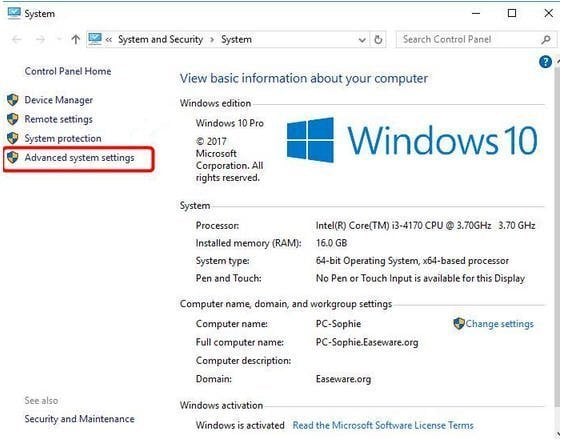
Step 1. Press Windows + Pause/Break to open System settings.
Step 2. Click Advanced system settings > Settings under Performance.
Step 3. Go to Advanced > Virtual memory > Change.
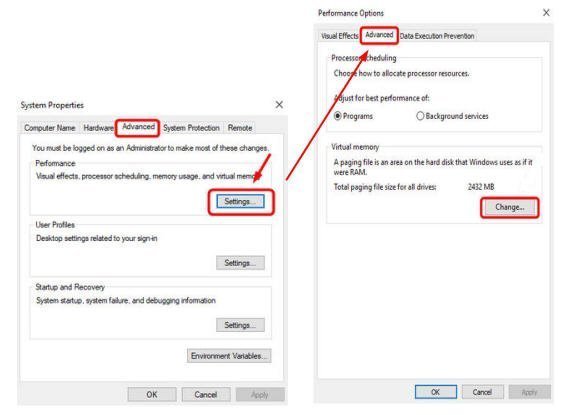
Step 4. Ensure Automatically manage paging file size is checked, or increase size manually.
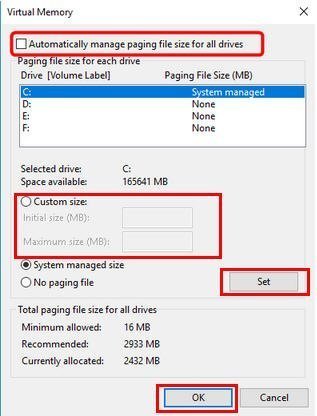
Step 5. Click Set, then OK, and restart your PC.
Fix 5. Extend system partition (if necessary)
If your system drive is too small, even after cleanup, you may need to expand it. Using tools like Windows Disk Management or AOMEI Partition Assistant makes this safe and easy.
Step 1. Press Windows + X, select Disk Management.
Step 2. Right-click the system partition (C:) and select Extend Volume.
Step 3. Choose available unallocated space and click Next, then Finish.
Step 4. Restart your PC and attempt the update again.
FAQs
📍 Why is my disk space full when I have nothing?
Hidden files like system updates, temporary data, cached files, restore points, and large system folders can consume disk space even when your personal files appear minimal or deleted.
📍 What do I do if there isn't enough disk space for the update?
Clear temporary files, uninstall unused programs, empty the Recycle Bin, run Disk Cleanup, and ensure enough free space on the system drive before restarting the update process.
📍 How to free up disk space for software update?
Delete junk files, clean temporary folders, remove unnecessary apps, move large files to another drive, and use built-in cleanup tools to quickly create space for updates.
Conclusion
In conclusion, the “could not determine available disk space for updates” error is usually caused by low storage, corrupted update files, or disk configuration issues. By checking free space, cleaning temporary files, repairing system components, and extending the system partition if needed, you can restore normal update functionality and keep Windows running smoothly.
