


7 Solutions to Fix High CPU Usage But Low GPU Usage
If you encountered the high CPU usage but low GPU usage issue, don’t worry. Check out the solutions in this article to resolve the problem quickly.

By Hedy / Updated on January 22, 2026


Have you ever been in the middle of a game or working on a project and noticed your CPU is maxed out while your GPU barely breaks a sweat? This scenario, often described as “high CPU usage but low GPU usage”, can lead to laggy performance, stuttering in games, and slow response times in general tasks. But don’t panic — this article will help you understand the causes and provide actionable steps to fix it.
Common causes of high CPU usage with low GPU usage
High CPU usage with low GPU usage can occur for various reasons. Here are some common causes:
▶ CPU bottleneck: A CPU bottleneck occurs when your processor can’t keep up with your GPU. Even the most powerful GPU can sit idle if your CPU is overwhelmed, especially in CPU-heavy games or applications.
▶ Background processes: Too many programs running in the background can hog CPU resources. Web browsers, antivirus software, and other apps can silently consume processing power without using the GPU.
▶ Software optimization issues: Some software simply isn’t optimized for multi-core CPUs or doesn’t utilize GPU acceleration effectively, leading to uneven usage.
▶ Game or application settings: Low graphical settings can limit GPU usage. If a game is running at 1080p on minimal settings, the CPU may handle most tasks while the GPU remains underutilized.
▶ Driver issues: Outdated or corrupted drivers for your GPU or CPU can prevent proper workload distribution. Keeping drivers updated ensures both components communicate effectively.
How to fix high CPU usage but low GPU usage
Here’s a detailed guide on how to fix high CPU usage but low GPU usage in Windows while gaming or using heavy applications:
Solution 1. Disable all power-preserving modes
To adjust your power plan and potentially resolve high CPU/low GPU usage issues, follow these steps:
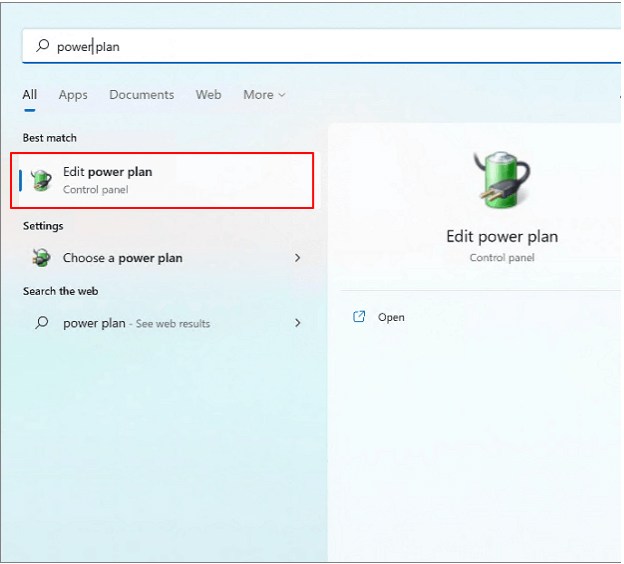
Step 1: Type Edit in the Windows search box and select Edit power plan from the results.
Step 2: In the Edit Plan Settings window, click Power Options.
Step 3: In the next window, expand Hide additional plans and select High performance.
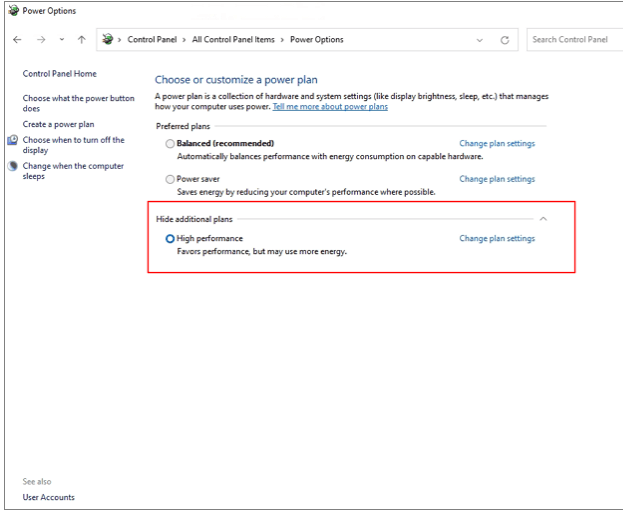
Step 4: After applying the changes, check if the issue with high CPU and low GPU usage has been resolved.
Solution 2. Close tasks running in the background
Background tasks and programs can consume significant system resources, leading to problems like high CPU usage with low GPU activity, slow startups, crashes, or unresponsive apps. Closing unnecessary processes can often resolve these issues.
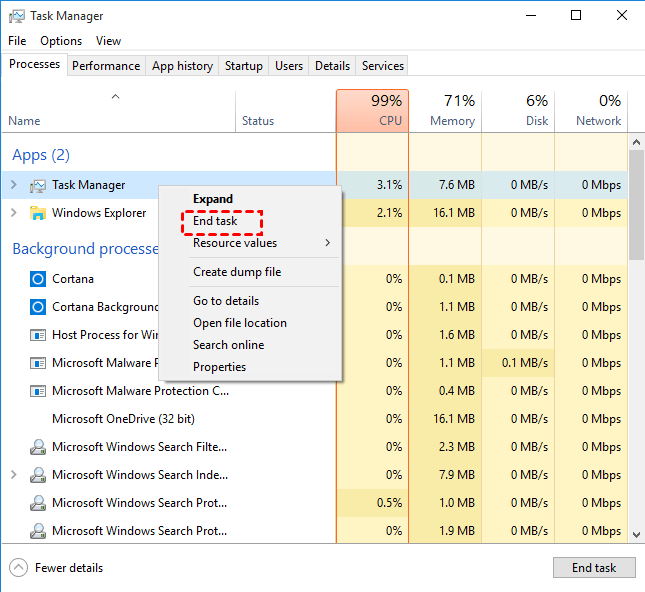
Step 1: Right-click the Windows icon and select Task Manager from the menu.
Step 2: Click the Processes tab to view all running tasks.
Step 3: Identify unnecessary or resource-heavy processes, right-click each one, and select End task. Repeat until all unwanted processes are closed.
Step 4: After finishing, check if the high CPU and low GPU issue has been resolved.
Solution 3. Update the graphics driver
An outdated or corrupted graphics driver can often cause high CPU usage while GPU usage remains low. Updating your driver can resolve this issue. Follow these steps:
Step 1: Press Windows + R to open the Run dialog, type devmgmt.msc, and press Enter to open Device Manager.
Step 2: Expand Display adapters by double-clicking it. Right-click your graphics card and select Update driver.
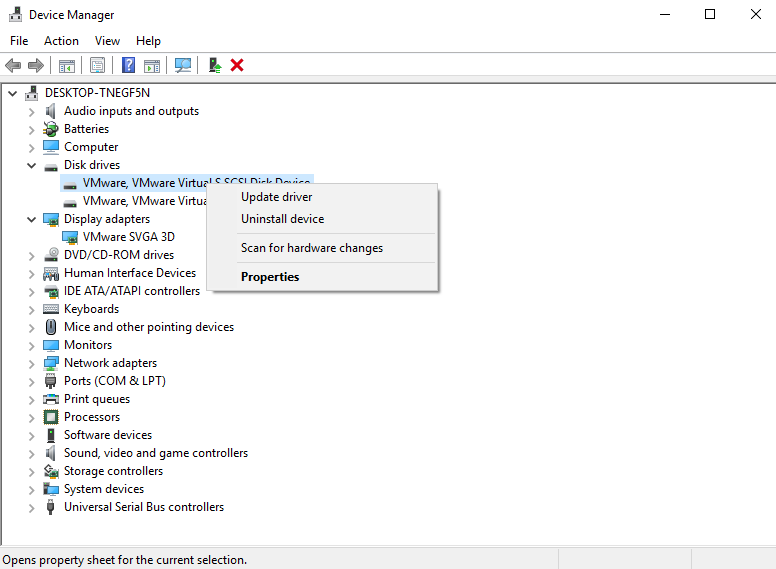
Step 3: In the window that appears, choose how you want to update your driver:
• Search automatically for drivers – Windows will find and install the latest driver automatically.
• Browse my computer for drivers – Use this option to manually install a driver you have downloaded.

Solution 4. Enable XMP in BIOS/UEFI
While RAM isn’t directly responsible for high CPU and low GPU usage, it can indirectly affect system performance. Enabling XMP (Extreme Memory Profile) can help optimize RAM speed and improve overall performance. Follow these steps:
Step 1: Restart your computer and press the designated BIOS key during startup to enter the BIOS.
Step 2: Locate the XMP option in the BIOS. It may appear on the main settings screen or under advanced memory/RAM settings.
Step 3: Enable XMP and select a preferred profile.
Step 4: Press F10 to save changes and exit the BIOS. Your system will reboot with the optimized RAM settings.
Solution 5. Lower in-game settings
High CPU load can occur if the game is too demanding on CPU-intensive tasks like physics or AI.
Step 1. Open the game → go to Graphics Settings.
Step 2. Lower CPU-heavy settings (e.g., shadows, draw distance, anti-aliasing).
Step 3. Keep GPU-intensive settings moderately high to balance CPU/GPU usage.
Step 4. Apply changes and monitor performance.
Solution 6. Reinstall the fault game
If the high CPU and low GPU issue continues, the problem may lie with a corrupted game installation. Reinstalling the game can often fix performance issues. Follow these steps:
Step 1. Open Settings and click Apps.
Step 2. Scroll through the list to locate the problematic game.
Step 3. Select the game and click Uninstall.
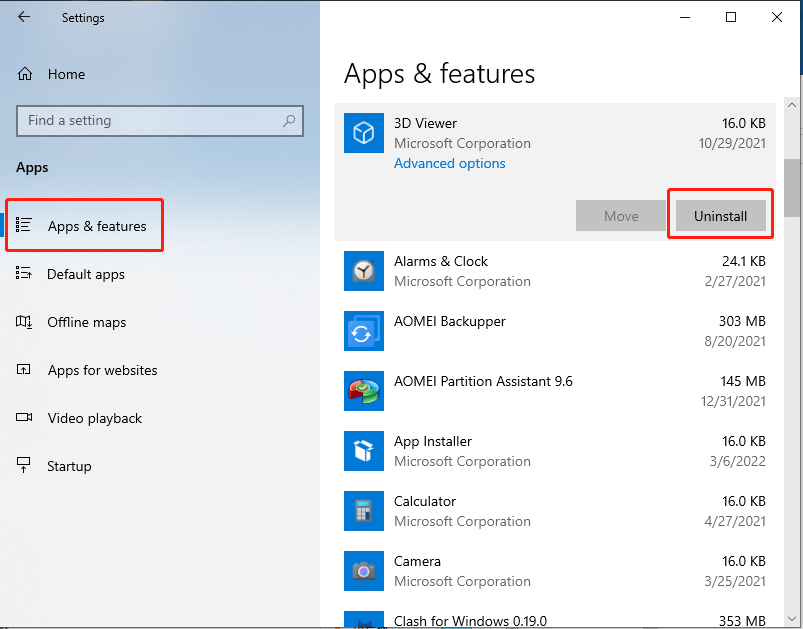
Step 4. Confirm the action by clicking Uninstall again.
Step 5. Visit the game’s official website, download the latest version, and reinstall it on your computer.
Solution 7. Resort to a third-party disk cleaner
PartitionAssistant Cleanup is a powerful and versatile disk cleaningtool that helps remove unnecessary system files, temporary data, and corrupted cache that can strain your CPU. By cleaning up these files, the tool can reduce high CPU usage, especially in situations where your GPU remains underutilized during heavy tasks like gaming or rendering.
Additionally, AOMEI Partition Assistant is user-friendly, making it accessible even to users without advanced technical knowledge. It provides step-by-step guidance for cleanup tasks, ensuring that your system runs efficiently without the risk of deleting critical files.
 PartitionAssistant Cleanup
Free Up Disk Space To Keep Your PC Running Smoothly and Efficiently
Step 1. Install and launch PartitionAssistant Cleanup. Click the "Clean Junk Files" tab.

Step 2. Click the "Scan Now" button to start the process of scanning junk files.

Step 3. After the scan process is finished. All system junk files (including recycle bin files, temporary files, log files, invalid shortcuts, and so on) and registry junk files (including DLL registry, system registry, and program registry) will be displayed.

Step 4. You can also click the button behind to view the junk files details.

Step 5. And, you can click the button behind to locate the file.

Step 6. By default, the program will select some junk files to clean up, for example, temporary files, log files, and so on. You can also manually check to select more or uncheck to deselect fewer listed junk files. Or, click "Select All" to select all junk files to clean up if you need to clean up all.
After selecting junk files that are not needed anymore, you can click the "Clean Now"button to start the cleanup.

Step 7. The process of the cleanup might take time, and the selected files will be cleaned up. After the process is finished, you will get a cleanup completed window displaying how many files you have cleaned and not yet cleaned.

FAQs
1. Can high CPU usage damage my PC?
Generally, no. Modern CPUs are built to handle high loads. However, prolonged overheating without proper cooling can reduce lifespan.
2. Why is my GPU underutilized in games?
Low graphics settings, CPU bottlenecks, or unoptimized games can prevent the GPU from working fully.
3. How do I check if my CPU is bottlenecking my GPU?
Monitor CPU and GPU usage during tasks. If the CPU hits 100% while the GPU stays low, a bottleneck exists.
4. Will upgrading my CPU always fix low GPU usage?
Not always. Software optimization and settings also play a role. Upgrades help if the CPU is genuinely the bottleneck.
5. Can background apps cause low GPU usage?
Yes. Heavy background tasks can occupy the CPU, leaving the GPU idle. Closing unnecessary programs often improves balance.
Conclusion
To resolve high CPU usage with low GPU usage, follow the outlined steps: disable power-saving modes, close unnecessary background tasks, update graphics drivers, enable XMP in BIOS, lower in-game settings, or reinstall the affected game. For a more comprehensive solution, use AOMEI Partition Assistant to clean up unnecessary files and optimize system performance. By addressing these common issues, you can improve your PC’s performance during gaming and heavy tasks.
