
 PartitionAssistant Cleanup


How Can I Clean My PC from Errors [6 Ways]
How can I clean my PC from errors? In this post, you will get six easy and effective methods to clean your PC. Both built-in and third-party tools are included.

By Hedy / Updated on January 8, 2026


Why need to clean PC from errors?
Cleaning your PC from errors is essential to keep it running smoothly, securely, and efficiently. Over time, Windows systems accumulate problems that can affect performance and stability. Here’s why regular error cleaning matters:
✍ Improve system performance: System errors, junk files, and corrupted entries slow down startup and everyday tasks. Cleaning errors helps your PC run faster and more responsively.
✍ Prevent crashes and restart issues: Unresolved errors can trigger system freezes, blue screens, or messages like “Your PC will automatically restart in one minute.” Fixing errors reduces unexpected shutdowns.
✍ Enhance system stability: Broken system files, registry issues, and disk errors can make Windows unstable. Regular cleaning keeps the operating system reliable.
✍ Free up disk space: Temporary files, logs, and leftover program data take up valuable storage. Removing them creates more space for important files and updates.
✍ Extend hardware lifespan: A cleaner, error-free system places less stress on hardware components, helping your PC last longer.
How can I clean my PC from errors?
Cleaning your PC from errors helps improve performance, stability, and security. Here are the most effective ways to do it step by step:
Way 1. Remove temporary and junk files
Temporary files, cache, and leftover system files often slow your PC and cause minor errors. Cleaning these files frees up storage and improves performance.
Step 1. Press Windows + R, type temp, and hit Enter. Delete all files in the folder.
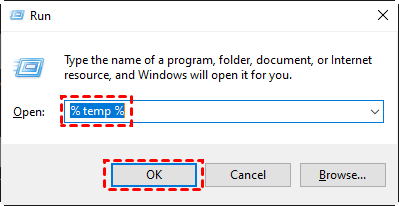
Step 2. Press Windows + R, type %temp%, and delete all contents.
Step 3. Open Disk Cleanup: Start → search Disk Cleanup → select drive → check temporary files → click OK.
Way 2. Uninstall unnecessary programs
Old or unused programs take up resources and may conflict with other software, leading to errors. Removing them improves system stability.
Step 1. Press Windows + I to open Settings → go to Apps → Apps & Features.
Step 2. Browse the list and select programs you rarely use.
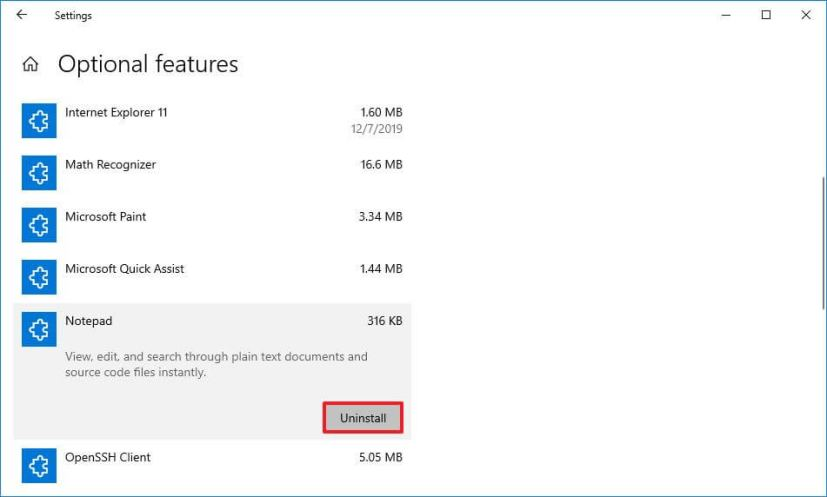
Step 3. Click Uninstall and follow the prompts to remove the software.
Way 3. Scan for malware and viruses
Malware and viruses can cause system errors, slow performance, and security risks. Regular scans help detect and remove threats efficiently.
Step 1. Open Windows Security → go to Virus & threat protection.
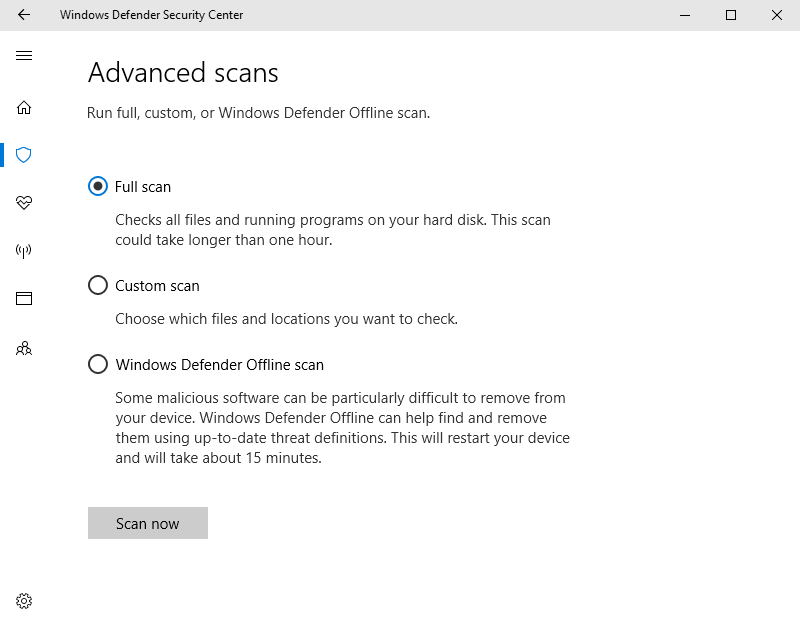
Step 2. Click Quick scan or Full scan for a thorough check.
Step 3. If malware is found, follow prompts to quarantine or remove the threats.
Way 4. Run SFC and DISM
System File Checker (SFC) and Deployment Imaging Servicing and Management (DISM) repair corrupted Windows system files that may cause crashes or errors.
Step 1. Press Windows + X → select Windows Terminal (Admin).
Step 2. Type sfc /scannow → press Enter and wait for completion.

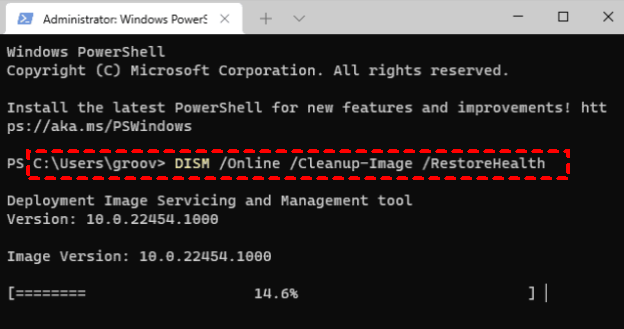
Step 3. If errors persist, type DISM /Online /Cleanup-Image /RestoreHealth → press Enter.
Step 4. Restart your PC after the process finishes.
Way 5. Check the hard drive for errors
Hard drive errors can lead to data corruption, crashes, and slow performance. Checking and fixing them ensures your storage works correctly.
Step 1. Open This PC → right-click your system drive → select Properties.
Step 2. Go to the Tools tab → under Error checking, click Check.
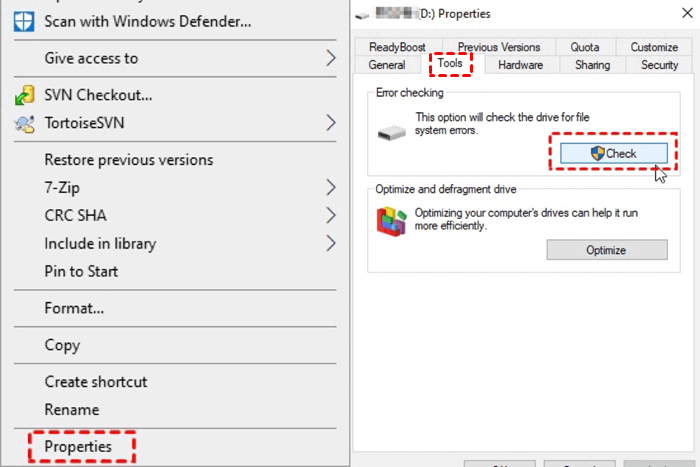
Step 3. Follow prompts to scan and repair detected issues.
Step 4. Restart your PC to complete the repair.
Way 6. Use a trusted PC cleaner tool
For a more thorough system cleanup, dedicated software is the smartest choice. PartitionAssistant Cleanup is a reliable and versatile disk management solution built to remove junk files and enhance overall PC performance. It scans your system safely and efficiently, eliminating unnecessary data without risk. In addition, its large file analysis feature helps uncover and manage space-hogging files, freeing up valuable storage you may not realize was being wasted.
Key cleanup features of PartitionAssistant Cleanup:
1. Junk file cleanup: AOMEI Partition Assistant scans your system for temporary files, cache data, log files, and other unnecessary items left behind by Windows and applications. Removing these files helps eliminate minor system errors and speeds up your PC.
2. Large file cleanup: The tool identifies large, useless files that take up excessive space. Deleting or moving these files reduces disk pressure, which can prevent system slowdowns and disk-related errors.
3. Duplicate file finder: Duplicate files can confuse applications and waste storage. AOMEI helps locate and remove duplicates safely, reducing file conflicts and improving overall system efficiency.
 PartitionAssistant Cleanup
Free Up Disk Space To Keep Your PC Running Smoothly and Efficiently
Step 1. Install and launch PartitionAssistant Cleanup. Click the "Clean Junk Files" tab.

Step 2. Click the "Scan Now" button to start the process of scanning junk files.

Step 3. After the scan process is finished. All system junk files (including recycle bin files, temporary files, log files, invalid shortcuts, and so on) and registry junk files (including DLL registry, system registry, and program registry) will be displayed.

You can also click the button behind to view the junk files details.

Step 4. And, you can click the button behind to locate the file.

By default, the program will select some junk files to clean up, for example, temporary files, log files, and so on. You can also manually check to select more or uncheck to deselect fewer listed junk files. Or, click "Select All" to select all junk files to clean up if you need to clean up all.
Step 5. After selecting junk files that are not needed anymore, you can click the "Clean Now"button to start the cleanup.

The process of the cleanup might take time, and the selected files will be cleaned up. After the process is finished, you will get a cleanup completed window displaying how many files you have cleaned and not yet cleaned.

FAQs
⭕ How often should I clean my PC from errors?
Generally, clean your PC every 1–3 months. Frequent use, heavy software installation, or slow performance may require more regular maintenance.
⭕ Can cleaning the registry improve performance?
Registry cleaning rarely boosts performance significantly. It may fix specific issues, but unnecessary cleaning can sometimes cause system instability.
⭕ Is antivirus scanning enough to remove all errors?
No. Antivirus software removes malware, but system errors, junk files, and corrupted system files require additional tools and manual checks.
⭕ Will defragmenting an SSD improve speed?
No. SSDs do not benefit from defragmentation and it may reduce their lifespan. SSDs use TRIM instead.
⭕ Can PC cleaning tools fix a slow computer completely?
Not always. Cleaning tools help, but hardware limits, outdated software, or malware may still cause slow performance.
Conclusion
In conclusion, cleaning your PC from errors is a simple but vital habit. By combining manual maintenance with a trusted cleanup tool, you can boost performance, reduce crashes, free storage space, and keep Windows stable. Regular error cleaning ensures a faster, safer, and more reliable computing experience over time.
