


Solved - How to Delete Unwanted Files in Windows 10
How to delete unwanted files in Windows 10 when there is not enough space on the C drive? In this page, you are going to learn a useful files cleaner.

By AOMEI / Updated on March 5, 2026


Need to delete unwanted files in Windows 10
Over time, more and more unimportant files will appear on your computer, such as temporary files, duplicate files, cache files, thumbnails, Windows upgrade files, hibernation files, etc., some are already on your computer been idle for a long time.
Not only do they take up disk space and make the computer run slowly. It can even cause the computer to freeze, or crash. Therefore, deleting unwanted files in PC is inevitable. However, as ordinary computer users, it is difficult for us to find those files hidden deep in the disk, and we cannot be sure whether they can be deleted. So, we need reliable software to delete unwanted files to free up space.
Next, I will show you how to delete unwanted files in Windows 10 easily and safely.
[Guide] How to delete unwanted files in Windows 10, 8, 7, and 11
You may delete some unwanted files through Windows Explorer, Disk cleanup or CMD, but their disadvantage is that they cannot completely delete all junk files. To permanently delete unwanted files without leaving behind anything, you need to turn to a professional junk file cleaner.
You suggest you try PartitionAssistant Cleanup. Its Clean Junk Files feature can automatically scan the target disk for junk files, including system junk files and registry junk files, and remove them permanently with a few clicks. Download it for free to try how to delete unwanted files in Windows 7/8/10/11 with this utility.
 PartitionAssistant Cleanup
Free Up Disk Space To Keep Your PC Running Smoothly and Efficiently
Step 1. Install and launch PartitionAssistant Cleanup. Click the "Clean Junk Files" tab.

Step 2. Click the "Scan Now" button to start the process of scanning junk files.

Step 3. After the scan process is finished. All system junk files (including recycle bin files, temporary files, log files, invalid shortcuts, and so on) and registry junk files (including DLL registry, system registry, and program registry) will be displayed.

You can also click the button behind to view the junk files details.

Step 4. And, you can click the button behind to locate the file.

By default, the program will select some junk files to clean up, for example, temporary files, log files, and so on. You can also manually check to select more or uncheck to deselect fewer listed junk files. Or, click "Select All" to select all junk files to clean up if you need to clean up all.
Step 5. After selecting junk files that are not needed anymore, you can click the "Clean Now"button to start the cleanup.

The process of the cleanup might take time, and the selected files will be cleaned up. After the process is finished, you will get a cleanup completed window displaying how many files you have cleaned and not yet cleaned.

Follow up: Delete unwanted files larger than 16MB
Besides junk files, how to delete other unwanted files? These files may be larger than 16MB and located on the C drive. Don't worry, “Delete Large Files” feature will do the favor for you.
The characteristic of this feature is that it can fully scan files larger than 16MB in the target disk. After the scan, it will also automatically mark the files related to the system or the files related to the boot program, so you need to be careful when dealing with it. Finally, tick the target file and click "Delete" to permanently delete the unwanted files.
PartitionAssistant CleanupFree Up Disk Space To Keep Your PC Running Smoothly and Efficiently
Step 1. Install and launch PartitionAssistant Cleanup. Click the "Delete Large Files" tab.
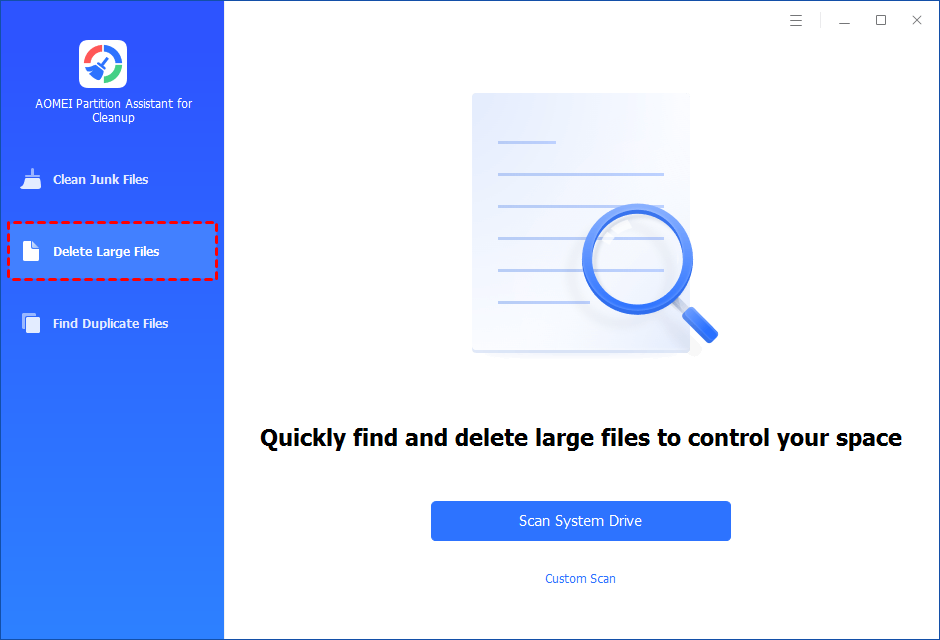
Step 2. You can either click "Scan System Drive" to start the scan of your system C: drive. Or, click "Custom Scan" to manually select paths to be scanned. (Here, we take the "Custom Scan" as an example.)
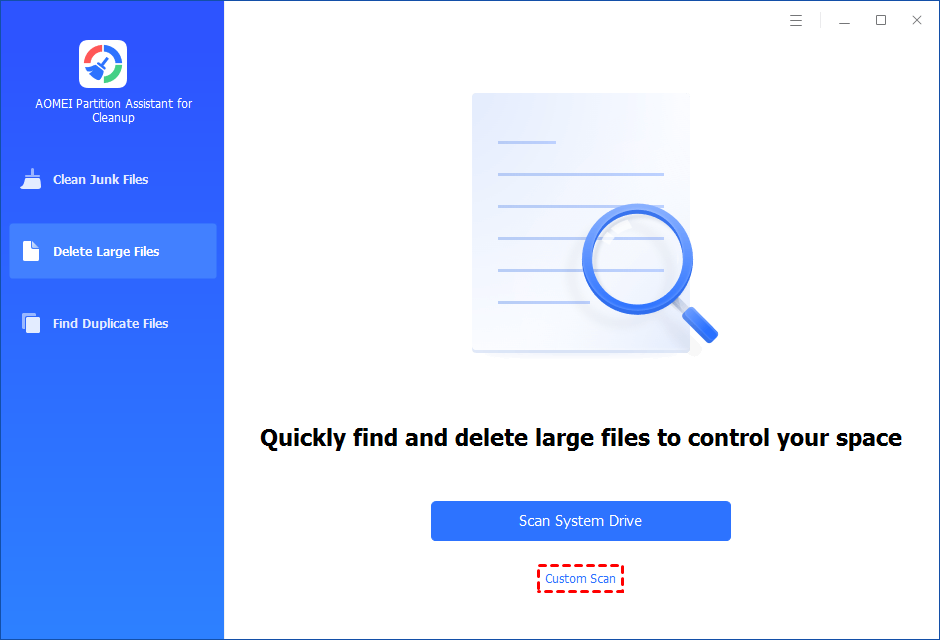
Step 3. After clicking "Custom Scan", all local and external drives on your PC and the common Desktop, Documents, and Downloads paths will be displayed. You can manually select paths to be scanned. Once necessary paths are added, you can click the "Scan Now" button to start the scan process.

The scan process might take time. After the scan is complete, all large files found will be listed.
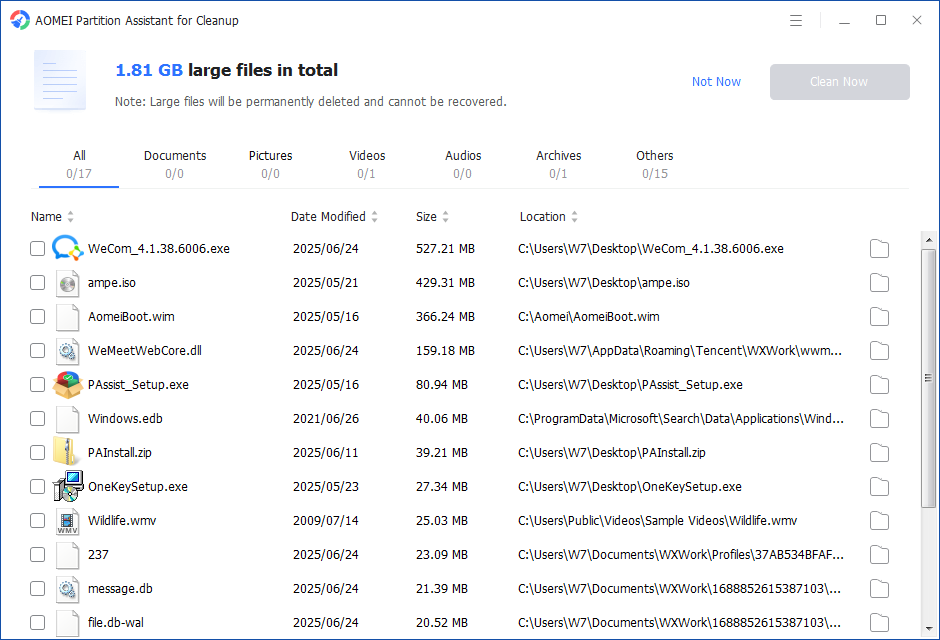
You can also check the large files and click the button behind to locate them.
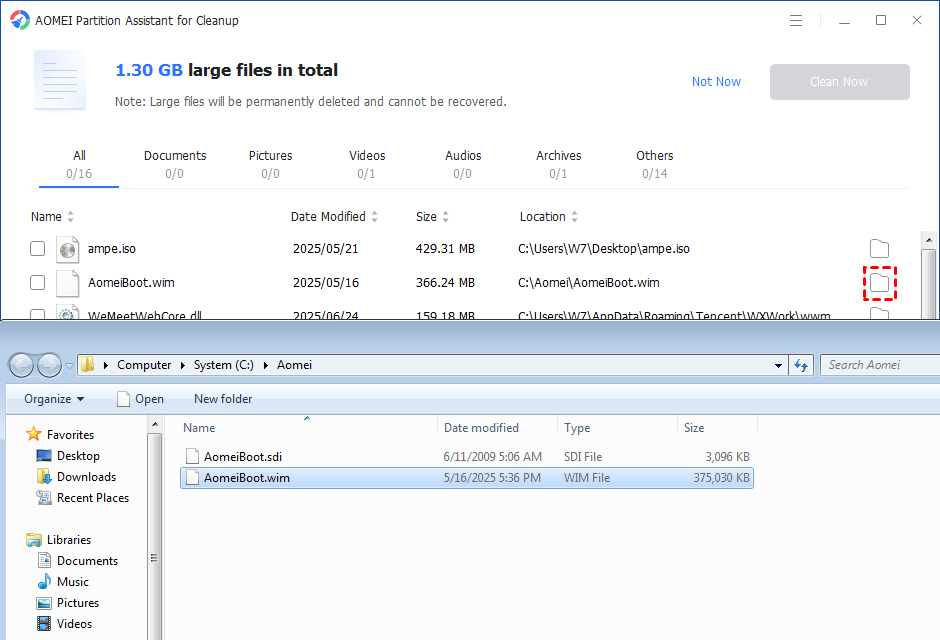
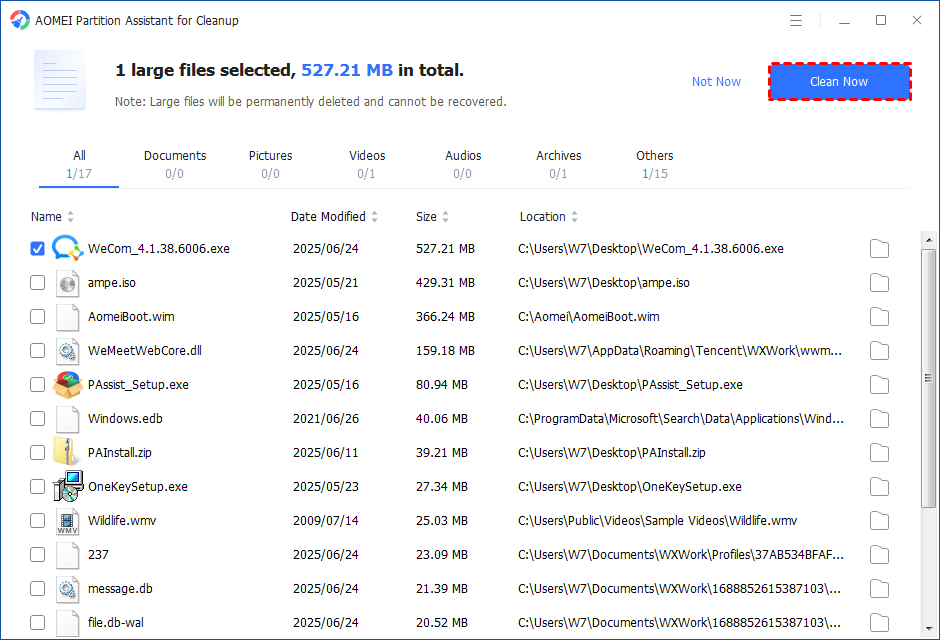
Step 4. Tick the files you want to delete, and then click the "Clean Now" button to start the deletion.
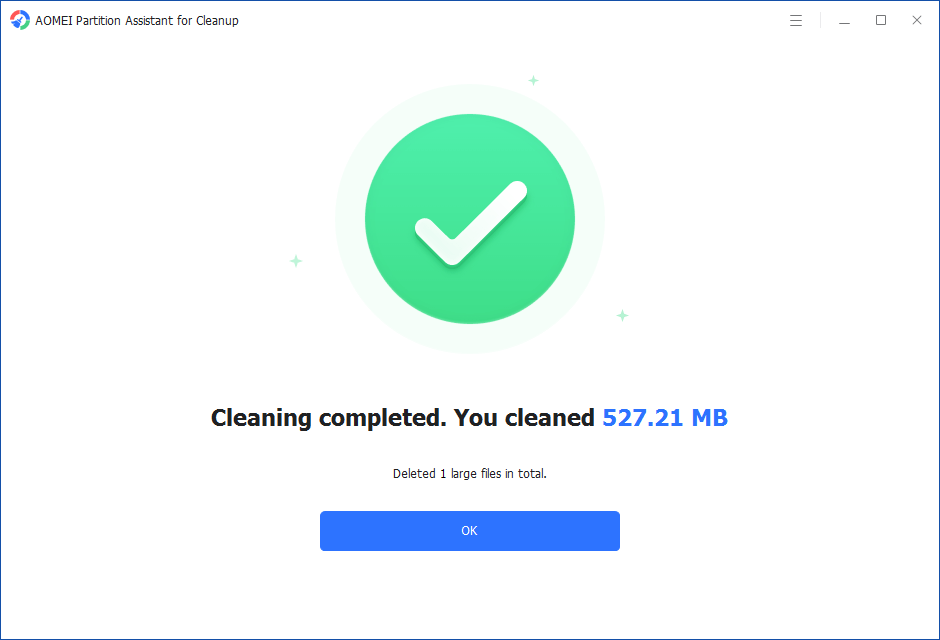
Step 5. The deletion might take time. After the process is finished, the selected files will be deleted, and you will get a cleaning completed window displaying how much data you deleted in total.
Conclusion
This is the whole process of how to delete unwanted files in Windows 10, 8, 7, as well as Windows 11. With the help of AOMEI Partition Assistant, you can not only clean up junk files in C drive, but also delete C drive permanently Files larger than 16MB. If you want to free up space, then be sure not to miss it.
