


[Top 4 Ways] How to Delete Windows 10 Update Files?
How to delete Windows 10 update files when my PC is full? In this article, we will share 3 ways to clean up Windows upgrade files and speed up your PC.

By AOMEI / Updated on July 9, 2025


What are Windows update files?
Many Windows users may want to delete Windows 10 update files when they ran out of space on their computer. However, they do not understand what Windows update files are and whether it is safe to delete them.
Windows update files refer to files that information about old Windows automatically formed in your PC after you update the Windows OS. They can solve some compatibility issues, keeping your computer running smoothly. If you want to return to the previous version of Windows, it will help you do it.
Deleting these Windows update files is completely safe and will not cause any ill effects on your PC, but only if you don't want to revert back to an older Windows version anymore. Next, we will share some methods on how to delete Windows 10 update files.
Three ways to remove Windows update files
In fact, there are several ways to help you manually find and delete Windows update files on Windows 10. In the following, we will introduce the detailed methods one by one.
│Method 1. Delete Windows update files via Disk Cleanup
How to delete old update files on Windows 10? First, you can try Disk Cleanup, a common Windows built-in cleaning tool. It can remove unwanted files from your computer, including Windows update files, temporary Internet files, installation log files and more.
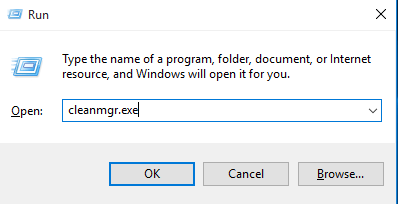
Step 1. Press "Windows + R" and type "cleanmgr.exe", then hit "Enter" to open Disk Cleanup.
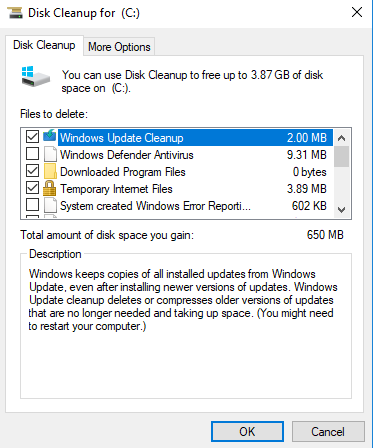
Step 2. Select "Windows Upgrade Cleanup" in the pop-up window, then click "OK".
│Method 2. Delete Windows Update files through Settings
The magic "Settings" program can also help you clean up Windows update files. The detailed steps on how to delete Windows update files on Windows 10 are as follows:
Step 1. Press "Windows + I" to quickly open the Settings program. Then tap the "System" and "Storage" in turn.
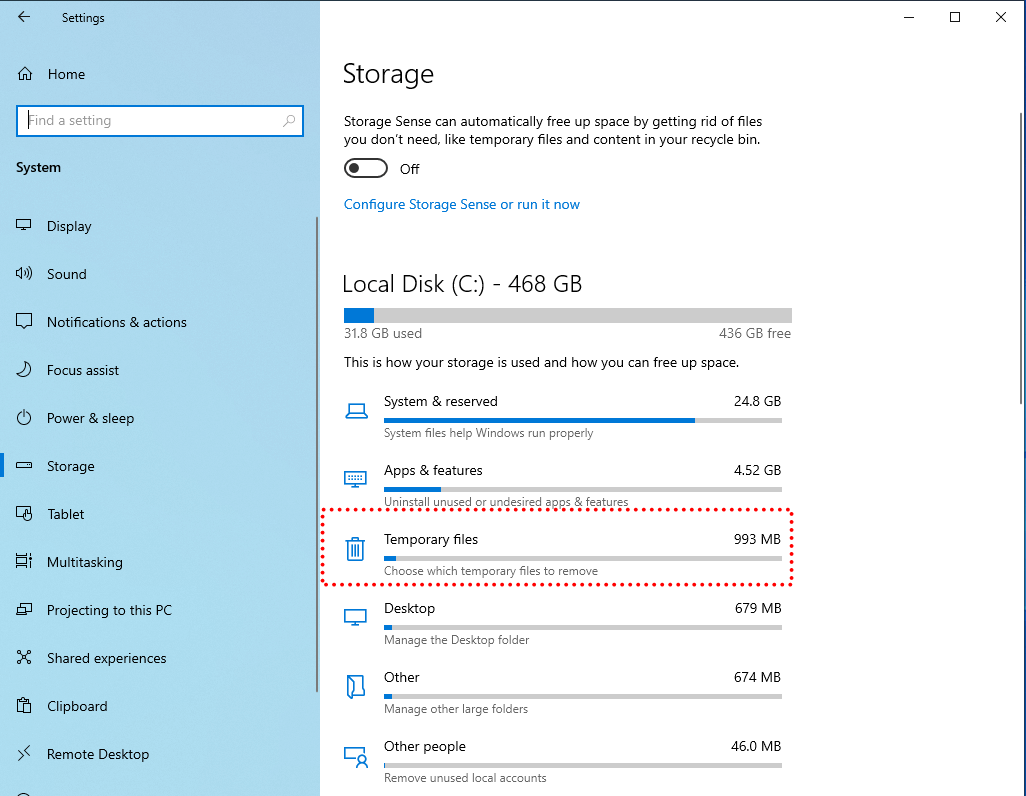
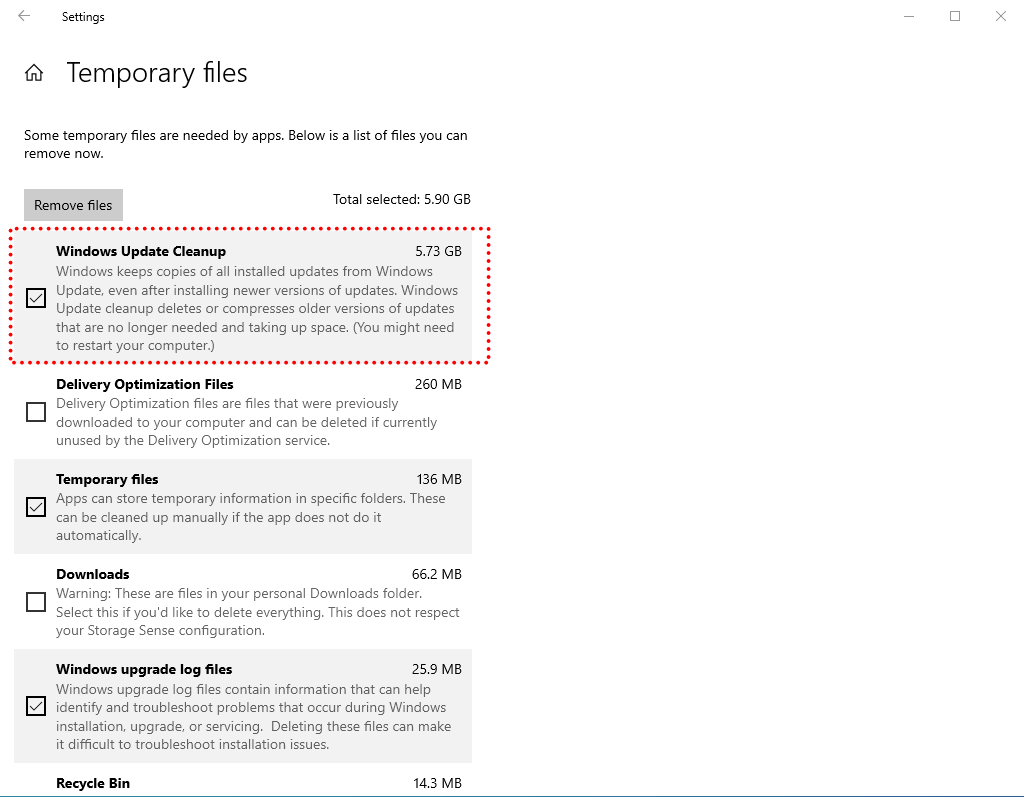
Step 2. Find and click the "Temporary Files", tick "Windows Update Cleanup" and "Delivery Optimization Files" in the new pop-up window, then click "Remove files".
│Method 3. Delete the Windows update files in the SoftwareDistribution folder
It's also a good idea to stop the Windows Update service in the SoftwareDistribution folder. The SoftwareDistribution folder is a specific folder, all downloaded updates are stored in it for later use. Please follow the steps below.
Step 1. Type "Services" in the "Start" search bar, press "Enter" to open it.
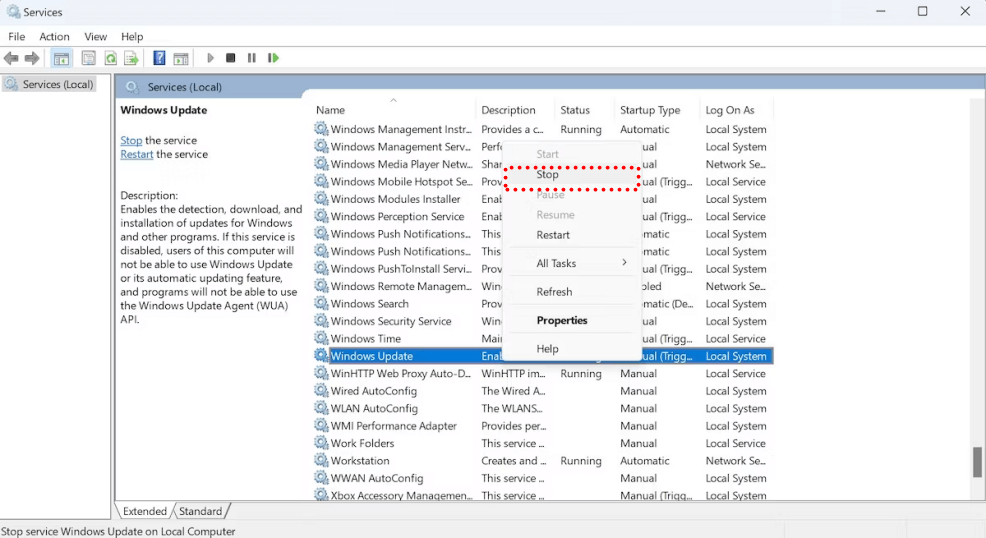
Step 2. Find and right-click "Windows Update Service" in the pop-up window, then select "Stop".
Speed up your computer with more powerful tool
You may be well aware that it's not just Windows update files that are slowing down your computer. Just know how to delete Windows 10 update files will not completely clean up your PC. Thus, to deeply clean up your PC, we recommend you to use a powerful computer cleaning expert - PartitionAssistant Cleanup.
It can not only find and delete all junk files in the computer, but also scan large files larger than 16MB in the entire computer and identify files that can be deleted, freeing up space in the most favorable state for the computer.
As a comprehensive computer manager, its functions are not limited to cleaning the PC. It can also help you clone hard drive, allocate free space, recover lost data, convert dynamic disk to basic, etc.
 PartitionAssistant Cleanup
The Best Windows Disk Partition Manager and PC Optimizer
Step 1. Install and launch PartitionAssistant Cleanup. Click the "Delete Large Files" tab.
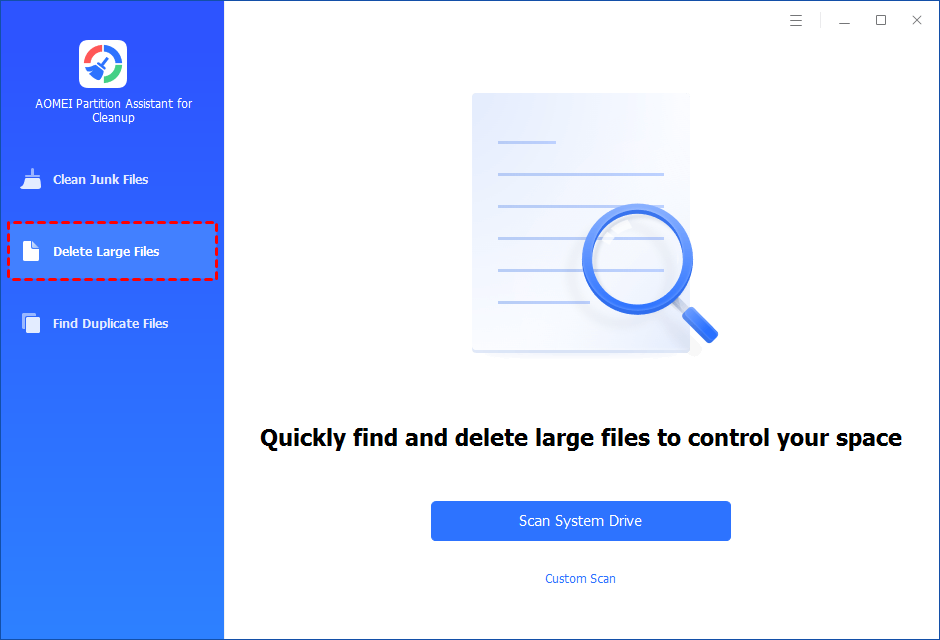
Step 2. You can either click "Scan System Drive" to start the scan of your system C: drive. Or, click "Custom Scan" to manually select paths to be scanned. (Here, we take the "Custom Scan" as an example.)
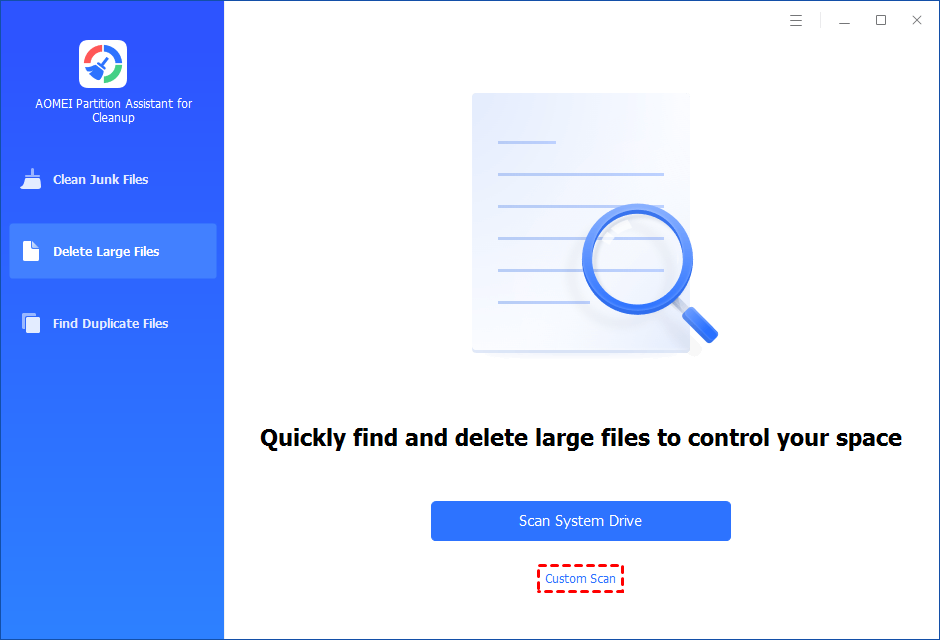
Step 3. After clicking "Custom Scan", all local and external drives on your PC and the common Desktop, Documents, and Downloads paths will be displayed. You can manually select paths to be scanned. Once necessary paths are added, you can click the "Scan Now" button to start the scan process.

Step 4. The scan process might take time. After the scan is complete, all large files found will be listed.
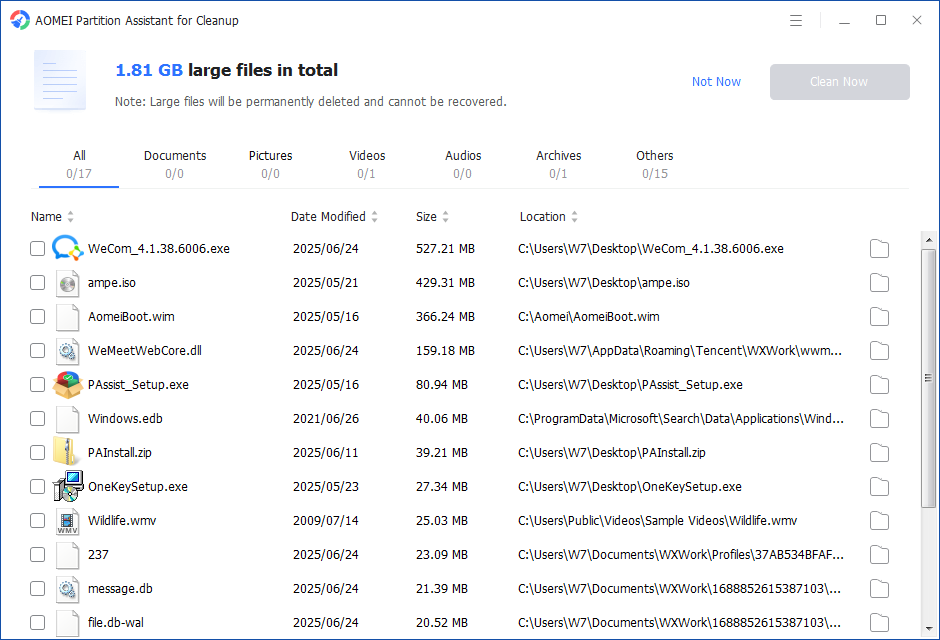
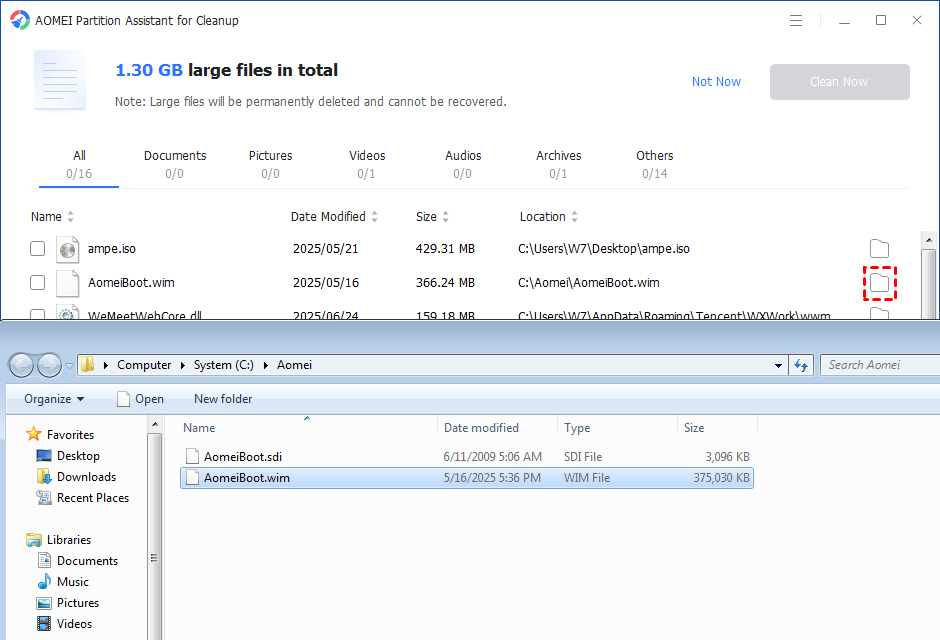
Step 5. You can also check the large files and click the button behind to locate them.
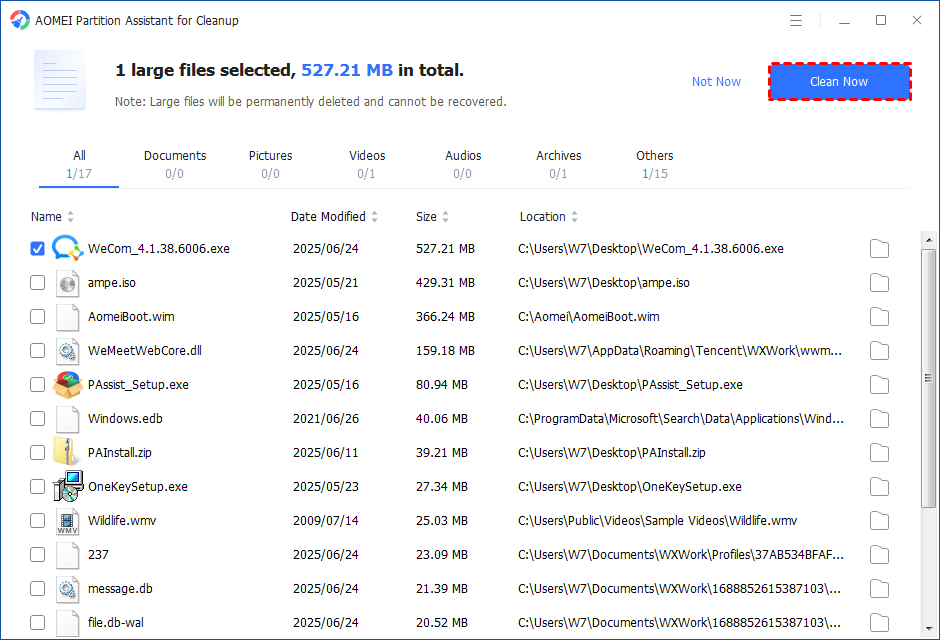
Step 6. Tick the files you want to delete, and then click the "Clean Now" button to start the deletion.
Step 7. The deletion might take time. After the process is finished, the selected files will be deleted, and you will get a cleaning completed window displaying how much data you deleted in total.
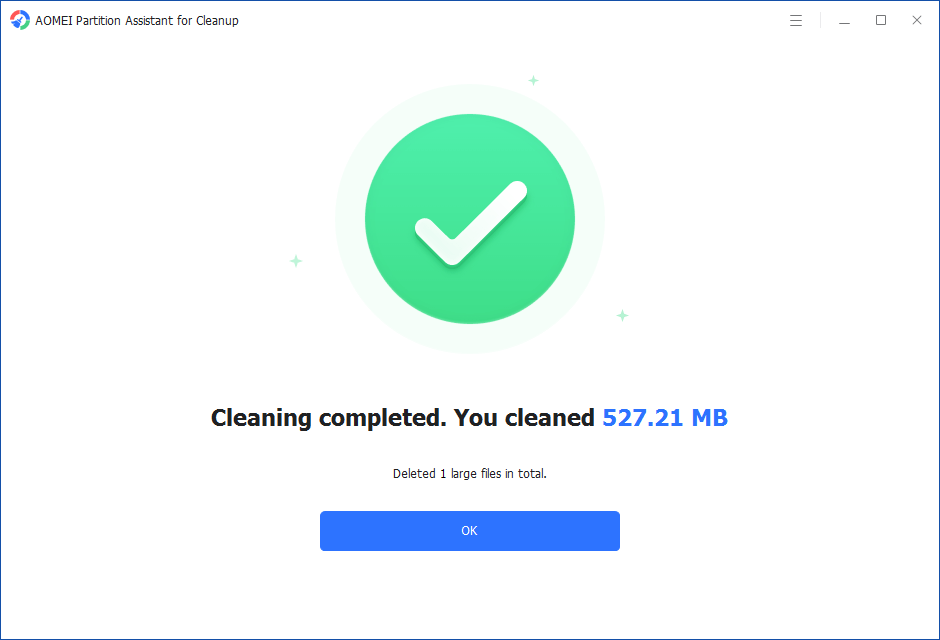
Step 5. Just for a while, the large files will be deleted successfully, and then you will see a warm notification suggesting you clean up your PC regularly.
Tip: If you don't want to uninstall the applications in the drive that is full of space, you can use the "App Mover" function to migrate all the programs and related files to another drive.
Conclusion
How to delete Windows 10 update files? In this article, we have explained it's safe to delete Windows update files in detail and shared 3 ways to do it.
