


5 Ways to Fix Net Runtime Optimization Service High CPU
Are you familiar with the .NET Runtime Optimization Service high CPU? Wondering why it consumes so much CPU on your computer? This article explains the causes and offers solutions to address the issue.

By Hedy / Updated on January 22, 2026


You may never notice mscorsvw.exe unless you regularly check Task Manager. This process, officially called the .NET Runtime Optimization Service, is a built-in Windows component designed to improve system performance. Its role is to precompile .NET assemblies so applications and programs can launch more quickly.
Under normal conditions, the service runs quietly in the background and consumes minimal resources. However, when the optimization process stalls or takes longer than expected, CPU usage can spike. Other factors may also contribute to unusually high CPU consumption, including:
◈ The optimization service running inefficiently or becoming stuck
◈ Malware disguising itself as a legitimate system service, or infecting the process
◈ Corruption within the .NET Runtime Optimization Service itself
Because this service helps applications start faster, disabling it outright is not recommended, even when CPU usage rises. Fortunately, there are effective alternatives.
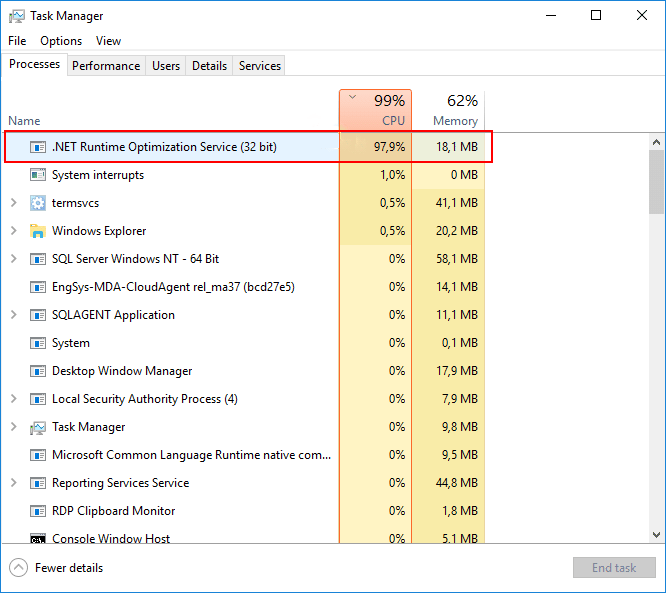
Several proven solutions can resolve high CPU usage caused by mscorsvw.exe on Windows 10, 8, or 7. The methods below have helped many users restore normal performance. If this issue appears on your system, applying these fixes is well worth considering.
How to fix net runtime optimization service high CPU
The .NET Runtime Optimization Service (mscorsvw.exe) helps optimize .NET applications, but it can sometimes consume excessive CPU resources. Try the solutions below to resolve the issue.
Solution 1. Scan your PCfor malware
Malware infections can sometimes cause the .NET Runtime Optimization Service to consume excessive CPU. If you suspect this is the case, run a full system scan using trusted anti-malware software such as Malwarebytes or Avast, both of which are available from their official websites.
Once the scan is complete and any threats are removed, check your system to see if the high CPU usage by mscorsvw.exe has been resolved.
Solution 2. Speed up the .NET runtime optimization service
If the .NET Runtime Optimization Service is running slowly, it can lead to high CPU usage. You can speed up the process by using Command Prompt with administrative privileges.
Step 1: Type cmd in the Windows search box, then right-click Command Prompt and select Run as administrator.
Step 2: Navigate to the appropriate .NET Framework folder based on your system drive and architecture:
32-bit OS: cd C:\Windows\Microsoft.NET\Framework\v4.0.30319
64-bit OS: cd C:\Windows\Microsoft.NET\Framework64\v4.0.30319
Step 3: Run the following command to accelerate the optimization process:
ngen.exe executequeueditems

Step 4: Open Task Manager to confirm that CPU usage has returned to normal.
These commands prompt the .NET Runtime Optimization Service to complete queued tasks faster by leveraging all available CPU cores (up to six), which typically resolves high CPU issues.
Solution 3. Run the official script made by Microsoft
If you prefer not to run commands manually—or if you’re using an older version of Windows—you can use Microsoft’s official script to speed up the .NET Runtime Optimization Service.
Step 1: Visit the GitHub page hosting the official script.
Step 2: Right-click the Raw button and select Save link as.

Step 3: Ensure the file type is set to Windows Script File and save it to your hard drive.
Step 4: Double-click the saved file to execute the script.
Step 5: If prompted to choose a program to run the script, select Windows Script Host.
Running this script allows the service to complete its tasks faster, which should resolve the high CPU usage issue.
Solution 4. Restart the Service
Restarting the service can help resolve mscorsvw.exe high CPU usage by allowing it to complete its tasks more efficiently. Here’s how to do it:
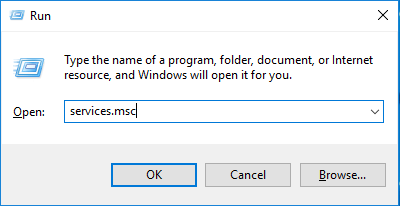
Step 1: Right-click the Start menu and select Run, or press Windows key + R to open the Run dialog.
Step 2: Type services.msc into the box and press Enter.
Step 3: In the Services window, scroll to locate NVIDIA Telemetry Container, right-click it, and select Restart.
Step 4: Right-click NVIDIA Telemetry Container again and choose Properties.
Step 5: In the Properties window, set the Startup Type to Automatic.
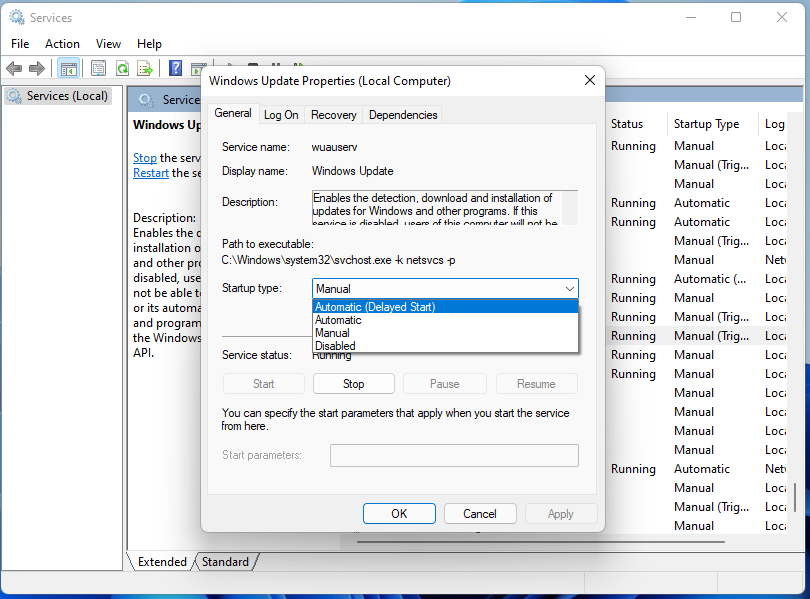
Step 6: Click Apply and OK to save changes.
Finally, open Task Manager to check if the .NET Runtime Optimization Service CPU usage has returned to normal.
Solution 5. Run a third-party disk cleaning tool
PartitionAssistant Cleanup is a powerful disk cleaning tool designed not only for partitioning tasks but also for system cleanup and optimization. PartitionAssistant Cleanup helps identify unnecessary system files, temporary files, and residual data that may contribute to CPU overload.
By efficiently cleaning junk files, optimizing disk usage, and improving system resource allocation, it can reduce the CPU burden caused by background services like the .NET Runtime Optimization Service, helping your PC run smoother and more efficiently.
 PartitionAssistant Cleanup
Free Up Disk Space To Keep Your PC Running Smoothly and Efficiently
Step 1: Install and launch AOMEI Partition Assistant. Navigate to the "Clean Junk Files" tab.

Step 2: Click "Scan Now" to begin the junk file scanning process.

Step 3: Once the scan finishes, all identified junk files will appear. These include system files like temporary files, log files, and invalid shortcuts, along with registry files such as DLL, system, and program registries.

You can click the button next to each file type to view more details about the junk files.

Step 4: You can also use the button next to each file to locate it on your system.

By default, the program will automatically select common junk files like temporary and log files for cleanup. You can manually check or uncheck additional files, or select "Select All" to clean up everything.
Step 5: Once you've selected the unnecessary files, click the "Clean Now" button to begin the cleanup.

The cleanup may take a few moments. Once complete, a summary window will show how many files were cleaned, and how many remain.

FAQs
📢 Why does Net Runtime Optimization Service use so much CPU?
It compiles .NET assemblies to improve application performance. High CPU occurs when many assemblies are optimized simultaneously, especially after updates or system changes, temporarily increasing processor usage until the task completes.
📢 Is it safe to stop Net Runtime Optimization Service?
Yes, stopping it is generally safe, but compiled assemblies may not be optimized, causing slightly slower .NET application startup. The service will usually restart automatically when required.
📢 Can high CPU usage damage my computer?
Prolonged high CPU usage can increase heat, potentially stressing cooling systems, but modern CPUs have thermal protections. It won’t directly damage hardware unless overheating occurs or cooling is inadequate.
📢 Why does the issue return after every reboot?
The service runs automatically at startup to optimize newly installed or updated .NET components. Without completing its task, CPU spikes reappear each reboot until optimization finishes.
📢 Will disabling the service break applications?
Disabling it won’t break applications, but .NET apps may launch slower because assemblies aren’t precompiled. Functionality remains intact; only performance is temporarily affected.
Conclusion
In summary, mscorsvw.exe, the .NET Runtime Optimization Service, can occasionally cause high CPU usage, but it is essential for faster application performance. By scanning for malware, accelerating optimization, using Microsoft’s official script, restarting the service, or leveraging tools like PartitionAssistant Cleanup, you can resolve CPU spikes effectively and restore your system’s smooth performance without disabling this important Windows component.
