
 PartitionAssistant NTFS for Mac
The Best External Hard Drive for Mac: A Guide to Brands and Formats
This overview explores top-rated external hard drive brands and the ideal formats for Mac. It provides helpful information on using drives effectively with managing NTFS software.

By Irene / Updated on January 21, 2026


When searching for the best external hard drive for Mac, most users understandably prioritize raw speed, hardware reliability, and the connection interface. Industry benchmarks consistently highlight solid-state drives (SSDs) such as the Samsung T7 Shield and SanDisk Extreme Pro as top-tier choices. For professionals or creative users requiring massive capacity at a more accessible price point, traditional hard drives like the WD My Passport Ultra for Mac remain the best external hard drive brand for Mac users focused on Time Machine backups and long-term archival storage.
However, selecting the right hardware is only half the equation in a cross-platform environment. For many macOS users, the file system format plays an equally critical, yet often overlooked, role in daily operations. A frequent frustration arises when users purchase premium drives from leading manufacturers like Seagate or WD, only to discover they are pre-formatted in NTFS, the native file system for Windows. If you directly use it, you may encounter many issues.
Therefore, learning how to use an external hard drive for Mac effectively requires more than just plugging in a cable—it demands a clear strategy for managing file systems. In this article, you will get a comprehensive guide about both the best external hard drive for Mac and how to use it correctly.
🌟 What to do before using an external hard drive for Mac
As we detailed earlier, the market standard often sees drives arriving preformatted in NTFS. If you proceed to use such a drive directly with your Mac, you might discover the disk is not mounted correctly or is restricted to read-only mode with no option to write data. To resolve this compatibility issue without reformatting that may cause data loss, the most effective approach is installing reliable ntfs for mac software. We specifically recommend PartitionAssistant NTFS for Mac for this task. It functions as a seamless background driver that instantly grants your system full write privileges, ensuring your workflow remains uninterrupted and your data remains accessible across both operating systems.
This powerful tool integrates with Finder to unlock full capabilities including the ability to write, edit, delete, and rename files on your NTFS drives just as if they were native storage. Whether you are a student transferring assignments, a professional sharing business reports across Windows and Mac, or simply managing family backups, this software ensures smooth cross-platform compatibility. You can easily drag and drop files between devices without barriers. To experience this unrestricted access for your workflow, you can free download it and start managing your data efficiently today.
Step 1. Open the installed PartitionAssistant NTFS for Mac, then connect your NTFS drive, and the software will automatically mount and display all connected external hard drives on your Mac.

Step 2. Find the NTFS drive you want to write data, and click "Enable Writable". If the status is already Read & Write, simply click “Open” to start using the NTFS external hard drive on your MacBook.
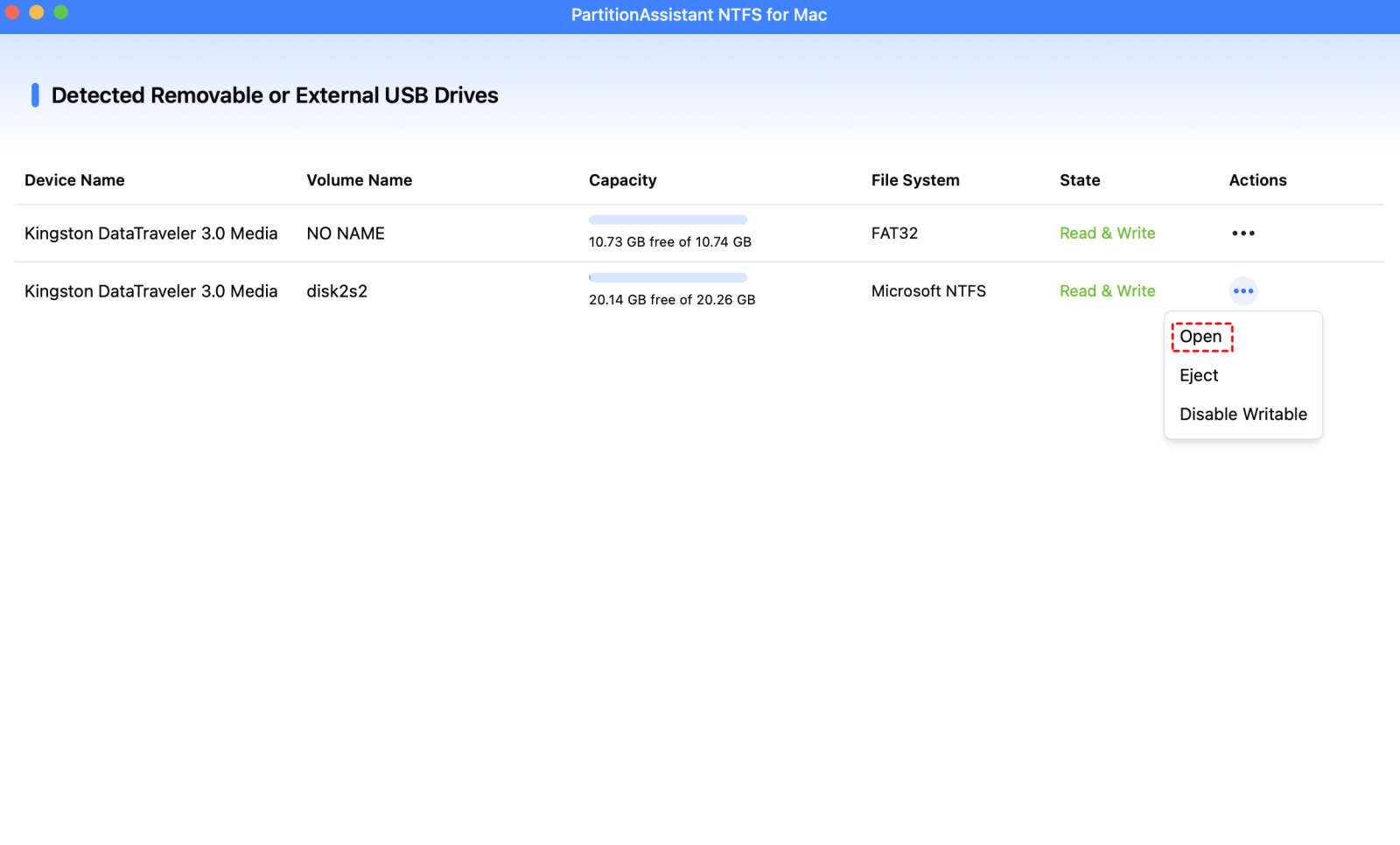
Step 3. You can now use the best disk mounter software for Mac to copy, move, delete files without formatting the NTFS drive.

Step 4. After all operations are complete, please click "Eject" to disconnect the external hard drive from your Mac.

Reviews of the best external hard drives for Mac (2026 Edition)
We put together a list of the top five external hard drives for 2026 to help you get the best speed and reliability for your Mac. This list is based on recent tests, real-life use, and reviews from forums like Reddit, Super User, and Apple Discussions, and trusted tech sites like Macworld, TechRadar, and PCMag. These drives were picked because they are well-built and fast, which makes them great for nowadays daily tasks.
Top 1. Samsung T7 Shield
Verdict: The Best All-Around External SSD for Most Mac Users
The Samsung T7 Shield has cemented its place as the gold standard for external storage, striking a near-perfect balance between price, performance, and durability. Unlike its predecessor (the standard T7), the Shield features a rubberized exterior that provides IP65 water and dust resistance and drop protection up to 3 meters.
For Mac users, this drive is exceptional because it consistently hits its advertised speeds of up to 1,050 MB/s over USB 3.2 Gen 2, which is the native speed for the USB-C ports on most MacBook Air and Pro models. It maintains thermal stability better than almost any other drive in its class, ensuring that large file transfers (like moving a 50GB 4K video project) don't slow down due to overheating.
| Feature | Details |
|---|---|
| Interface | USB 3.2 Gen 2 (USB-C) |
| Max Speed | 1,050 MB/s Read/Write |
| Durability | IP65 (Water/Dust), 3m Drop Resistant |
| Format Out-of-Box | exFAT |
| Pros |
• Consistent sustained speeds • Excellent thermal management • Rugged rubberized grip |
| Cons |
• Not as fast as Thunderbolt drives • Rubber shell attracts dust |
| Best Used Case | General backups, 4K video editing, transferring large creative assets. |
Market Pricing (Approx.):
-
1TB: $99 - $110
-
2TB: $160 - $180
-
4TB: $300 - $330
Top 2. SanDisk Professional PRO-G40
Verdict: The Ultimate High-Performance Drive for Creative Pros
If your workflow involves high-bitrate footage or massive render files, the SanDisk Professional PRO-G40 is the undisputed king of performance. It utilizes a dual-mode compatibility chip that supports both Thunderbolt 3 (40Gbps) and USB-C (10Gbps).
When plugged into a Thunderbolt port on a MacBook Pro or Mac Studio, it delivers blistering speeds up to 2,700 MB/s—nearly three times faster than standard SSDs like the Samsung T7. It is built like a tank, featuring an ultra-rugged design with an IP68 rating (highest on this list) and a crush resistance of 4,000 lbs. It is the drive of choice for on-set DITs and professional video editors who cannot afford downtime.
| Feature | Details |
|---|---|
| Interface | Thunderbolt 3 & USB 3.2 Gen 2 |
| Max Speed | 2,700 MB/s (Read) |
| Durability | IP68 (Water/Dust), 4000lb Crush |
| Format Out-of-Box | APFS (macOS optimized) |
| Pros |
• Incredible speeds (2700 MB/s) • Dual-mode compatibility • Extreme IP68 durability |
| Cons |
• Expensive price-per-GB • Short cable |
| Best Used Case | Professional 8K video editing, heavy VFX work, mission-critical field use. |
Market Pricing (Approx.):
-
1TB: $220 - $250
-
2TB: $380 - $420
-
4TB: $650 - $700
Top 3. WD My Passport Ultra (Standard Edition)
Verdict: The Best High-Capacity HDD for Mixed Mac/PC Environments
The WD My Passport Ultra is the quintessential external hard drive. Unlike the "for Mac" version, this standard edition comes pre-formatted in NTFS for Windows 10/11 readiness. If you directly use it, you may enounter Passport for Mac not showing up issue. To use it, you can download PartitionAssistant NTFS for Mac. It allows you to read and write to this drive on your Mac immediately without reformatting, which is perfect for users who constantly swap files between a MacBook and a Windows PC.
It uses a USB-C connection (with a USB-A adapter included), making it modern enough for new MacBooks while retaining the spinning platter HDD technology to offer massive storage at a very low price.
| Feature | Details |
|---|---|
| Interface | USB 3.2 Gen 1 (USB-C) |
| Max Speed | Up to 130 MB/s (HDD speed) |
| Durability | Standard Plastic Enclosure (Not rugged) |
| Format Out-of-Box | NTFS (Windows Native) |
| Pros |
• Extremely low cost per Terabyte • Elegant metal-and-plastic design • Includes NTFS driver for Mac capability • Password protection/Encryption |
| Cons |
• Slow transfer speeds (HDD vs SSD) • Moving parts (less durable than SSD) |
| Best Used Case | Time Machine backups (high capacity), long-term photo storage ("Cold Storage"), sharing files between office PCs and home Macs. |
Market Pricing (Approx.):
-
2TB: $80 - $90
-
4TB: $110 - $125
-
5TB: $130 - $150
Top 4. Seagate One Touch HDD
Verdict: The Best Value Backup Drive with Data Recovery
The Seagate One Touch is the direct competitor to the WD My Passport and often edges it out in terms of value-added services. It ships pre-formatted in NTFS, making it instantly compatible with Windows computers. Like other NTFS external hard drives, the WD disk works on Mac in read-only mode out of the box. Its standout feature is the inclusion of Rescue Data Recovery Services. If the drive fails mechanically, Seagate will attempt to recover your data for free in their lab—a service that typically costs over $1,000. For a budget drive, this peace of mind is unbeatable.
| Feature | Details |
|---|---|
| Interface | USB 3.0 (USB-A, usually needs dongle for newer Macs) |
| Max Speed | Up to 120 MB/s (HDD speed) |
| Durability | Brushed Aluminum front (Standard durability) |
| Format Out-of-Box | NTFS (Windows Native) |
| Pros |
• Includes Rescue Data Recovery Services • 4-Month Adobe Creative Cloud plan often included • Compact and lightweight • Very affordable |
| Cons |
• Uses older Micro-B connector (not USB-C native) • Slow HDD speeds |
| Best Used Case | Students on a budget, storing large media libraries where speed isn't critical, users who want data recovery insurance. |
Market Pricing (Approx.):
-
2TB: $70 - $80
-
4TB: $100 - $115
-
5TB: $125 - $140
Top 5. WD_BLACK P40 Game Drive SSD
Verdict: The Best High-Speed NTFS Drive for Gamers & Power Users
While marketed towards gamers, the WD_BLACK P40 is a secret weapon for Mac power users who also own a PC. It ships pre-formatted in NTFS and offers blistering NVMe speeds up to 2,000 MB/s.
Mac users love this drive because it is built with an industrial-grade metal enclosure that dissipates heat exceptionally well. While you won't use the RGB lighting features on a Mac (the software is Windows only), you will get the benefit of a premium, shock-resistant SSD that is often cheaper than "Pro Creative" drives. It is perfect for users who need a fast "shuttle drive" to move 100GB+ projects between a Windows rendering workstation and a MacBook Pro.
| Feature | Details |
|---|---|
| Interface | USB 3.2 Gen 2x2 (20Gbps) |
| Max Speed | Up to 2,000 MB/s (Note: Macs cap at 1,050 MB/s on USB) |
| Durability | Shock-resistant metal structure, 2m drop protection |
| Format Out-of-Box | NTFS (Windows Native) |
| Pros |
• Premium metal build quality • RGB Lighting (customizable on PC only) • 5-Year Warranty • Very fast random read/write speeds |
| Cons |
• Mac USB ports cap speed at ~1050 MB/s • Requires reformat or driver for Mac write access |
| Best Used Case | Hybrid workflows (PC Gaming + Mac Editing), fast project shuttle drive, users who want a rugged metal drive without the "Rugged" rubber look. |
Market Pricing (Approx.):
-
1TB: $100 - $120
-
2TB: $170 - $190
-
4TB: $320 - $350
Conclusion
Choosing the best external hard drive for Mac is not just about buying the fastest or most popular model. It is about finding a balance between performance, storage needs, and how you plan to use the drive across different systems. While SSDs offer speed and durability and HDDs provide affordable large capacity, file system compatibility often decides whether a drive feels smooth or frustrating in daily use.
By understanding how formats like NTFS work on macOS and preparing your drive properly before use, you can avoid common limitations such as read only access or mounting issues. With the right setup and tools, your external hard drive can work reliably on both Mac and Windows, making file transfers, backups, and long term storage simple and stress-free.
FAQs
🗨️ What is the best external hard drive for Apple Mac?
The best external hard drive for Mac depends on your needs. For most users, the Samsung T7 Shield SSD offers an excellent mix of speed, reliability, and durability. Creative professionals who need very high performance should consider the SanDisk Professional PRO-G40. If you want large capacity at a lower price, a traditional HDD like the WD My Passport Ultra is a strong choice.
🗨️ Will any external hard drive work on a Mac?
Most external hard drives will physically connect to a Mac, but they may not work fully right away. Many drives come pre-formatted for Windows (NTFS), which macOS can read but not write without additional software or reformatting. To use them fully on a Mac, you may need to reformat the drive to a compatible format or install NTFS support software.
🗨️ Can I use WD My Passport Ultra on Mac?
Yes, you can use the WD My Passport Ultra with a Mac. It comes pre-formatted in NTFS for Windows, but with PartitionAssistant NTFS for Mac, you can read and write on your Mac without needing to reformat the drive.
🗨️ Is it better to get an SSD or HDD external drive?
It depends on your priorities. SSDs are faster, more durable, and better for tasks like video editing or transferring large files. HDDs offer much more storage at a lower price, making them a good choice for backups and long-term storage where speed isn’t as important.
🗨️ Which lasts longer use for Mac, HDD or SSD?
SSDs tend to last longer in everyday use because they have no moving parts and are more resistant to shock and wear. HDDs have spinning components that can wear out over time, especially with heavy use or if dropped. However, both types can be reliable if properly cared for.
