
 PartitionAssistant NTFS for Mac
How to Remove Write Protection From Micro SD Card Mac?
You can learn how to remove write protection from a micro SD card on Mac OS. This article covers solutions for when a Mac SD card is write protected or locked.

By Irene / Updated on December 29, 2025


What is SD card protection?
If you’ve ever tried to delete files or format an SD card on your Mac and couldn’t, that’s a sign the card is write-protected. Think of it as a small digital lock that prevents any changes to the data on the card. This can be very frustrating, especially when you need to transfer files or free up space quickly.
SD card protection comes in two forms: hardware and software. Some standard SD cards have a tiny physical switch that locks the card, though this is rare for microSD cards. More commonly, the lock is software-based. In these cases, macOS may show errors like “The operation couldn’t be completed,” even if everything seems fine. Understanding whether the protection is hardware or software is the first step to fixing it and getting your SD card working normally again.
Why SD cards become write-protected on Mac
When you use SD cards on a Mac, you may face write protection, which prevents you from modifying, adding, or deleting files. Understanding the main causes of this issue helps you find the right solution.
| Cause | Explanation |
|---|---|
| Physical switch is locked | Some SD cards have a small switch on the side that can be accidentally or intentionally set to the locked position. This prevents changes to the card as a protective measure. |
| SD card formatted as read-only NTFS | NTFS is a Windows file system, and Mac provides very limited write support for it by default. Using an NTFS-formatted card on a Mac may trigger write restrictions. |
| Insufficient permissions | The card or specific files may have permission settings that block writing. Without the required access rights, you cannot modify or add files. |
| Corrupted SD card | Physical damage, file system errors, or improper ejection can corrupt an SD card. In some cases, the card may automatically enable write protection to prevent further damage or data loss. |
Knowing these causes makes it easier to apply the correct method to remove write protection on your SD card. The next section provides detailed instructions for each solution, helping you regain full access to your card.
How to remove protection from Micro SD card on Mac?
Fix 1. Allow NTFS SD card to read and write
If your Micro SD card shows as read-only on a Mac, you cannot add, delete, or edit files. This often happens because the card is formatted in NTFS, a file system designed for Windows. macOS can read NTFS cards but cannot write to them, so changing permissions in Finder or using Terminal commands will not fix the issue.
The easiest and safest way to remove write protection is to use PartitionAssistant NTFS for Mac. This software allows your Mac to read and write to Windows-formatted cards without reformatting. After installing it, your Micro SD card works like a regular Mac drive. You can copy, move, rename, or delete files directly in Finder without extra steps.
PartitionAssistant NTFS for Mac supports a variety of storage devices, including Micro SD cards, USB drives, SSDs, and external hard drives. It works with NTFS, FAT32, and exFAT formats and is compatible with both Intel and Apple Silicon Macs. Using this tool ensures stable, safe access to your card while avoiding risky command-line operations, making it a reliable solution for removing write protection on a Micro SD card.
Notice: To ensure safe modification of the Micro SD card, you may need to adjust the Security Policy in Recovery Mode. This setting allows your Mac to properly access and modify the card.
Step 1. Open PartitionAssistant NTFS for Mac and insert your read-only Micro SD card. You can click "Enable Writable" to adjust the state to Read & Write. Then the program will automatically detect, mount, and display all connected external and removable drives.

Step 2. Select the drive you want to operate and click "Open". Now you can write files on your Mac and click "Paste Item" to copy the files to your drive.
Step 3. You can also copy, delete, and rename files on the external hard drive.
Step 4. Once all tasks are finished, click Eject to safely remove the SD card from your Mac.
Fix 2. Check the physical lock on the SD Card
The physical lock on an SD card is a common cause of write protection. Checking this switch should be the first step. Make sure the switch is set to the unlocked position so you can edit, delete, or add files normally.
Step 1. Find the small switch on the side of the SD card.
Step 2. Confirm that the switch is not in the locked position.
Step 3. If the switch is locked, slide it to unlock the card.
Step 4. Insert the SD card into your Mac and see if the write protection is gone.
Fix 3. Change Sharing and Permission Settings
Adjusting the sharing and permission settings on your Mac can help remove write protection from an SD card. These settings allow you to grant yourself full access so you can edit, delete, and add files to the card.
Step 1. Insert the SD card into your Mac. Open Finder and locate the SD card.
Step 2. Right-click the SD card and select Get Info. Scroll to the Sharing & Permissions section in the Info window.
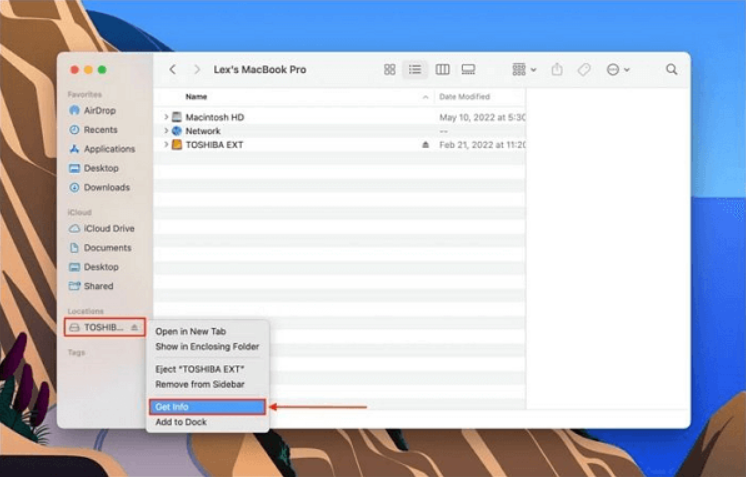
Step 3. Click the lock icon, enter your administrator password, and unlock the settings. Set Everyone to Read & Write.
Step 4. Close the Info window to save the changes.
If the SD card remains read-only after changing these settings, try the next method to continue troubleshooting.
Fix 4. Use Disk Utility to remove write protection
If your SD card continues to appear as write-protected on your Mac, Disk Utility can be used to check and repair the card. This built-in macOS tool may fix disk errors, but it does not enable write access. To rename, delete, or transfer files to the SD card on a Mac, you will still need a third-party tool such as PartitionAssistant NTFS for Mac.
Step 1. Insert the SD card into your Mac. Click the magnifying glass in the top-right corner of the screen.
Step 2. Type Disk Utility and open the first result. Select your SD card from the list on the left.
Step 3. Click First Aid at the top of the window.
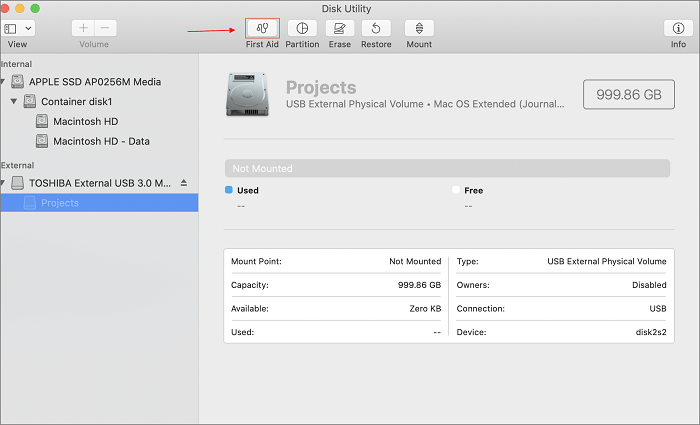
Step 4. Choose Run and wait for the process to finish.
After Disk Utility completes the check and repair, the SD card should no longer be write-protected, allowing you to edit and add files normally.
Conclusion
This passage introduce how to remove write protection from Micro SD card on Mac. Write protection on an SD card can be caused by a physical switch, file system limitations, permission settings, or disk errors. Understanding the cause is the first step to restoring full access. Mac users can unlock the card by checking the physical switch, adjusting sharing and permissions, using Disk Utility, or using a reliable third-party tool like PartitionAssistant NTFS for Mac. Following these steps ensures that your SD card can be safely edited, files can be added or deleted, and the card works smoothly with your Mac.
FAQs
🗨️ How to unlock micro SD card on Mac?
To unlock a micro SD card, first check the physical switch and set it to the unlocked position. Then adjust sharing and permissions in Finder if needed. For NTFS cards, install PartitionAssistant NTFS for Mac to gain full read and write capabilities.
🗨️ Does a full format remove write protection?
A full format may remove software-based write protection in some cases, but it does not work for hardware-locked cards or drives. On macOS, NTFS drives remain read-only unless you use a third-party driver or tool.
🗨️ How to remove write protection from SD card and format it?
Check the SD card’s physical lock and set it to unlock. Then, you can use Disk Utility on Mac to repair or format the card. If the card is NTFS, use a tool to enable read/write access before formatting.
🗨️ What are the common causes of write protection?
Write protection can happen due to a physical lock switch on the SD card or USB drive, file system restrictions (such as NTFS on macOS), insufficient permissions, or corruption caused by improper ejection, file system errors, or physical damage.
